
By default, when a visitor loads a scene, the panorama opens facing a random direction.
The Default Scene Face feature in WPVR lets you manually control exactly which direction your visitor faces when they arrive at each scene — giving you full control over the first impression of every room or location.
Requirement: This is a WP VR Pro feature. Make sure WP VR Pro is installed and activated before you start. Get WP VR Pro →
Now, there are 2 ways you can set default scene faces on your scenes:

Set the Default Face for the First (or Gallery) Scene #
Use this method when the scene is the first scene of your tour, or when it’s opened directly from a scene gallery — not via a hotspot.
1. Find your Pitch and Yaw values.
Open a preview of your scene. Rotate the panorama until you’re looking at the exact starting position you want visitors to see. Click the center of the view — you’ll see the Pitch and Yaw values appear. Copy both values.


2. Enable ‘Set Default Scene Face’ in the Scene Tab.
Go to your scene settings and open the Scene Tab. Find the Set Default Scene Face toggle and turn it On.
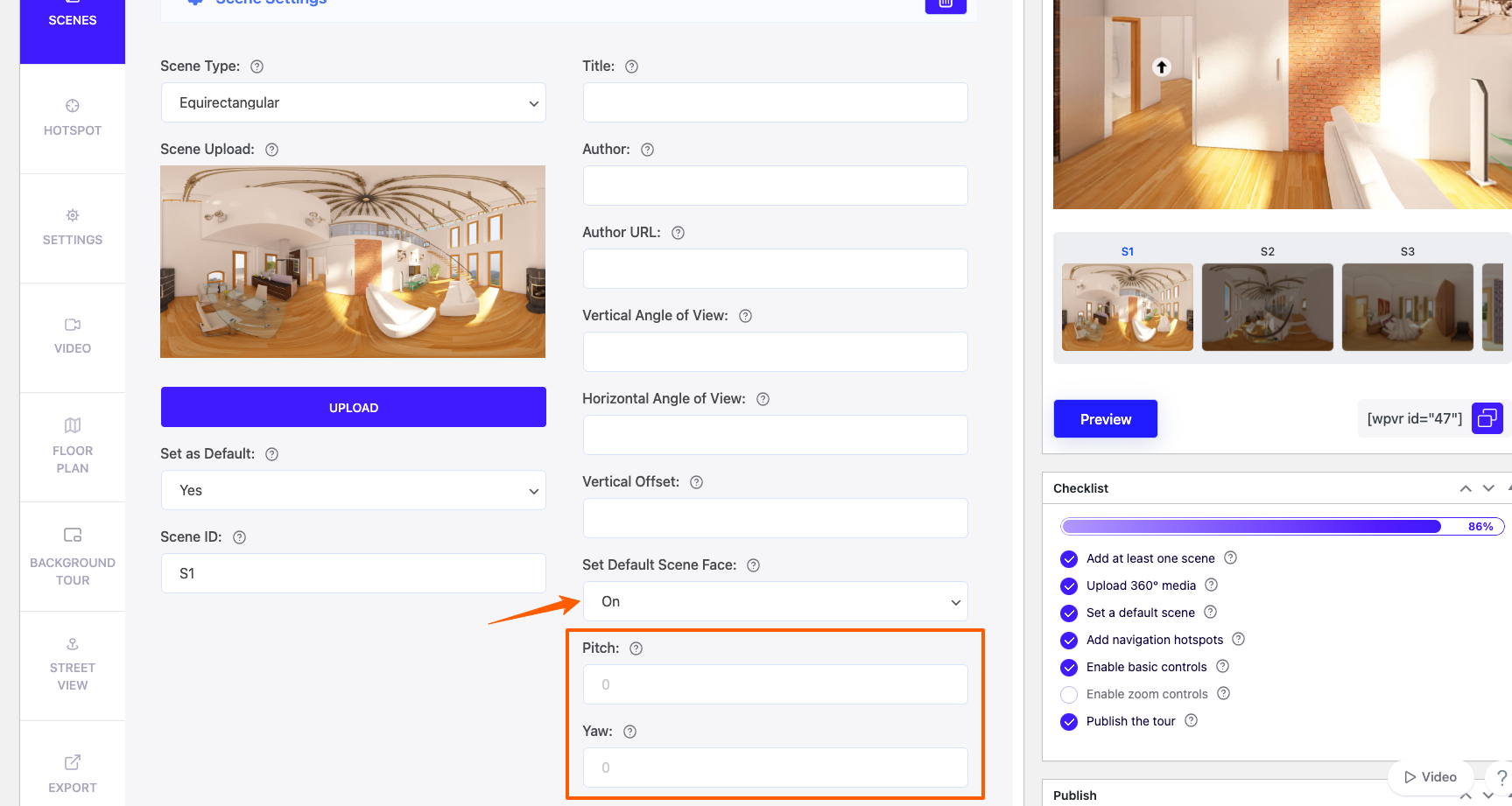
3. Paste your Pitch and Yaw values.
Two input fields — Pitch and Yaw — will appear. Paste the values you copied from Step 1 into the corresponding fields.
4. Update and Preview.
Scroll down and click Update. The scene will now open facing the exact direction you set. ✅
Set the Default Face for a Scene Reached via a Hotspot #
When a visitor jumps to a scene by clicking a hotspot, you can control which direction they face upon arrival. This is configured inside the hotspot — not the scene settings.
1. Set up your scene-linking hotspot (if you haven’t already).
On your first scene, create a hotspot with the type set to Scene. This hotspot will take visitors to the next scene when clicked. See: How To Use Hotspots To Go From One Scene To Another →
2. Find the starting face in the target scene.
Preview your tour and navigate to the scene you want to configure. Rotate the panorama to the exact starting position you want, click the center, and copy the Pitch and Yaw values.
3. Paste the values into the hotspot settings.
Go back to the hotspot editor. In the Select Target Scene dropdown, choose the scene this hotspot links to. Just below that, you’ll find the Target Scene Pitch and Target Scene Yaw fields. Paste your copied values there.

4. Update and Preview.
Scroll down and click Update. Click the hotspot — the target scene will open facing the direction you configured. ✅
📋 Quick Reference — Which Method Should I Use? #
| Scenario | Method to use | Where to set it |
|---|---|---|
| First/initial scene of the tour | Method 1 | Scene Tab → Set Default Scene Face |
| Scene opened directly from the gallery | Method 1 | Scene Tab → Set Default Scene Face |
| Scene reached by clicking a hotspot | Method 2 | Hotspot Settings → Target Scene Pitch / Yaw |
🙋 Still need help? Contact WP VR Support
Author
