
If you’re looking forward to doing something truly unique with your panorama images, how about creating a 360 panorama background or a background virtual tour.
You’re probably wondering what is it? So, let me explain.
You can set it in 2 ways:
360 Panorama Background #
Imagine a 360 degree panorama image as the background of your webpage.
On top of that, you can add a heading and subheading.
The background image is controllable, responds with mobile device movement.
However, the content, such as the Head and Subheadline above the image, remains stationary.
Think how interesting it will look to a visitor.
Set A 360 Panorama Background – For Your Webpages #
In this tutorial, we’ll be making a tour perfect for the background of your webpage and then set it as the background.
Follow these simple steps:
Step 1: Creat e a Basic 360 Virtual Tour #
Create a virtual tour using WPVR, or choose to edit one of your existing tours.
Make sure to upload the 360-degree panorama image.
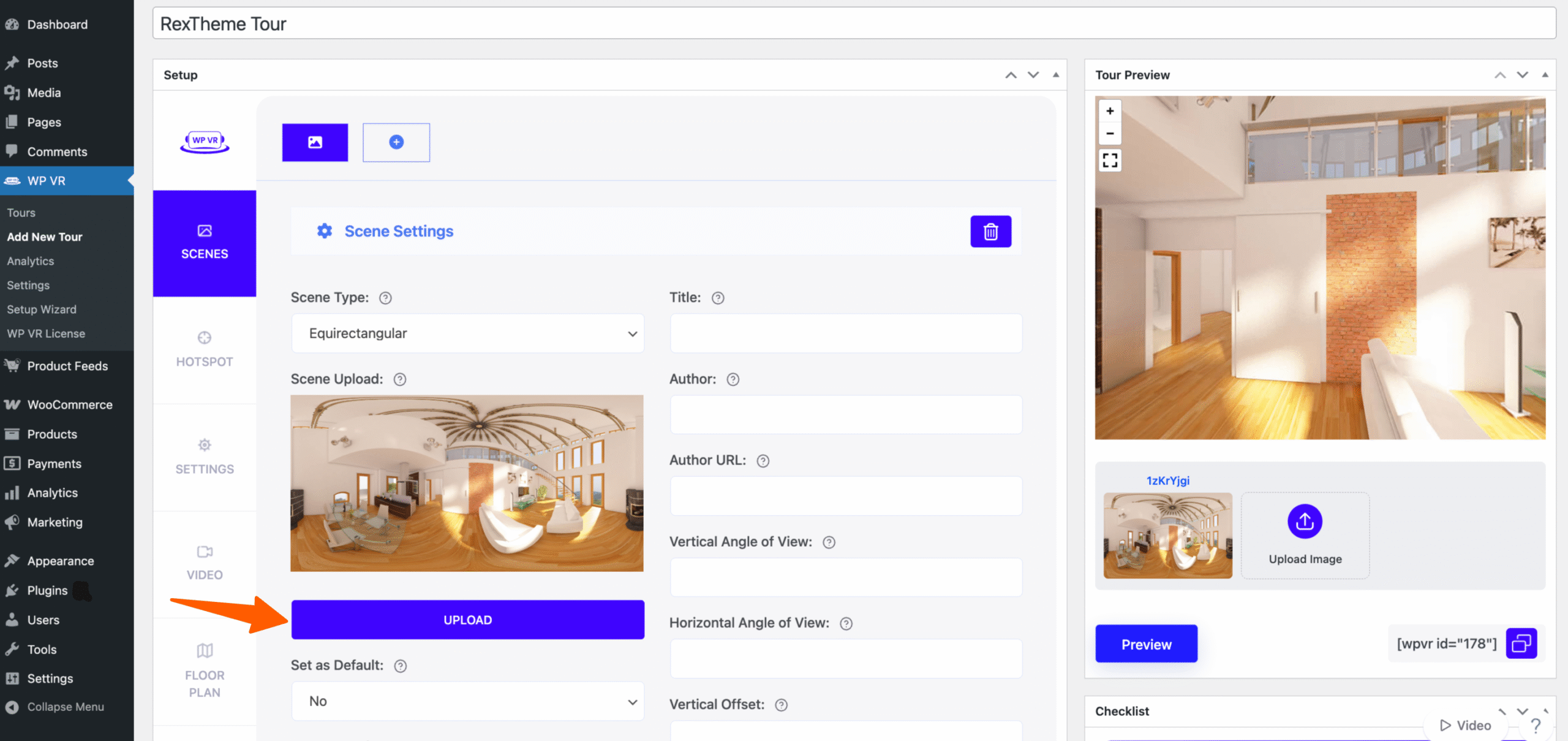
Step 2: Customize Tour Basic Settings for Background Tour #
i. Click on the Settings Tab.
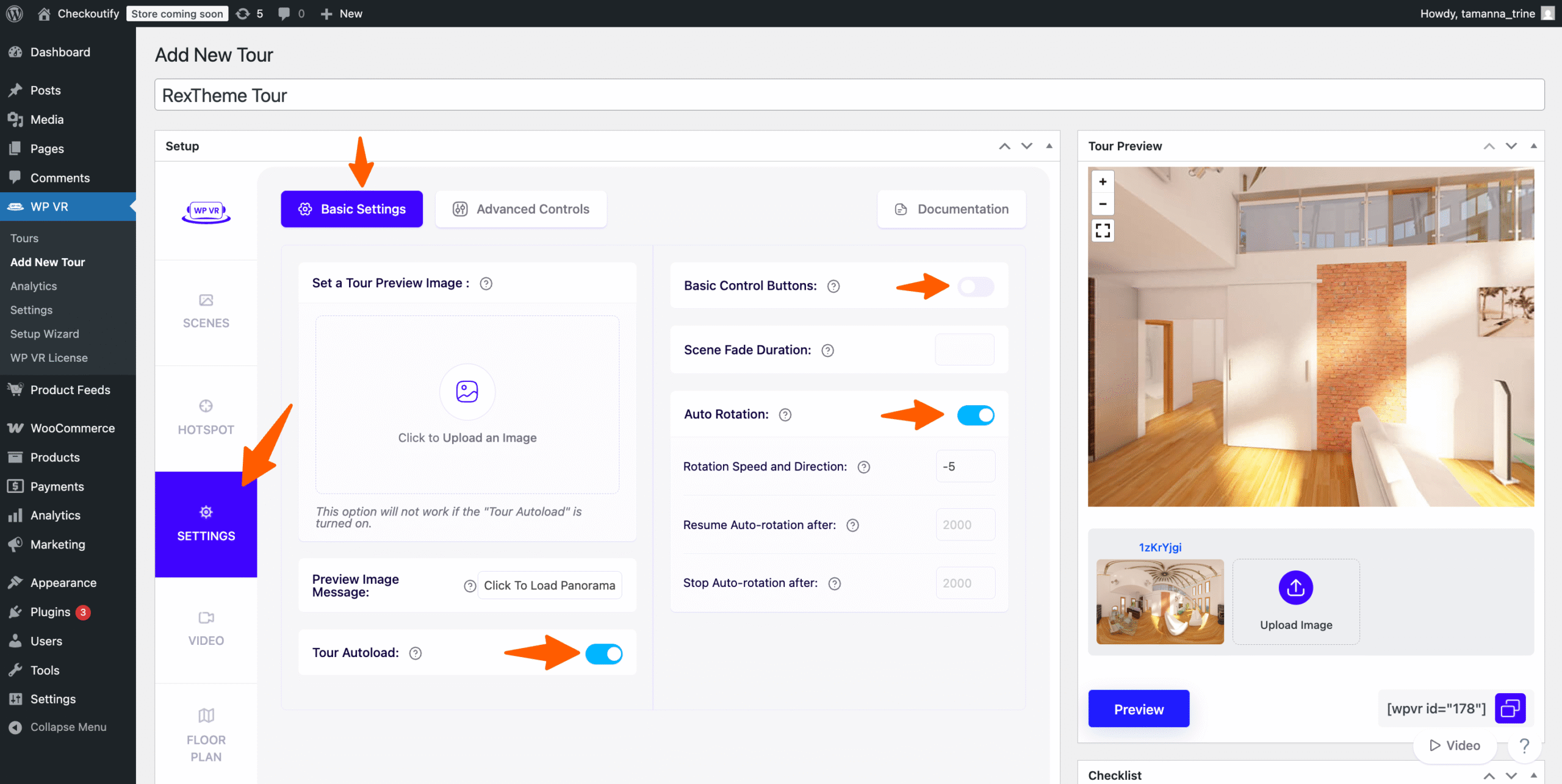
ii. Turn on the Tour Autoload option.
iii. Turn off the Show Controls option.
iv: Turn on the Auto Rotation option.
You can set your preferred Auto Rotation settings here.
It depends on how fast and smoothly you want the rotation of your background 360 degree image.
Step 3: Turn on the Background Tour Option #
i. Click on the Background Tour tab on left.
You’ll be taken to the Background Tour tab.
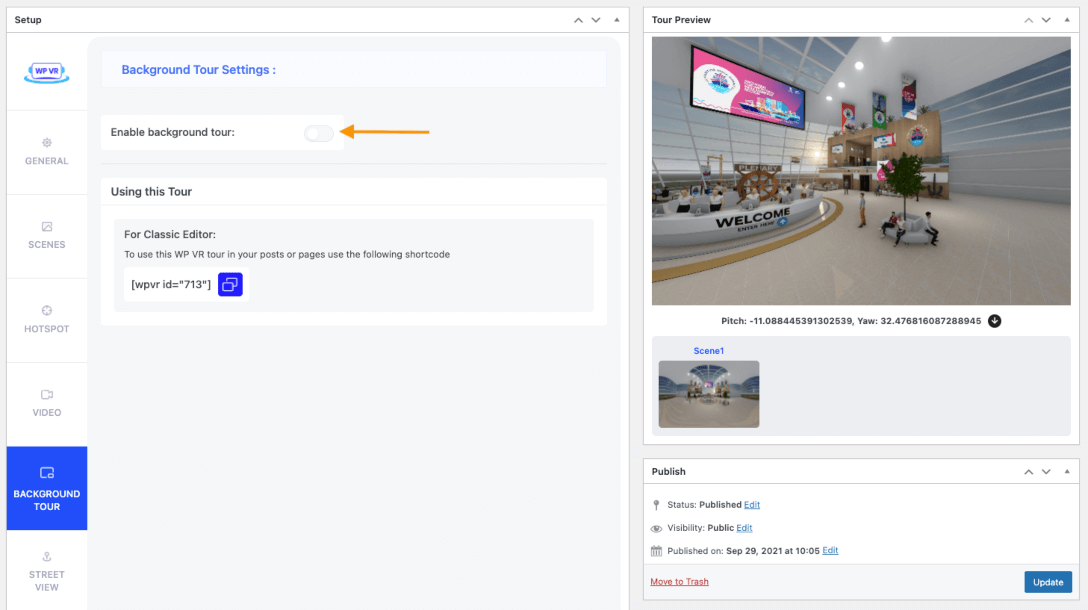
ii. Turn on the Enable Background Tour option.
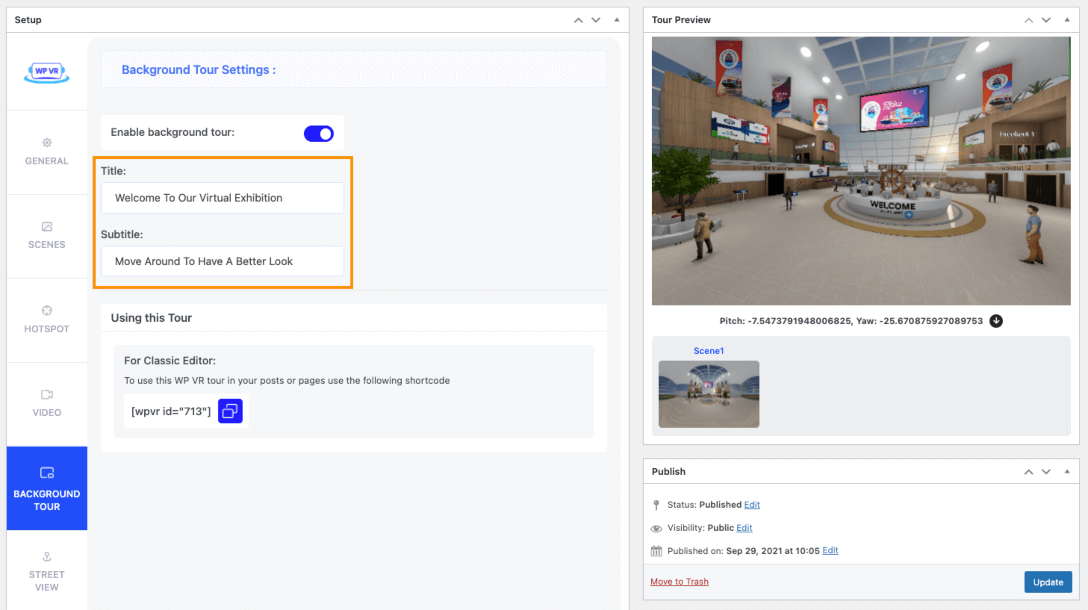
Now, you’ll see 2 new fields:
– Title.
– Subtitle.
iii. Set a Title for the page or section you’ll be using this 360 panorama image.
iv. Set a Subtitle for the page or section you’ll be using this panorama image.
You can also choose to keep one of these fields empty, depending on your preference.
Step 4: Publish the Virtual Tour #
You need to publish this virtual tour using shortcodes.
Choose the shortcode option of your page builder or theme.
Here, we’ll be using Gutenberg.
Now, you can publish this tour in 2 ways:
- Make it a full webpage background tour.
- Make it the background of a section on your page.
i. Full Webpage Background 360 Tour #
In the Shortcode block, paste the shortcode of the virtual tour.
Then add: width=”embed”.
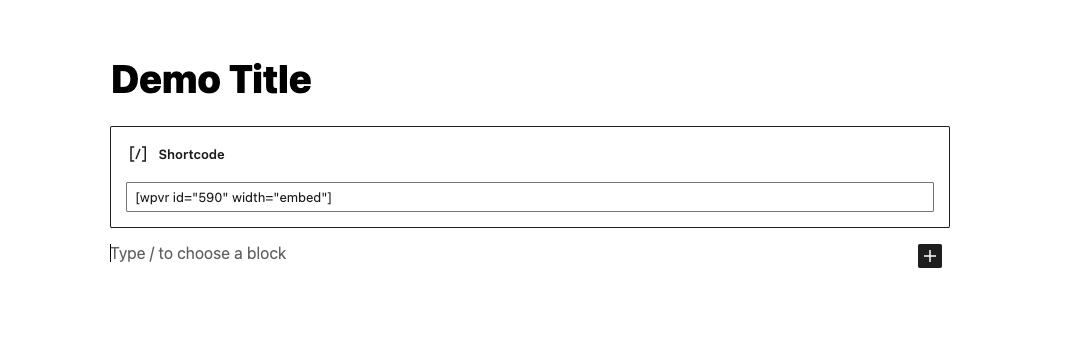
Here is how it should be:
[wpvr id="Your Tour ID" width="embed"]And Here it will look like once you’ve published it on your webpage:

ii. 360 Panorama Background of A section #
In the shortcode block, paste the shortcode of the virtual tour.
Then add: width=”full-width”
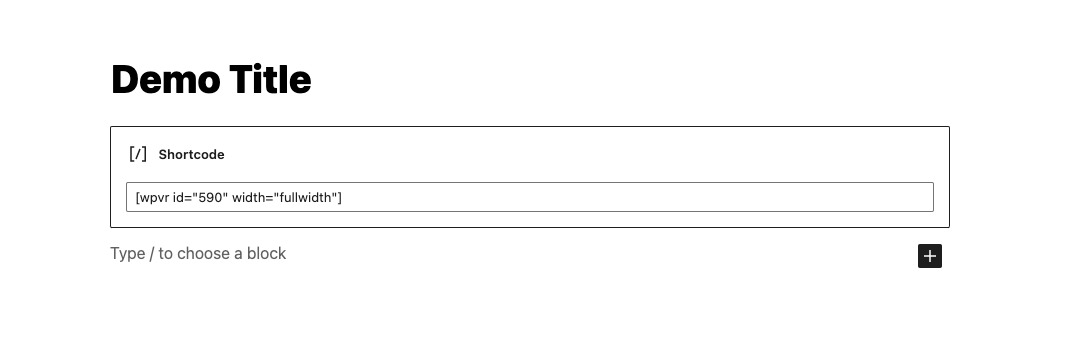
Here is how it should be:
[wpvr id="590" width="fullwidth"]And here’s how it will look like once it’s published on your page:

To have a better look at how it looks like on a webpage, check out this 360 Panorama Background Tour.