
Once you have added scene(s) to your virtual tour, you can then add sticker hotspots to make the tour more engaging.
In this WPVR lesson, you will get a step-by-step guide on how you can add sticker hotspots to a scene.
Add Hotspots To A Scene #
1. Select a scene: Choose the scene where you want to add the hotspot.
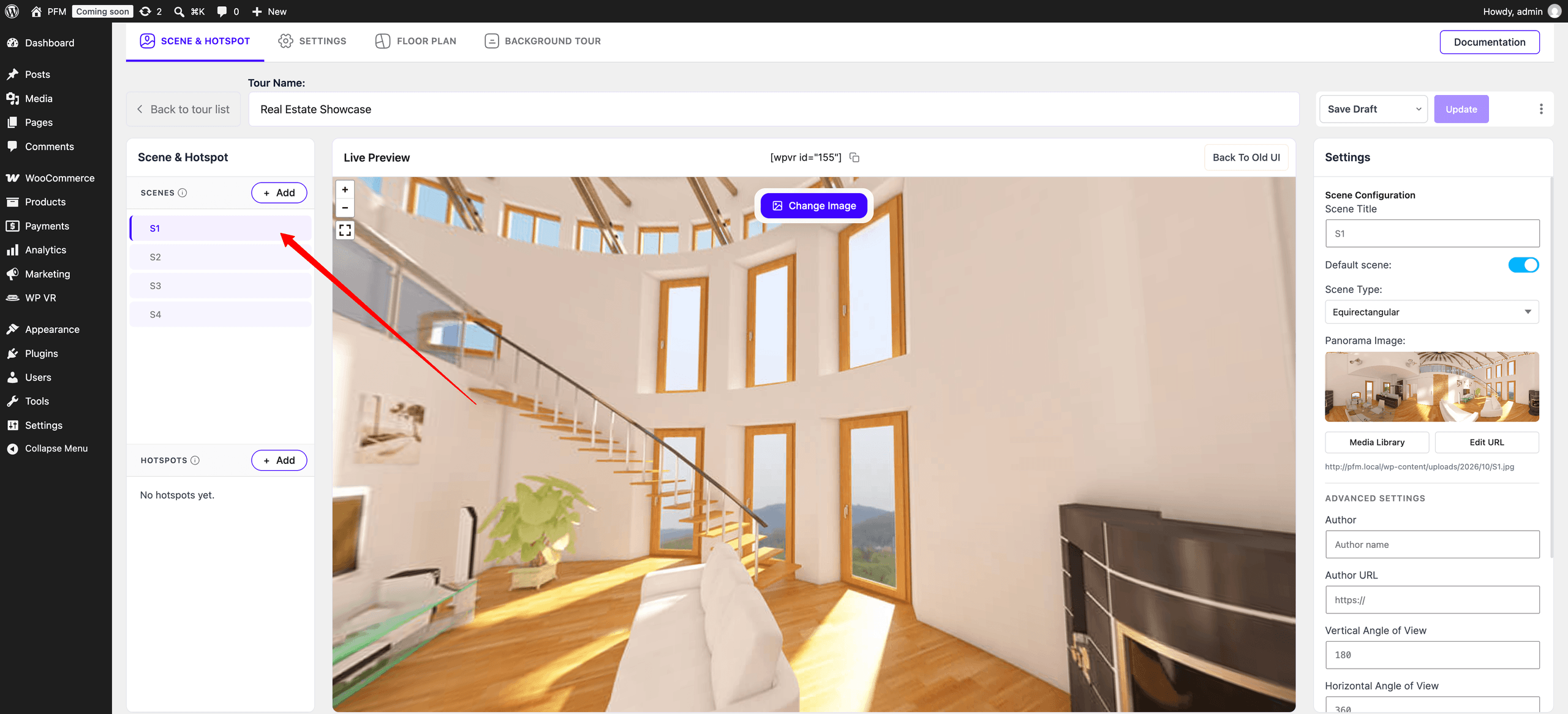
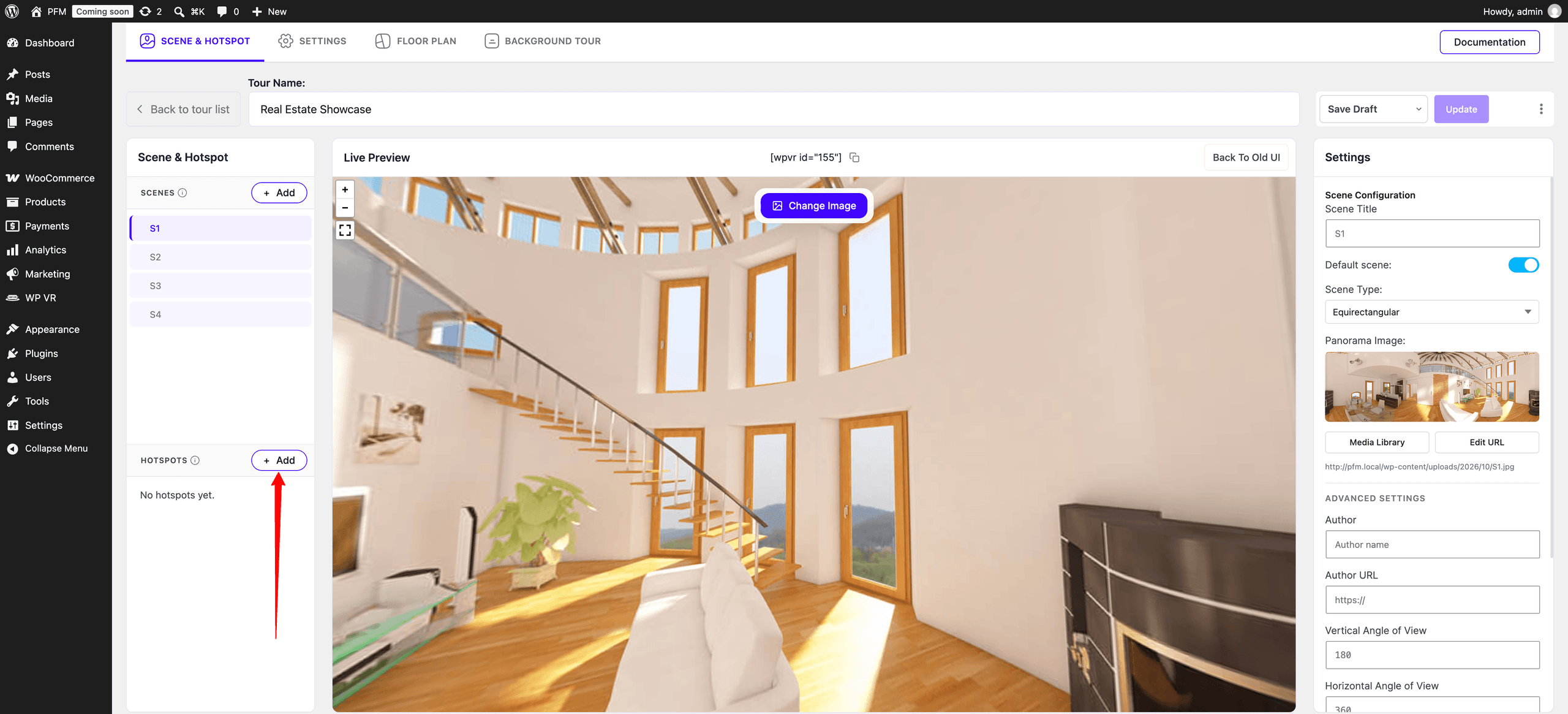
2. Click +Add: In the Hotspot section on the left, click the +Add button.
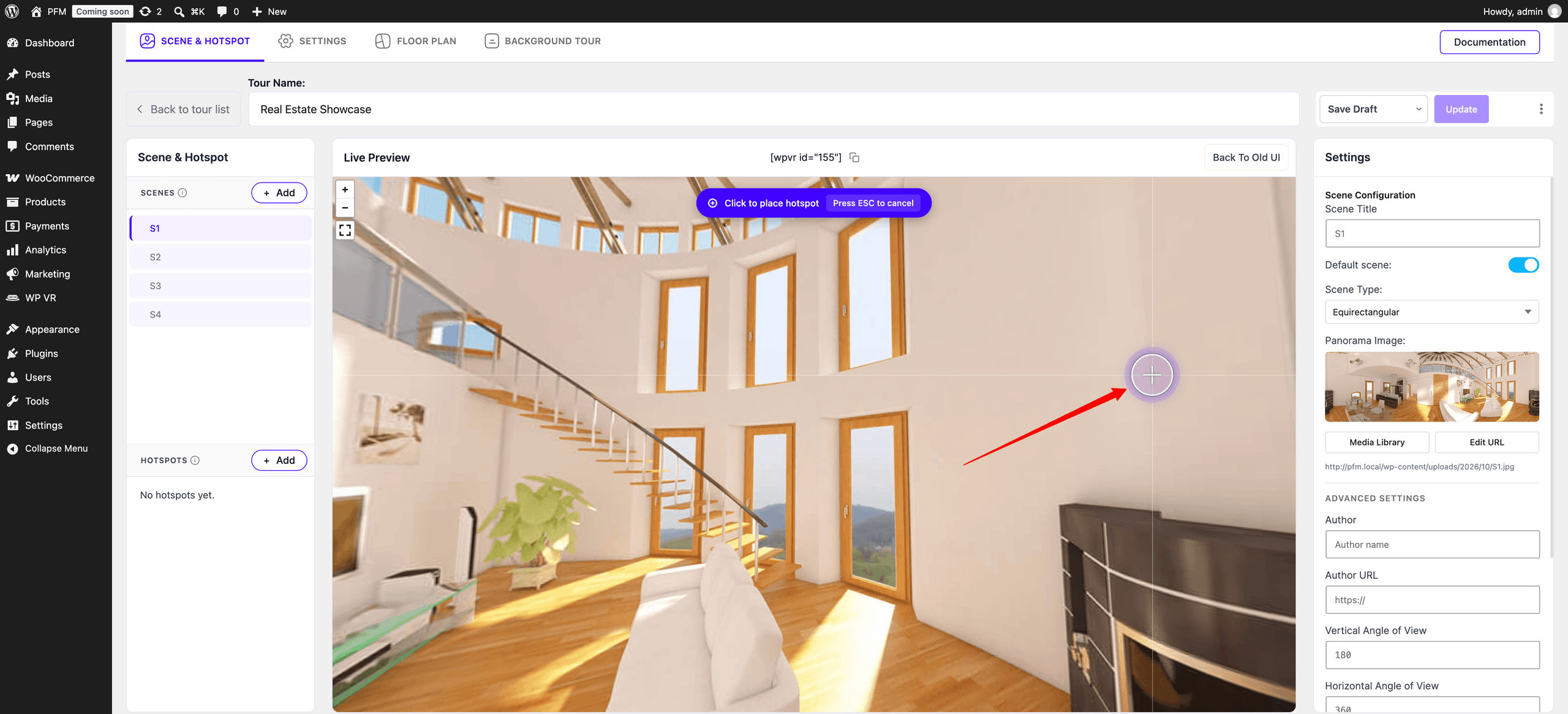
3. Place the hotspot: Move your mouse to the desired location on the screen and click the left mouse button to place the hotspot.
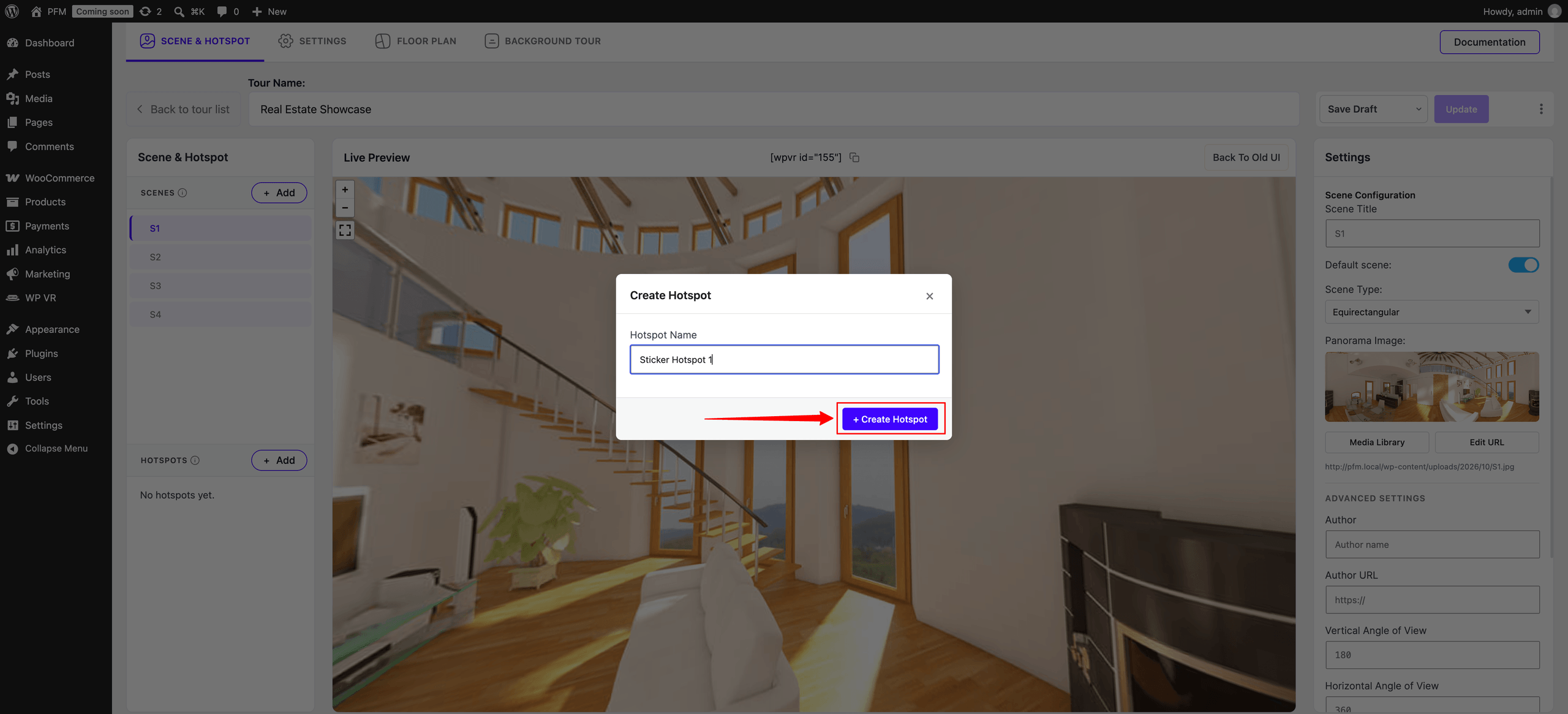
4. Name the hotspot: Enter a name for your hotspot, then click the +Create Hotspot button.
5. Select the Sticker Hotspot type: Once the hotspot is created, open the Hotspot Type dropdown and select Sticker. The hotspot will change to a Sticker Hotspot.
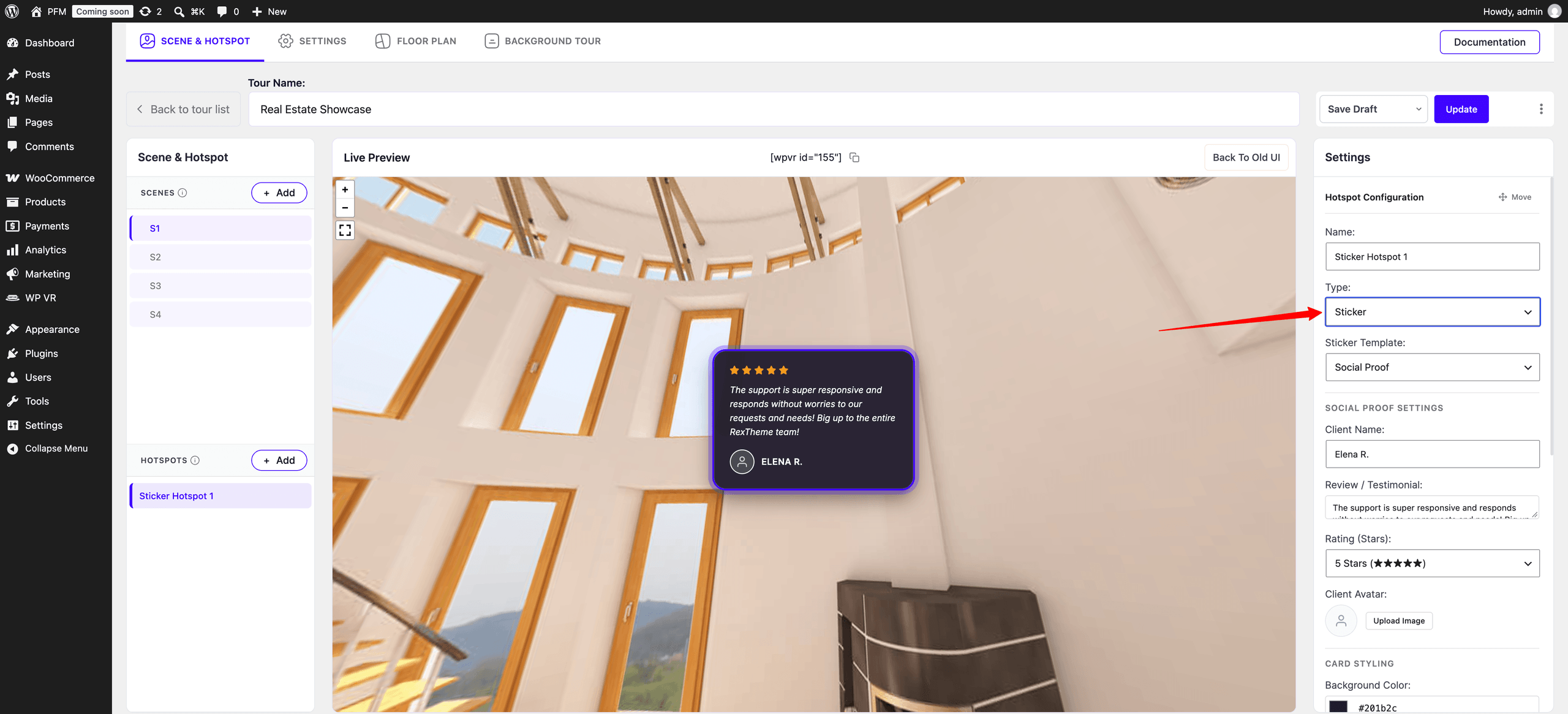
6. Choose a Sticker Hotspot template: Open the Sticker Template dropdown and select your preferred template.
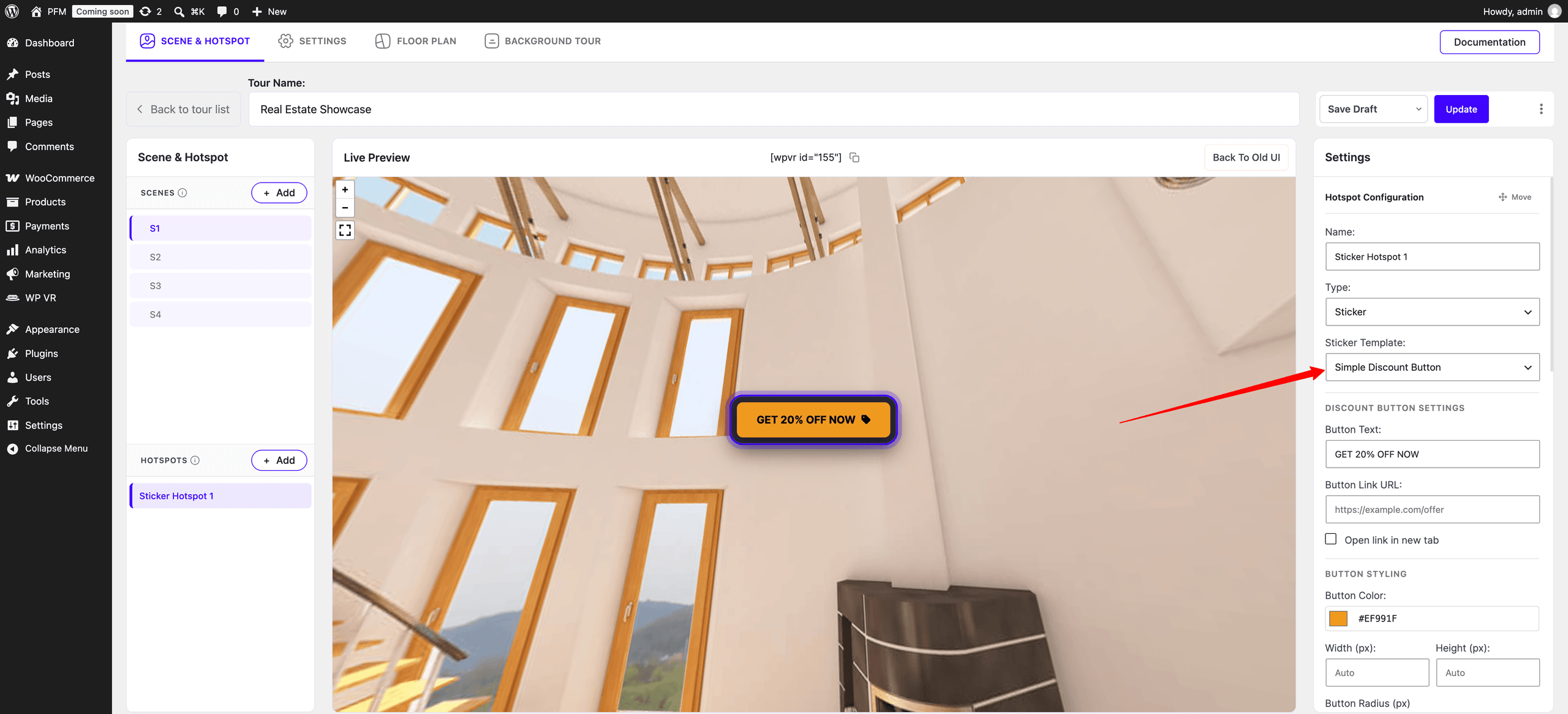
7. Customize the Sticker Hotspot: Depending on the selected sticker template, different settings will be available. Use these settings to customize your Sticker Hotspot as needed. For example, you can set target URL, change color, radius, border, text size, icon color, padding, and many more.
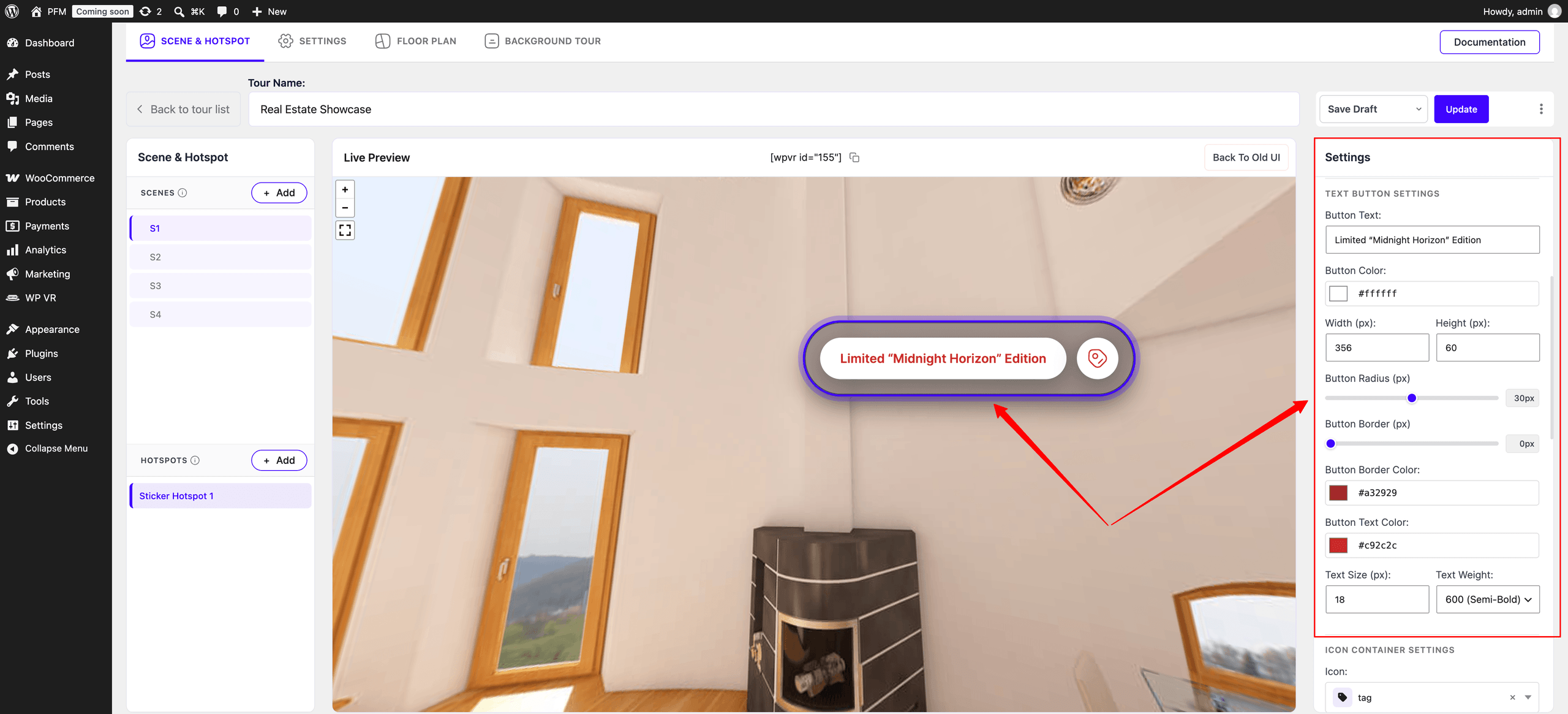
That’s it! You’ve successfully added and customized a Sticker Hotspot to your scene.
Add More Sticker Hotspots #
To add another Sticker Hotspot to the same scene, click the +Add button in the Hotspot section and repeat the steps above.