Cart-based discounts are a powerful way to increase average order value and motivate customers to spend more. Whether you’re offering discounts based on the total cart value or the number of items purchased, these promotions can significantly boost sales.
With Dynamic Discount for WooCommerce, you can easily create and manage these discounts, offering your customers personalized savings and driving more revenue for your store.
In this guide, we’ll walk you through the process of setting up effective cart-based discounts to enhance the shopping experience.
So let’s get started.
Dynamic Discounts Options #
After you have installed and activated the plugin and the License, hover on WooCommerce and click on Dynamic Discounts. Clicking on the + Create New it will take you to the Create Discount section.

Creating Cart-Based Discounts #
1. Give your discount a title. Now from the Discount type dropdown, select Cart Based Discount and 2 new sections will be added below.

2. Now select the Discount Option from the dropdown
– Percentage Discount: (The percentage discount applied on the Total Cart Value)
– Fixed Discount: (The Fixed discount applied on the Total Cart Value)
Now Select a Discount option for applying to products in the store from the dropdown
– All Products: (Discount will be applied to all products)
– Specific Products: (Discount will only be applied to specific products)
– Category: (Discount will only be applied to specific product categories)
– Tag: (Discount will be only be applied to specific products tags)
If you want to exclude any product, you can exclude the product by:
– Product: (Exclude specific products)
– Category: (Exclude specific product categories)
– Tag: (Exclude products with specific tags)
For this guide let’s select the discount option as Percentage, Discount amount 20%, apply to Category. And we have selected Cap and Belt as example and these products will be excluded from this discount.
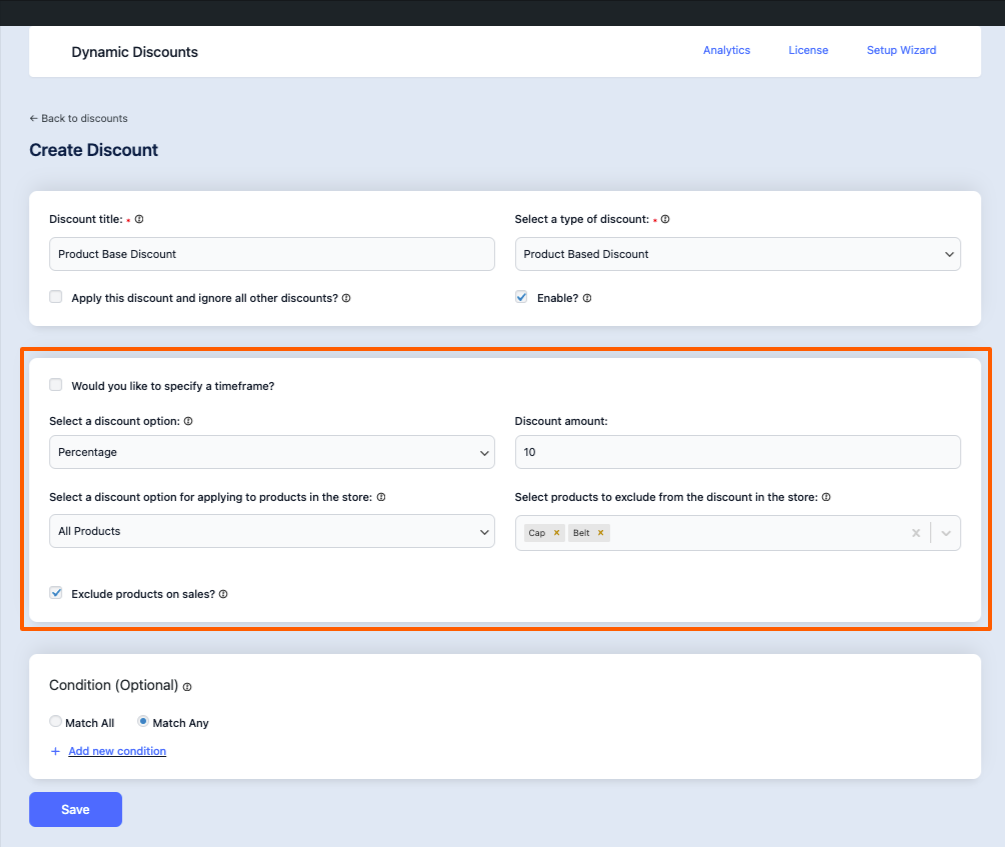
So All products in the Cart will get a 10% discount on the total Cart Value. (Except for Cap and Belt)
3. Now click on the Save button.
That’s it Cart based Discount Rule is created.
Now that you are familiar with how the Dynamic Discounts for WooCommerce plugin works, in the upcoming documentation you’ll learn about the other discount types