You can upload your WooCommerce product feed to the Google Merchant Center in two ways.
- Upload the feed directly to the Google Merchant Center
- Using the Content API Method to send the feed to Google Merchant Center within the plugin
In this doc, I will show you how you can upload your WooCommerce Product Feed directly to the Google Merchant Center.
Simply follow these steps below to learn how you can do that:
1. First, Log in to your Google Merchant Center Account.
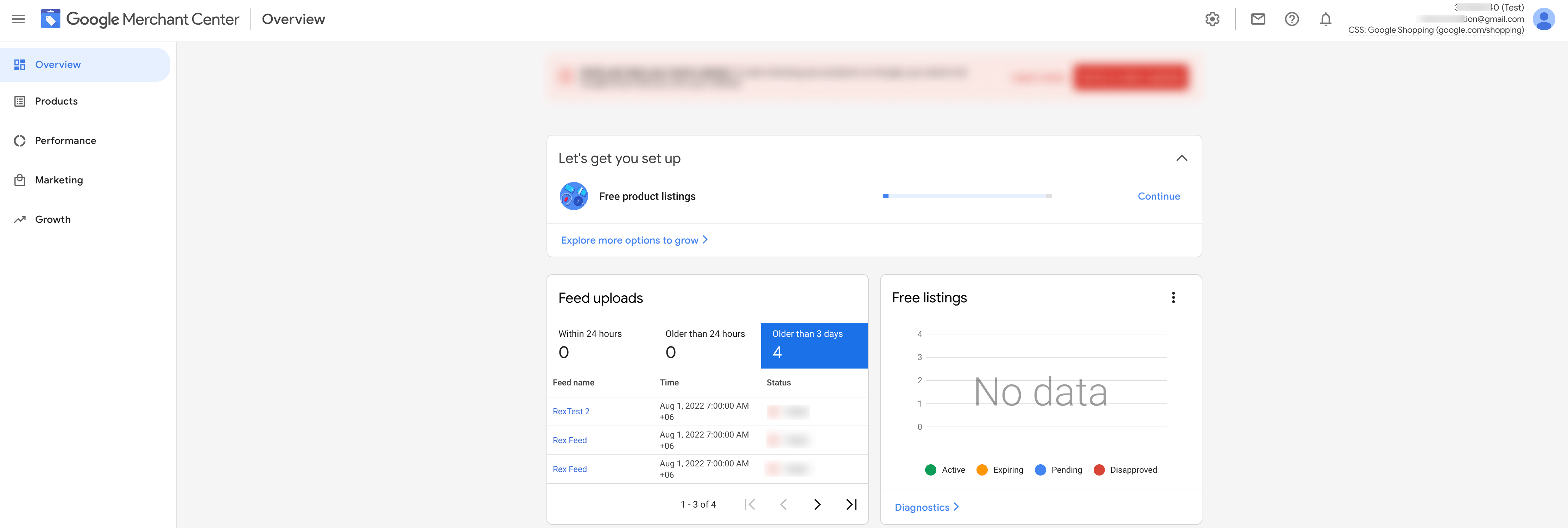
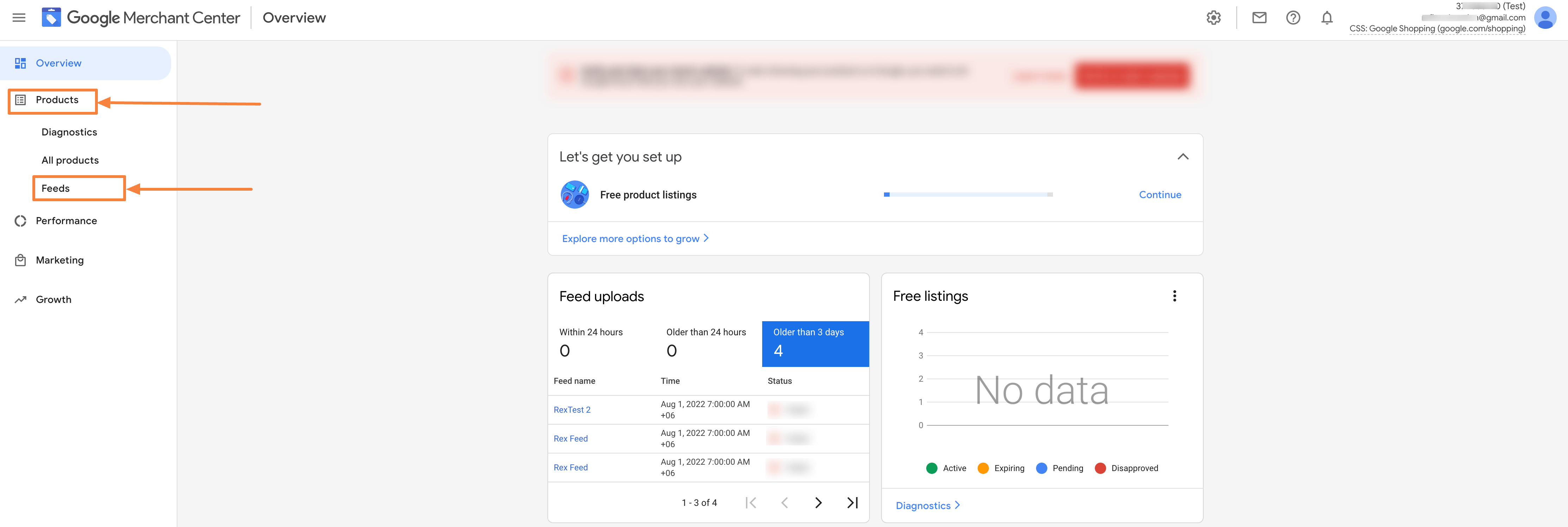
2. On the left side, Click on Products and you will find the Feeds Menu there.
Click on Products >> Feeds
3. Here, Click on the ‘ + ‘ button to add a New Primary Feed.
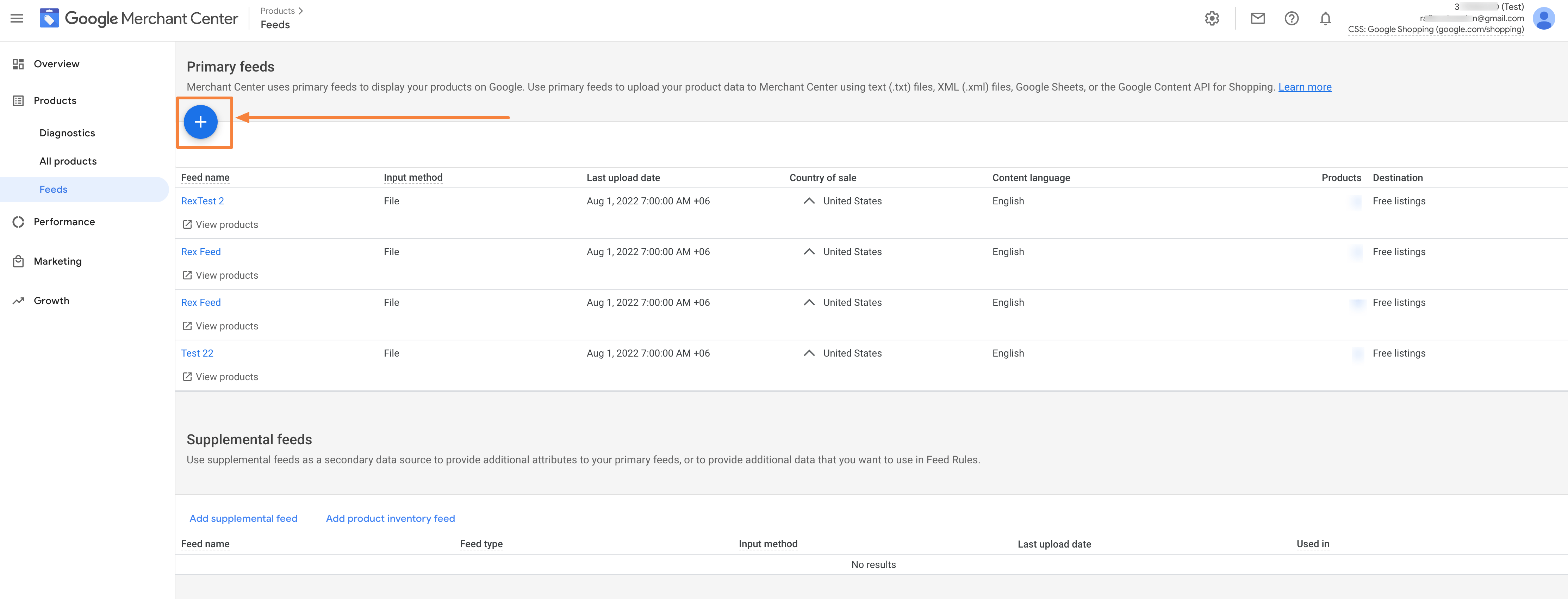
It will take you to the Feed Creation page.
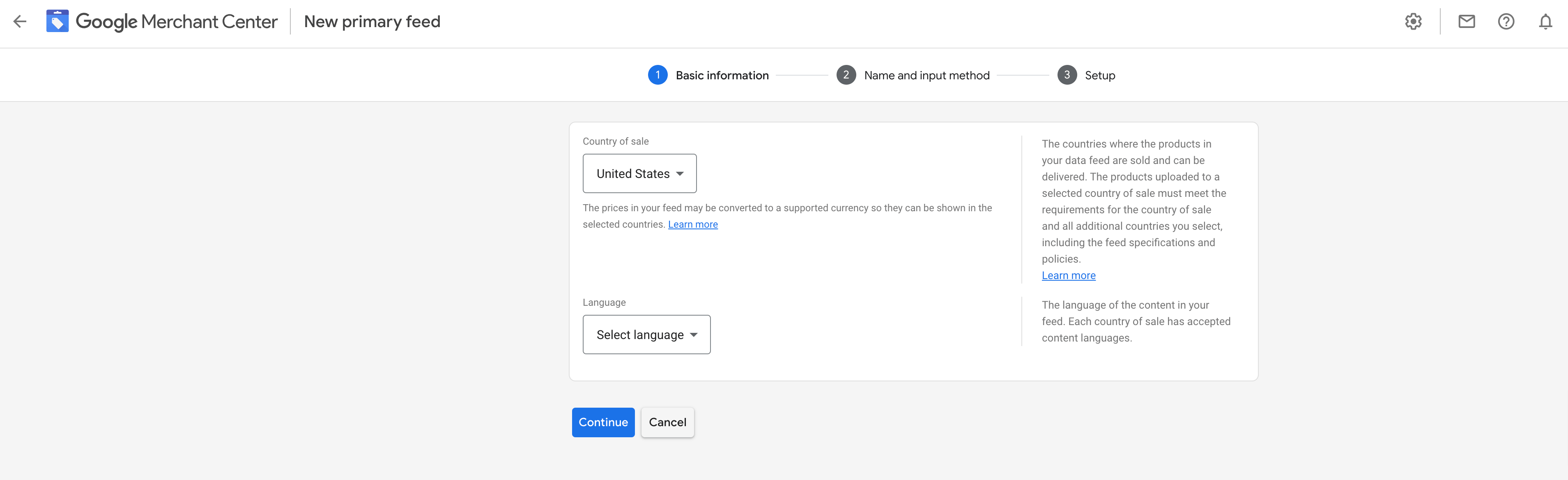
4. Here, choose the Country of Sale, Language, and Destinations available in your country.
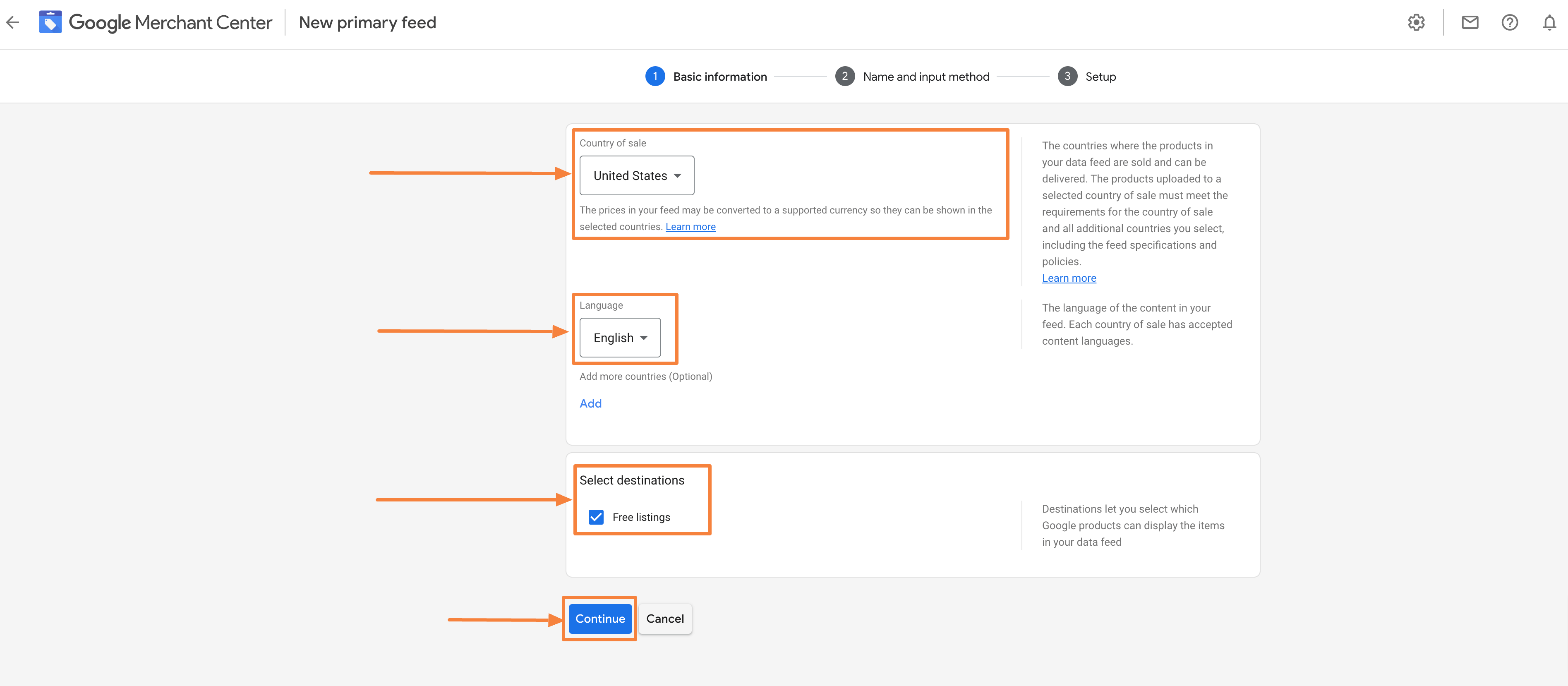
Once done, click on the “Continue” button and it will then take you to the Name and Input method tab
section.
5. In the Name and Input Method tab, first assign a Feed Name and choose the Scheduled fetch option among the options listed.
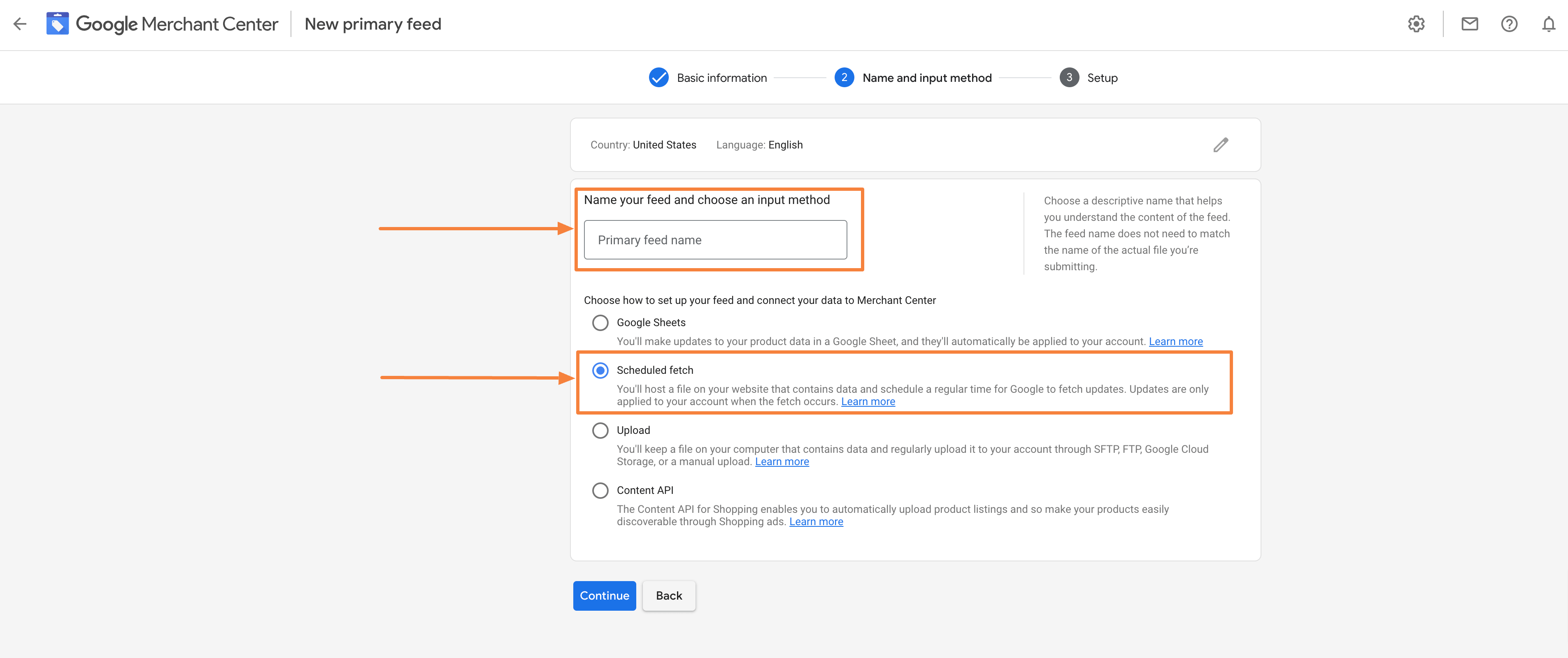
Then click on the Continue button and it will take you to the Setup tab.
6. In the Setup tab:
- First provide the name of the Feed File. (Simply download the feed file from the Product Feed Manager plugin and see the file name).
- Set the Fetch Frequency and Time. This indicates on which day (Daily/ Weekly) and when should Google fetch your feed data.
- Choose your Time Zone.
- Provide the Feed File URL. (You will find the feed URL from PFM when you edit a feed).
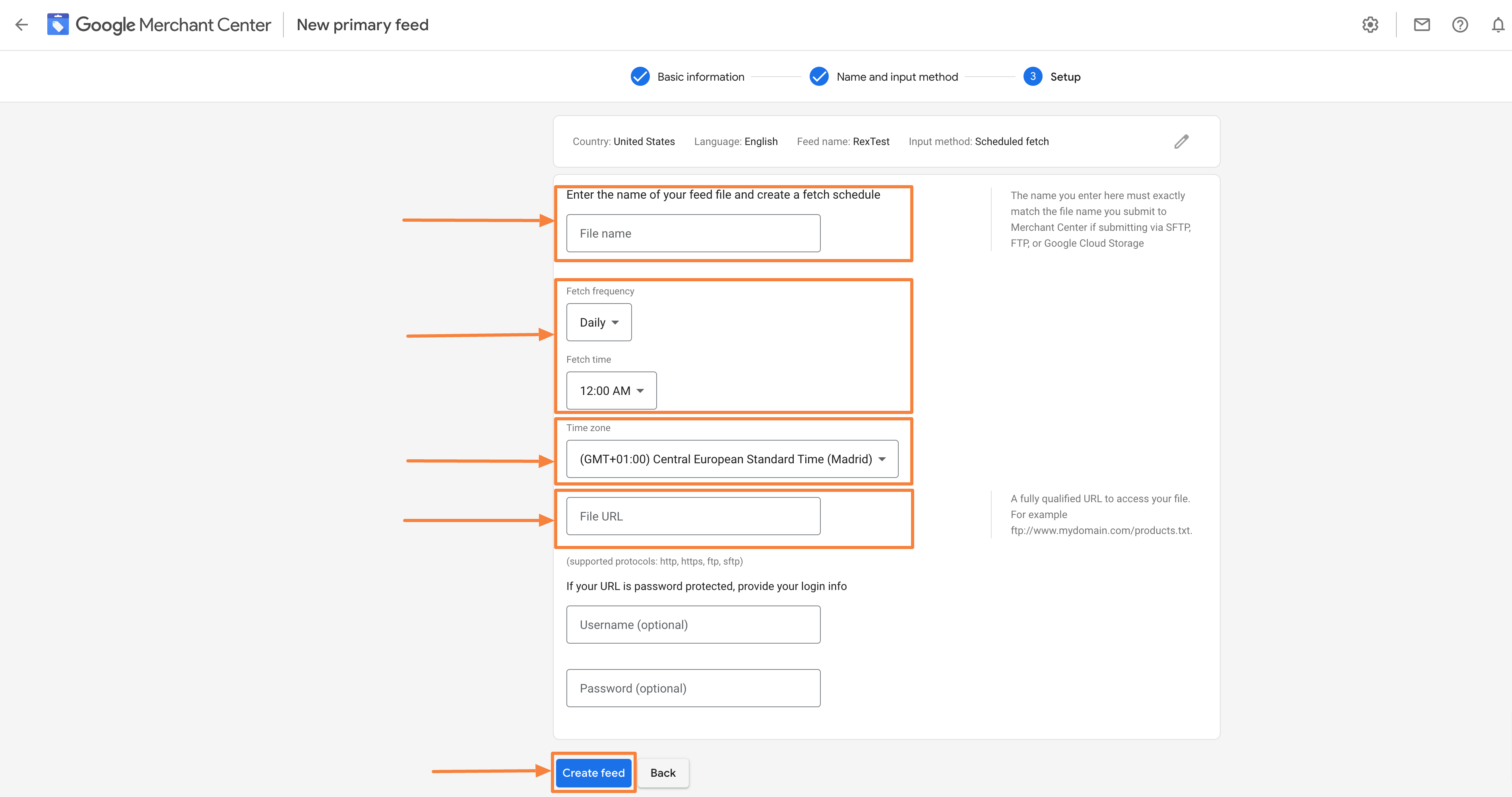
7. Finally, click on the Create Feed button. The page will reload back to the Products > Feed page.

That’s it, this is how you can create a feed and upload your feed file directly to the Google Merchant Center without the Content API method.