
With WPVR virtual tour builder, you can set explainer videos inside your virtual tours.
You can record a video explaining details about the property, store, room, or showrooms, and set it inside the virtual tour.
So, if your viewers want to learn more about the place while experiencing the tour, they can choose to open the video and you’ll be describing them about the space.
Let’s learn how you can set the explainer videos inside your virtual tours.
Set YouTube Explainer Videos Inside Virtual Tours #
We’ll be setting up the video inside an existing virtual tour.
Follow these simple steps:
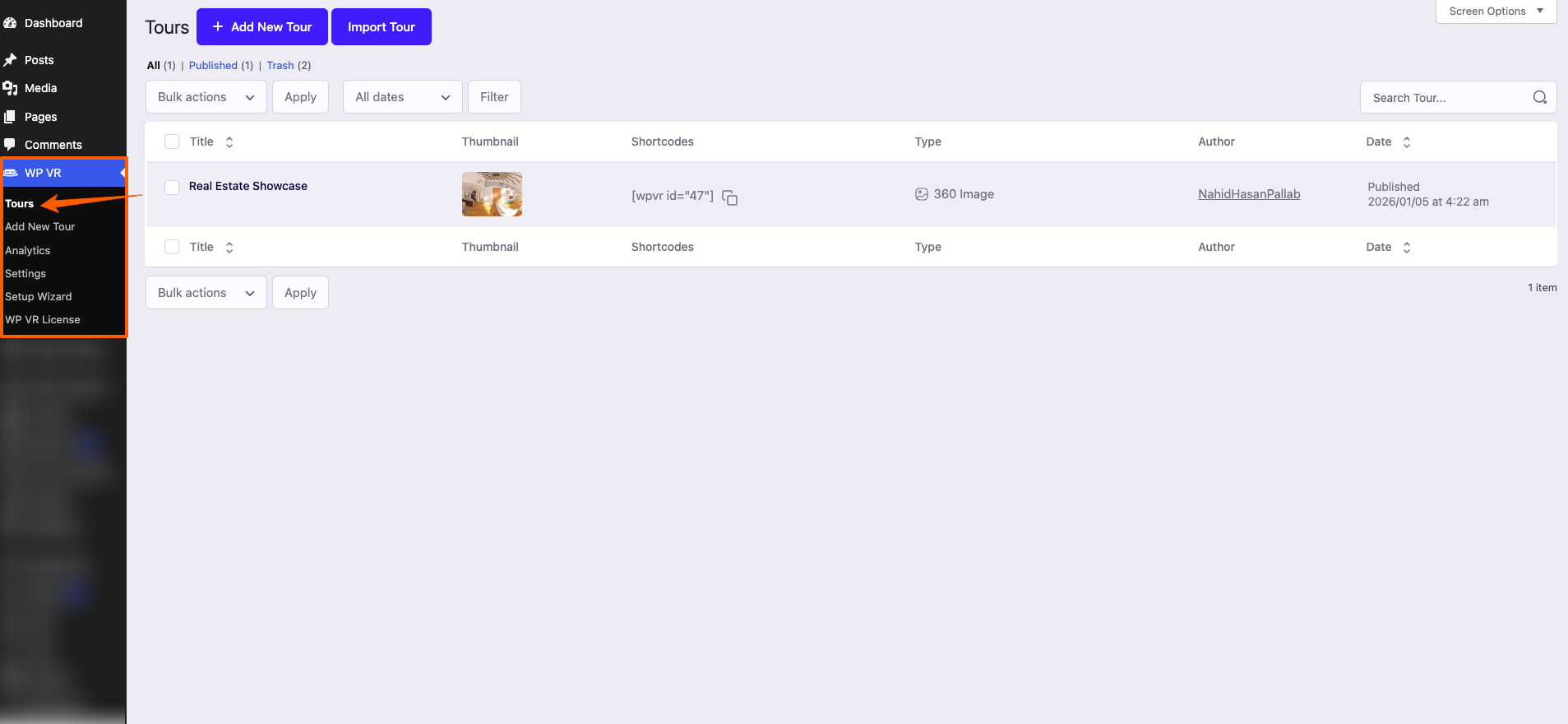
1. Go to WordPress Dashboard > WP VR > Tours. And select your preferred Tour.
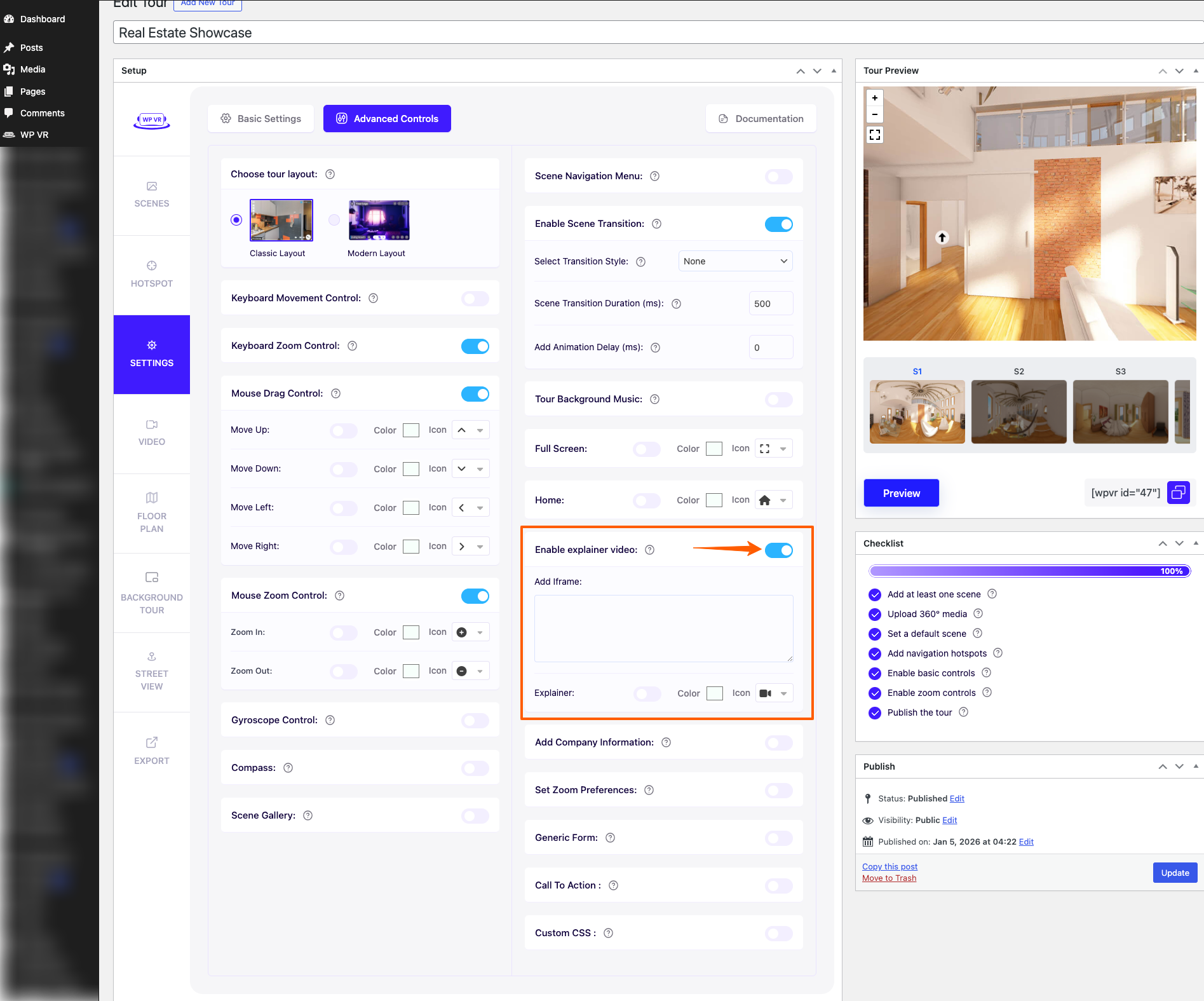
2. On the Settings tab, click on the Advanced Controls settings. Here, you’ll find the option Enable Explainer Video. Enable it.

3. Once you enable it, you’ll find a new field – Add iframe.
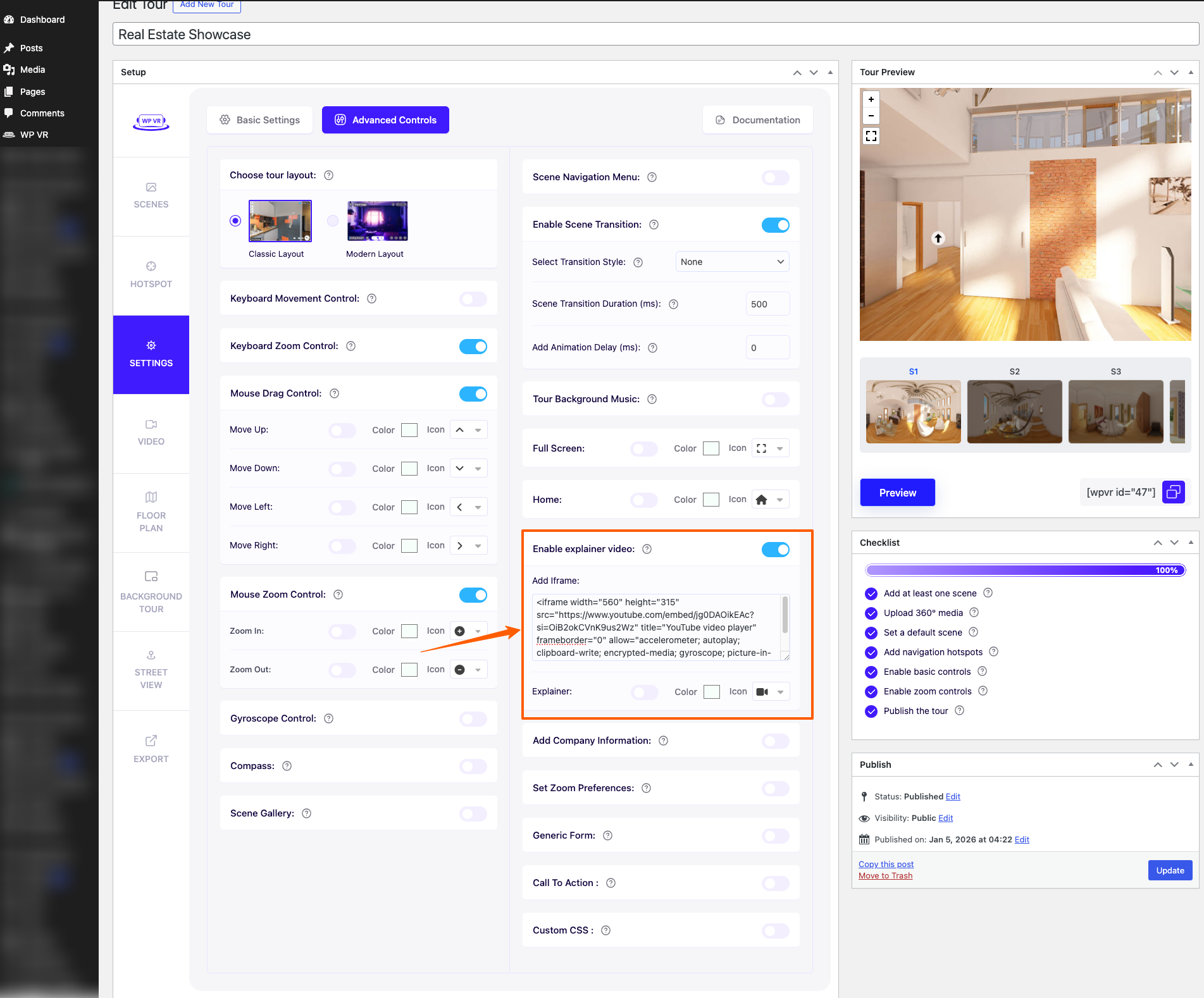
4. Copy the iframe code of your desired YouTube video and paste it into the Add iframe field.
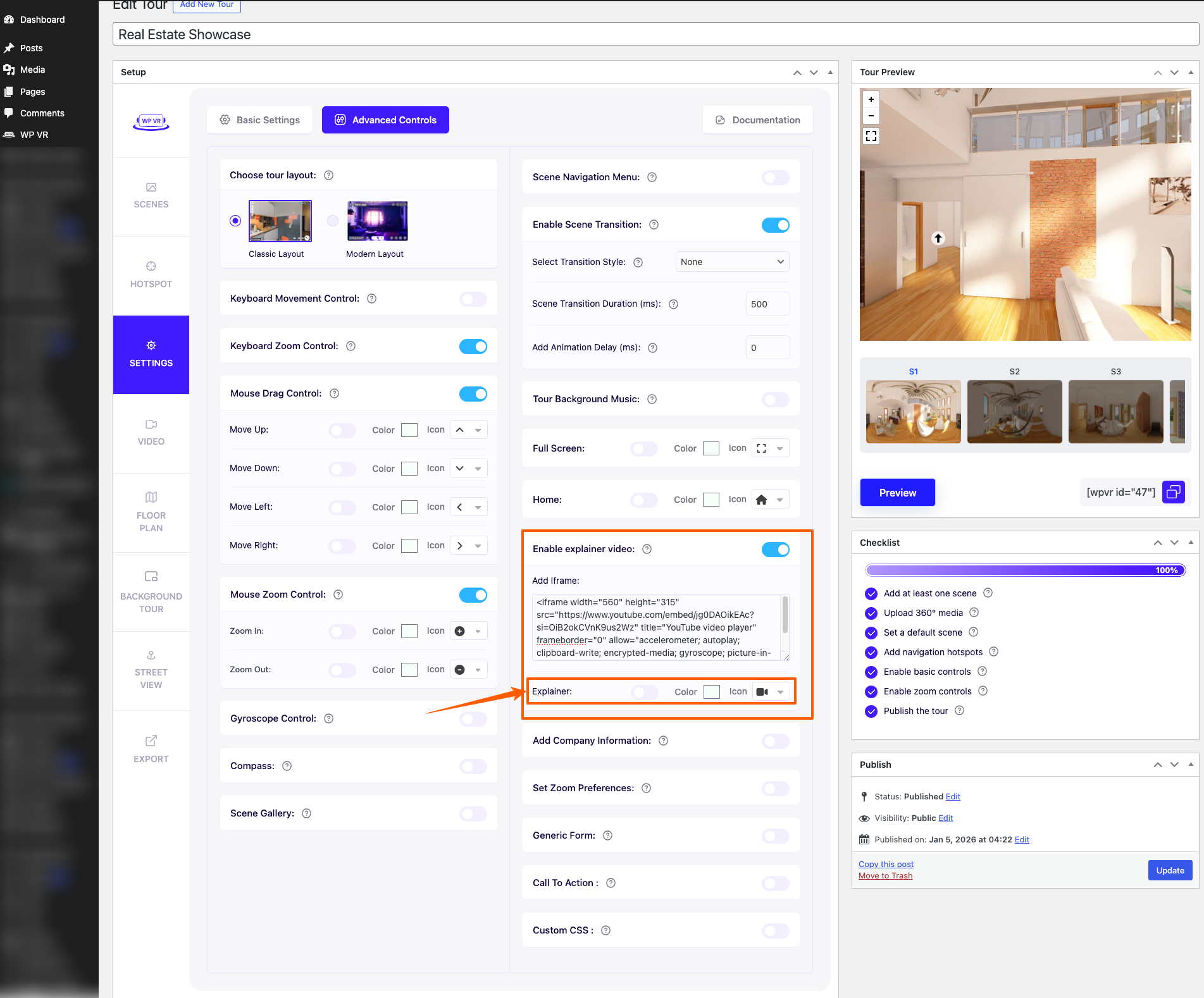
5. Now, below the box for adding iframe code, you will find the option to enable or disable this explainer video.
You will also find the customization options for the Explainer Video feature. You can change the icon and color of the explainer video according to your preference.
To bring more authority, you can set your company logo and description to virtual tours.