
This guide will help you understand Pinterest feed requirements and walk you through the process of creating a Pinterest Product Feed using Product Feed Manager (PFM). You’ll learn how to map your WooCommerce product data to Pinterest’s required attributes, configure the feed correctly, and ensure your products are ready for Pinterest Shopping and Dynamic Product Ads.
Additionally, we’ll briefly introduce the Feed Validator feature in PFM for Pinterest, which allows you to quickly check your Pinterest feed for common issues before submission.
By following this guide, you’ll be able to generate a Pinterest-compatible feed efficiently, saving time and avoiding common pitfalls.
So, let’s get started.
Understanding the Feed Requirements of Pinterest #
Pinterest Product Catalogs allow you to upload structured product data so your products can appear in Pinterest Shopping, Shopping Ads, and Dynamic Product Ads.
Each product submitted to Pinterest must follow strict attribute requirements, formatting rules, and validation checks. If required fields are missing or incorrectly formatted, Pinterest may reject the feed or limit product visibility.
Official Pinterest Reference
Before creating your feed, you can review Pinterest’s official documentation.
This ensures your catalog setup, business account, and domain are ready before feed submission.
Supported Feed Formats
Pinterest supports the following feed formats, all of which are supported by Product Feed Manager (PFM): CSV, TSV, and XML
Tip: CSV is recommended for easier validation and debugging.
Required Pinterest Product Attributes
Please go through Pinterest’s official documentation, and you’ll find the attributes that are mandatory for Pinterest catalog approval, and the good news is that PFM already adds them in the Pinterest template by default.
Helpful Attribute Formatting Rules (Key Points)
- Price format:
number + space + currency
Example:49.99 USD - Availability values:
in stock,out of stock,preorder - Condition values:
new,used,refurbished - Image URLs: Must be HTTPS and publicly accessible
- Descriptions: No promotional phrases, emojis, or excessive capitalization
Note: If your WooCommerce products already have these values entered correctly, PFM will automatically pull the data and populate the feed accurately.
How to Create a Pinterest Product Feed Using Product Feed Manager #
Follow these steps to generate a Pinterest-compatible product feed using PFM.
Step 1: Select Pinterest as the Merchant #
- Go to Product Feeds → Add New Product Feed
- Select Pinterest from the Feed Merchant dropdown
- Choose the feed format from the Feed Type
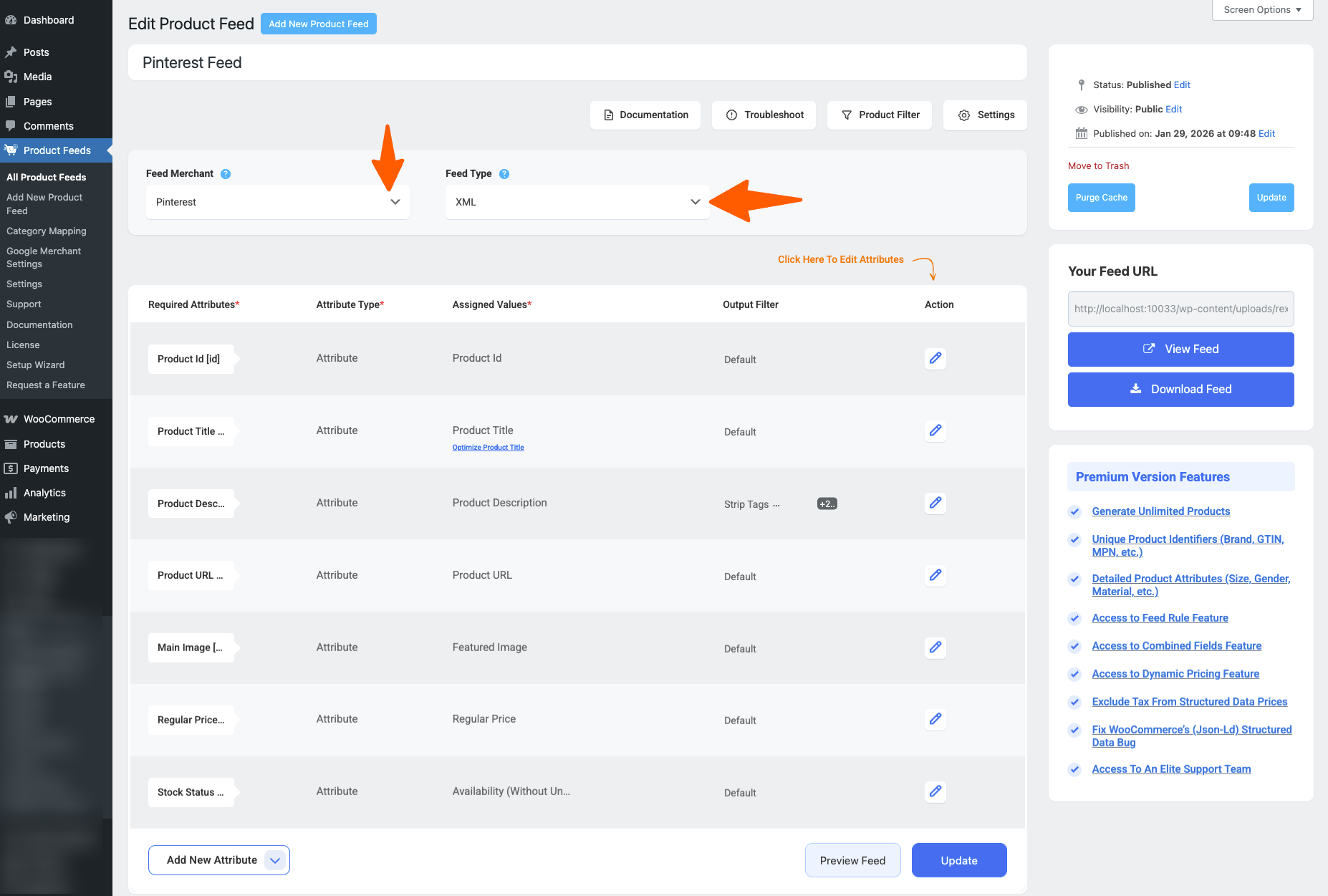
Step 2: Configure Product Attributes #
- Set a feed name. On top, you will get the option to add a title to the feed
- PFM automatically maps common WooCommerce fields, but it’s important to review and adjust mappings.
- If you wish to add any additional attributes, you can add them by clicking the button Add New Attribute
Step 3: Feed Configuration #
1. On the top and here, you will see that there are four options: Documentation, Troubleshoot, Products Filter, and Settings
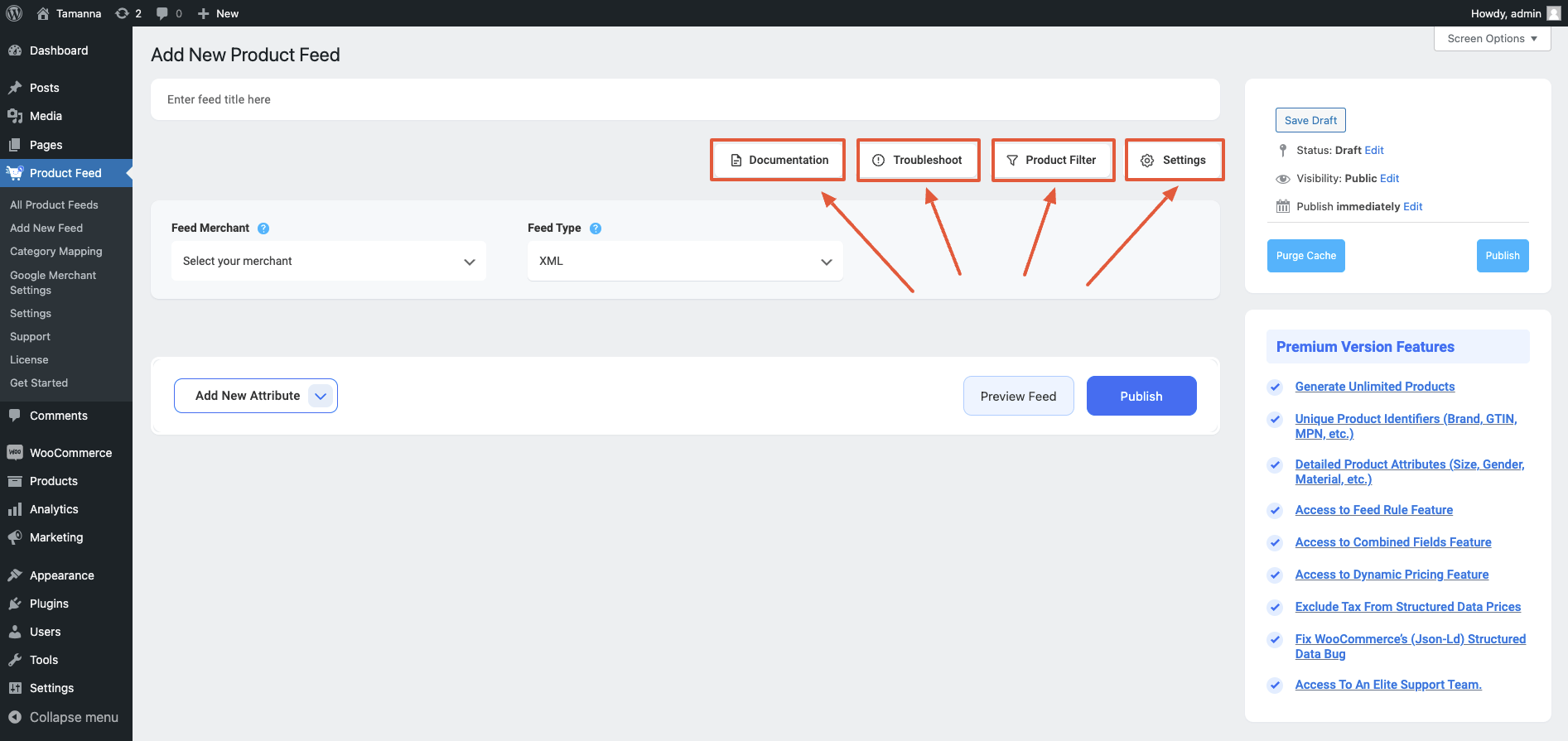
2. First, let us configure the features in the Feed Settings. Click on the Settings button, and a drawer will open from the right side of the screen. For more in depth knowledge about the setting refer to this doc: Understanding The Basics Of Feed Settings
3. Now, close the drawer and click on the Product Filter option. A new drawer will open from the right. There, you will get features for Product Filters and Feed Rules.
- For more in-depth knowledge about Product Filter, refer to this doc: How To Use Feed Filter Options When Generating Feed
- For more in-depth knowledge about Feed Rules, refer to this doc: How to use the Feed Rule feature to manipulate attribute values
Validation & Common Errors #
Starting from Product Feed Manager version 7.4.64, we’ve introduced a Pinterest Feed Validator.
This feature helps you identify common Pinterest feed issues before uploading the feed to Pinterest, reducing trial and error.
What the Feed Validator Does #
- Checks for missing required attributes
- Flags formatting and data issues
- Highlights fields that need attention
- Helps improve feed quality and approval chances
How to Use the Feed Validator #
- Generate the feed, and scroll down and you’ll find the Feed Validation section
- View the full validation report directly in the feed configuration screen
You’ll see a clear overview of:
- Errors that must be fixed
- Warnings that should be reviewed
- Suggestions for improving feed quality
FAQs #
Does Product Feed Manager auto-sync with Pinterest?
– PFM generates the feed. Uploading, scheduling, and syncing are managed within Pinterest.
Can I include variable products?
– Yes. Each variation is exported as a separate item and grouped using item_group_id.
What happens when a product goes out of stock?
– PFM marks it as “out of stock“. Pinterest may pause ads for that product.
Can I exclude products from the feed?
– Yes. You can apply product filters during feed creation. Here is a helpful guide on this: How To Use Feed Filter Options When Generating Feed.