
Do you want to export a virtual tour from one WordPress site and import it to another seamlessly? With WP VR Pro – the premium version of the popular 360° panorama and virtual tour plugin for WordPress – you can easily transfer complete virtual tours across different websites. This powerful feature saves time when migrating immersive 360-degree experiences, such as real estate tours, hotel walkthroughs, or product showcases.
WP VR Pro’s export and import functionality allows you to download a tour as a ZIP file from one site and upload it to another, preserving all scenes, hotspots, custom icons, controls, and settings. Perfect for agencies, developers, or anyone managing multiple WordPress sites!
Note: This feature is exclusive to WP VR Pro. The free version does not support tour export/import.
You can now Export a virtual tour from one website and Import it on another site that has WPVR Pro installed and activated.
Let’s say you have a good virtual tour on one WordPress site, and you want to feature that on another WordPress site of yours. So you can simply export it from the first website, and import it on the second easily.
Follow the steps below to export and import a virtual tour.
How To Export A virtual tour #
1. Once you published tour, a new Export tab will appear on left side.
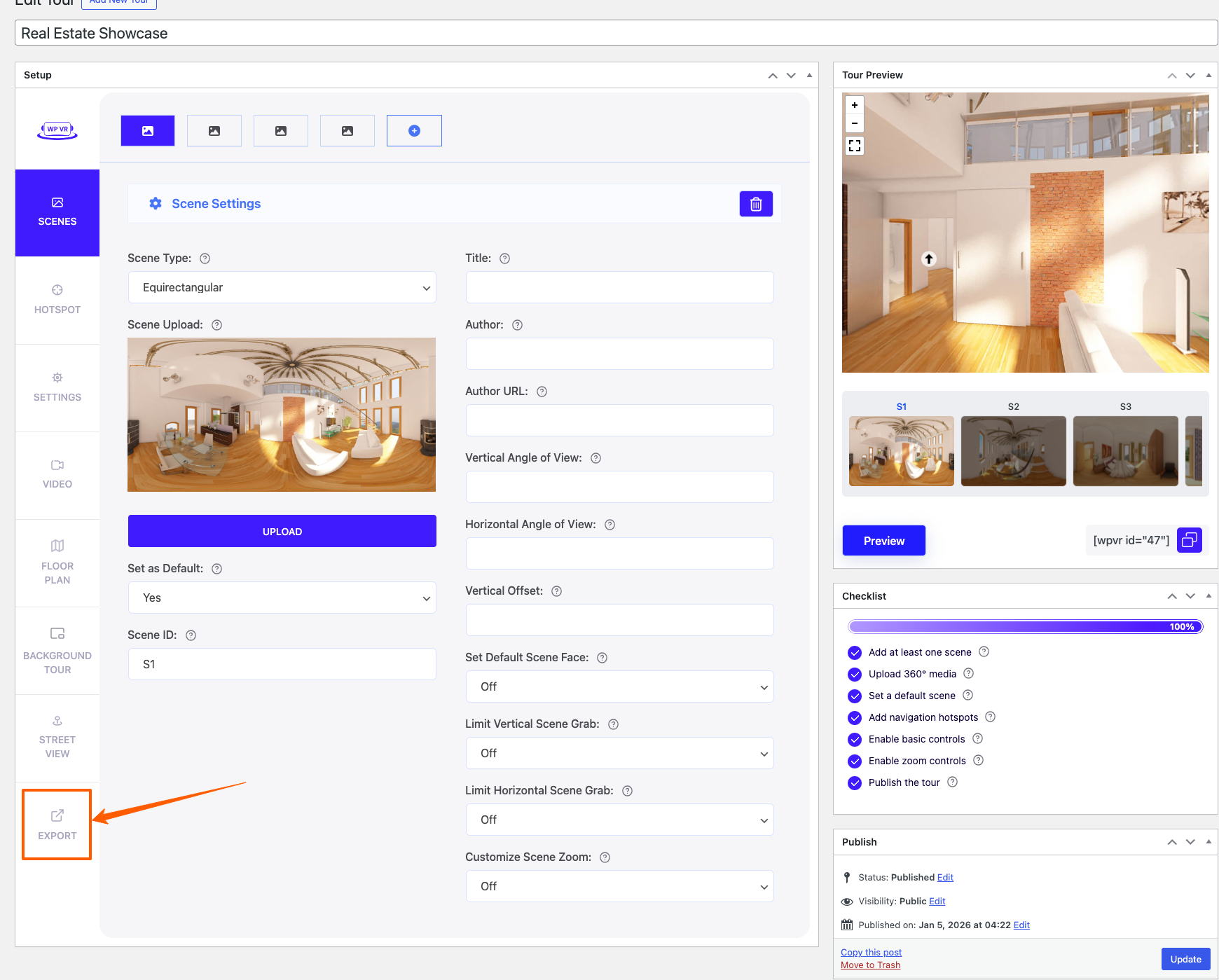
2. Click on the Export tab and you will find the option to download the tour.
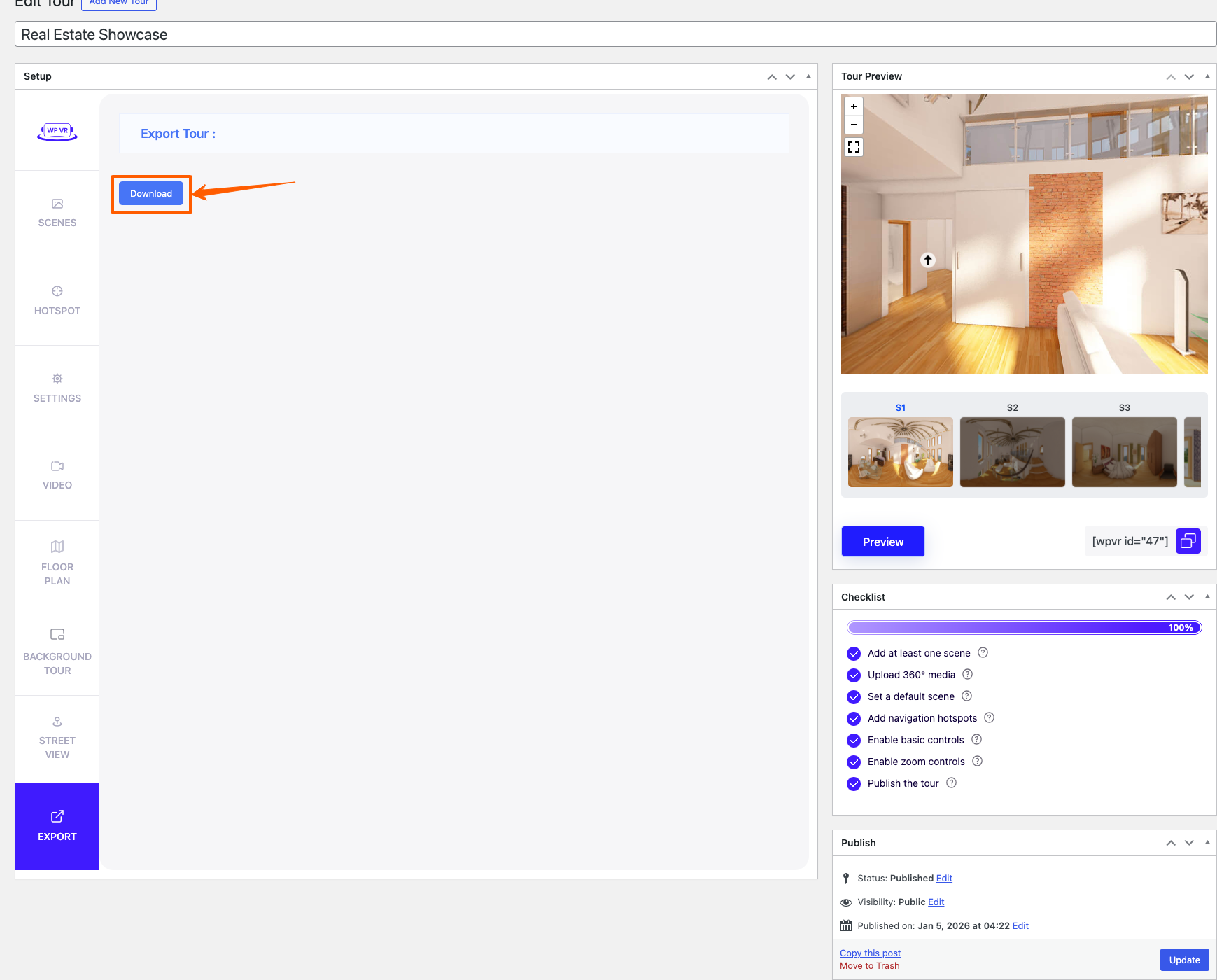
3. Click on Download, and a copy of your tour will be downloaded in zip format.
Thus you have successfully exported a virtual tour.
How To Import A Virtual tour? #
If you have a downloaded copy of a WPVR virtual tour, then you can import it on any site that also has WP VR Pro.
1. Go to Dashboard > WP VR
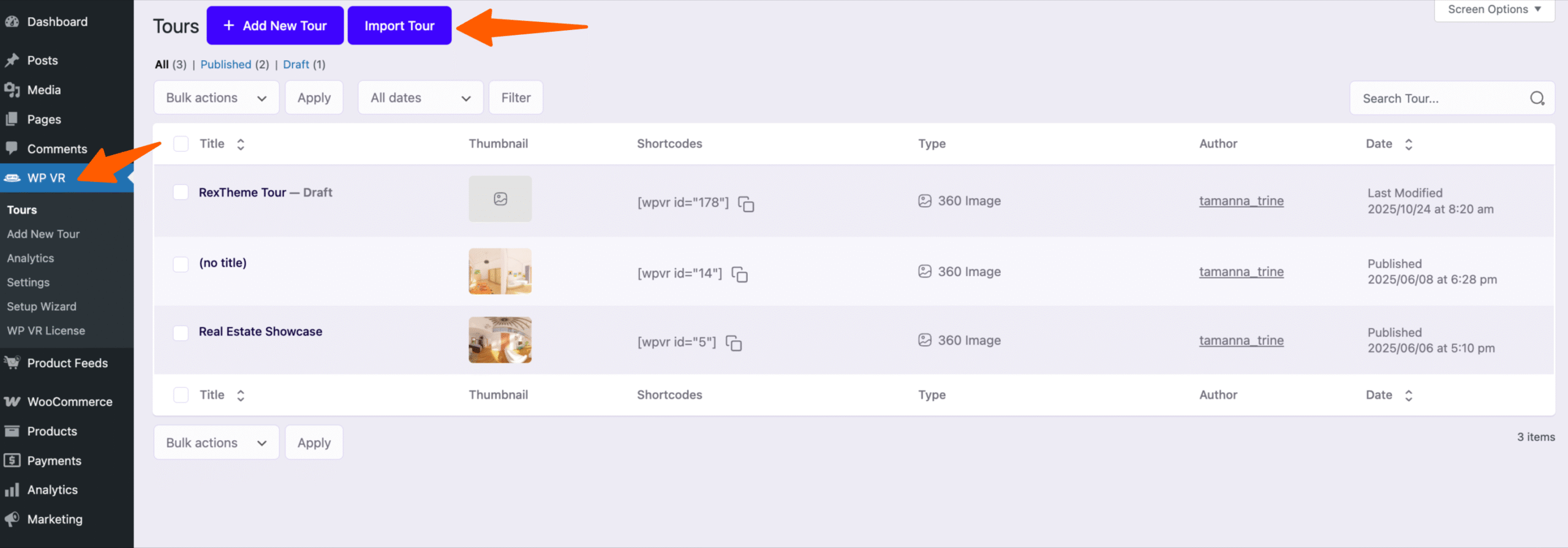
2. On the top, you will find a button called Import Tour. Click on it and you will find to upload the tour file.
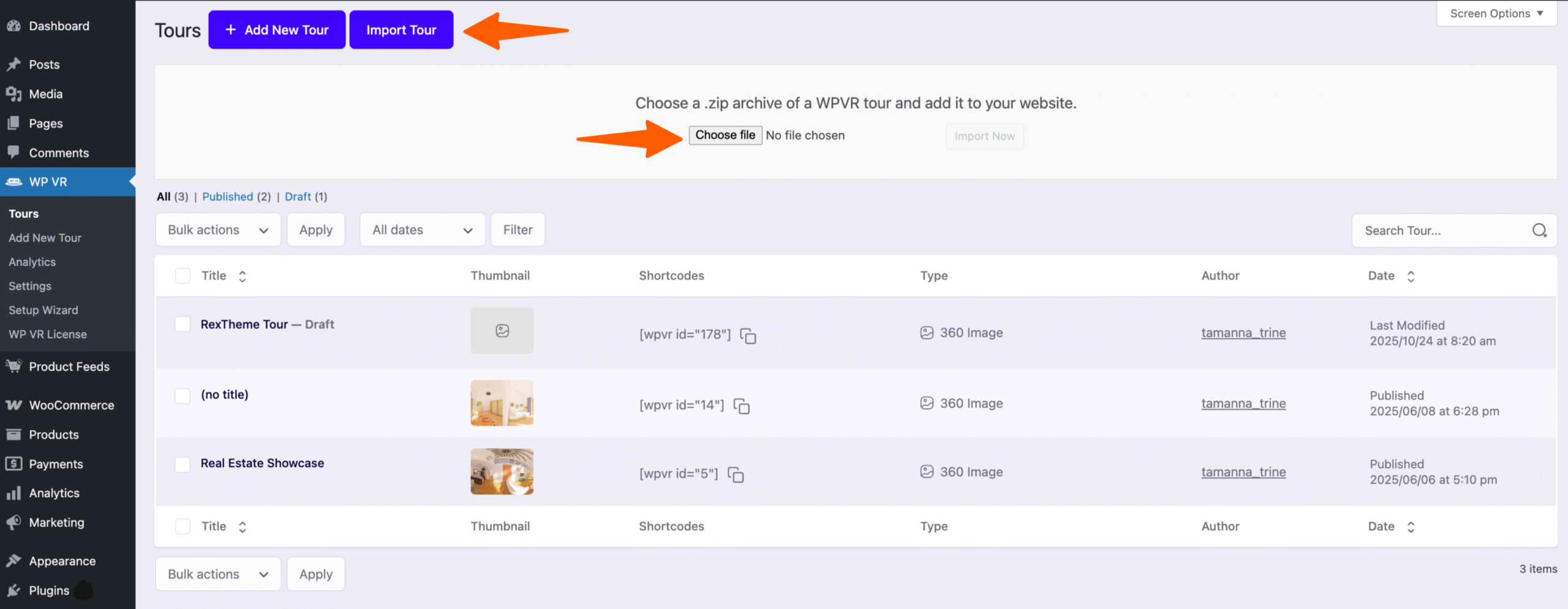
3. Choose the tour file and then click on the Import Now button
Once the import is complete, it will take you directly to the tour editing page of the imported tour.
That’s it. You have successfully imported the tour. You can then simply go to Dashboard > WPVR > Tours and see that the tour is added with a new tour ID.