
You can set a default scene face on each scene on a virtual tour.
So, you can choose which way your visitor will be facing upon landing on each scene.
Now, there are 2 ways you can set default scene faces on your scenes:
- On the First/default scene of the tour.
- On the following scenes of the tour.
Before starting make sure the WP VR Pro is installed and activated on your site as it is a Pro feature.
1. Set Default Scene Face On The First/Default Scene of Your Tour #
Follow these steps to set the default scene face on the First/Default scene of your tour.
1. Preview your scene and select the position you want to set as the default scene face.
Now the face you want to display make sure you click on the middle then copy the Pitch and Yaw of that scene face.

2. Find the Set default scene face option.
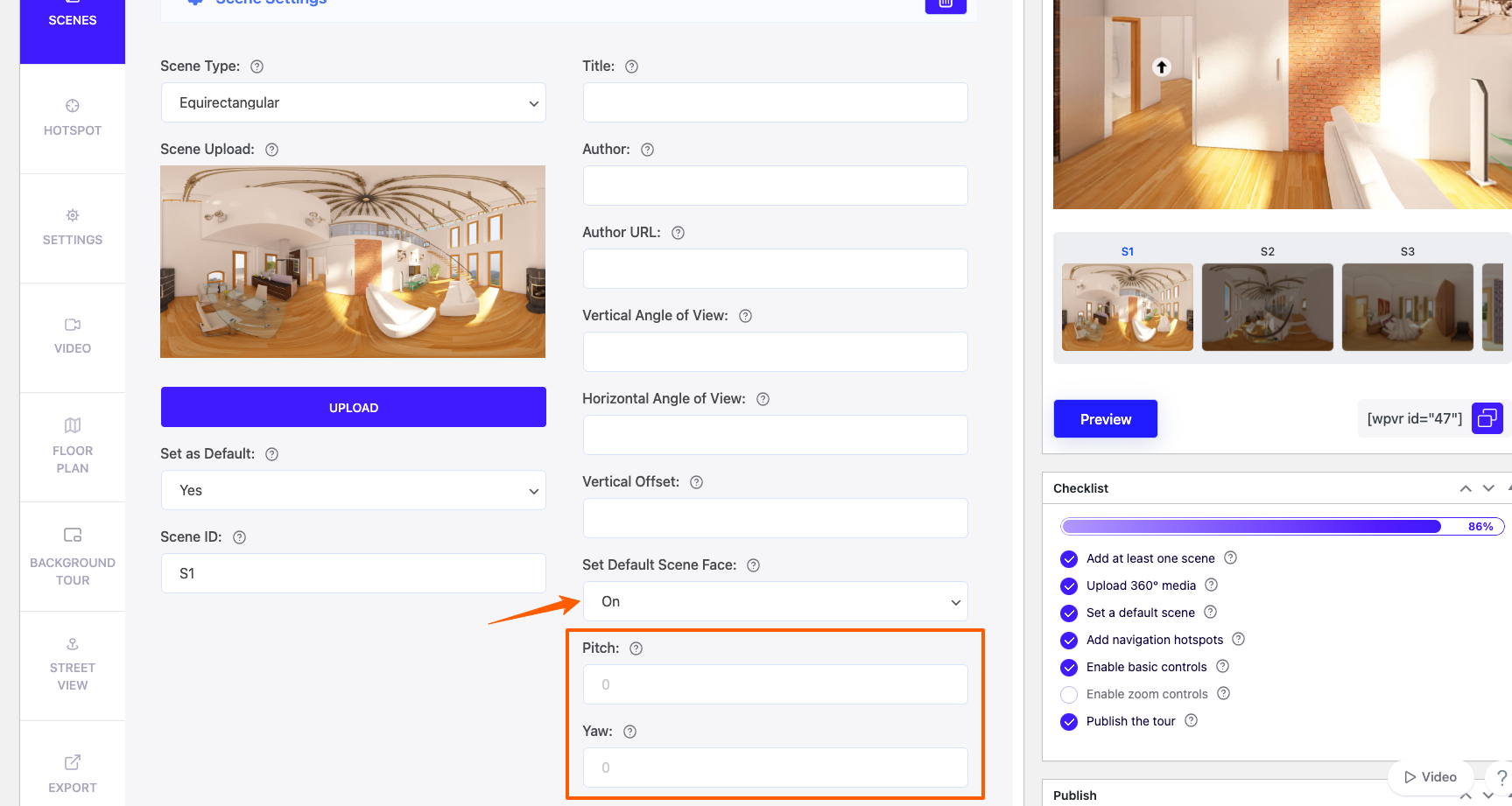
Turn On the Set default scene face option.
Two new fields for Pitch and Yaw will appear.
Paste the Pitch and Yaw you copied earlier from the first / default scene.
Scroll down and click on Preview.
Now the scene will load from the face you’ve set.
2. Set Default Scene Face on the other Scenes of Your Tour #
Follow the following steps to set the default scene face on your second and following scenes.
1. First, in order to navigate to other scenes from your default scene, you have to set a hotspot on the first/default scene. Upon clicking this will lead to the next/following scene of the tour.
Click on the Hotspot, select Scene as hotspot type and create a hotspot.
You will find how to hotspot scene from this doc
Preview your tour, go to the next/following scene and select the position you want to set as the default scene face.
2. Select a scene where this hotspot will target from the Select Target Scene from the List dropdown menu.
Under this, you will find Target Scene Pitch and Target Scene Yaw fields.

Paste the Pitch and Yaw you copied from the 2nd/following scene here.
Scroll down and click on Preview.
Now the scene will load from the face you’ve set.