
You can easily enable the Auto Rotation feature with WPVR so that when a person visits your virtual tour, the tour will start rotating automatically.
Along with that, you can set the rotation speed and direction as well.
Let’s have a look at how you can enable auto-rotation for your 360 virtual tours and customize it.
Enable Auto Rotation For Your Virtual Tour #
Follow the steps below to set up auto rotation on your virtual tour.
1. While editing or creating a tour, go to the Basic Settings tab under the General tab.
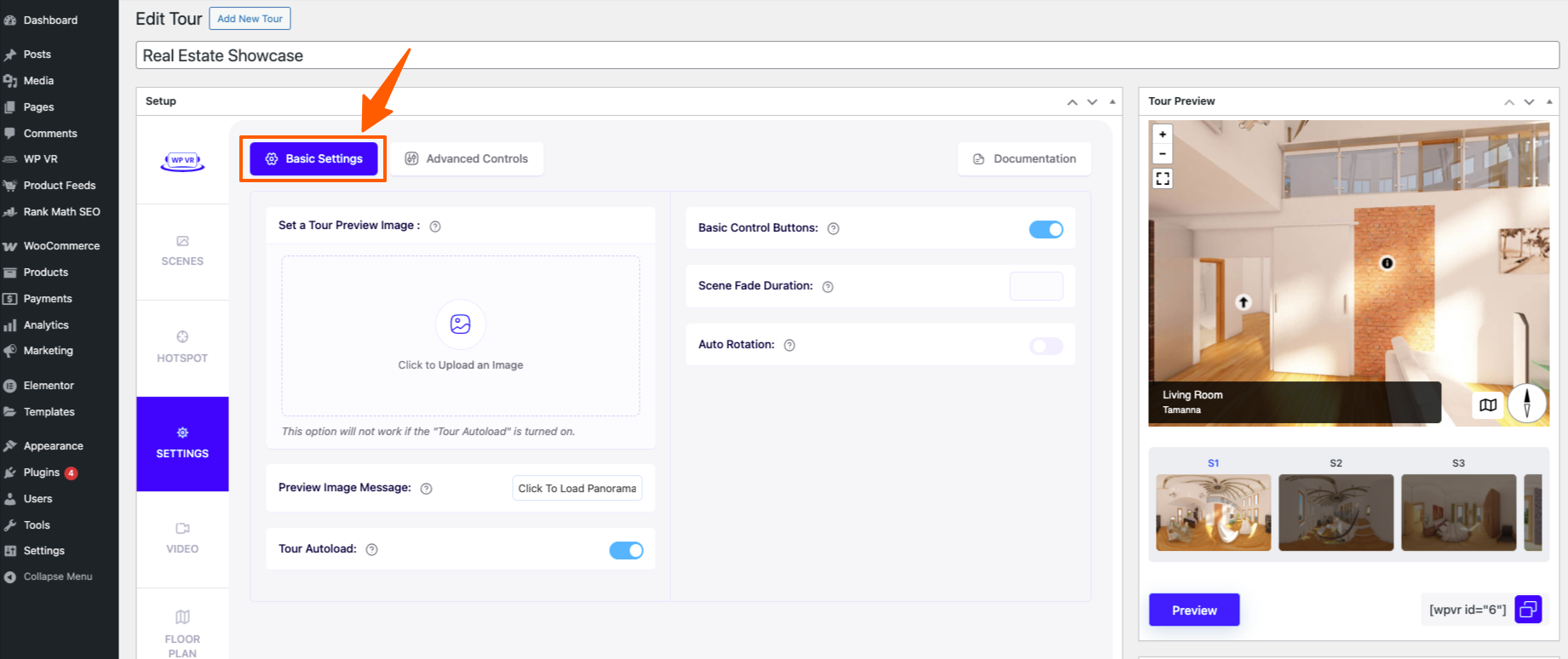
2. On the right side, you will get the option called Auto Rotation. Enable it.

Once you enable it, you will get 3 new options:
- Auto Rotation Speed and Direction
- Resume Auto-rotation After
- Stop Auto-rotation after.
Now use these options to set up auto-rotation properly.
Auto Rotation Speed and Direction: #
Here, you have to assign a numeric value that will determine the direction and speed of the rotation.

A Positive (+ve) value will make the tour rotate Clockwise and a Negative (-ve) value will make the tour rotate Anti-clockwise.
The greater the value, the faster the tour will rotate.
By default, it is set to -5 which means the tour will rotate anticlockwise, at a decent speed.
Resume Auto Rotation After: #

When taking a virtual tour, if a person clicks on the tour, the rotation will stop.
Assigning a numeric value to the “Resume Auto Rotation After” field will mean that, once the rotation is stopped, the tour will again start rotating after this amount of time.
**The value is in milliseconds, so if you want to assign it a duration of 3 seconds, then you need to input the value as 3000.
Stop Auto Rotation After: #

Assigning a numeric value in this field will mean that the tour will stop rotating after this amount of time.
**The value is in milliseconds, so if you want to assign it a duration of 3 seconds, then you need to input the value as 3000.
Please note that you CANNOT enable both Resume Auto-rotation After and Stop Auto-rotation after options at the same time. Any one of them will work at a time.
3. After you have enabled auto-rotation and configured it, click on Preview, and you will be able to experience the auto-rotation on the tour preview.
As you can see, it’s really easy and simple.
Just like that, you can apply more customization to your virtual tour. And here are some useful ones:
Follow this guide to set a preview image to your virtual tour.
Follow this guide to set virtual tour icon and company logo to your virtual tours.