
Product Feed Manager (PFM) supports OpenAI Commerce Feeds, allowing WooCommerce merchants to submit structured product data that complies with OpenAI’s official commerce feed specification. This enables your products to be used in AI-powered shopping, discovery, and commerce assistant experiences.
This guide explains:
- What OpenAI Merchant Support is in Product Feed Manager
- Which OpenAI feed requirements are supported
- How to generate and configure an OpenAI-compatible product feed
- How our validator works and how to avoid common feed issues before feed submission
All instructions in this document are aligned with OpenAI’s official specification doc.
So, let’s get started.
Overview of OpenAI Integration with PFM #
What is OpenAI Merchant Support? #
OpenAI Merchant Support allows businesses to provide structured product data that OpenAI systems can consume for commerce-related use cases. This data helps power AI-driven shopping experiences where products can be searched, compared, recommended, or referenced accurately.
Product Feed Manager acts as the bridge between WooCommerce product data and OpenAI’s Commerce Feed format, handling data extraction, formatting, and validation.
Common Use Cases
- AI shopping assistants
- Product discovery and recommendations
- Conversational commerce experiences
- Structured product search via AI tools
How PFM Integrates with OpenAI Commerce Feeds #
PFM pulls product data directly from WooCommerce and outputs it in an OpenAI-compatible feed format. It ensures required attributes are present, formats values correctly, and excludes unsupported fields so your feed matches OpenAI’s expectations.
OpenAI Feed Requirements #
OpenAI Commerce feeds follow strict structural and formatting rules. PFM is designed to completely align with these rules.
Supported Feed Format #
- JSONL (JSON Lines)
Each product is represented as a single JSON object on its own line. - Also supports XML, CSV, and TSV
Required vs Optional Attributes #
OpenAI defines a set of required attributes that must be present for each product, along with optional attributes that improve product quality and discoverability. You can easily learn about the Attribute list recommended by OpenAI from OpenAI’s official specification doc.
PFM ensures:
- All required attributes are already added and mapped upon loading the OpenAI feed template
- Optional attributes can be easily included in the feed by clicking the Add New Attribute button
How to Create a OpenAI Commerce Feed Using Product Feed Manager #
Follow these steps to generate a OpenAI-compatible product feed using PFM.
Step 1: Select OpenAI as the Merchant #
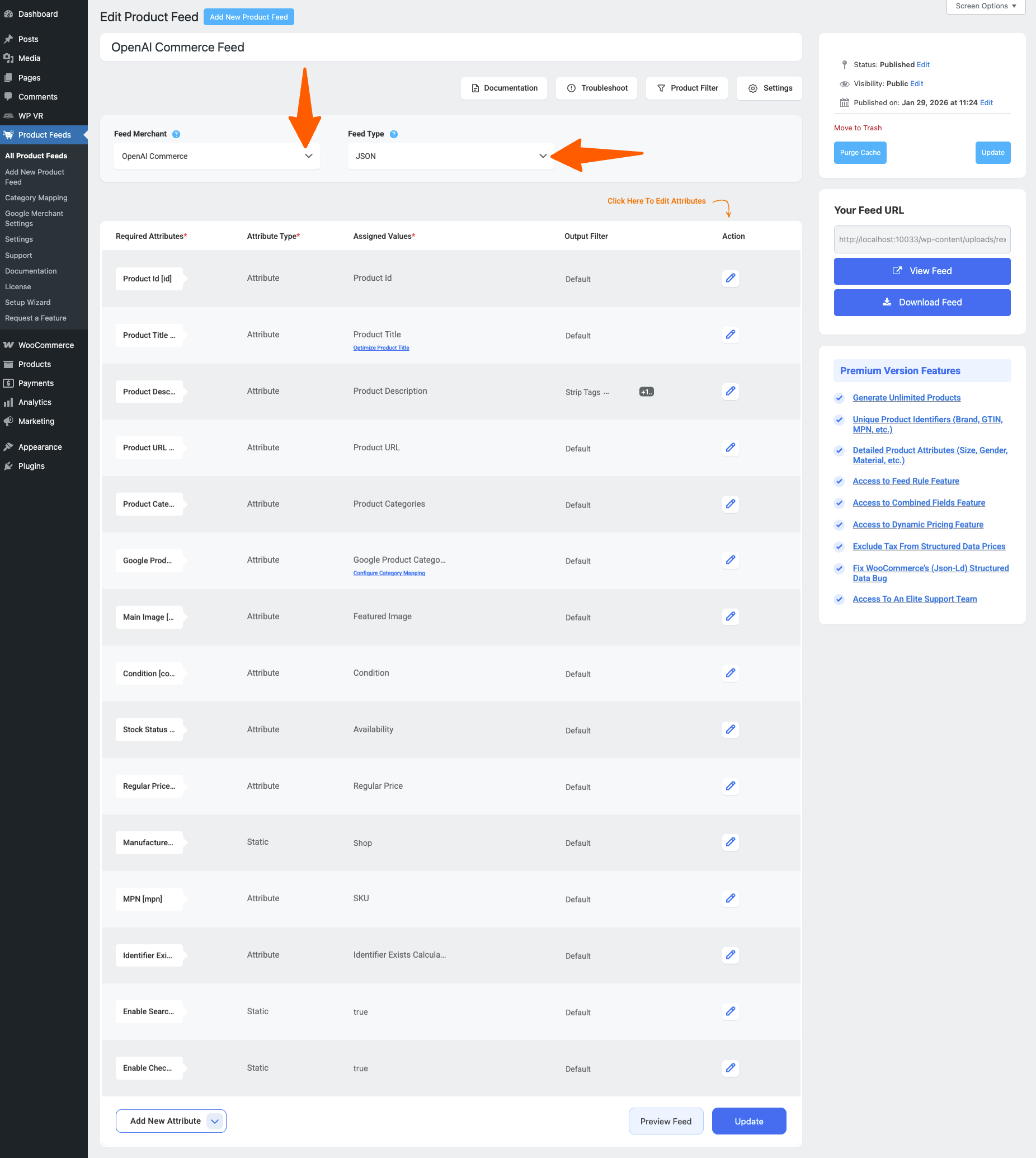
- Go to Product Feeds → Add New Product Feed
- Select OpenAI Commerce from the Feed Merchant dropdown
- Choose the feed format from the Feed Type
Step 2: Configure Product Attributes #
- Set a feed name. On top, you will get the option to add a title to the feed
- PFM automatically maps common WooCommerce fields, but it’s important to review and adjust mappings.
- If you wish to add any additional attributes, you can add them by clicking the button Add New Attribute
Step 3: Feed Configuration #
1. On the top and here, you will see that there are four options: Documentation, Troubleshoot, Products Filter, and Settings
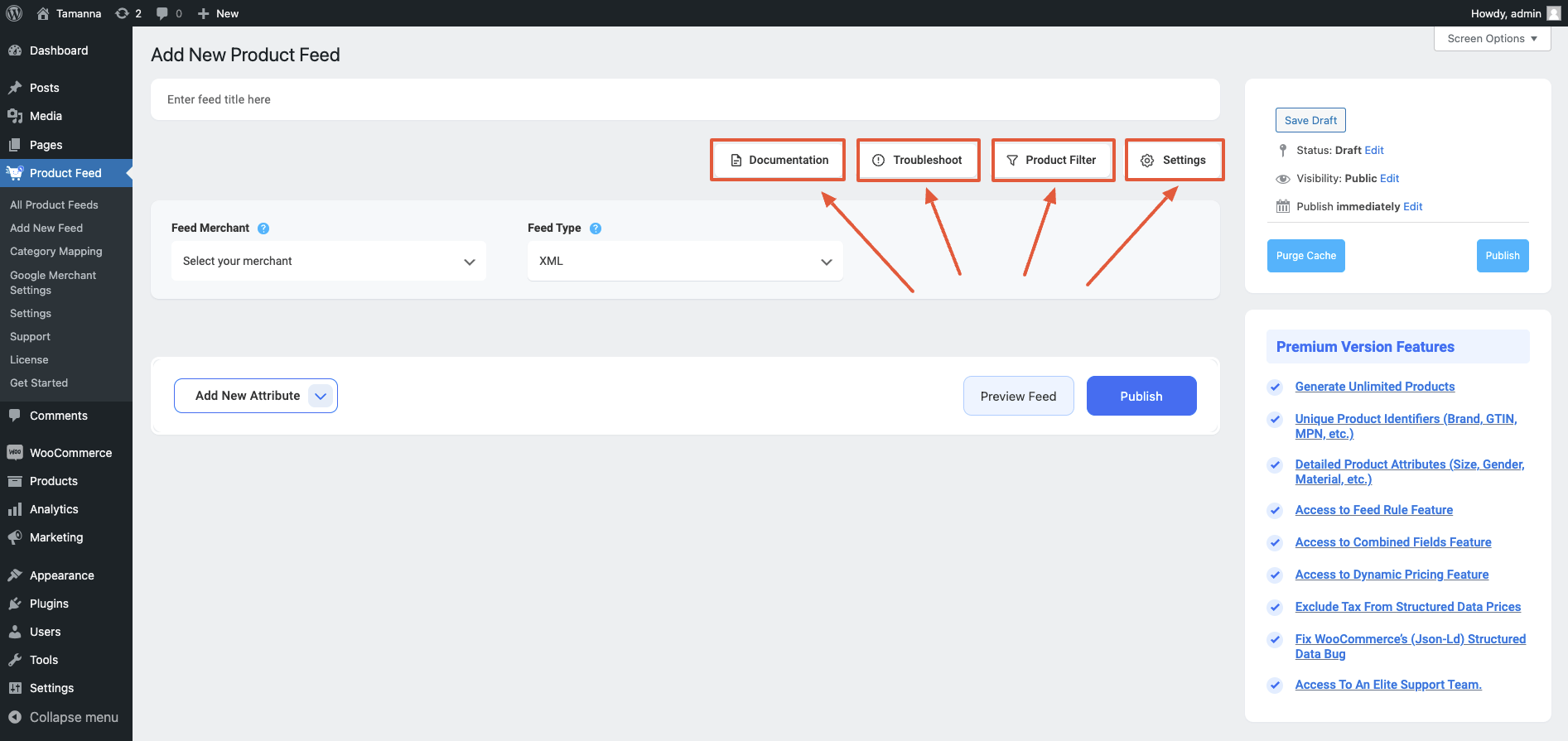
2. First, let us configure the features in the Feed Settings. Click on the Settings button, and a drawer will open from the right side of the screen. For more in depth knowledge about the setting refer to this doc: Understanding The Basics Of Feed Settings
3. Now, close the drawer and click on the Product Filter option. A new drawer will open from the right. There, you will get features for Product Filters and Feed Rules.
- For more in-depth knowledge about Product Filter, refer to this doc: How To Use Feed Filter Options When Generating Feed
- For more in-depth knowledge about Feed Rules, refer to this doc: How to use the Feed Rule feature to manipulate attribute values
Validation & Common Errors #
Starting from Product Feed Manager version 7.4.64, we’ve introduced the OpenAI Commerce Feed Validator.
This feature helps you identify common OpenAI feed issues before uploading the feed to OpenAI, reducing trial and error.
What the Feed Validator Does & How to Use the Feed Validator #
Please check out this details guide on this: Feed Validator for OpenAI Commerce Feed
FAQs #
Do I need technical knowledge to create an OpenAI feed?
– No. PFM handles formatting and structure. You only need to ensure your WooCommerce product data is accurate.
What happens if a required field is missing?
– PFM will flag the issue in the Feed Validator, and you can use the filter from the feed settings to exclude such products to keep the feed valid.
Can I use variable products?
– Yes. PFM supports variable products and outputs them in a structure compatible with OpenAI’s requirements.
Does PFM validate feeds automatically?
– PFM performs internal checks during the feed generation and reports the issue in the feed validator section.