
In this guide, I’ll explain how to set up price-based shipping conditions based on your customers’ cart value using our Advance Shipping For WooCommerce.
Suppose you want to set shipping charges for a specific region: orders from $1 to $100 will get a certain shipping fee, while orders from $101 to $250 will have a lower shipping fee for the same location.
Dus laten we beginnen.
Single Price Based Shipping Condition: #
1. First of all, Go to Advanced Shipping Method Settings
2. Scroll down and you will get this option to add shipping cost calculation rules.
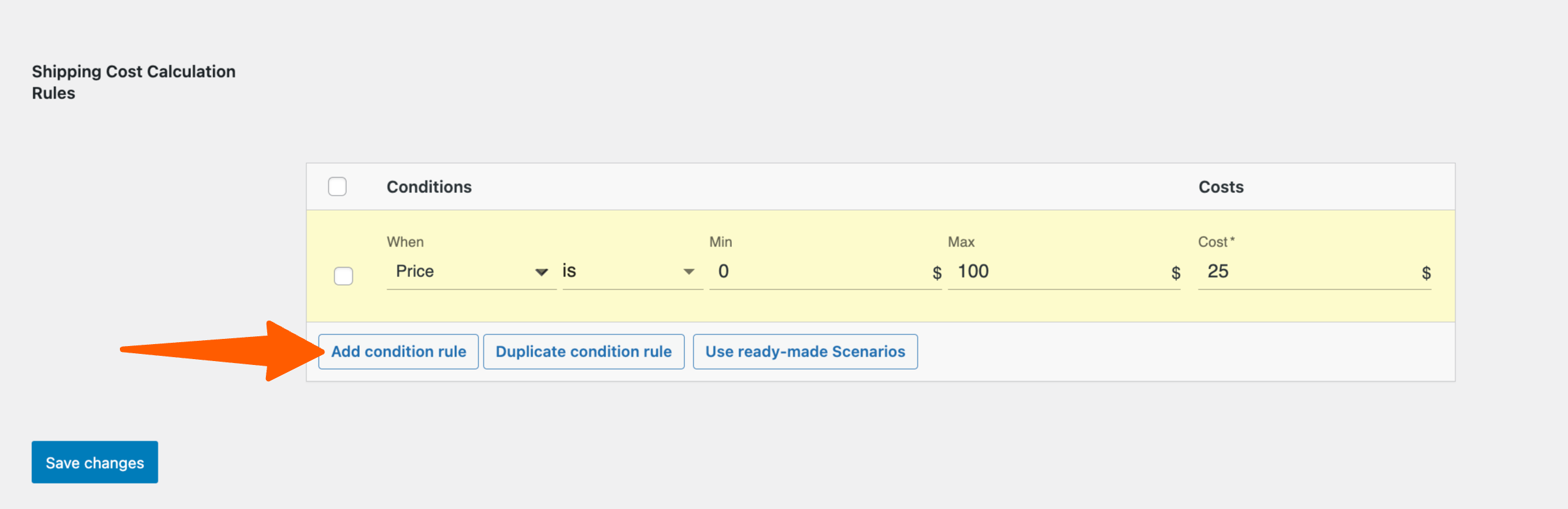
3. Click on the Add condition rule to set the price shipping condition for your WooCommerce store.

2. Now you have to select the “Price“ condition by clicking on when field. Select “is” to meet the condition.
Here, add a cart price value of $0 to $100. and shipping charge $25. That means when customers add products to their cart from $1 to $100 they will get a $25 shipping charge for the specific area you selected as zones.

Now you can see in the cart when a customer orders 3 Beanies, their total cart value will be: $18 x 3 = $54 which is between $0 to $100.
That means they have to pay $25 for the shipping charge if they want to receive the product in their specific zones.

Multiple Price Shipping Condition: #
Now come to the multiple-price shipping condition where you can select different types of pricing conditions for different costs.
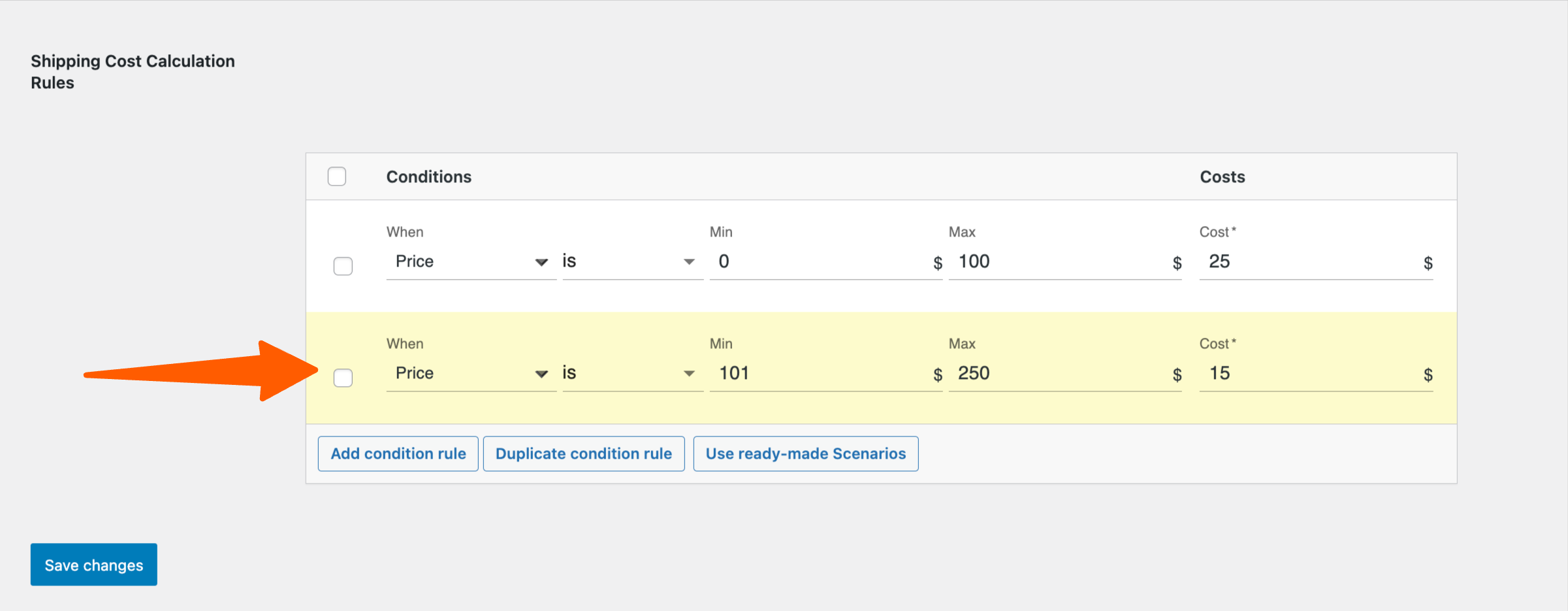
1. Again click on the Add condition rule to add a new rule.
2. Here click on the the price field again. but this time, set conditions of $101 to $250 and the shipping charge is $15.
Once you are done, click on Save Changes to apply it on the live site. This means if someone purchases between $101 to $250, he will get a $15 shipping charge for his cart value.
Suppose the customer selected 6 Beanies whose cart value is $18 x 3 = $108. This cart value meets the second condition which is why it is showing a $15 Shipping charge.

So, this is how easily you can set your price-based shipping conditions for your WooCommerce Stores.