
In this PFM guide, you will learn how you can use the Category filter to generate product feed with your desired product category only.
Normally, when you create a new feed, by default, there are no filters applied by default. It is set up to add All Published Products.
However, you might wish to include only certain desired product category in the feed.
In that case, you may choose to use a Category Filter, i.e., you will choose products based on their categories.
Using Category Filter #
Follow the steps below to use Category Filter properly.
1. Click on the Product Filter button.
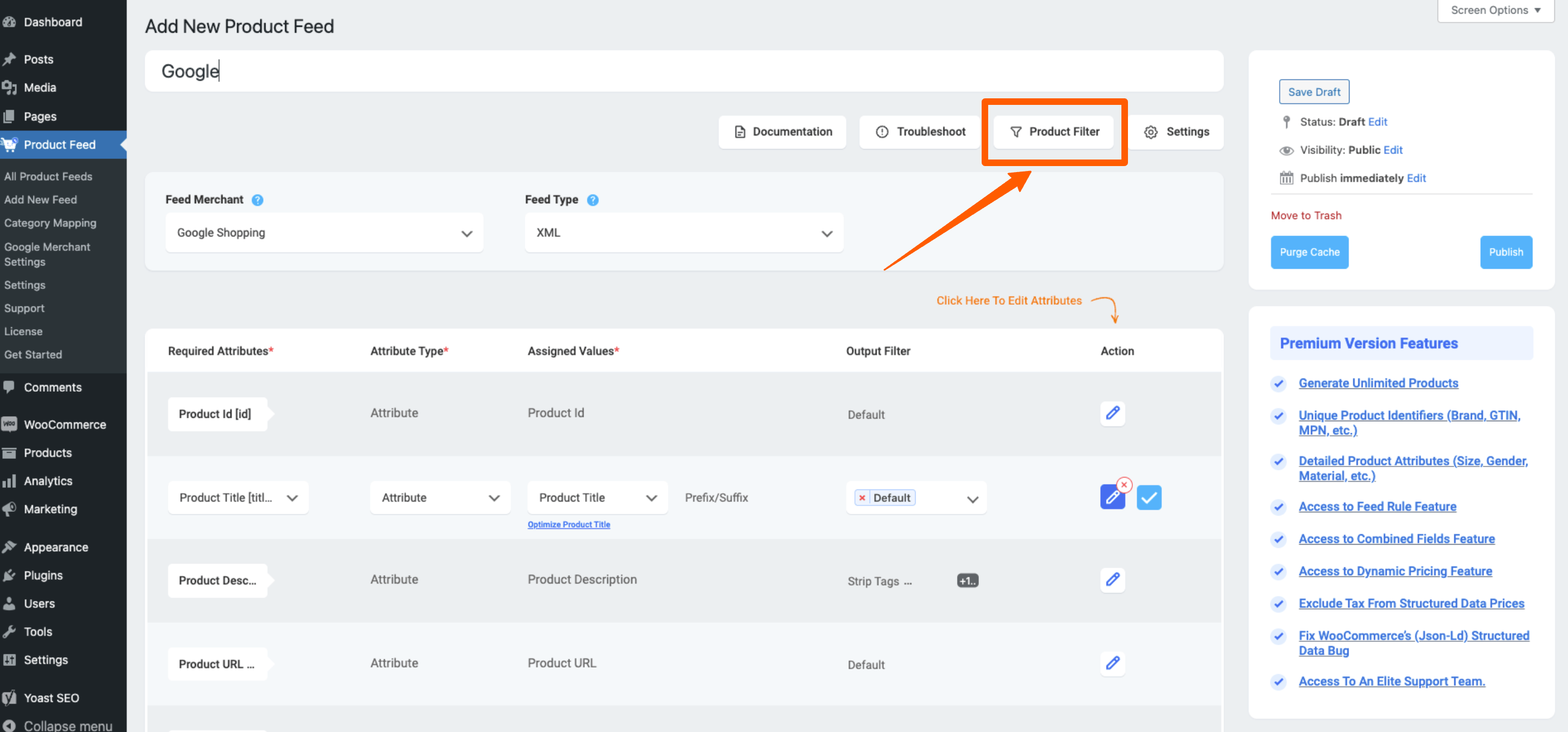
Once you click on the Product Filter button, the Product Filter drawer will slide out from the right side of the window.
By default, it is set to All Published Products. Click on the dropdown menu.
Here, choose Category Filter.

Then all the product categories in your store will be listed here with checkboxes beside them.

2. Select the categories you desire to include in your Feed.

3. Next configure the feed and publish it.
You will see that the feed includes only the products that fall under the categories you selected using Category Filter.
**We advise that you only use this filter if you want to include products from more than one category.
**If you want to include products from one particular category only, then it’s better to use a custom filter.
That’s how easily you can use the category filter when generating product feed.