
Running strategic promotions is one of the easiest ways to boost sales—and applying automatic discounts based on product categories or tags makes it even more powerful. Whether you’re offering 10% off all electronics or launching a flash sale on summer gear, the Dynamic Discount for WooCommerce plugin by RexTheme helps you do it effortlessly.
This guide will walk you through how to:
- Automatically apply discounts to all products within specific categories using the Dynamic Discount for WooCommerce plugin.
- Target products to set discounts with specific tags set on your WooCommerce store
Dus laten we beginnen.
Before starting make sure your license is activated.
Follow the steps below to Navigate to Dynamic Discount Dashboard:
Hover on WooCommerce dashboard > Dynamic Discounts. As you can see, it will take you to the page where you can create a discount rule. On top, you will see a Button + Create New.

Set Discounts Based on Product Categories #
This rule allows you to apply a discount to all products under a specific category. Perfect for store-wide sales, seasonal collections, or promotions like “10% off all electronics.”
Step-by-Step Guide #
1. Navigate to: Dynamic Discount > Create New
2. Discount Title: Give your Discount Title a clear name, like:10% Off Electronics Category
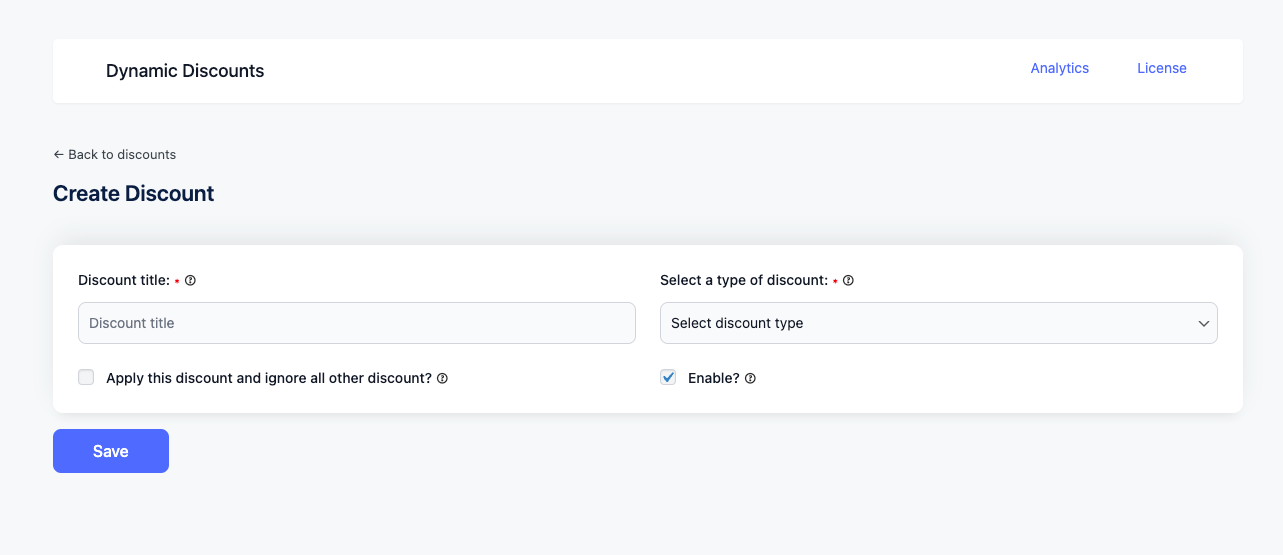
3. From the Discount Type dropdown Select your preferred type.
After selecting, new sections will be added below.
Now from the “Select a discount option for applying to products in the store” dropdown select the Category option and that will add a few more options like shown below.
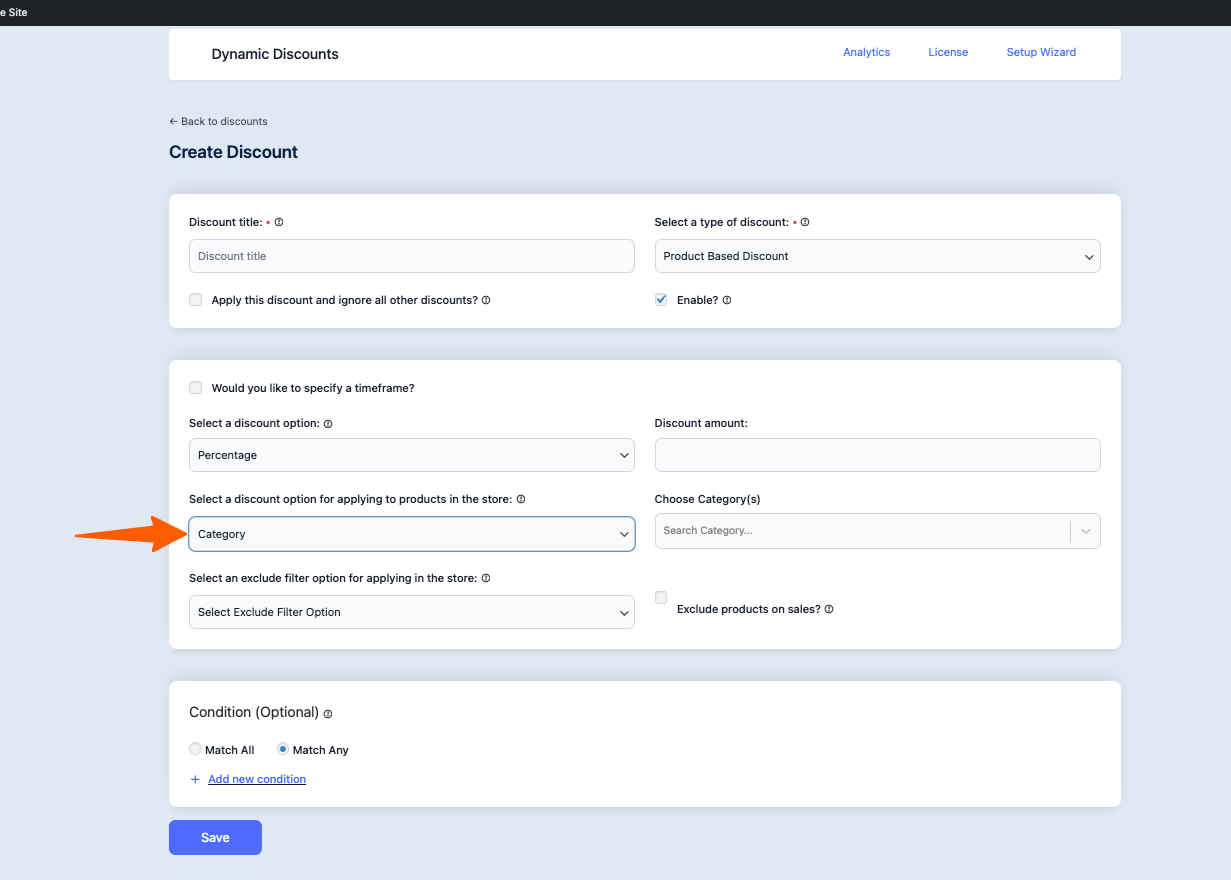
4. Now on from the “Choose Category (s)”, write the category you want to filter from your store for discount. Here you can choose multiple categories to set the discounts.
Now click on the save button and that’s it your category-based discount will be set.
Set Discounts Based on Product Tags #
1. Same like Category Discount, from the “Select a discount option for applying to products in the store” dropdown select the Tags option and then you can choose multiple Tags to set the discounts.
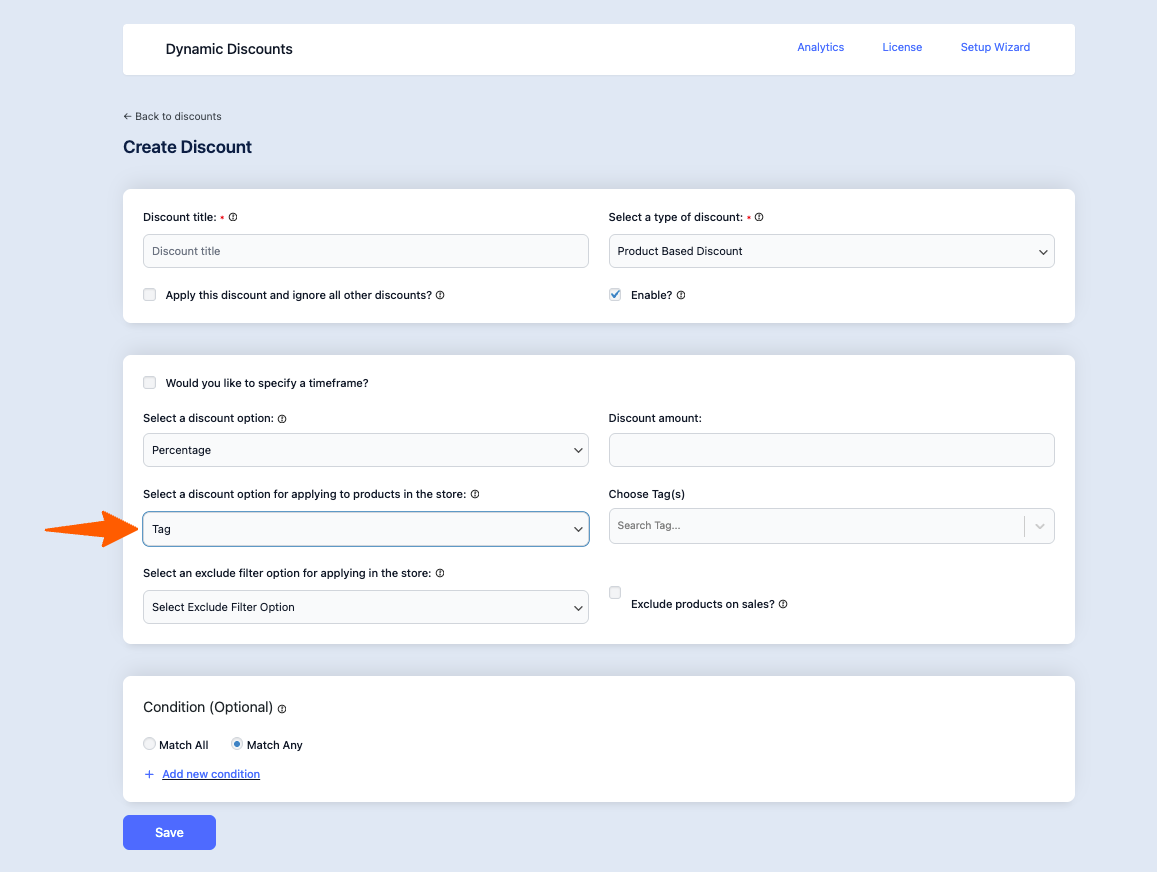
Now click on the save button and that’s it your Tag-based discount will be set.
With these steps, you can easily create targeted discounts based on categories and tags—helping you boost sales, reward specific customer segments, and manage promotions more efficiently.