
Here’s a quick plugin overview of Advanced Shipping For Woocommerce.
Advanced shipping for WooCommerce Plugin Overview #
After installing and activating the plugin and the License, on the WordPress dashboard click on Advanced Shipping.
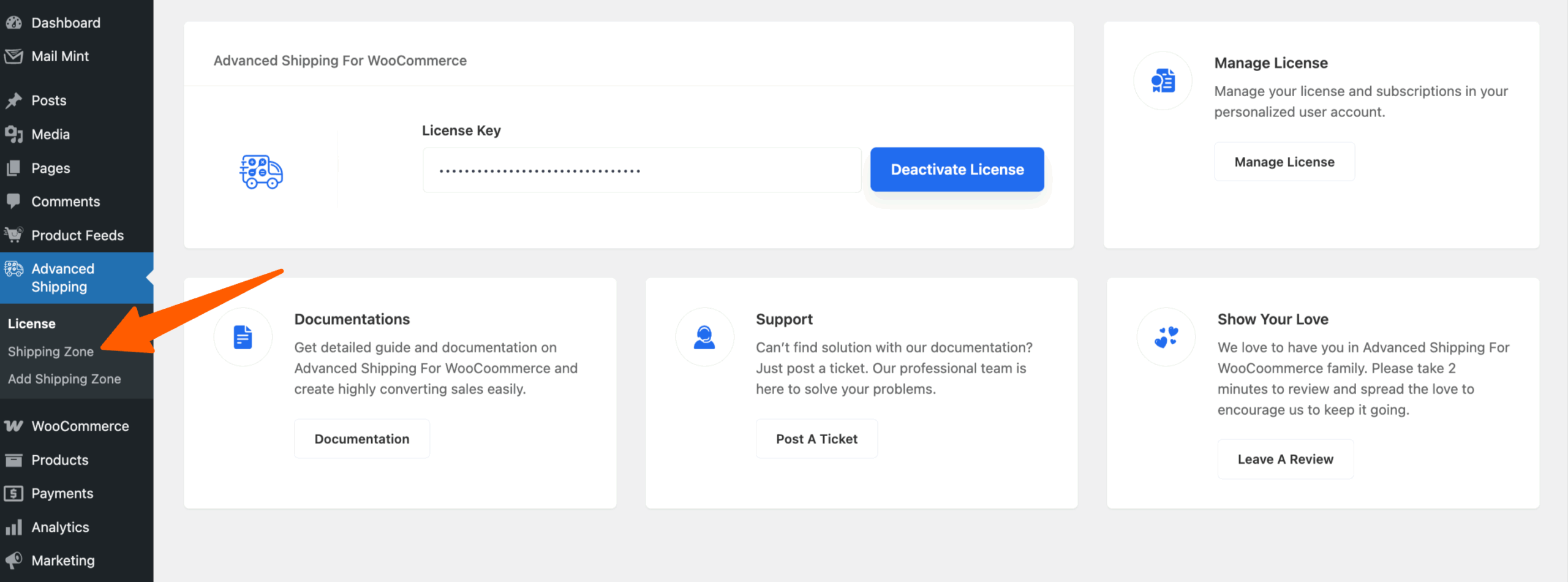
Then on the sub-modules you’ll see 3 options. Click on the Shipping Zone.
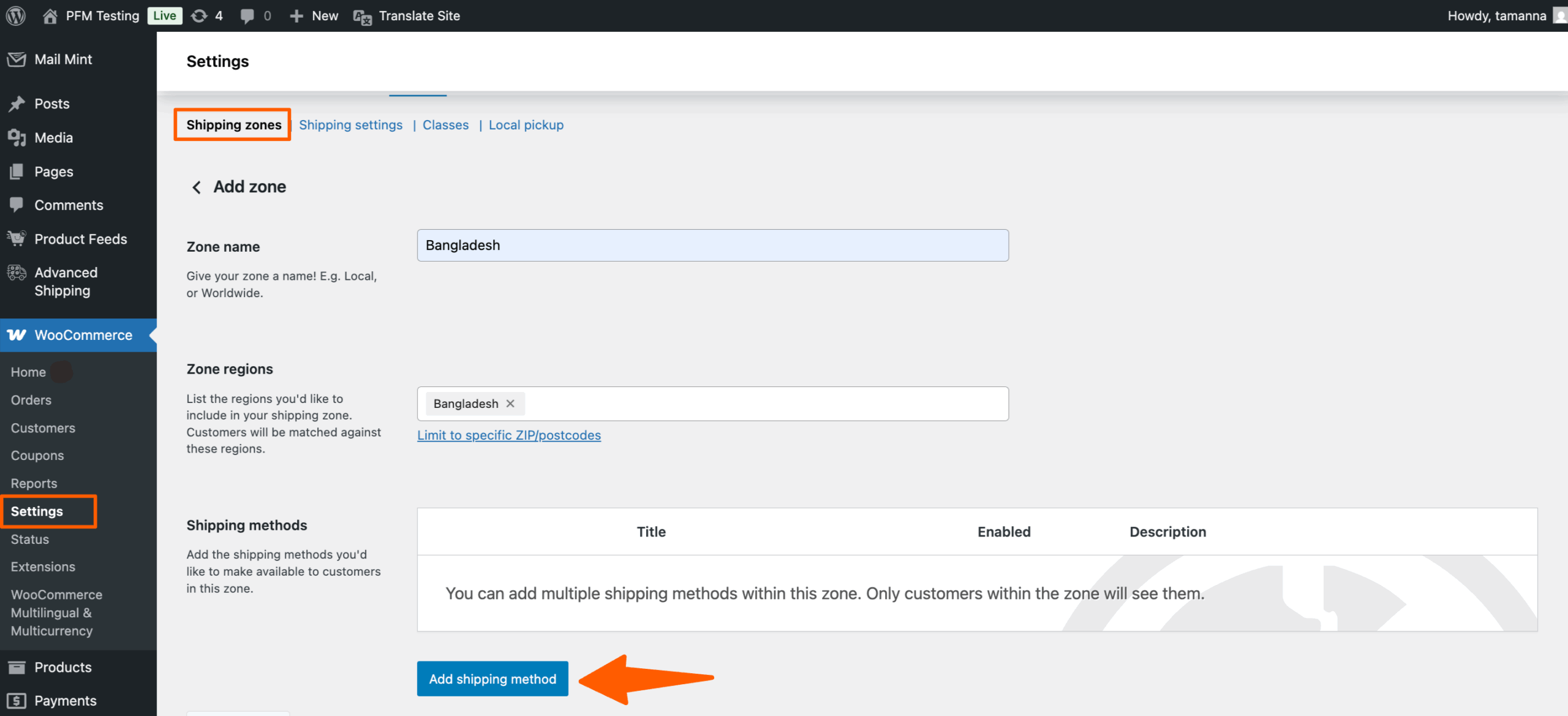
Then you’ll be redirected to the WooCommerce Shipping Zone Settings page.
Configure the Zone and Click on the Add Shipping Method button and on the popup you’ll get the Advanced Shipping Method listed.
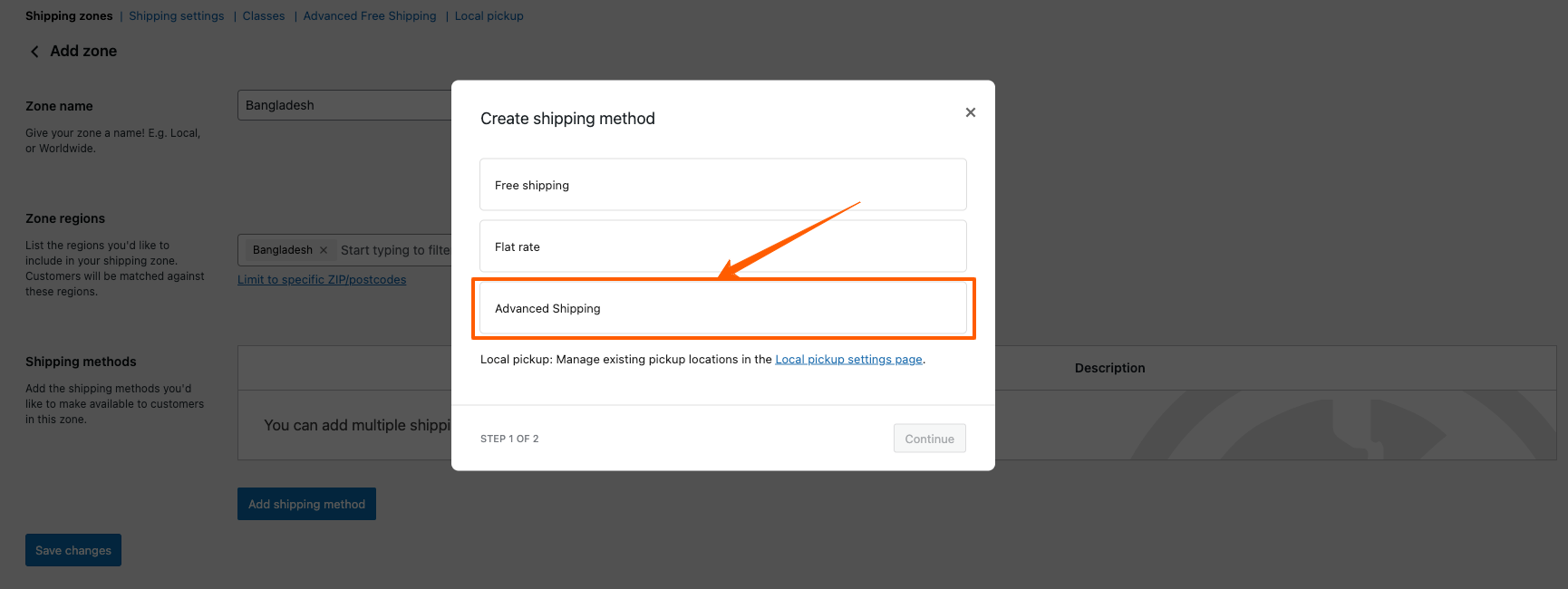
Then select the “Advanced Shipping” in the “Create Shipping Method” Popup and click continue
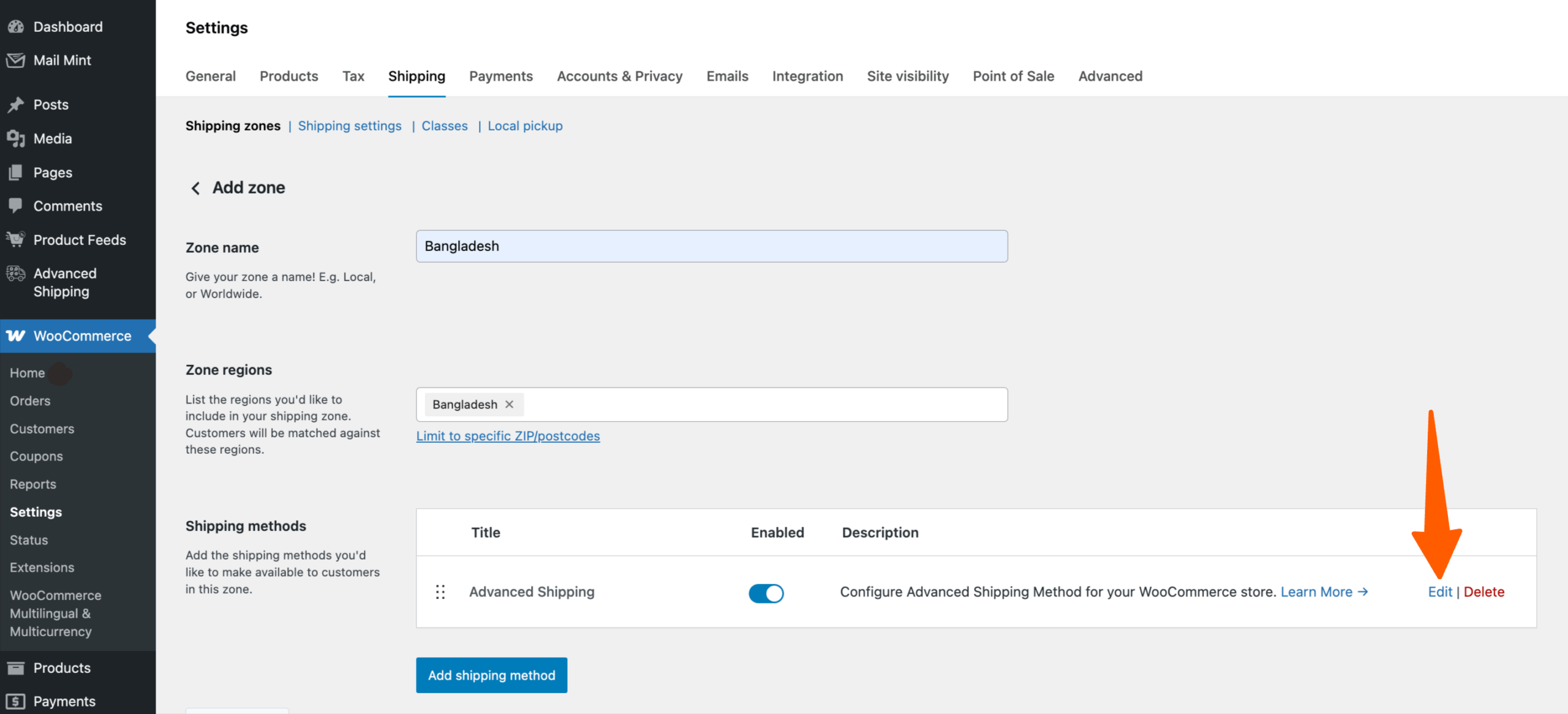
After Selecting the Advanced Shipping from the popup. Click on the Edit to set the shipping rules.
Advanced Shipping Features #
Here you’ll get all the advanced shipping features available by the Advanced Shipping plugin.
Free Shipping #
First, let’s see how you can set up Free Shipping using Advanced Shipping For WooCommerce.
In this you get two options in the Free Shipping Requirements. One is Minimum Order Value and the other one is Minimum Item Quantity.
- Minimum Order Value: This requirement means Free Shipping will be applied based on Total Cart Value
- Minimum Item Quantity: This requirement means Free Shipping will be applied based on Item Quantity in the Cart
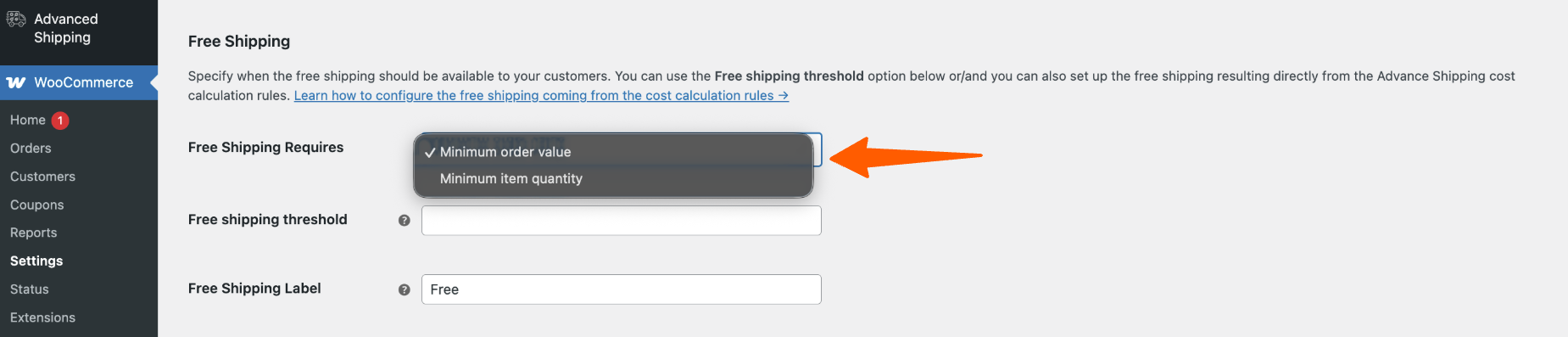
For example, If you set up “Minimum Order Value” and set up threshold of 250$ then your customers must spend minimum of 250$ on your store to get the free shipping.
For example, If you set up “Minimum item quantity” and set up threshold of 10, then your customers must have minimum of 10 items in their cart to get the free shipping.
Tax #
With this option, you can set up whether you want to enter shipping costs with or without taxes. Following are the settings for that,
Tax Status
You’ll get two options here,
- None: If you select None, then Advanced Shipping won’t use the Tax settings you have set up on your WooCommerce store.
- Taxable: If you select the Taxable option, then Advanced Shipping will use the tax rates that’s defined in your WooCommerce. (Example: Standard, Reduced, Zero)
Go to WooCommerce > Settings > Tax to check this.

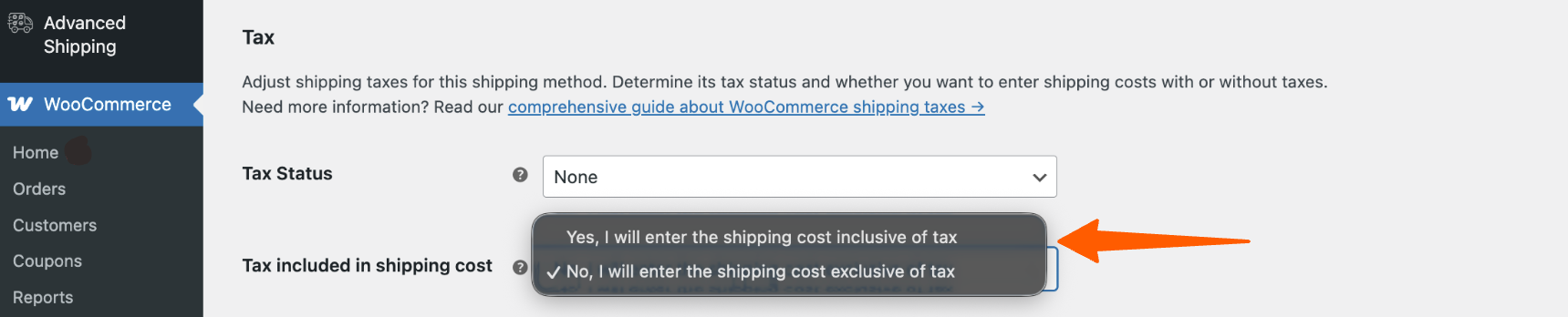
Tax Included In Shipping Cost
You’ll get two options here,
- Shipping Cost Inclusive: If you select this, then the shipping calculation rules you create in the following options will be inclusive to tax.
- Shipping Cost Exclusive: If you select this, then the shipping calculation rules you create in the following options will not include tax.
Cost Calculation #
Add different conditions on how you want the shipping cost to be calculated.
Rule Calculation #
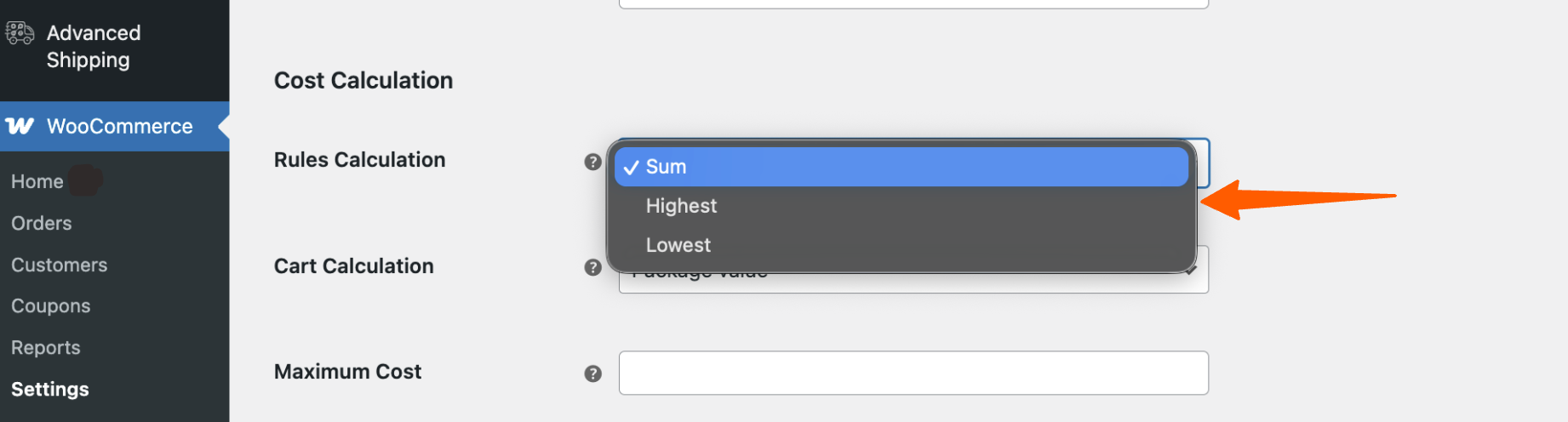
- Sum: If there are multiple Shipping rules/condition added, then the shipping cost will be the sum of all the shipping costs for the individual rule
- Highest: If there are multiple Shipping rules/condition added, then only the individual shipping cost, which is the highest, will be considered as the shipping cost
- Lowest: If there are multiple Shipping rules/condition added, then only the individual shipping cost, which is the lowest, will be considered as the shipping cost
Cart Calculation #
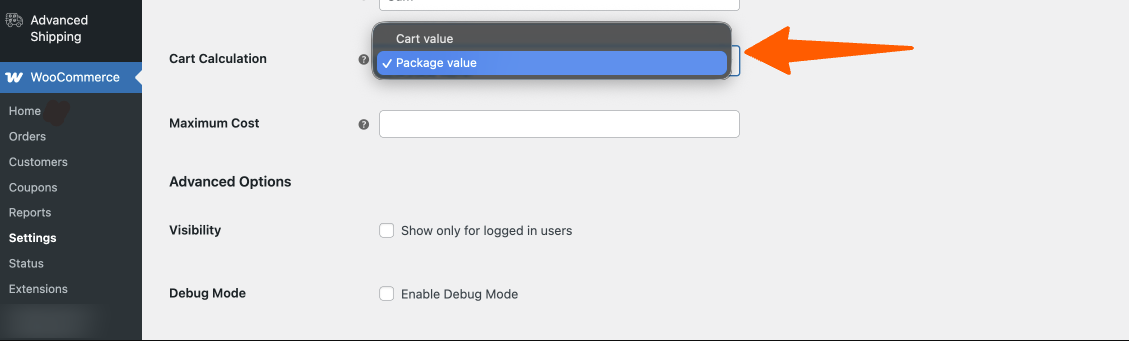
- Package Value: If you select Package Value, you can set different options for physical products and online products. if the product is physical, then a shipping charge will be added, if the product is a virtual/downloadable product then it will be excluded from the shipping charge.
- Cart Value: If you select Cart Value, all the items in your customer cart will be counted no matter whether the products are physical or virtual.
Advanced Option #
In this option, you may select whether you want to show the shipping calculations to only the logged-in users or not.

Condition Type #
You may set up different conditional rules for creating different shipping strategies using the Advanced Shipping For WooCommerce plugin. You can create them from scratch or you can use the ready made scenarios.
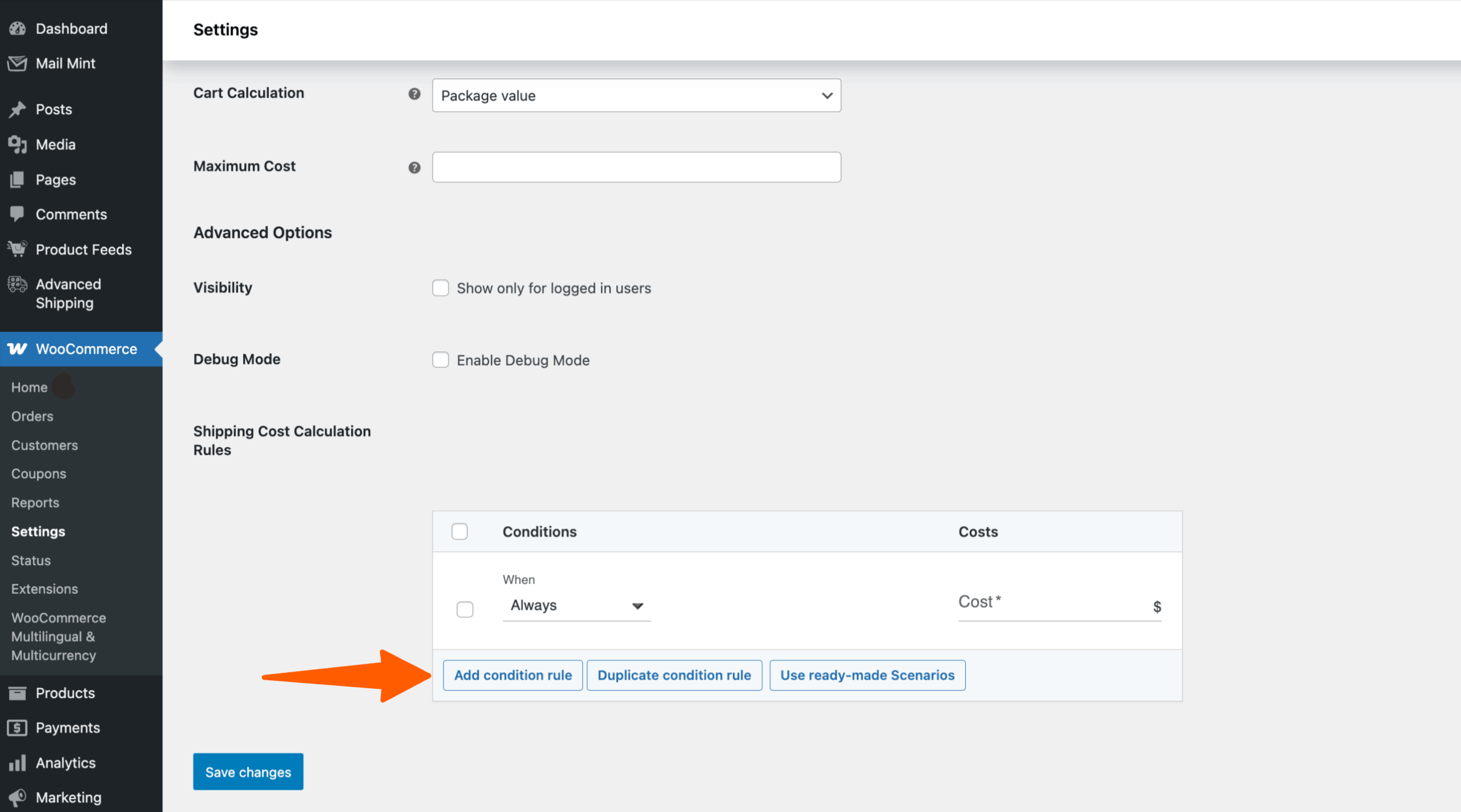
Use ready-made Scenarios
Click on the Use ready-made Scenarios if you want to use ready made Shipping Rules/Conditions
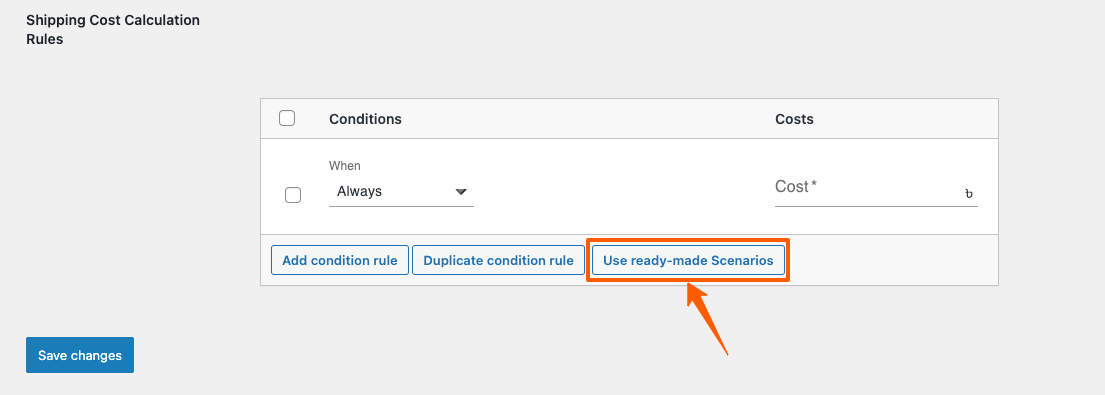
Currently we have a Ready Made Shipping Rule Table based on Price
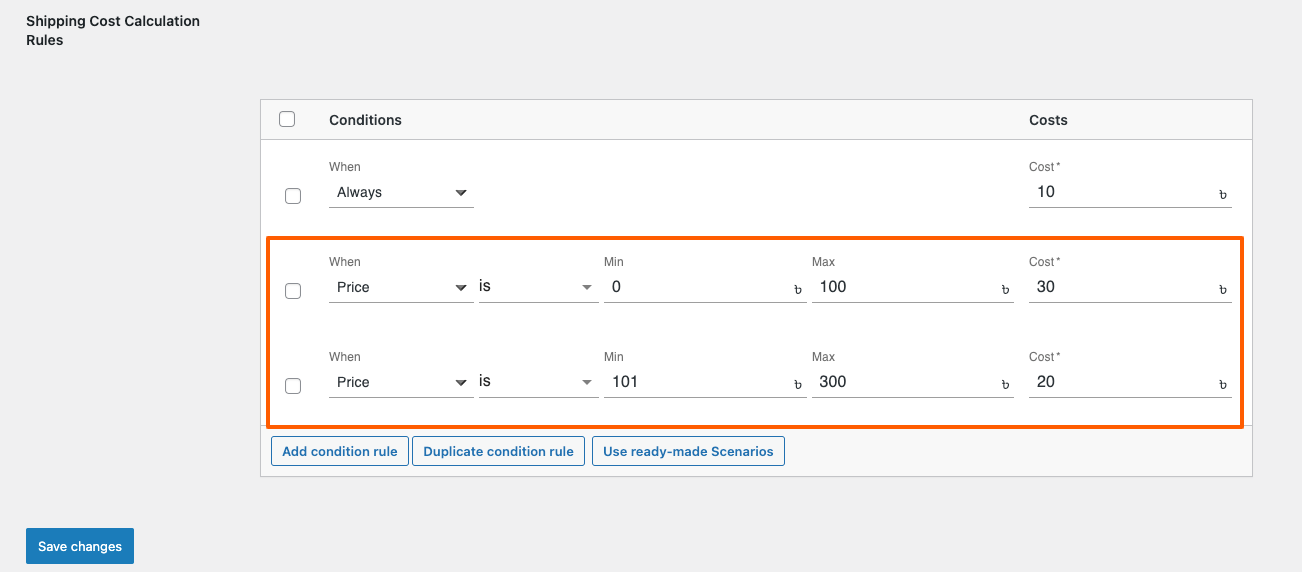
If you click on Add condition rule, In the Condition type, you’ll get 4 Categories of options available to select. Cart, Product, Time and Destination, User.
Now, that you have an overview of this plugin, give it a try and see for yourself that our Advanced Shipping is the only Shipping plugin that you need!