
n this guide, I’ll explain how to set up ZIP code-based shipping conditions in Advanced Shipping for WooCommerce plugin by RexTheme.
You can control shipping costs based on the customer’s ZIP code, allowing you to offer precise shipping rates for specific areas.
Bijvoorbeeld:
- Charge $10 shipping for orders going to Los Angeles, California, ZIP code 90001.
- Apply a different shipping cost for all other ZIP codes in the same city or state.
ZIP Code Based Shipping Condition #
1. Go to Advanced Shipping Method Settings
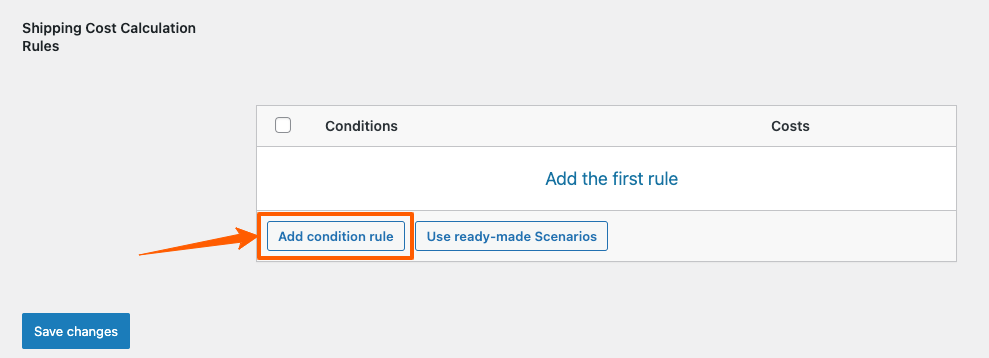
Scroll down and you will get this option to add shipping cost calculation rules.
Click on the Add condition rule to set the price shipping condition for your WooCommerce store.
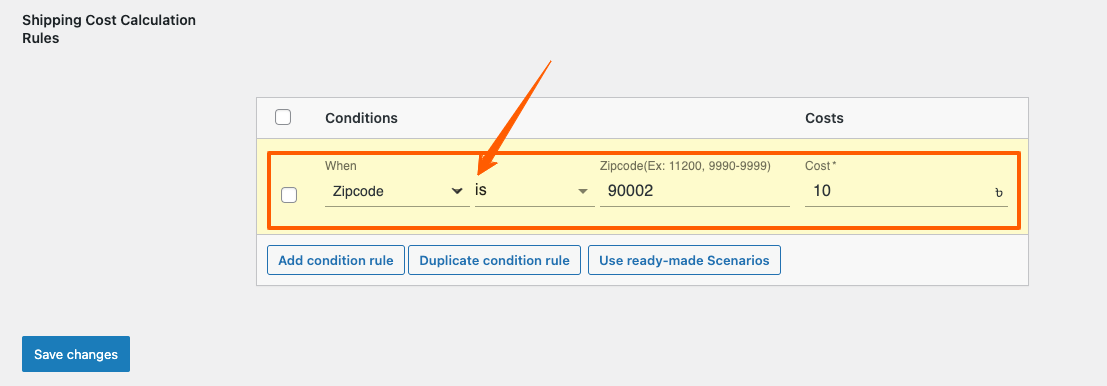
2. Now you can select “Zip Code“ condition by clicking on “When” field.
Select “is” to meet the condition. Then Provide the Zip Code
Example 1: Lets set a Shipping Condition such that if there are any order to be delivered to Los Angeles, California, ZIP code 90002, there will be an additional $10 Shipping Charge added.
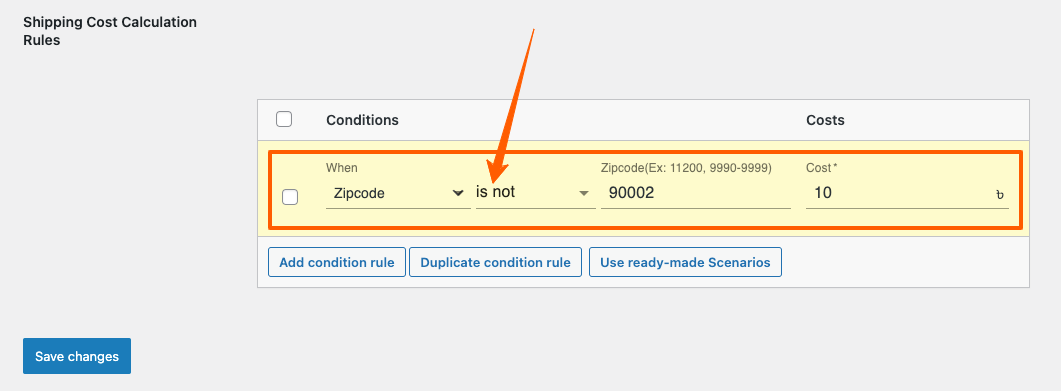
Example 2: Lets set a Shipping Condition such that if there are any order to be delivered outside of this Zip Code, there is will be an additional $20 Shipping Charge added.
Now you can select “Zip Code“ condition by clicking on When field. Select “is not” to meet the condition. Then Provide the Zip Code
So, this is how easily you can set your Zip Code based shipping conditions for your WooCommerce Stores.