
Encouraging customers to buy related or complementary products together is a proven way to increase average order value.
With the Dynamic Discount for WooCommerce plugin by RexTheme, you can easily create bundles or set discounts that reward customers when they purchase specific product combinations.
This guide will walk you through how to:
- Create bundle-based discounts that apply when customers purchase selected sets of products together.
- Encourage product pairing (e.g, “Buy a Laptop and a Mouse together to get 10% off”).
Before starting, make sure your license is activated.
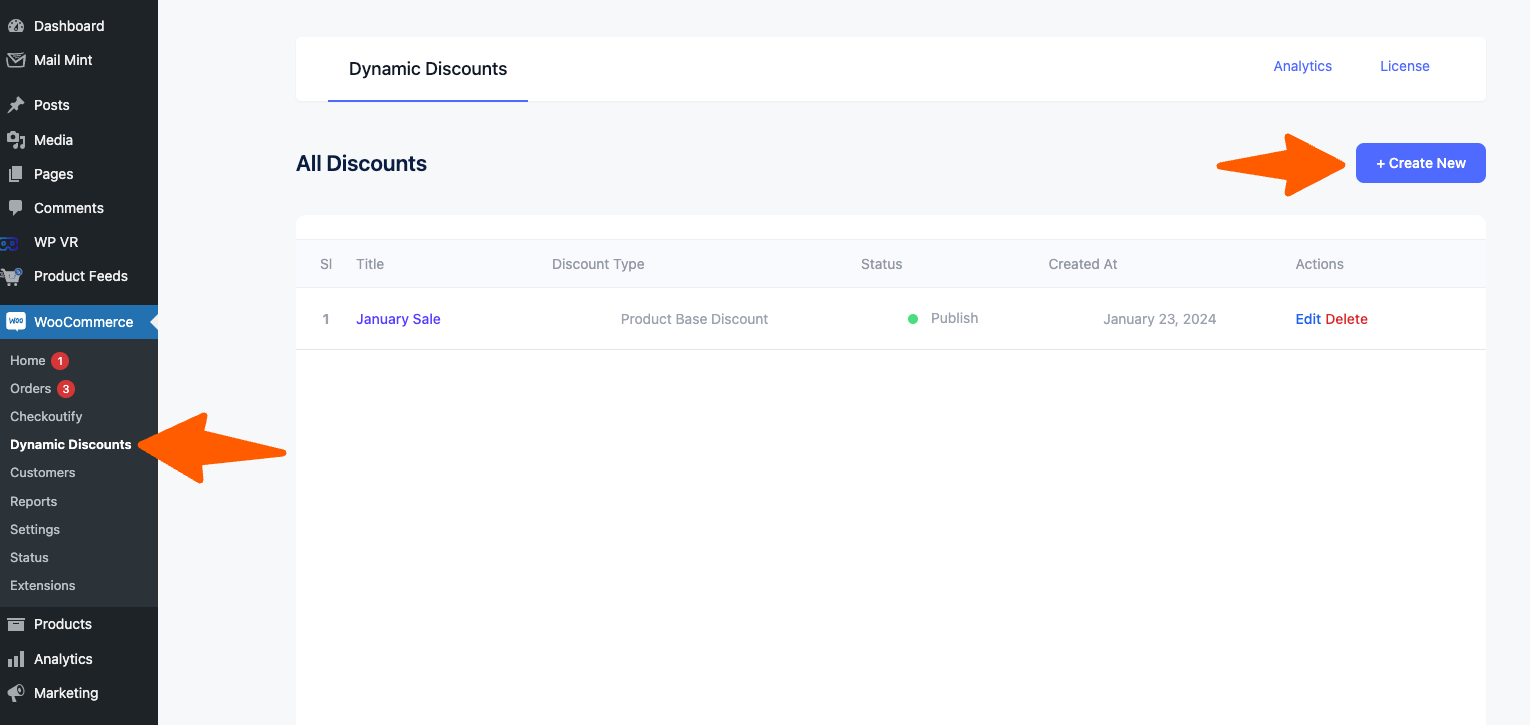
Follow the steps below to Navigate to Dynamic Discount Dashboard:
Hover on WooCommerce dashboard > Dynamic Discounts. As you can see, it will take you to the page where you can create a discount rule. On top, you will see a Button + Create New.
Creating Bundle (Set) Discount #
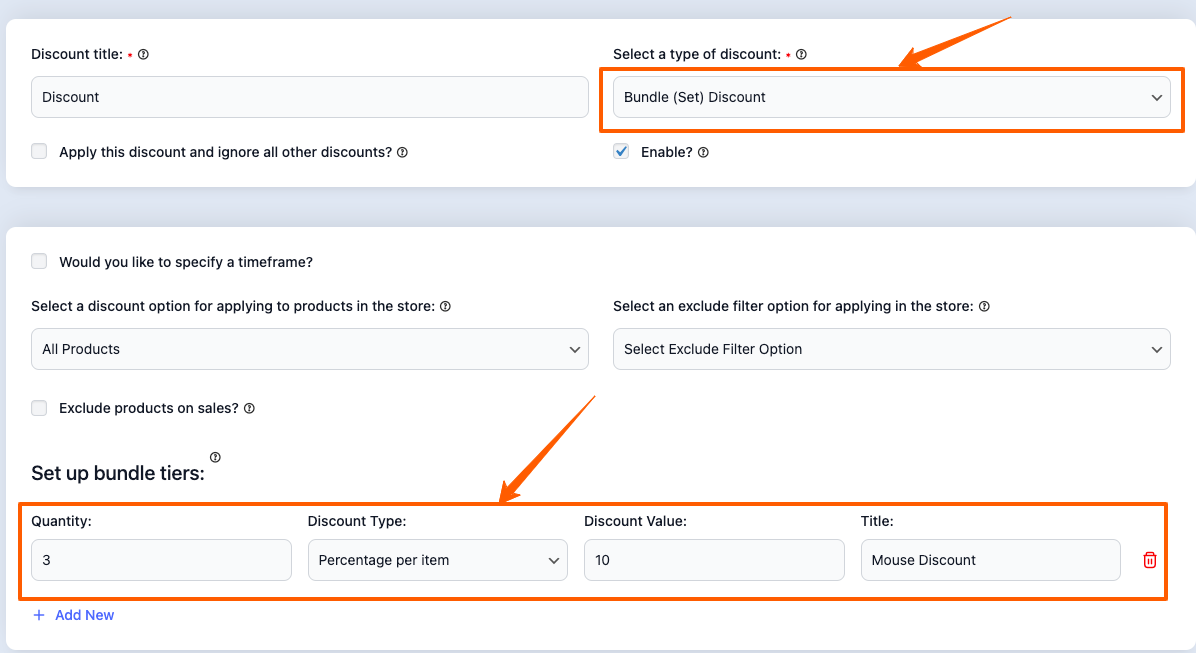
1. Give your Discount a Title
From the Discount type dropdown, select Bundle (Set) Discount and 2 new sections will be added below.
2. Select the Discount Rule
From the “Select the Discount option for applying to products in the store”, select where the discount rule will be applied to:
Currently Discount Rule can be applied to:
- All Products
- Specific Products
- Specific Category
- Specific Tag
You can also exclude products based on:
- Product
- Category
- Tag
3. Set up bundle tiers
Select the Quantity for the product
Select the Discount Type:
– Percentage Per Item – Percentage Discount applied to each product
(Example buy 3 mouse and get discount of 10% on each mouse)
– Fixed Per Item – Fixed Amount of Discount applied to each product
(Example buy 3 mouse and get a discount of $10 on each mouse)
– Fixed For Set/Bundle – Fixed amount for the bundle
(Example: 3 mouse for only $10, here the $10 is set for the bundle of 3 mouse)
Select the Discount Value
Give a Title for your Discount
4. Click on the Save button.
That’s it, Bundle (Set) Discount Rule is created.
Now that you are familiar with how the Dynamic Discounts for WooCommerce plugin works, in the upcoming documentation you’ll learn about the other discount types