![How To Create A Virtual Car Showroom in Automotive Industry [2026]](https://rextheme.com/wp-content/uploads/2025/10/How-To-Create-A-Virtual-Car-Showroom-in-Automotive-Industry.png)
Let me tell you something, this actually happened to a friend who runs a car showroom.
He was getting traffic. Like, a lot of it. People were browsing his site, checking out car photos, even calling to ask questions.
But when it came to booking test drives? Almost nothing. He was frustrated.
Buyers would land on a $60K listing, scroll for like 20–30 seconds, and just leave. No action. The showroom gallery looked good, the cars were solid… but something was missing.
So one day, we’re just sitting over coffee, and I told him, “Why don’t you try a virtual car showroom?”
At first, he wasn’t sure. Sounded a bit too “future-tech” for him. But he gave it a shot anyway when he looked into the data.
According to a report, the automotive VR market is booming and expected to reach $14 billion by 2027
And When You Think about it, It Makes Sense. Buyers today don’t just want to see, they want to experience before they decide.
How The 360 Virtual Car Showroom Helped
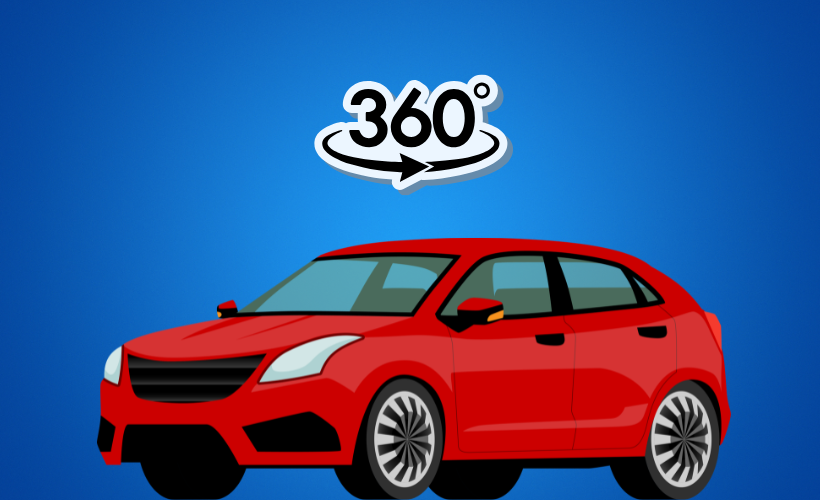
Fast forward three months… He calls me, excited. Now his customers weren’t just looking at car photos; they were actually exploring his cars.
Walking through the showroom gallery, opening doors, checking interiors, and even getting that immersive tour feeling from their couch.
And guess what? Test drive bookings nearly doubled. Sales? Yeah, those went up too. And you know this isn’t some rare case.
The whole industry is shifting this way. Big brands like BMW, Tesla, and Audi are already deep into virtual tours and immersive experiences.
Because at the end of the day, it’s simple: People don’t fall in love with a car by looking at photos. They fall in love when they can picture themselves inside it.
So if you’re running a dealership right now, this isn’t just a cool add-on anymore.
It’s kind of becoming the line between people who just browse… and people who actually buy.
In this guide, you’ll see exactly what a virtual car showroom is, why it works so well, and how you can set one up on WordPress without getting stuck in anything technical.
Let’s get into it.
TL;DR – Create a Virtual Car Showroom
- A virtual car showroom is a 360° online experience where users can explore your vehicles interactively, similar to walking through a physical showroom
- To build a 360 car showroom, follow these steps:
- Install WPVR – the easiest plugin for creating virtual tours on WordPress
- Configure settings for optimal quality and loading speed
- Upload your 360° images and create scenes for each vehicle or section
- Use hotspots to connect scenes and add interactive info
- Customize with control buttons, branding, and calls to action
- Final Tip: Use WPVR to create 360° car tours with hotspots, scenes, and branding, all without writing a single line of code.
What is a Virtual Car Showroom and how it works
A virtual car showroom lets customers explore your cars online just like they would in person. They can move around and see every detail up close.
For example, a buyer can visit your site, walk around a VR car, open doors, check the dashboard, and change colors before booking a test drive.
It works with 360° images or videos using VR technology. You can easily add them to your site so people can explore your cars anytime, anywhere.
Why You Should Use a Virtual Car Showroom
- Save Time: Virtual car showroom let your customers explore your cars anytime with a virtual showroom. This helps them quickly find what they want without extra visits.
- Boost Engagement: Use interactive photography and clickable hotspots to keep your buyers interested. It makes your vehicle display pages more engaging and memorable.
- Show Full Inventory: Display all your cars, including used vehicles, from every angle. Buyers get a complete view of your inventory without leaving home.
- Highlight Features: Show feature tour highlights and high-resolution details of interiors and exteriors. This helps buyers understand your cars better and make confident choices.
- Drive Traffic: Share your virtual showroom tours on social media or email. It brings more online traffic to your dealership site and attracts serious buyers.
- Increase Confidence: Let buyers explore prospective vehicles at their own pace. They feel more comfortable and are more likely to pick the right vehicle for themselves.
- Stay Competitive: Use immersive technology on your dealership website. It shows you’re innovative in the VR Automotive industry and appeals to tech-savvy buyers.
How to Create a Virtual Car Showroom (Step-by-Step Guide)
Alright, here’s the part you actually came for. Let me walk you through how to build this yourself.
The tool I recommend and what I’m using in this walkthrough is WPVR. It’s a WordPress plugin built specifically for creating virtual tours, and honestly, it’s the easiest one I’ve used.
You upload a 360° image, drag in some interactive hotspots, and you’ve got a tour. No code.
Here’s how to set it up.
Step 1: Install & Activate The Plugin
Start in your WordPress dashboard.
- Go to Dashboard → Plugins → Add New and search for WPVR.
You can install the free version to start playing around, but if you want the good stuff – explainer videos, contact forms, custom hotspots – you’ll want to grab WPVR Pro.
Once you’ve purchased Pro, install and activate it, then drop in your license key to unlock all the premium features. It will take you about five minutes.
Step 2: Configure WPVR for Best Output
Before you start building your 360 car showroom, take two minutes to set up your general preferences. This saves you from rebuilding stuff later.
Head to WPVR → Settings and open up the General Setup Options. Here’s what to adjust:
- Set your default tour layout and viewing mode (this is the experience your buyer will get)
- Enable the hotspot display so your interactive elements show up properly
- Adjust the navigation controls so buyers can move around naturally
- Save everything
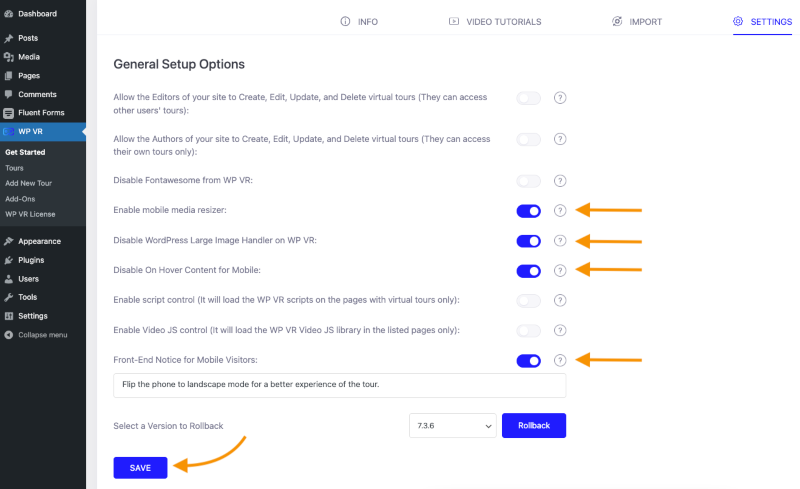
Then in the Advanced Settings, make sure these four options are turned on:
- Mobile Menu Resizer: so your tour works smoothly on phones (which is where most of your traffic comes from anyway)
- Disable Large Image Handler: keeps your 360° images high-resolution so the tour actually looks premium
- Disable On Hover Content: ensures hotspots work properly on mobile (where there’s no “hover”)
- Front End Notice: prompts buyers to rotate their phone to landscape for the best view
These are the small details that separate a virtual car showroom that feels professional from one that feels normal.
Step 3: Create the First Scene of Your Virtual Car Showroom Tour
Now the fun begins.
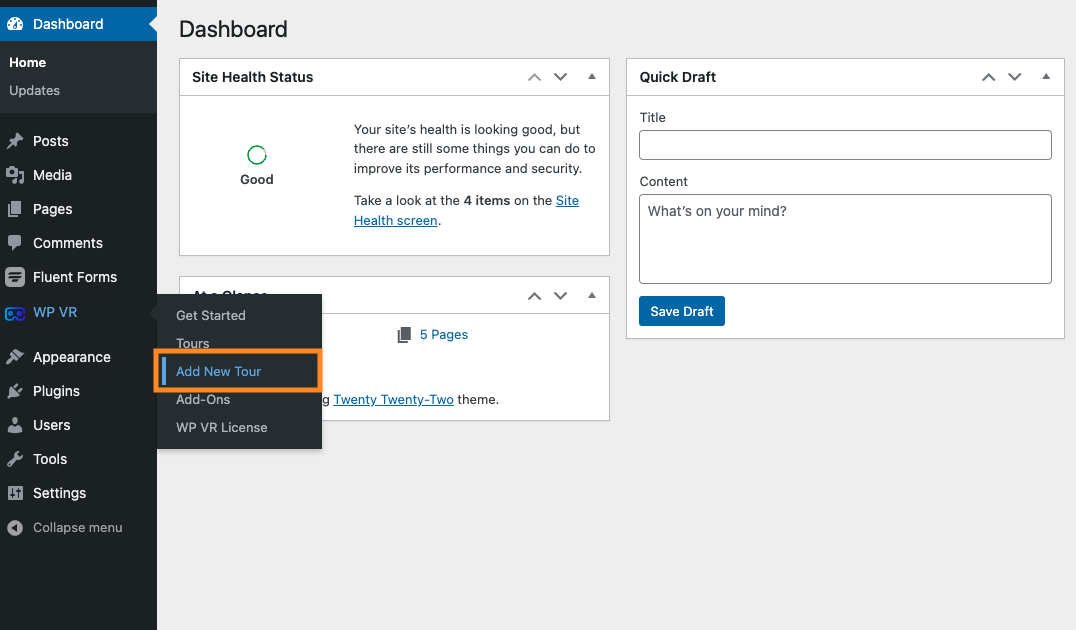
- Hover over the WPVR menu in your WordPress dashboard and click Add New Tour.
You’ll land in the Basic Settings tab. Here’s what to do:
You will be taken on a new tour, and initially, you will be in the Basic Settings tab on the General menu.
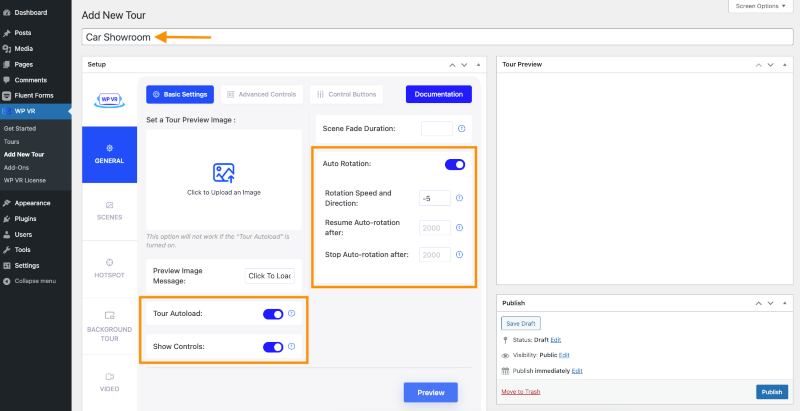
- Give it a title: something simple and clear like “Car Showroom” or “Exceptional Vehicles Collection.” This is just for you to find it later.
- Enable Auto Rotation: turn it on and set the speed to “-5” for a smooth, slow rotation that draws the buyer in without feeling like they’re on a Tilt-A-Whirl.
- Add a preview image: this is the placeholder image people see before they click into the tour. Use something striking. I’d recommend creating a custom image with text like “Take a virtual tour — explore every detail” to act as a clickbait CTA.
Step 4: Upload Your 360 Image & Create a Scene
This is where you actually bring the car into the showroom.
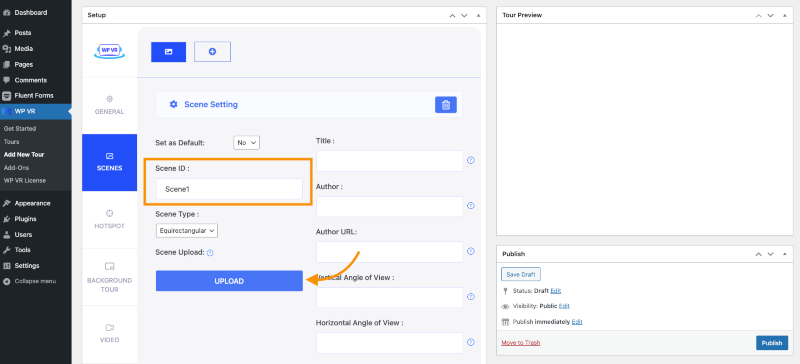
- Go to the Scenes option in WPVR
- Create a unique Scene ID (no spaces or special characters – keep it simple)
- Click Upload under the Scene Upload area and select your 360° panoramic image
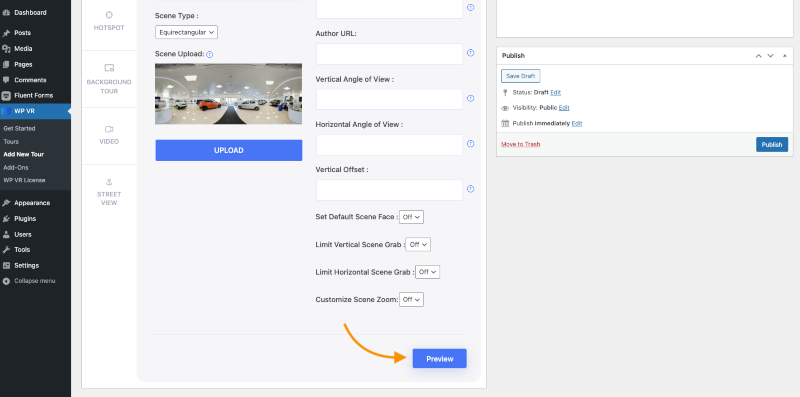
- Once it uploads, scroll down and click Preview to see how it looks
You’ll see your car in a 360° interactive view. You can click around, move the camera, and get a feel for it. If the angle’s weird or you can’t see key parts of the car, you’ll know to re-shoot before going further.
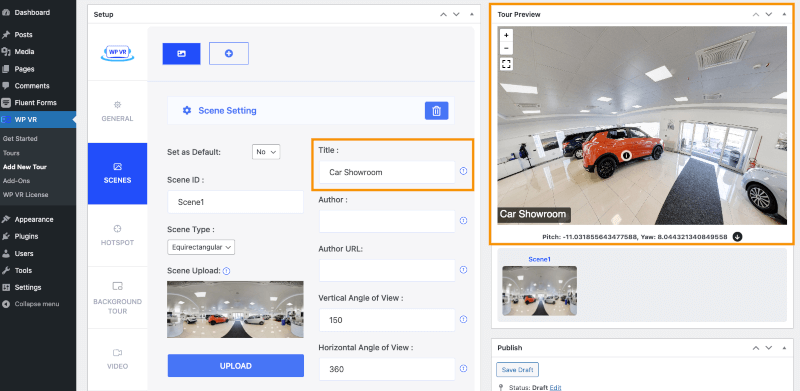
- Add Title: Give your image a clear Title to showcase the car or scene name.
- Update Scene: Click “Update” to save your changes and apply the title to the virtual tour.
That’s it. See how easy it was to create the virtual tour?
Let’s add more features and control options to make this a complete virtual car showroom tour. Here are the details:
Advanced Controls
Go to General> Advanced Control tab and enable these features:
- Scene Gallery: Scene Gallery will let you keep an inside image of a car in the picture gallery.
- Gyroscope: Gyroscope Feature will let you load the car showroom on Mobile.
- Explainer Video: With the Explainer video, you can add explained details of the car.
- Add Company Info: Time for the branding of your organization. Company info is very important while showcasing the car.
- Tour Background Music: Tour Background Music will help with the engagement of clients.
Control Buttons
Now, go to the Control Buttons tab.
- Function Testing: Test all enabled controls to verify smooth and responsive behavior.
- Control Buttons: Navigate to the Control Buttons tab in your VR Car Showroom setup.
- Enable All: Keep all options enabled in this section to ensure full functionality.
- Navigational Features: Review Navigational Features to see how each control button functions for movement, zoom, and rotation.
- User Interaction: Understand how users will interact with the showroom using these controls.
- Layout Integration: Ensure buttons align well with the showroom’s design and navigation flow.
Extra Tips:
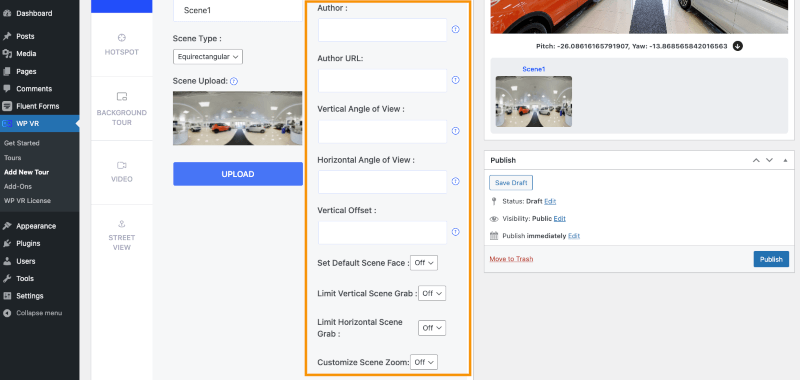
- Author Fields: Fill in the Author and Author URL fields when images have dedicated authors to ensure proper attribution.
- Default Scene Face: Set a default scene to be shown first in every tour for consistency.
- Customize Scene Zoom: Access three new options to adjust the zoom level to your preference. It allows for more detailed viewing.
- Panorama Images: Add additional panorama images by creating more scenes and customizing parameters for a richer showroom experience.
Step 5: Use Hotspot to Connect Panorama Images
Since you’re building a Car Showroom tour, it’s time for you to show the cars and their details. Let’s work with one car for now.
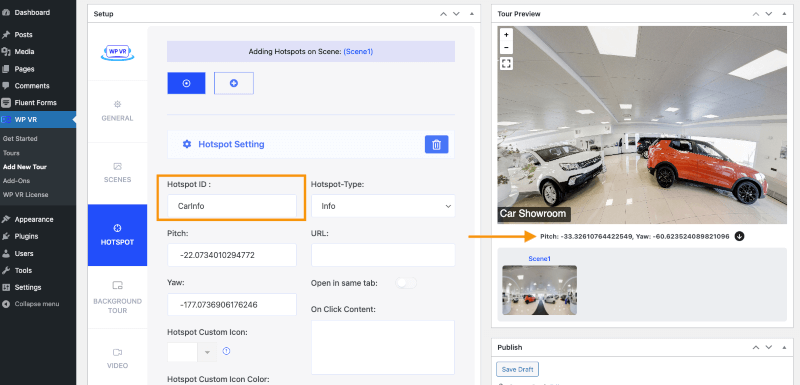
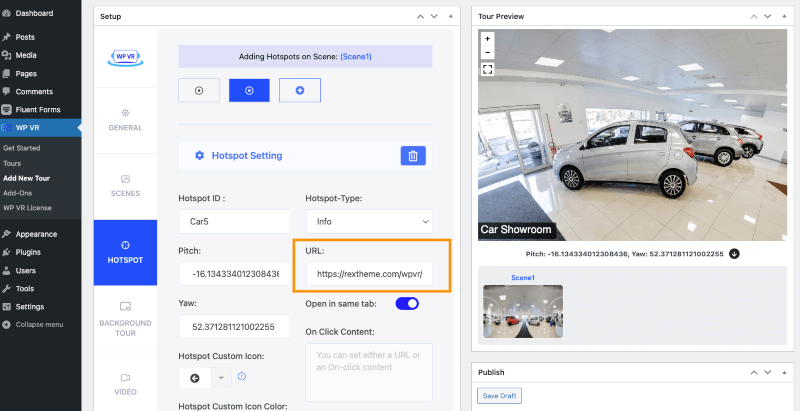
- Add Hotspot: Go to the hotspot section and add one to make your showroom more interactive.
- Set an ID: Give it a short, one-word ID with no spaces or symbols—this helps you keep track of it.
- Add Pitch & Yaw: Pick the exact spot in your panorama and enter the pitch and yaw so the hotspot appears in the right place.
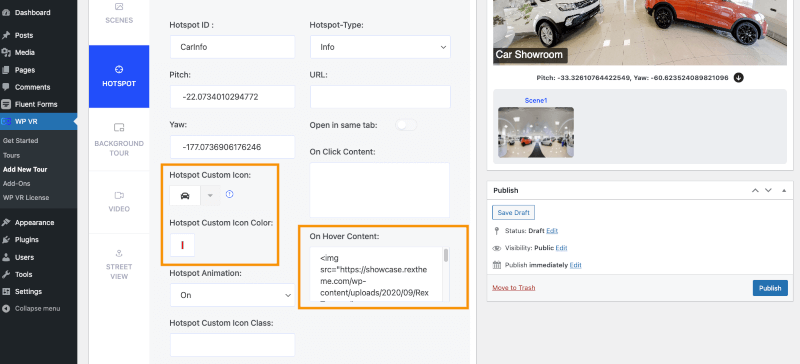
- Add Custom Icon: Scroll down to choose a custom icon for your hotspot – it helps make it more visually appealing.
- Hover Content: Write what you want your clients to see when they hover over the hotspot.
- Add Media: You can even include images or GIFs to make the experience more engaging and fun.
Let’s add another hotspot and see how it looks on the frontend:
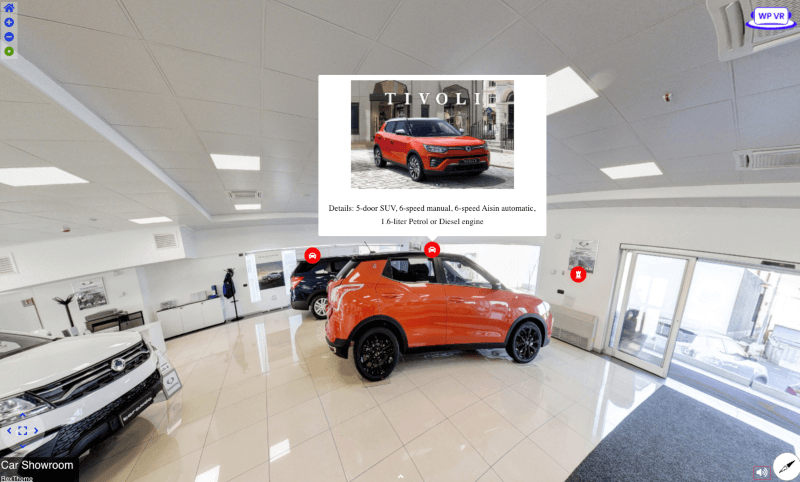
Tip: I’ve added engine details in the hotspot as well. If you want to showcase the car features individually, you can do it this way.
You can even showcase the inside image of a car by moving from one scene to another. For this, you’ll need to use the Scene Type Hotspot.
You can also add a URL link to a Car’s product page from where the client can directly purchase the car.
Now, you’ve created a complete VR car showroom. And the next move would be to impress your customer with your presentation or answers and close the deal.
Yes, you still need to put in some effort to close the deal, but you can see how a virtual tour can reduce the amount of effort you would normally need to invest in convincing the buyer who just walked into your showroom to view cars.
Follow this simple guide to easily add contact forms inside virtual tours.
Some Components You Should Include in Your Virtual Car Showroom
Now that you have understood the process,
let’s go through the components you should include in your VR car showroom.
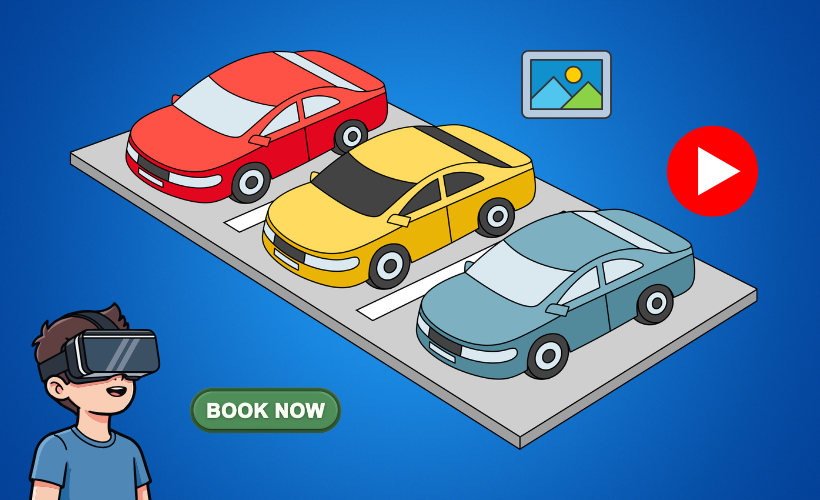
- Car Description: Give your buyers all the info they need, such as base price, real photos, videos, and full specs. It saves them questions and builds trust right away.
- Car Interior Tour: Let them step inside your car virtually. With navigation and tooltips, they can explore every detail just like they would in person.
- Client Experience Video: Share a short clip from someone who’s already loving the car. Real voices go a long way in helping new buyers feel confident.
- Introductory Explainer Video: Greet your visitors with a friendly video. Suggest the right car for their needs, whether it’s speed, luxury, or the latest model. It feels like you’re guiding them personally.
- Showroom Address & Directions: Make it easy for them to reach you. Drop in your contact info and a direct link to your showroom on the map.
- Booking Form: Don’t make them wait; let them book a test drive or meeting right from the tour. It’s simple, fast, and shows you’re ready when they are.
~ Learn more – How To Create a Virtual 360 Car Interior Tour In WordPress
How Can a Virtual Car Showroom Help to Increase Your Sales
So far, you have already learned how to create a VR car showroom. Let’s discuss the reasons why you must consider using one.
1. Create a Meaningful Experience for Potential Buyers
A brand-new car can look stunning in photos, but that alone doesn’t guarantee a sale. Buyers often reject cars in person because photos can be misleading.
For example, a buyer might love the look of a car online but feel uncomfortable with the interior space once inside. A virtual tour lets them explore the car realistically.
It also helps them decide if it’s a good fit before visiting.
This experience also helps high-end buyers see if the car matches their style and needs. It makes them more confident and ready for a test drive.
2. Provide Relevant Details That Can Drive Decisions
Buyers want clear info like engine power and acceleration to feel confident. Sharing these details upfront answers their biggest questions.
For example, if someone’s eyeing a supercar, they’ll want to see its zero-to-hundred time and horsepower right away.
With hotspots and videos, they can explore these features at their own pace.
Custom automotive software development lets you add these interactive details smoothly.
Plus, software development analytics tools show you what your buyers care about most. It helps you close deals faster.
3. Give a Complete Car Showroom Experience
Let your buyers do more than just look; give them the option to book a test drive or send in questions. A simple contact or booking form inside your virtual tour makes this super easy.
For example, someone exploring your showroom might want to schedule a call or ask about financing; having a form ready helps capture real, interested leads.
You can also add a total loss calculator to help buyers estimate trade-in or insurance value.
And by partnering with junkyards in Hawaii, you can offer access to parts or salvage vehicles, giving your showroom even more value and reach.
Conclusion
The VR automotive industry is growing fast, and a virtual car showroom helps you keep up. It’s a smarter way to present your cars online.
Instead of just showing photos, you let buyers explore everything, the interior, exterior, and features – at their own pace.
And it’s easier than you might think. You don’t need a big budget to get started.
If you want a simple way to do it, go with WPVR. It lets you create 360° car tours that actually engage people and make your inventory stand out.
** FAQs **
1. How do I create a virtual car showroom without hiring a developer or spending thousands?
You can create a virtual car showroom using WPVR without any technical skills. Just install it on WordPress, upload 360° images, add hotspots, and publish. It takes a few minutes, and you can start it for free.
2. Will a VR car showroom actually convert browsers into test drive bookings, or is it just a gimmick?
A VR car showroom keeps buyers engaged longer by turning browsing into an interactive experience. They explore your car in detail, which builds interest and confidence. This naturally leads to more test drive bookings.
3. Do my customers need a VR headset to view a car virtual tour, or will it work on phones and laptops?
Your customers don’t need a VR headset at all. Virtual tours work on phones, laptops, and tablets. They can simply click and start exploring instantly.
4. How much does it actually cost to build a 360 car showroom from scratch?
You can build a 360 car showroom with a basic 360° camera or smartphone, a WordPress site, and a WPVR plugin, which is around $99.99. The total cost is usually under $700. And if you already have a WordPress website and capture a panoramic image with your smartphone, $100 is enough. It’s a small investment compared to the value it can bring.
5. How do I capture good 360 car view photos of my inventory without hiring a professional?
Use a 360° camera, a tripod, and natural lighting for best results. Place the camera at chest height and step out of the frame before shooting. It’s simple and takes about 10–15 minutes per car.