![7 Common Google Shopping Feed Errors And How to Avoid Them [2026]](https://rextheme.com/wp-content/uploads/2025/04/Google-Shopping-Feed-2.png)
If you run a WooCommerce store, you’ve probably experienced this.
You send your products to Google Merchant Center, wait for approval, and then several get disapproved with messages that barely explain anything. No visibility, no clicks, no sales, just confusion.
Most of these errors are not random. They happen when your product feed does not match what is on your actual product page.
Google checks both, and if something does not match, the product gets rejected. This is more common than it seems.
Around 7% of products submitted to Google Shopping are disapproved due to critical feed issues, and nearly half of merchants, about 48.43%, face problems with invalid GTINs at some point.
So these issues follow a clear pattern across stores. When you fix the issue at the source inside WooCommerce, it usually stops coming back.
After seeing this repeatedly, one thing becomes clear. The errors may look different, but the patterns stay the same.
This guide will show you the most common ones, where they come from, and which ones to fix first so you do not waste time on the wrong issues.
TL;DR – Google Shopping Feed Errors
- Most Google Shopping errors come from mismatched data between your WooCommerce product page and feed, so fixing it in WooCommerce stops repeat issues.
- Some errors remove products completely while others only limit performance, so disapprovals should be fixed first.
- Price and availability mismatches are the most common and damaging since Google checks them frequently.
- Variable product price issues usually come from structured data, not the feed itself.
- Validating your feed before submission saves time by avoiding repeated rejection cycles.
- A product feed manager helps prevent these issues by keeping your WooCommerce data and feed properly synced and structured.
What Google Shopping Feed Errors Actually Are
A Google Shopping feed error means your product data either breaks Merchant Center rules or does not match your live product page. When that happens, the product gets blocked from listings until you fix it, and repeated issues can risk your whole account.
Understanding this difference between errors helps you prioritize fixes. You can check all issues in Merchant Center under Products and the “Needs attention” tab, which shows what is broken and what to fix first.
If you’re unsure what GTIN and MPN are or how to add them to your WooCommerce products, check out this guide on GTIN & MPN.
Google flags these errors, stopping your ads from running. That means fewer potential customers seeing your products and fewer sales.
To avoid this, you need to understand the different types of Google errors and how they affect your product listings.
Types of Google Errors
Before you touch anything, it helps to know that Google sorts these product data feed errors into three severity levels, because the level tells you how fast you need to move:
- Errors disapprove the product. It will not show until you fix it, and clusters of them can put your whole account at risk.
- Warnings don’t remove the product right away, but they limit its performance: fewer impressions, fewer clicks, and can turn into errors if ignored.
- Notifications are suggestions to improve the feed. They don’t affect visibility.
That distinction is the whole game when you’re staring at a long list in Merchant Center. We’ll come back to it in the decision framework near the end, because knowing which Google Merchant Center errors block a listing versus which merely slow it down is what lets you fix the right things first.
Meanwhile, look at Why is Google Shopping Not Showing Your Products? Let’s Fix It
Next, let’s go over the most common Google feed errors and how to resolve them.
Basic Google Shopping Requirement – Mandatory Product Attributes
The very first step of a successful product listing is ensuring the right product attributes. Google requires specific attributes to be included in your product listings. So that it can ensure they meet their quality standards and offer a seamless shopping experience for customers.
The following are the common product data Google requires you to submit for any products:
- Product ID
- Titel
- Beschrijving
- Product Link
- Image Link
- Availability
- Current Price
- Voorwaarde
- Unique Identifier
And depending on the product type or your offer type, you may have to submit additional fields. For example, if you have different shipping costs for different locations, then you need to submit the attributes for Shipping fees.
If you do not submit these attributes, then, in most cases, your products will be rejected. Most other Google feed errors you will get also revolve around these attributes.
Finding Out If Your Google Product Feed is Approved or Rejected & Why
After you submit your product feed on Google Shopping, you may check the status of your listings in the Diagnostics tab.
To view the diagnostics,
- Log in to your Google Merchant Center account.
- Go to the Products section from the left-hand menu
- Open the ”Needs attention” area to view product issues and status updates
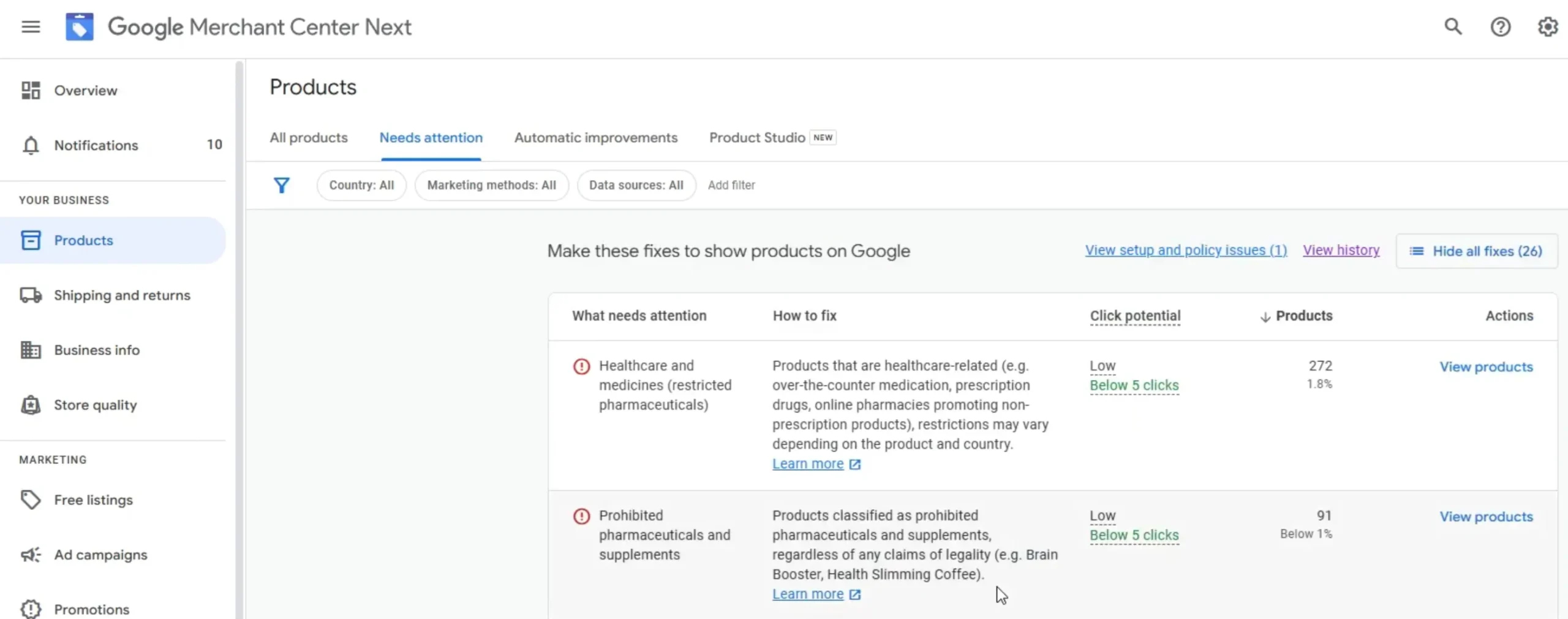
- In the Diagnostics dashboard, you’ll find a detailed breakdown of any issues affecting your product feed.
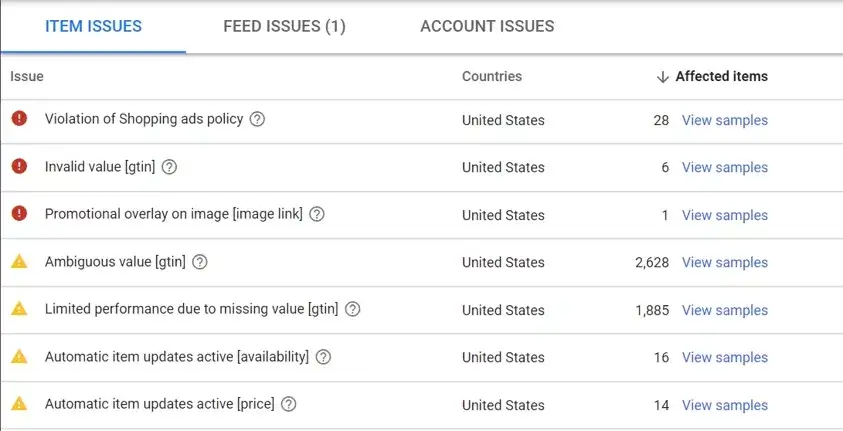
- Clicking on an error or warning will show a list of affected products. It allows you to focus on specific items.
- Each feed error comes with suggested actions to rectify the issue. You have to follow these recommendations to fix the problem.
Now, let’s see the common Google errors you might face and how to solve them for a successful promotion.
The Most Common Google Feed Errors & Ways to Avoid Them
![7 Common Google Shopping Feed Errors And How to Avoid Them [2026] 1](https://rextheme.com/wp-content/uploads/2025/04/Google-Feed-errors-.webp)
The following are the most common Google errors you may get when your products get rejected in Google Shopping.
- Missing or Incorrect Price Attribute
- Missing Shipping Value
- Pending Initial Review
- Policy Violation
- Invalid Value Availability
- Invalid Images, Product Titles, or Descriptions
- Missing or Invalid Identifier
Let us look at each of them more closely and learn how you can avoid them.
1. Missing or Incorrect Price Attribute
The product price is really important, and if your product price has issues, then your Google Shopping feed will be rejected.
4 common price mismatch issues may arise.
i. Currency Mismatch
This happens when your feed uses one currency, but your product page shows another. Google compares both and flags it as a mismatch.
Even if the price amount is correct, a different currency triggers disapproval. This is a common cause of Mismatched value (page crawl) [price] errors.
Solution:
Fix it by keeping the same currency in WooCommerce and your feed. Both must match exactly at all times.
ii. Mismatched Price
This occurs when the price in your feed does not match the price on your product page. Even small differences can cause disapproval.
It often happens during sales when the page shows a discount, but the feed still has the old price. Google sees this as inconsistent pricing.
Solution:
Fix it by syncing your product price, sale price, and structured data. Make sure your feed updates whenever prices change.
iii. Price Mismatch For Product Variation
For variable products, WooCommerce usually shows a price range instead of a single price. Google reads this as incorrect data.
So even when your feed is correct, Google may still reject the product due to structured data mismatch. This makes the issue confusing.
Solution:
Fix it by correcting your structured data so each variant has its own price. A product feed manager can handle this automatically.
In WordPress, you may use Rexfeed – Product Feed Manager for WooCommerce, which helps to configure the correct structured data format for variable products.
iv Missing or Zero Value for Price
This happens when the price is missing or set to 0 in your feed. Google does not allow products without a valid price.
A zero price is treated as invalid, not as a free product. This triggers the Invalid or missing required attribute: price error.
Solution:
Fix it by always submitting a valid price. Exclude any products with zero value from your feed
2. Missing or Incorrect Shipping Value
Another common Google Shopping feed mistake most people make is submitting incorrect shipping value for your products.
You will most likely notice the following error.
- Missing value: shipping [shipping]
Or you may also get a Google feed error about the shipping weight.
- Missing Value: Shipping Weight [shipping_weight]
Normally, you may set up shipping rates in your Google Merchant Center, which are considered a fixed shipping cost for any product delivered to a certain location.
However, you may want to use different criteria, such as shipping cost based on product weight, which you have to handle with attributes for each product in your Google product feed.
Now, if you have different shipping charges for different products, you need to ensure you submit the right values in the right format.
Similar to price, you first need to make sure the values match your product page. Second, you need to submit the right currency.
Then, you need to ensure you submit the shipping attribute using the required format. Basically, it has sub-attributes that you need to include for each shipping service you offer per product.
<g:shipping>
  <g:country>US</g:country>
  <g:region>MA</g:region>
  <g:service>Ground</g:service>
  <g:price>6.49 USD</g:price>
  <g:min_handling_time>1</g:min_handling_time>
  <g:max_handling_time>3</g:max_handling_time>
  <g:min_transit_time>2</g:min_transit_time>
  <g:max_transit_time>5</g:max_transit_time>
</g:shipping>
Here, you must include the Country and the price. The rest are optional.
Along with this, you may add the Shipping weight attribute if you have a weight-based shipping cost.
Solution:
Fix it in WooCommerce by matching your shipping cost and weight with your product page. If shipping varies by product, submit it with the correct format, currency, and required sub-attributes for each shipping service.
3. Pending Initial Review
An interesting barrier that many often face with Google Shopping is the error,
- Pending Initial Review.
This is quite unclear, and you have no specific information on why your products have not yet gotten past that initial review.
Normally, it should take 3-5 business days for the review. But if you notice that the status is the same for more than 7 business days, then you should start investigating how you can fix it.
Solution:
- Go to Diagnostics and check if there are any pending issues on an account level, product level, or feed level for this particular product data feed. Resolve any pending issues there.
- Make sure your Google Merchant Center account is properly configured.
- Ensure you are not violating any Google Shopping policies.
- Maintain an up-to-date policy page, terms and conditions, delivery page, returns page, and a contact page with business address, telephone, email, and contact form on your website.
- Consult with your hosting provider to make sure your website is not blocking Googlebot from indexing.
- If everything is properly set, then you may submit a request here.
Overall, this may take about a week to a month, but if you do everything right, you will be able to get past this tricky situation.
4. Google Shopping Policy Violation
![7 Common Google Shopping Feed Errors And How to Avoid Them [2026] 2](https://rextheme.com/wp-content/uploads/2025/04/Google-shopping-policy-.webp)
Google is very strict when it comes to their policies, and if you violate one, they will disapprove your products without any fixed indication as to where you violated the terms.
You will simply get a warning:
- Preemptive Item Disapproval (PID): Policy Violation
At this point, you need to read the policies and make sure you haven’t violated any of their rules or terms. You may have to check for unaccepted terms used in product descriptions, disallowed product types, illegal products or information, etc.
Solution:
Make sure you are following Google Shopping policies 100% and follow their guidelines.
5. Invalid Or Missing Availability
Availability is a required attribute for your product data to be approved on Google Shopping, and the accepted values for it are “in stock,” “out of stock,” and “pre-order.”
You may often get the error,
- Invalid value [availability]
It means you submitted the wrong value.
And you may get the error,
- Missing required attribute: [availability]
It means you did not submit this attribute at all.
Solution:
- Make sure to submit the “availability” attribute as it is one of the required product data that Google Shopping requires.
- Use the accepted values, “in stock,” “out of stock,” and “pre-order” for your products.
6. Invalid Images And Product Titles
These are 3 common issues that you may face due to not following the Google Shopping guidelines.
i. Invalid Image
You may come across the following Google feed error,
- Invalid image: image link [image_link]
It means the image URL you provided is either unresponsive or incorrect, i.e., you submitted the wrong URL.
There could also be an error called,
- Promotional Overlay on Image [image link]
Google Shopping is strict about your product images. There shouldn’t be any promotional overlay. The product should be clearly visible. So, if you have used promotional text or images over your product image, then it will not be approved.
A third image issue you may face is related to the size.
- Image Too Small or Low Image Quality [image link]
This usually happens when you have not submitted product images that are not in the right size. The minimum size for almost all product images is 100×100 pixels. In the case of clothing, the required image size is 250×250 pixels.
Solution:
- Check the product URL and ensure it is working properly on your website or if it is marked as Public and not Private.
- Avoid using promotional overlays on product images.
- Maintain high-quality images with the right image size.
ii. Invalid Product Titles
Sometimes, you will get a Google feed error called,
- Invalid Value [Title]
This happens when you have used a very long product title (seemingly longer than 80 characters) or used a special character that Google Shopping does not recognize.
So, you need to optimize your product title accordingly.
Another issue you may face is,
- Excessive capitalization [title]
It’s as the error states, you probably have used too much capitalization that may affect customer experience. For example, you probably have used all-caps for two large words while the others are in the usual standard.
There is no fixed limitation here, but Google makes the decision, and you have to improve your title accordingly.
Solution:
- Do not use product titles that are too long; limit product titles to 80 characters.
- Avoid using special characters in product titles.
- Use capitalization in a way that it doesn’t get annoying.
7. Missing or Invalid Identifier
To submit products on Google Merchant Center, you must submit the brand name and one of the two identifiers, GTIN and MPN.
You will get the following Google errors if you do not submit them.
- Limited performance due to missing value [gtin]
- Limited performance due to missing identifiers [gtin, mpn, brand]
While this is not something that will restrict listing your products on Google shopping, not submitting this data will not list the product on surfaces across Google, such as DRM or Local Feed.
So the performance will be significantly less.
Normally, if your product has a GTIN and MPN, then you should submit it. In case your product is manufactured on your own and doesn’t have a GTIN or MPN, you have to submit another attribute called “Identifier Exists” and assign the value “No.”
In case you are selling a non-branded product, you may submit your store’s name as the brand name.
By the way, if GTIN is not the identifier in your country, no problem. The value of GTIN is equivalent to UPC, EAN, JAN, ISBN (for books), etc., whichever is used in your country.
Solution:
- Try to submit a GTIN or MPN with every product.
- If you do not have a GTIN or MPN available, submit an additional attribute, “Identifier Exists,” with the value “no.”
- Submit the product brand. If it’s a non-branded product, use your store’s name as the brand name.
To sum up, if your product data doesn’t match between WooCommerce and Google Merchant Center, it can lead to disapprovals. To prevent this, set up automatic syncing between WooCommerce and Google.
Here’s a guide on how to auto-sync WooCommerce products to Google Merchant Center.
Which Errors Should You Fix First?
When Merchant Center shows a lot of issues, don’t fix them in order. Focus on what actually affects your sales first.
Start with disapproved products. If a product is disapproved, it won’t show at all, so it earns nothing. Fix price issues, missing values, wrong availability, bad images, and policy problems first.
Then handle issues that can come back again, like price and stock mismatches. These change often, so connecting them to your WooCommerce data keeps things consistent.
After that, fix warnings like missing identifiers or weak titles. Your products are still live, but improving these helps performance over time.
Leave notifications for last since they’re just suggestions. A product feed manager helps keep everything synced so these problems don’t keep repeating.
How to Fix Google Feed Errors Faster in WooCommerce
By this point, you already know how to identify where things are breaking inside Google Merchant Center. The next step is making those fixes faster and more controlled inside your WooCommerce setup.
Instead of jumping back and forth between Merchant Center and your store, you can handle most of the cleanup directly from your product source, which is WooCommerce.
And if you use a feed plugin like Rexfeed – Product feed manager, you get more control over how your product data is generated and sent to Google.
One of the most useful parts here is the built-in feed validator. It checks your product feed before you send it to Google and highlights missing fields, incorrect values, and formatting issues. You don’t have to guess what might get rejected later. It shows you the problems upfront so you can fix them before the feed goes live. And you can use this feature in the free version of Rexfeed.
Once you have that in place, there are a few more ways you can speed up the entire fixing process:
- Check product-level errors in bulk instead of opening each item one by one in Merchant Center
- Fix attributes directly in WooCommerce where your product data is originally stored, especially price, stock, and identifiers
- Regenerate your product feed after updates, so Google always receives the latest version without delay
Conclusie
These errors are not complicated once you treat them as WooCommerce data issues. Fixing them at the source stops them from repeating.
Match your price and currency, use correct availability values, and add proper identifiers. Clean titles and images also reduce most common errors.
Validate your feed before submitting to catch issues early. This helps you fix everything once instead of going through repeated rejection cycles.
Keep your feed properly synced and structured at all times. Using a product feed manager helps automate fixes and keep your data accurate.
** FAQs **
1. Why is Google rejecting my price even though it looks correct?
This usually happens with variable products where the structured data shows a price range, but your feed shows one price. Google compares both and flags it as a mismatch. Fix your JSON LD so each variant has its own price, and the issue should go away.
2. Which Google Shopping feed errors should I fix first?
Start with errors that disapprove your product completely because they stop it from showing. These include price mismatches, missing prices, wrong availability, bad images, or policy violations. Warnings can be fixed later since your product is still visible.
3. What availability values does Google accept?
Google only accepts four values: in_stock, out_of_stock, preorder, and backorder. Anything else will cause an error in your feed. Make sure your website and feed show the same availability to avoid mismatches.
4. Do I need a GTIN for every product?
You need a GTIN for most branded products along with a brand name or MPN. If you sell your own custom products without a GTIN, set identifier_exists to false. Never make up a GTIN because that can cause bigger issues.
5. How can I stop these errors from coming back?
Fix the issues directly in WooCommerce instead of adjusting them in Merchant Center. Make sure your feed pulls live data for price and stock so everything stays consistent. Check and validate your feed regularly before syncing to prevent repeat errors.