Most store owners assume listing WooCommerce products on marketplaces is a slow process!
And honestly, it’s easy to see why.
Between manual setup, formatting product data, matching attributes, and repeating the same fields for different marketplaces… it quickly turns into something that feels time-heavy and technical instead of growth-focused.
But here’s something worth paying attention to.
Using dedicated feed management software can reduce feed creation time by up to 70%
And once you start looking at it from that angle, the entire process changes.
Because what usually feels like a long, manual setup suddenly becomes something you can complete in just a few guided steps — without dealing with spreadsheets or rebuilding feeds for every marketplace.
In this guide, you’ll see exactly how that works in practice and how you can get your first marketplace feed live in just a few minutes, step by step.
Let’s break it down.
TL;DR
- Marketplace listing feels slow mainly because of manual setup, not the platform itself
- Most time is lost in spreadsheets, formatting, and repeated attribute mapping
- Dedicated feed management tools can reduce feed creation time by up to 70%
- You can create your first marketplace feed in minutes using a structured workflow
- Once the first feed is live, you can repeat the same process across multiple marketplaces
- Category mapping, feed rules, and attribute control directly impact visibility and clicks
- Optimization matters as much as listing because it decides how your products appear in search results
- Multi-marketplace listing increases chances of discovery where buyers are already searching
- Scaling becomes easier when feeds are generated instead of being manually built each time
What should you do next?
Start by creating your first marketplace feed and listing your products on Google Shopping using PFM. Expand step by step to other marketplaces using the same workflow.

Stop Spending Hours to List Products Online
When you try listing products on marketplaces, the process usually starts the same way for you.
You export product data from WooCommerce, then move it into spreadsheets, and then start fixing it so it matches what each marketplace expects. Along the way, you deal with things like:
- exporting product data
- formatting spreadsheets for each channel
- matching required attributes (titles, GTIN, categories, etc.)
- fixing missing or incomplete fields
- uploading files and rechecking errors
And if you’re listing on more than one marketplace, you don’t just do this once. You repeat it again and again with small variations for each platform.
That’s where the real time drain happens for you. Because instead of focusing on improving your product pages, running campaigns, or optimizing conversions, you end up stuck inside feed preparation work.
The problem is rarely the marketplace itself — it’s the time lost in preparing the feed.
And once you notice that pattern, it becomes clear why many stores delay marketplace expansion even when the opportunity is already there. This is exactly why faster feed workflows are becoming essential.
The “Hours to Minutes” Trend You Need
Well, this is where the process starts to look very different for you.
Modern feed management tools remove most of the manual steps you usually deal with.
Instead of you structuring spreadsheets, fixing formats, and adjusting fields for every marketplace, the system automatically builds marketplace-ready product feeds based on the requirements of each channel.
So rather than spending time aligning data manually, you work with a setup where your product information is already arranged into the format each marketplace expects.
At this point, this is exactly where Product Feed Manager for WooCommerce fits into your workflow.
- You just pick a marketplace,
- select your products,
- and the feed gets generated in a format that’s ready to use.
What usually takes hours of setup turns into a few guided steps you can complete in minutes.
So, the next part is where you actually go through it step by step.
Get a Marketplace Feed Ready in 5 Clicks
Let’s create your first marketplace feed.
Step 1 – Go to Product Feed → Add New Feed
You start by going into your WordPress dashboard and heading to Product Feed → Add New Feed.
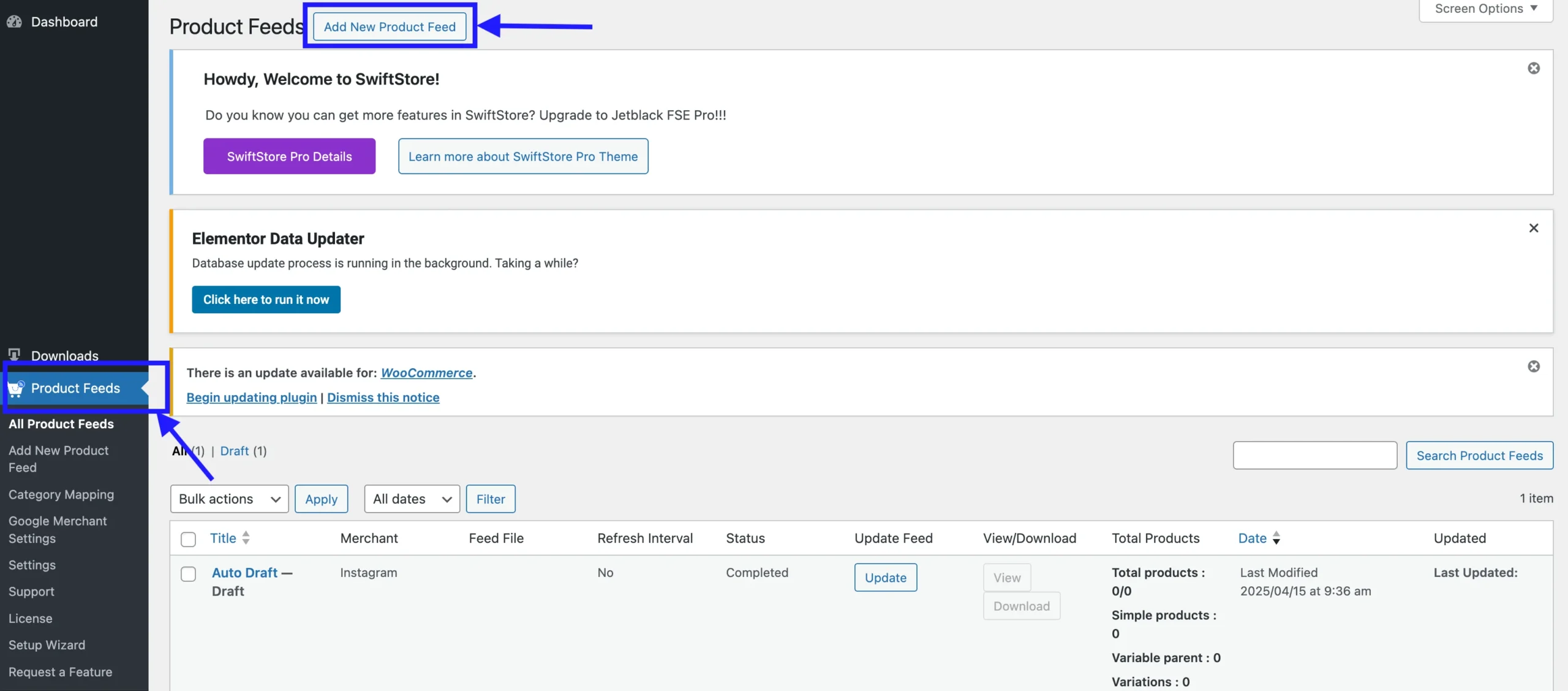
This is where you create your first feed.
Now, you simply give it a name so you can identify it later and move to the next step.
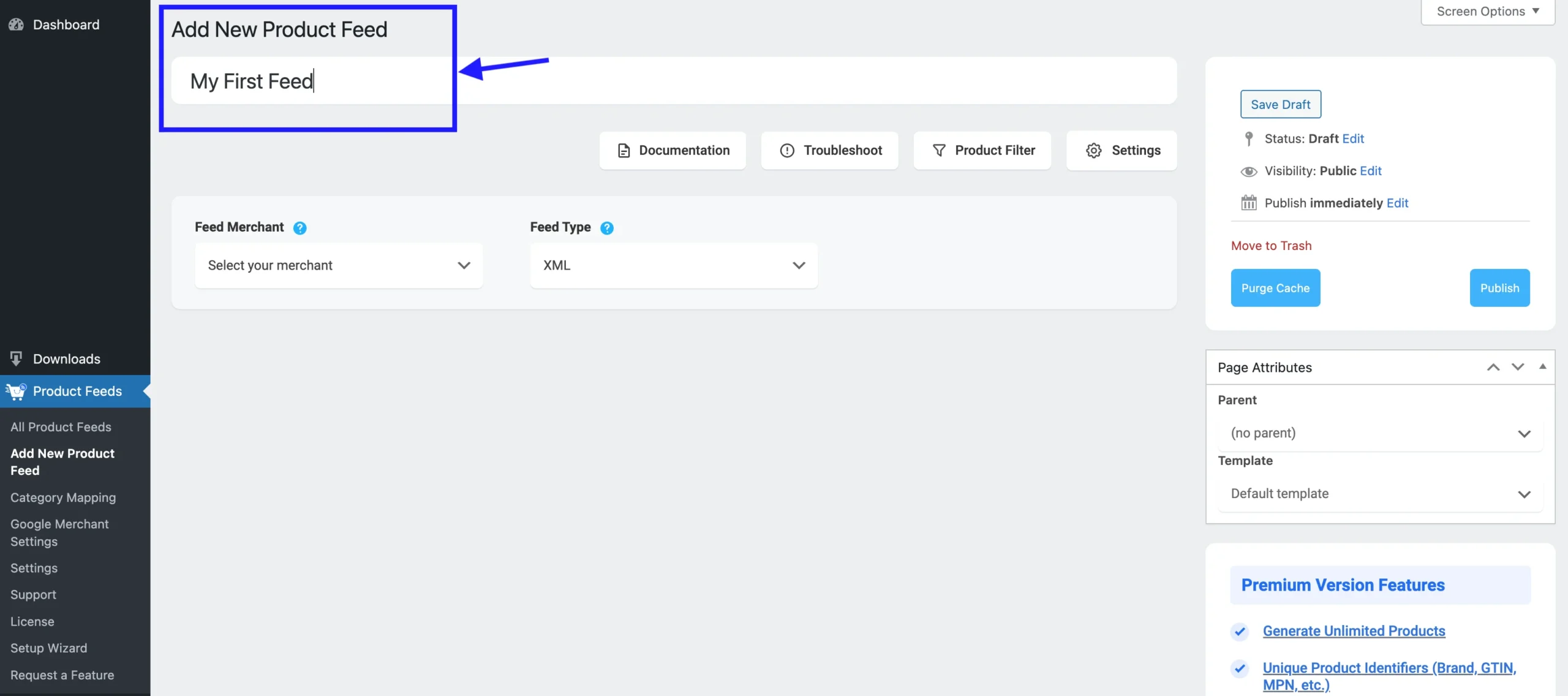
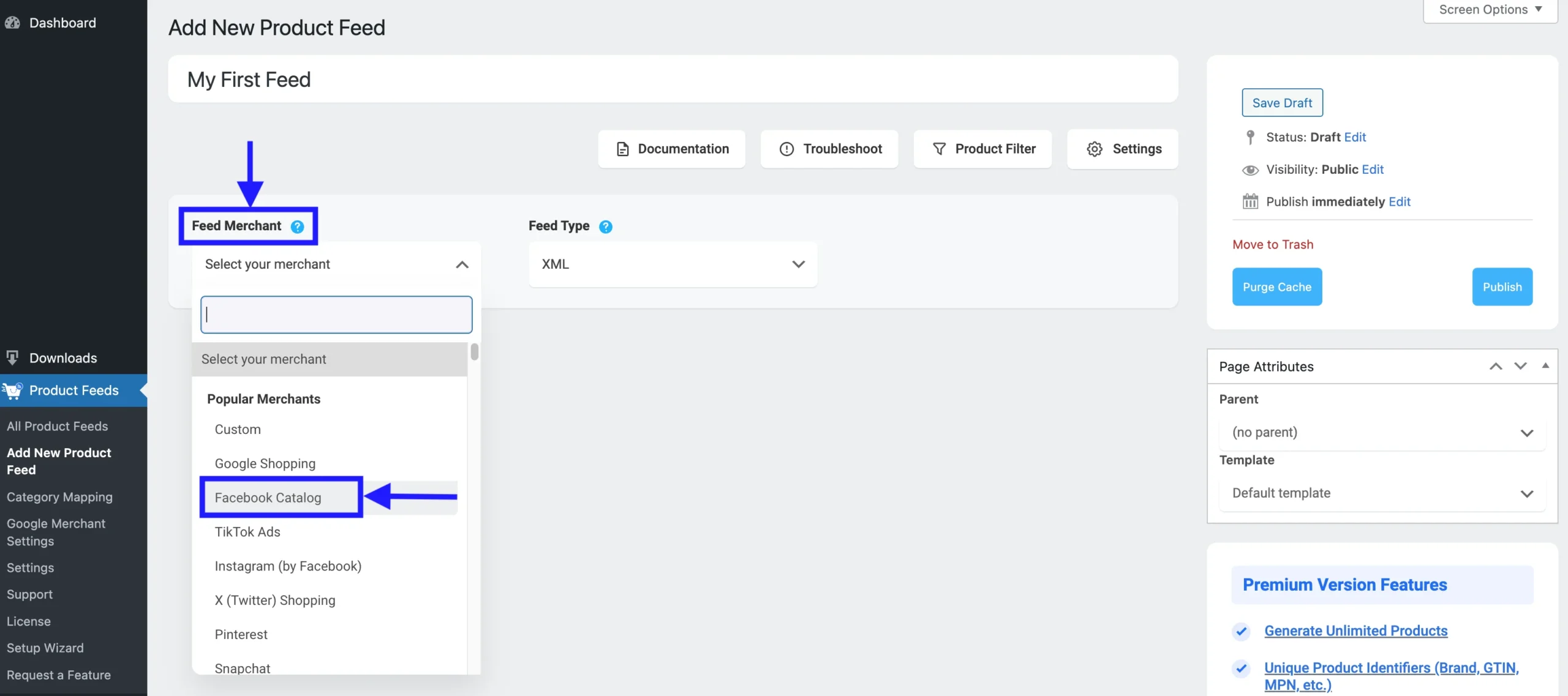
Step 2 – Choose your marketplace
Next, pick the marketplace you want to list on from the Feed Merchant dropdown.
Let’s say you picked Facebook Catalog. Once you select it, all the required fields load automatically based on that marketplace.
Step 3 – Select products
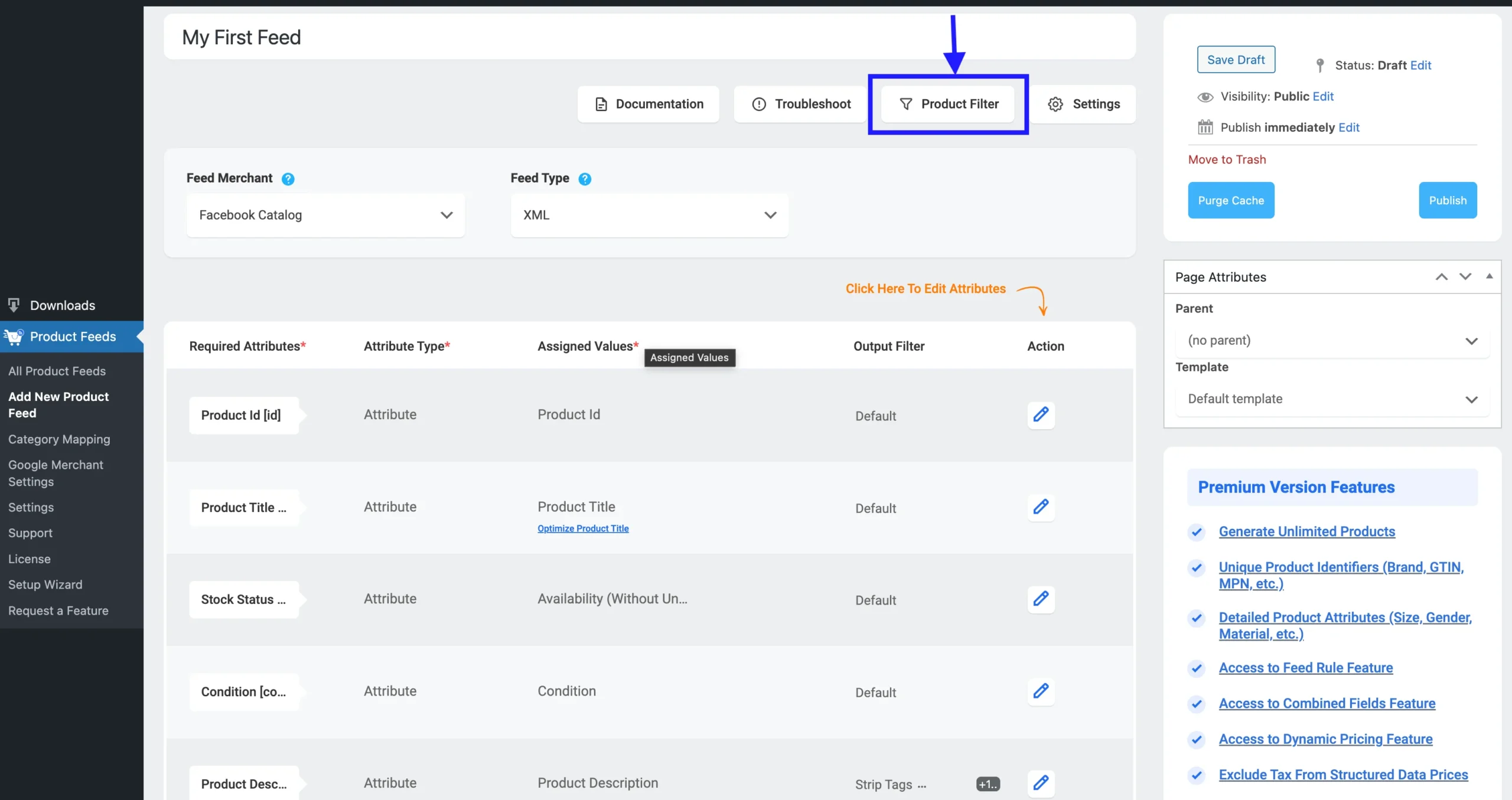
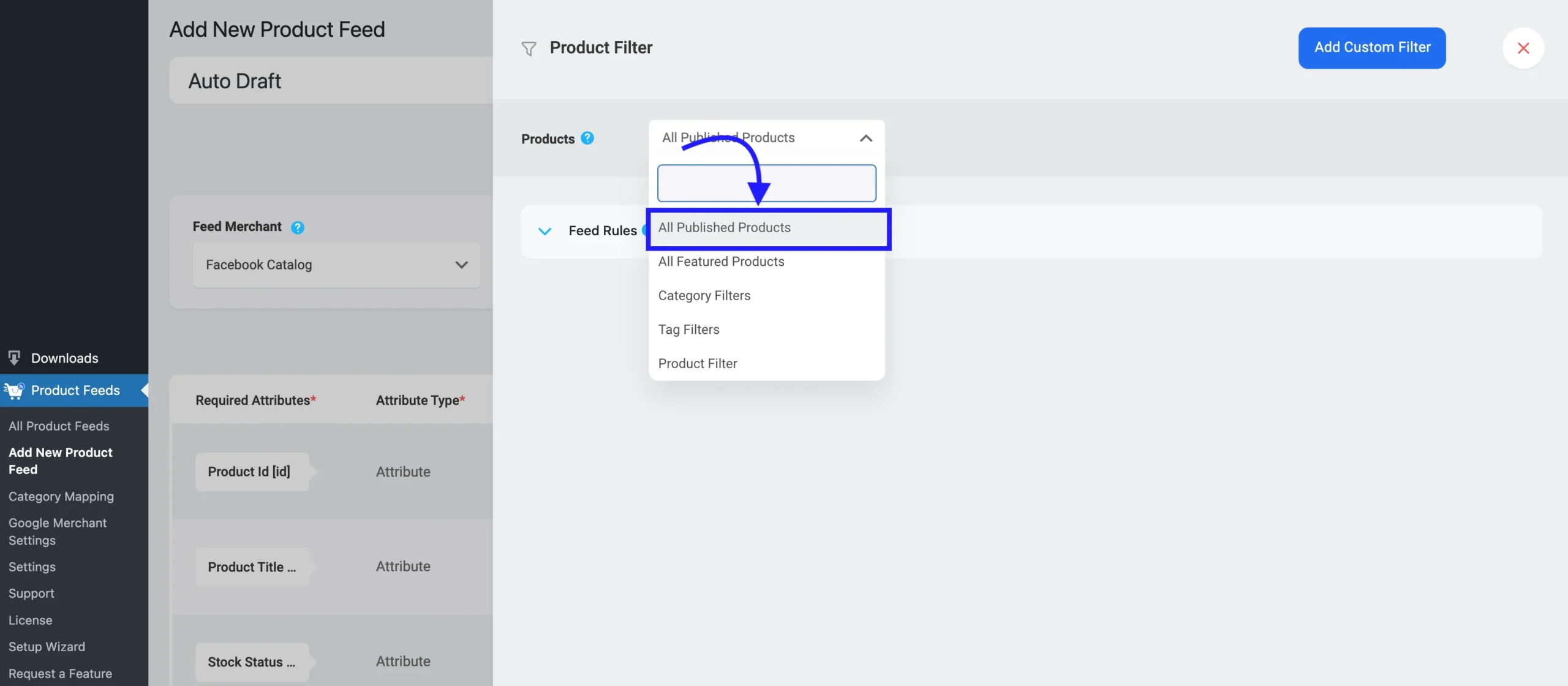
Now you decide which products you want inside this feed.
You’ll use the Product Filter for that.
For your first feed, the simplest option is to go with All Published Products. That way, you don’t overthink selection and can focus on getting the feed live first.
Step 4 – Publish the feed
Once your products are selected, you click Publish.
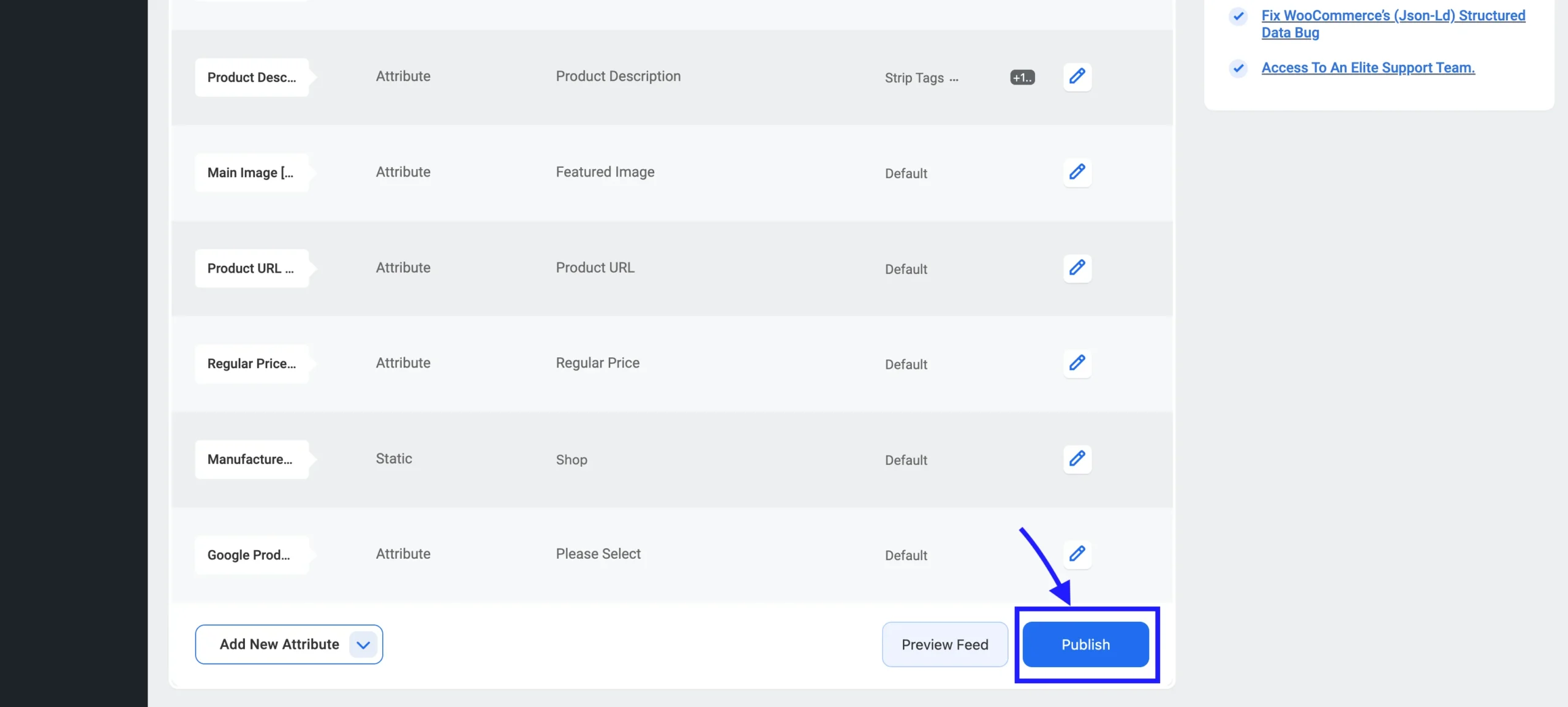
At this point, the system automatically generates the marketplace-ready feed for you. This replaces the old process where you would manually build and upload spreadsheets for each marketplace.
Step 5 – Get the feed URL
After publishing, you get your feed URL. You can either copy it or download the file, depending on the marketplace requirement.
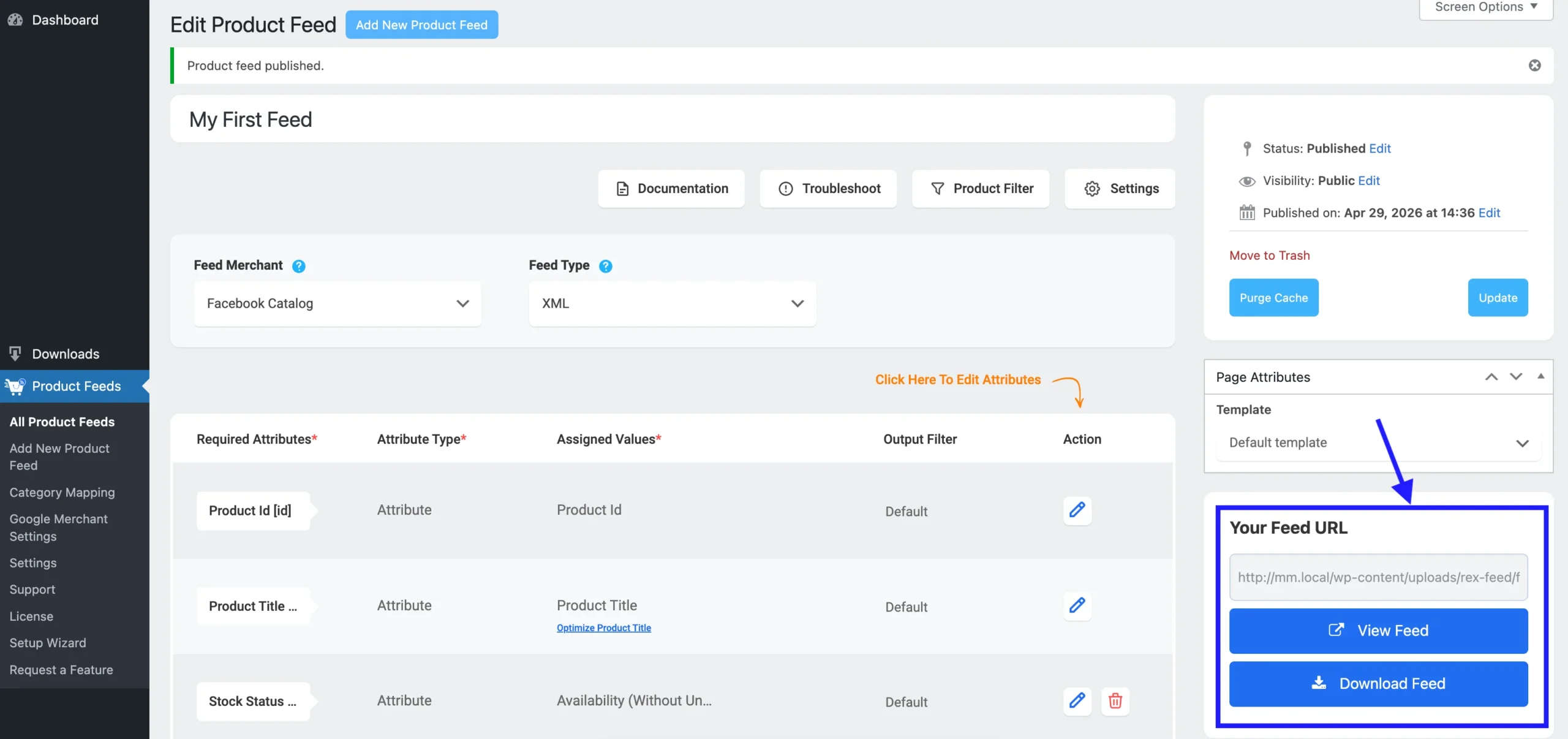
This is what you submit to your marketplace account to complete the listing setup.
At this point, the first marketplace feed is ready.
Listing Is Not Everything… Feed Optimization Is Important
Now that your first marketplace feed is ready, the next thing that matters is how well that feed performs.
Getting listed is only the first step for you. What actually drives visibility and clicks is how well your product data is optimized for each marketplace. If the feed isn’t properly structured, your products may still appear in the wrong searches, miss impressions, or attract fewer clicks than they should.
This is where feed optimization starts making a real difference.
- Category Mapping: You need to place your products under the correct marketplace category. This helps marketplaces like Google Shopping understand exactly where your products belong, so they appear in the right search results and browsing sections.
- Combined Attributes: You can combine important fields like product title + brand name. This makes your listings clearer and more relevant, which can help improve visibility and click-through rates.
- Feed Rules: You can adjust product data specifically for a marketplace without changing the original WooCommerce product. For example, you may want to update pricing labels, add promotional text to titles, or create stock-specific labels for better performance.
- Language & Currency Support: If you’re selling across regions, you need your feed to match local language and currency settings. This helps buyers see familiar pricing and localized product data, which supports both trust and conversions.
So while listing gets your products in front of buyers, optimization is what helps them get noticed.
If you want to go deeper into how to improve feed performance, read our feed optimization guide for a more detailed walkthrough.
Try Listing for the First Time (No Cost)
Now that you know how the feed works and what to optimize, the next step is simple — get your first listing live with PFM.
To make this easy for you, here’s a quick checklist you can follow right away:
- Choose Google Shopping as your first marketplace: Start with Google Shopping since it’s one of the most common channels for product discovery.
- Select all published products: Use All Published Products so your full live catalog is included in the first feed.
- Confirm product title, price, and image fields: Make sure these core fields are pulling correctly because they directly affect visibility and clicks.
- Check category mapping: Verify that your WooCommerce categories are mapped to the correct Google Shopping categories.
- Generate the feed: Click publish and let the system create the marketplace-ready feed.
- Copy the feed URL: Once the feed is ready, copy the generated feed link.
- Submit it to Google Merchant Center: Paste the feed URL into your Google Merchant Center account and complete the listing setup. (Read this guide to learn how to submit your feed to Google Merchant Center from your PFM dashboard.)
Your goal is to get the first listing live today.
Once this first feed is submitted, you’ll have a working process you can repeat for other marketplaces as well.
Get More Visibility Without Wasting Hours on Spreadsheets
At this point, the old belief that marketplace listing has to be slow or technical no longer holds up for you.
You’ve already seen that what used to take hours of manual spreadsheet work can now be handled in a few guided steps. Instead of spending your time formatting files and fixing attributes, you can focus on getting products in front of buyers faster and improving how those listings perform.
More importantly, once your first feed is live, the process becomes easy to repeat.
You can use the same workflow to list across more marketplaces, adapt feeds for different regions, and keep scaling without adding more manual work each time.
FAQs
1. How long does it take to create a marketplace feed using Product Feed Manager for WooCommerce?
It usually takes just a few minutes once your products are ready. Instead of manually building spreadsheets, you select a marketplace, choose products, and generate the feed in a guided workflow.
2. Do I need technical skills to list products on marketplaces using a feed tool?
No technical skills are needed. The system automatically structures your product data based on marketplace requirements, so you don’t deal with manual formatting or coding.
3. Why do marketplaces require product feeds instead of direct product uploads?
Marketplaces use product feeds to standardize data like titles, prices, categories, and availability. This ensures consistent product display across millions of listings and helps improve search accuracy.
4. Can I list the same WooCommerce products on multiple marketplaces?
Yes. You can create separate feeds for different marketplaces using the same product catalog. This allows you to scale visibility without duplicating manual work for each platform.
5. How does feed optimization improve product visibility?
Feed optimization helps your products appear in the right searches and categories. Features like category mapping, feed rules, and attribute control improve how marketplaces rank and display your listings.

![Show Your WooCommerce Products on ChatGPT & OpenAI Ads with Product Feed [2026] 2](https://rextheme.com/wp-content/uploads/2026/08/Show-Your-WooCommerce-Products-on-ChatGPT-with-OpenAI-Product-Feed-1-407x213.webp)