![Google Product Category for WooCommerce: Get It Right in 15 Minutes [2026]](https://rextheme.com/wp-content/uploads/2025/09/WooCommerce-Facebook-Product-Feed-1-1.webp)
You uploaded your products to Google. You waited. A handful of impressions came in, then it went quiet.
Meanwhile, you keep spotting competitors’ products showing up for searches you know your item fits better than theirs.
I’ve seen this pattern more times than I can count, sitting inside real WooCommerce feeds and reading the Merchant Center errors store owners send us.
And most of the time, the cause isn’t your price, your images, or your budget. It’s one field almost everyone rushes through: the Google Product Category. It looks like a throwaway dropdown. It isn’t.
That Single Field is one of The First Things Google reads
Google reads this to decide what you’re selling, who to show it to, and whether your product is even allowed to appear.
Pick it too broadly, and you quietly hold back impressions on traffic you already earned – no error, no warning, just fewer people seeing your product.
Now I am telling you the secret. You don’t need to memorize thousands of Google Shopping categories to fix this. And you don’t need to touch every product manually.
Let me walk you through exactly what this field does, how to set it smartly, and how to get your whole catalog mapped in about 15 minutes.
So let’s get started,
TL;DR – Google Product Category, Fast
- Google uses a fixed list of 6,000+ product categories
- It decides which searches your products appear in
- If your category is too broad → you lose impressions (no warning)
- Products can be approved but still get low visibility
- For small stores → set categories manually in WooCommerce
- For larger catalogs → map categories once using Product Feed Manager – Rexfeed
- Full catalog setup takes ~15 minutes, not per product
- Always choose the most specific category possible
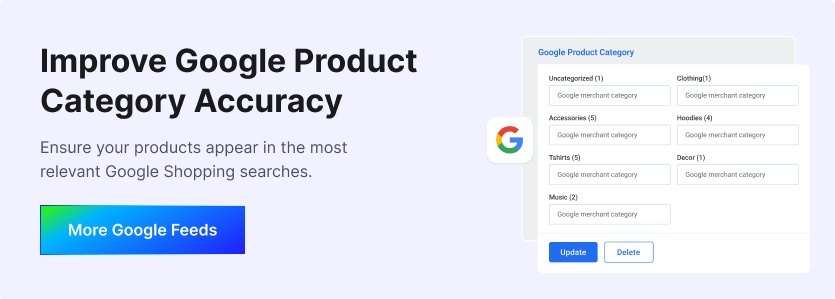
Quick Answer: Google Product Category is Google’s official taxonomy of 6,000+ predefined categories that tells Google Shopping what your product is and who to show it to.
You assign it through the google_product_category attribute in your feed, using either a numeric ID or the full text path.
Always choose the deepest, most specific match; broad categories reduce visibility and risk Merchant Center disapproval.
Why This Small Field Matters More Than You Think
Let’s make this simple. A huge share of online shoppers don’t start on marketplaces. They start on Google. And when they do, Google Shopping is where most of the clicks and money flow.
Shopping ads dominate retail search performance, pulling in the majority of ad spend and clicks, and they convert better too.
Why? Because buyers already see the product image, price, and name before they even click. That means one thing: this is your front door.
And the Google Product Category is how Google decides where to place your product inside that door. It’s the label on the aisle.
- Get it right, and you show up in the right searches.
- Get it wrong, and you quietly disappear.
Now here’s where it gets serious.
Google’s product feed rules list incorrect or missing product categories as one of the most common reasons for disapprovals in Merchant Center.
And when a product gets disapproved, it doesn’t show at all.
- No impressions. No clicks. Nothing.
But the bigger problem is what happens when everything looks “fine.” Your product can be approved… and still underperform.
If your category is too broad, Google doesn’t fully understand what you’re selling. That leads to weaker visibility, lower-quality traffic, and missed opportunities – all without any warning.
- No errors. No alerts. Just lost reach.
That’s why this small field carries more weight than most store owners realize.
Approval Is Not the Same as Performance
This is the trap that costs quiet, ongoing money.
You check Merchant Center, everything says “approved,” and you assume categorization is handled. But approved only means “not rejected.”
Many stores sit with a warning “limited performance due to category issues.” The product stays live, but Google lowers its visibility until the category is fixed.
You never see a red error, so you never think to look. You just wonder why impressions are flat.
Some Google categories go further and block approval completely. Alcohol, healthcare, financial products, and adult items carry stricter policies, and a wrong category there can trigger a real disapproval or even account-level trouble.
It Controls How You Reach Buyers Across Countries
If you sell internationally, categories get more important, not less. Google reads category data to understand where and how your products should appear in each market, and requirements shift between countries.
Mapping this by hand, per country, per product, is exactly the kind of work that quietly breaks down as you grow, which is why most multi-country sellers automate it.
If your Google Shopping listings aren’t appearing at all, it’s worth ruling this out first: Why Is Google Shopping Not Showing Your Products? Let’s Fix It.
Google Product Category vs Product Type: Don’t Confuse Them
Google Product Category vs Product Type:
This is where a lot of store owners get confused, so let me make it clean.
- Google Product Category tells Google what your product is. It comes from Google’s official taxonomy and drives ad placement and relevance.
- Product Type tells you how to organize your own catalog. It’s your own free-text naming convention, used for reporting, segmentation, and bidding inside your Google Shopping campaigns.
They are two different fields with two different things. The mistake I see constantly is treating them as either-or – setting a product type and leaving the category blank, or setting the category and ignoring product type entirely. You want both.
Here’s a quick side-by-side comparison:
| google_product_categorie | producttype | |
| Source | Google’s official taxonomy | Your own naming |
| Purpose | Ad placement & relevance | Bidding, reporting, internal grouping |
| Format | Numeric ID or Google’s text path | Free text |
| Voorbeeld | Apparel & Accessories > Clothing > Activewear | Men’s Gym Wear > Summer Collection |
| Required? | Required for most categories | Highly recommended |
| Set per product? | One per product | Can use multiple levels |
The key takeaway is simple: don’t treat them as an either-or choice.
Use both.
Google Product Category helps Google understand where your product belongs and when to show it in Shopping results. Product Type gives you more control over how products are grouped inside Google Ads, making it easier to analyze performance and create smarter bidding strategies.
For example, you could use Product Type to separate “Premium Athletic Wear” from “Basic Athletic Wear” and adjust bids based on which group generates more revenue. Meanwhile, the Google Product Category ensures both products appear in the right Shopping searches in the first place.
How to Assign a Google Product Category to a Product (Manual vs Automated)
Now that you know why Google Product Categories matter, the next step is actually assigning them to your products.
There are two ways to do that in WooCommerce:
- Assign categories manually for each product.
- Use a feed plugin to map categories automatically.
Both approaches work. The right choice mostly comes down to the size of your catalog.
If you’re managing a small store with a handful of products, manual categorization is usually manageable. But once your catalog starts growing, keeping categories accurate product by product quickly becomes difficult.
Here’s how the two methods compare:
| Manual Categorization | Automated (Rexfeed for WooCommerce) | |
| Best for | Stores under 50 products | Stores with 150+ products |
| Setup time | 1–5 minutes per product | 10–15 minutes for entire catalog |
| Updates when categories change | Manual re-categorization needed | Auto-syncs on feed regeneration |
| Disapproval risk | Higher (human error) | Lower (validated mapping) |
| Multi-country support | Manual per country | Automatic per country |
| Cost | Free (time-intensive) | Plugin cost only |
Method 1: Manual, for Small Catalogs
If you sell fewer than 50 products and rarely add new ones, doing this by hand is perfectly reasonable. It’s free and gives you full control. Here’s the flow:
- Open the official Google product taxonomy list (search “google product taxonomy” — it’s the first result from support.google.com).
- Find the best-match category. Selling men’s T-shirts? That’s Apparel & Accessories > Clothing > Shirts & Tops > T-Shirts.
- Note its numeric ID — that’s your Google product category ID, and it’s the most stable way to point to the category.
- Add the google_product_category attribute to your product in WooCommerce.
- Enter either the numeric ID or the full text path. Never mix the two formats in one feed.
- Repeat for every product, always going as deep as the taxonomy allows.
The catch is the word later. Every new product and every category rename is now your job to catch, one at a time. That’s manageable at 30 products but not for 300+ products
Method 2: Automated Category Mapping, for Everything Bigger
This is where you stop editing products one by one.
If you’re past 50 products, you map your existing WooCommerce categories to Google’s taxonomy once, and the tool applies it across your whole product catalog, including new products that land in those categories later.
For WooCommerce, Rexfeed – Product Feed Manager does this with a built-in category mapper.
Here’s the honest math on why this wins. Manual is roughly 1–5 minutes per product. At 400 products, that’s the better part of two full days, plus ongoing upkeep forever.
Category mapping is a single ~15-minute pass, and upkeep is close to zero because it re-applies automatically every time your feed regenerates.
Same outcome, a fraction of the time, far less room for the human errors that trigger disapprovals.
How it works:
When you build your Google Shopping feed, you’ll see the google_product_category attribute on the feed creation page with a default mapper already assigned.
Open the category mapping page, type a keyword like “running shoes,” and pick the closest match from the taxonomy suggestions.
Save, and every product in that WooCommerce category gets the correct Google product category, no per-product editing.
Step -1: Configure Category Mapping
When you create your Google Shopping Feed with the plugin, you’ll see the google_product_category attribute on the feed creation page.
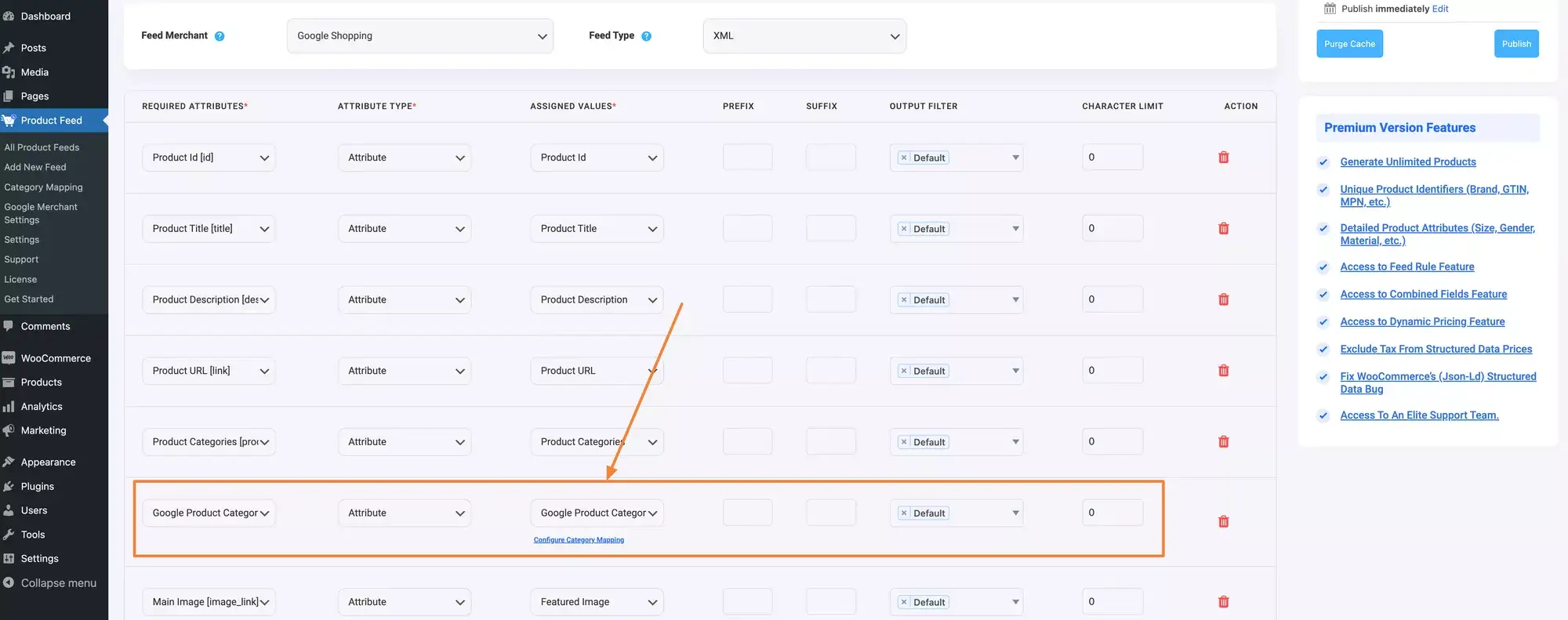
As you can see, a default category mapper is already assigned; you just need to configure the category map. To do this, click on the “Configure Category Mapping” page, which will take you to the configuration page.

Map your WooCommerce product categories according to the Google Product Category list.
Step -2: Map WooCommerce Product Categories
In the category mapping configuration page, you just need to type the category, and you will get suggestions for the most relative Google Category.
For example, if you type ‘Music,’ you’ll see the relevant category suggestions.
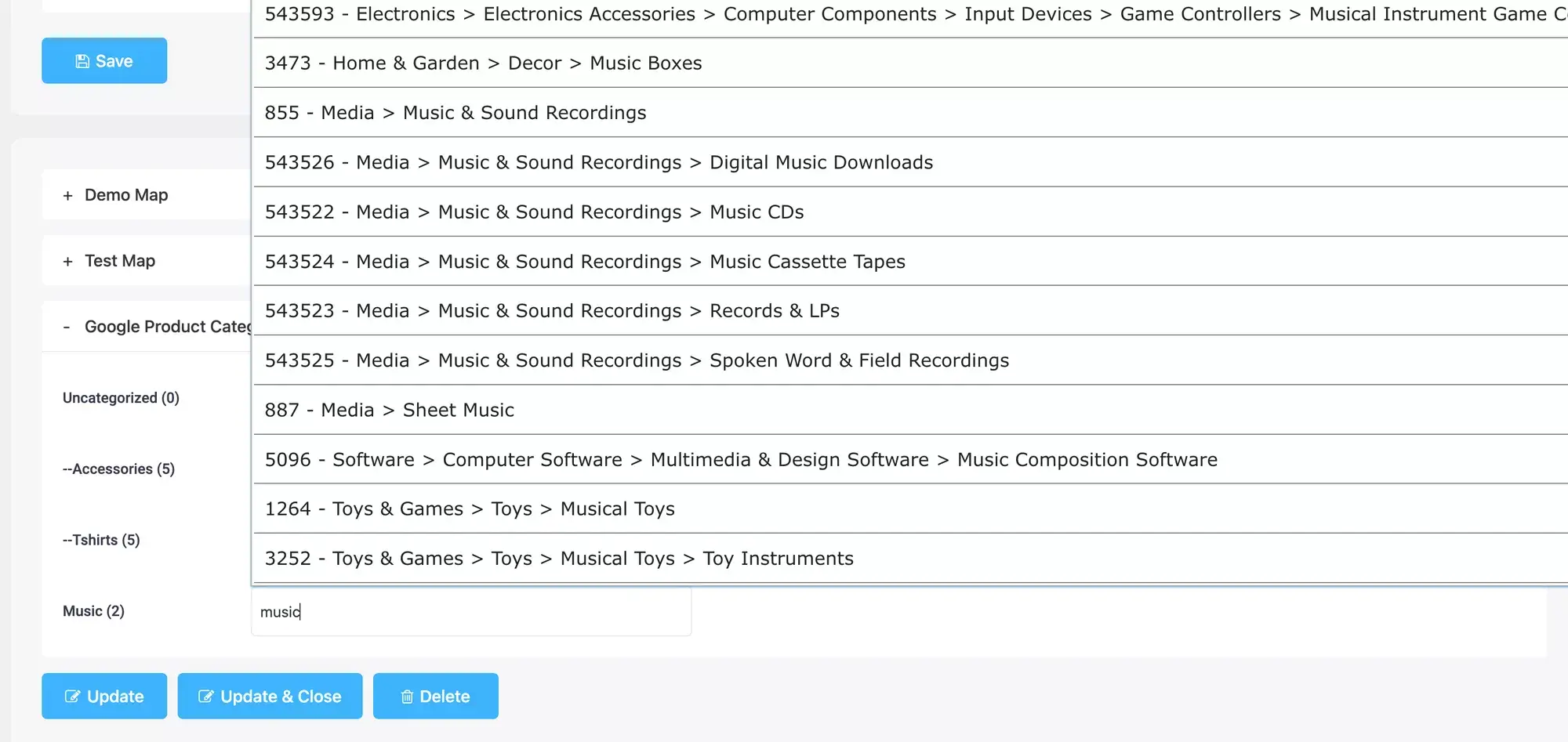
Now, you just need to choose the right path for your product category, and you’re done!

By using this category mapping system, you can reduce the risk of product disapproval in your Merchant Center.
Format Requirements (Numeric ID vs Text Path)
Google accepts two formats for a valid product category value, and both work:
- Numeric ID: e.g. 1604 for Athletic Apparel. This is your Google product category code, and it’s the more stable choice because it doesn’t break when Google renames a category.
- Full text path: e.g. Apparel & Accessories > Clothing > Activewear. Easier to read, but it can break if Google moves things around or renames a category.
There’s no wrong choice. The only real rule is consistency: pick one format and use it across your entire feed. Mixing both inside the same feed is where invalid-value errors and disapprovals start.
Here’s a quick reference of the main product categories and their top-level IDs to orient you, but don’t stop here.
Common Google Product Category IDs (Quick Reference)
| Top-Level Category | Full Text Path | Numeric ID |
| Apparel & Accessories | Apparel & Accessories | 166 |
| Electronics | Electronics | 222 |
| Health & Beauty | Health & Beauty | 469 |
| Home & Garden | Home & Garden | 536 |
| Sporting Goods | Sporting Goods | 988 |
| Toys & Games | Toys & Games | 1239 |
| Food, Beverages & Tobacco | Food, Beverages & Tobacco | 412 |
| Media (Books, Music, Video) | Media | 783 |
These are top-level categories only. Always go deeper. “Electronics > Computers > Laptops” performs far better than just “Electronics.” Download the full Google product category taxonomy to find the deepest ID for your products.
7 Tips to Optimize Google Product Categories for More Sales
By now, you already know how important the Google Product Category is and how to set it up properly.
So this next part isn’t about repeating the basics. It’s about going a step further — fine-tuning your setup so it actually performs better in Google Shopping.
Here’s what makes the difference between “set it and forget it” and “this is actually driving sales.”
1. Use the Most Specific Category Possible
You’ve already seen how Google relies on category depth to understand your product. This is where that really pays off.
Don’t stay at a broad level if there’s a more precise option available. The deeper you go, the easier it is for Google to match your product with high-intent searches.
So instead of stopping at something like “Shoes,” you go further down the tree to something like:
Apparel & Accessories > Shoes > Athletic Shoes > Running Shoes
That shift matters because you’re no longer competing in a massive, generic pool. You’re showing up in a much more focused search space where intent is stronger.
2. Know the Difference Between Product Type & Google Product Category
You’ve already seen how these two work differently, so think of this less as a new concept and more as a reminder of how they work together.
Google Product Category tells Google what your product is for ad placement.
Product Type tells you how to structure and group products for bidding and reporting.
When both are used properly, you get better control over campaigns and cleaner performance data.
Bijvoorbeeld:
- Product Type: Gaming Laptops > Premium
- Google Product Category: Electronics > Computers > Laptops
One helps Google place the ad correctly. The other helps you decide how aggressively to bid on it.
3. Localize Your Categories for Multi-Country Selling
If you’re selling across countries, this is where things get a bit more nuanced.
Google’s taxonomy behaves slightly differently depending on the market, and the same product can perform differently based on how it’s categorized per region.
So if you’re running international feeds, you need to think in terms of country-specific mapping rather than a one-size-fits-all setup.
This is where automation tools like Rexfeed product feed manager make life easier, since they can handle separate mappings per country without you manually rebuilding feeds every time.
4. Check Your Category Against Google Shopping Policies
Some categories don’t just affect visibility — they affect approval.
Certain product types like alcohol, tobacco, healthcare, financial services, and adult products come with stricter rules.
So if you misclassify something here, it’s not just about lower impressions. It can lead to disapprovals or even account-level issues.
For example, wine should be categorized correctly under:
Food, Beverages & Tobacco > Beverages > Alcoholic Beverages > Wine
If it’s left too generic, Google may treat it as misrepresentation, which is where problems start.
5. Optimize Titles and Descriptions to Match Your Category
Google doesn’t look at your category in isolation. It cross-checks it with your product title and description.
So if those don’t line up, performance drops.
If your category says “Gaming Laptops,” but your title just says “Laptop,” you’re not reinforcing the same signal.
The clearer the alignment between category, title, and description, the easier it is for Google to confidently match your product with the right searches.
6. Keep Product Data Updated
Regularly update your product information in your Google Shopping feed to ensure Google always has accurate details. This helps your products appear correctly to shoppers.
For example, when inventory or product features change, update the Google product taxonomy and other relevant fields. This keeps your products categorized properly.
Keeping your product data current improves visibility in relevant searches, attracts more high-intent shoppers, and increases the chances of making a sale.
7. Maintain a Clear Category Hierarchy in WooCommerce
Before anything reaches Google, your WooCommerce structure itself matters more than most people realize.
If your internal categories are messy or inconsistent, mapping them to Google becomes messy too.
Clean structure first, mapping second.
A simple hierarchy like:
Electronics > Computers > Laptops > Gaming Laptops
makes everything easier for you, for Google, and even for your customers navigating your store.
How to Fix Common Google Product Category Errors
So, I guess you already realized something important — Google Product Category isn’t usually the thing you think about… until something breaks.
And when it does, it shows up in Merchant Center as confusing errors, missing impressions, or sudden drops in visibility.
Most of these issues actually fall into a few predictable patterns. Once you know them, they’re pretty easy to fix.
Here’s a quick breakdown of what’s going wrong and how to solve it:
| Error in Merchant Center | What’s Causing It | How to Fix It |
| Category mismatch | Your category doesn’t match the product title or description | Pick a category that matches what the product actually is. Update title to align. |
| Limited performance — broad category | Category is too high-level (e.g., “Apparel & Accessories” with no subcategory) | Pick the deepest category available. Re-submit feed. |
| Restricted category disapproval | Product falls under a regulated category (alcohol, healthcare, etc.) requiring extra approval | Submit additional documentation in Merchant Center under Policy Center. |
| Invalid value for google_product_category | Numeric ID is outdated, or text path has a typo | Cross-check the ID against Google’s current taxonomy file. Use a feed plugin with validation. |
| Product_type and category conflict | Internal product_type doesn’t align with Google category | Re-align both attributes to tell the same story about the product. |
If you keep hitting category errors and don’t want to fight them one by one, this is exactly the workflow Rexfeed’s feed validator was built to handle. It runs all five checks before submission, so the errors get caught before Google sees them.
Conclusie
Getting your products in the right Google Product Category really helps. Proper organization makes it easier for Google to show your items to the right buyers.
Correct categories help your products appear in relevant searches. This means more clicks and better chances of selling to serious shoppers.
Keep your feed neat and follow Google’s guidelines. Regularly checking your product_type and google_product_category keeps everything accurate.
Use a well-optimized Google Shopping feed to make this process simple. It helps your products reach the right buyers and boosts your sales faster.
** FAQs **
1. How do I find the right Google product category ID for my product?
Download the official Google product taxonomy list from support.google.com; it includes every category with its numeric ID and full text path. Search the file for words that describe your product (“running shoes,” “wine”) and pick the deepest, most specific match.
2. Should I use the numeric ID or the text path?
Use the numeric ID. It’s the more stable Google product category code because Google occasionally renames or moves categories around. A category called “Mobile Phones” today could become “Smartphones” in a future update, which quietly breaks text-path mappings. Numeric IDs survive those changes untouched.
3. Why is my WooCommerce product getting disapproved for a category mismatch?
A mismatch usually means your assigned google_product_category doesn’t line up with your title or description. A category of “Electronics > Laptops” on a product titled “backpack” triggers it. Fix it by aligning the category, title, and description so they all describe the same thing.
4. Can I leave the Google product category blank in my feed?
You can, but you shouldn’t. If it’s blank, Google falls back on automatic categories, assigning one based on its own read of your title and description, and that automatic pick is usually broader and weaker than one you’d choose. Setting it yourself (or automating it) is one of the best moves you can make for Google Shopping performance.
5. How often should I update my Google product categories?
Re-validate at least once a quarter. Google refreshes its taxonomy several times a year, adding and retiring categories. Feed plugins with built-in validation re-check your mappings against the current Google product taxonomy on every feed regeneration, so you’re never running on out-of-date categories.

![Show Your WooCommerce Products on ChatGPT & OpenAI Ads with Product Feed [2026] 2](https://rextheme.com/wp-content/uploads/2026/08/Show-Your-WooCommerce-Products-on-ChatGPT-with-OpenAI-Product-Feed-1-407x213.webp)