![How to Create A 360 Car Virtual Tour For Interior & Exterior View [2026]](https://rextheme.com/wp-content/uploads/2025/10/How-to-Create-a-360-Car-View-1.webp)
You know photos of a car from the outside only tell half the story. A buddy of mine runs a dealership. He told me something that stuck with me:
People who dig into the interior online stick around way longer on his listings.
- They ask better questions.
- They show up more ready to buy.
That’s the magic of a 360-degree car virtual tour. It can bump conversion rates by up to 20%
Because buyers feel more sure of themselves before they even walk through your door.
Add a 360-degree spin to your car, and you can double how much people actually interact with your listing.
So today, let’s build one together. I’ll walk you through creating a 360 car virtual tour in WordPress, step by step, then show you how to make it genuinely fun to explore.
So let’s get started,
TL;DR – Create a 360 Car Virtual Tour
- A 360-degree car view lets your buyers explore every angle of a car. It helps them make faster, confident decisions.
- You see flat photos as “good enough,” but buyers see them as a wall they have to guess past before they trust a listing.
- Using car interior 360 views makes your customers feel more connected and builds trust before they visit your showroom.
- To create your tour in WordPress:
- Install & activate WPVR for free.
- Add a new tour, create scenes, set hotspots, and publish it.
- Make your tour interactive by adding contact forms, explainer videos, soothing music, and your brand logo.
- Optimize for mobile with gyroscope support so your buyers can explore the car from anywhere.
- Capture great images by using good lighting, removing distractions, and covering all key features.
- Final Verdict: Use WPVR to create an engaging 360 Car virtual tour that impresses your customers and boosts sales.
What Even is a 360 Car Virtual Tour?
Let’s assume you’re sitting on your couch, and you can drag your mouse (or your thumb) to spin a car all the way around. Inside, outside, doesn’t matter. That’s the whole idea behind this kind of tour.
It’s built from a bunch of wide-angle photos stitched together into one smooth, navigable scene.
- Want to check the dashboard? Swipe.
- Curious about the trunk space? Spin.
You get a real feel for the car before you ever set foot in a dealership.
How a Car Interior Virtual Tour Can Enhance Customer Experience
- Sparks curiosity: Show people the inside of your car online, and they get hooked. They want to explore every corner without leaving their couch.
- Flex knowledge: Drop hotspots on key features instead of handing out a boring brochure. Suddenly you look like the expert in the room, even when there’s no room.
- Builds a real connection: People feel involved. And when they feel involved, they’re way more likely to make a decision instead of just browsing forever.
- Inspire to test drive: Once someone’s explored your car online, reaching out feels like the natural next step.
- Works for busy people: Not everyone has time to swing by the lot. A quick car virtual tour lets them check things out on their lunch break.
- Warms people up before they walk in: By the time someone’s ready for an in-person visit, they’re already halfway sold.
- Creates more chances to sell: More engagement means more confidence, and more confidence means more sales.
How to Create a 360 Car View Easily in WordPress
Now, it’s time for you to create a 360 Car view on your own. I recommend that you use the best tool available for WordPress, which is WPVR
Follow these steps with me, and your 360-degree car view will be ready without any headache.
Step 1 – Install & Activate WPVR
- Go to WordPress Dashboard > Plugins > Add New
- Search for “WPVR” in the keyword field
- Click Install Now, then Activate
~ Here’s the guide for you to follow to install & activate WPVR.
Step 2 – Add New Tour
Once you’ve installed and activated WPVR on your WordPress Website, you’ll see that WPVR has been added to your dashboard.
- Hover over WPVR in the left sidebar and click “Add New Tour”.
- You’re now ready to start creating your first virtual tour.

After adding a new tour, you’ll be redirected to a new window. Here, you’ll have to add the title of the tour along with a Scene.
Step 3 – Add Scene & Publish

Here what you can do:
- Add Title: Enter a title for your tour. For example, I have given “360 Car View”
- Upload Scene: Click Upload to add a scene for the 360 virtual tour of your car.
- Preview Tour: Once you’ve clicked on the preview, you’ll get to see a tour preview of how the car’s 360 view will look at the front end.
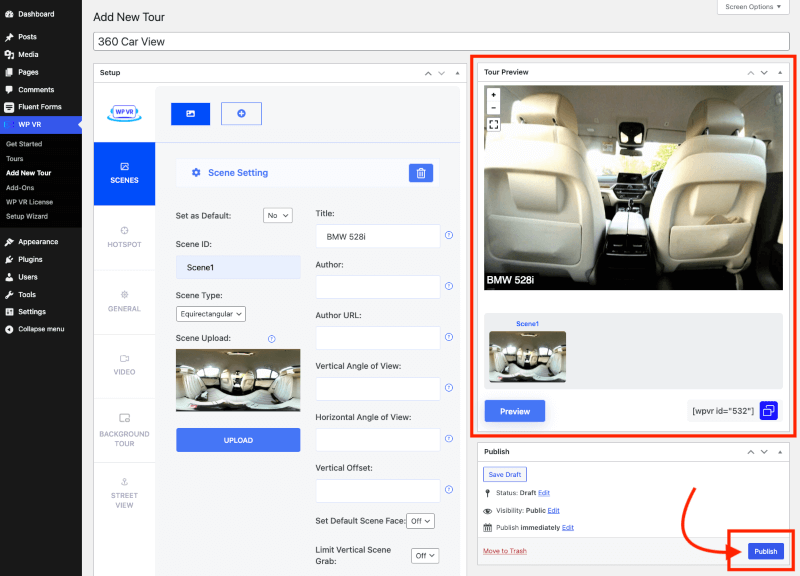
Once you’ve clicked on the preview, you’ll get to see a tour preview of how the car 360 view will look at the front end.
- Publish Tour: If everything looks good, click Publish to make your tour live.
Step 4 – Add Hotspots
- Add Hotspots: Hotspots let you highlight specific elements in your virtual tour.
- Access Hotspots: After uploading a scene, click the Hotspot tab under the Scenes tab.

Let’s say you want to add a hotspot to your car seat. So now you have to,
- Hotspot ID: Enter a unique ID for your hotspot.
- Set Coordinates: Choose the element’s position using Pitch & Yaw.
- Customize Icon: Add a custom icon and choose its color.
- Add Content: Add text, images, or videos for On Hover and On Click actions.
- Save Hotspot: Click Update to add the hotspot to your tour.
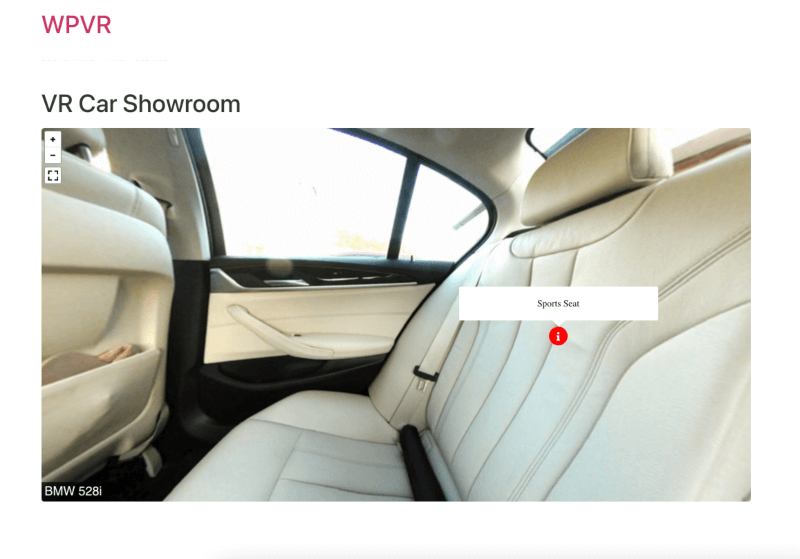
Let’s have a look at the frontend view of this hotspot:
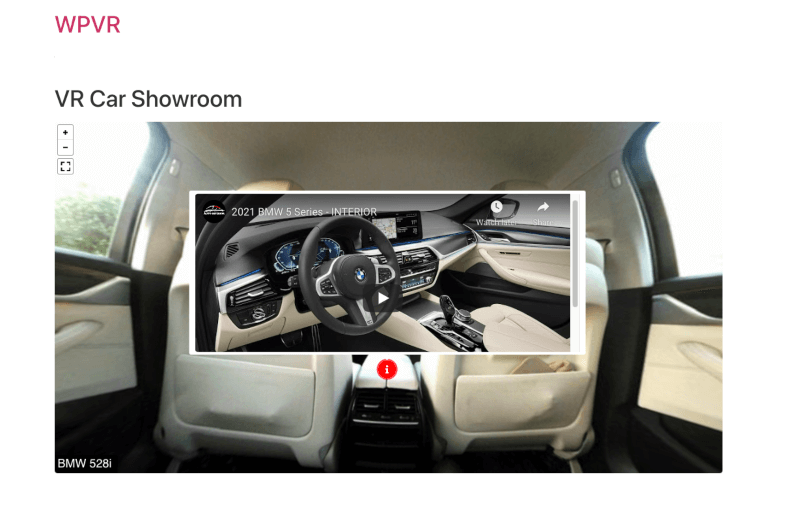
And this is how video content looks on a hotspot:
You can also use these features:
- Highlight with Videos: Use video hotspots to showcase each car.
- Add Feature Videos: Include full car reviews or separate videos for seats, AC, music system, and more.
- Free Version: The free WPVR lets you create complete car interior 360 views.
- Upgrade to Pro: WPVR Pro lets you customize and personalize your virtual tours with advanced features.
~ Learn more – How to Create a Virtual Car Showroom in the Automotive Industry
Make The 360 Car View More Interactive
Once you have the basic 360 views ready, you next have to put some effort into making them more interactive and interesting.
i. Add Contact Forms
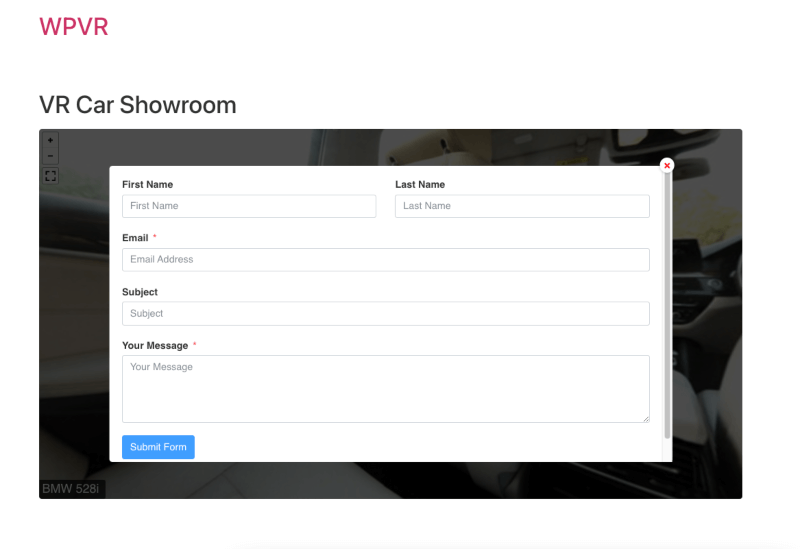
Let’s say your showroom offers a test drive before purchasing a car, or you simply want to add a contact now section in your car tour. You’ll find these options in WPVR.
Step 1 – Create a Form in Fluent Forms
- Install and activate Fluent Forms.
- Go to Fluent Forms in your WordPress dashboard and click Add New Form.
- Create a form from scratch or edit a template.
- Save the form when done.
Step 2 – Add Form to Your Virtual Tour
- Open or create a virtual tour in WPVR.
- Go to the Hotspot section and create a new hotspot.
- Set Hotspot ID, Pitch, and Yaw.
- Choose Fluent Form as the hotspot type.
- Select the form you created and add on Hover Content like “Click Here for Booking.
- Preview to confirm the form appears on your tour.
~ Learn more – How to Integrate Fluent Forms on a Virtual Tour
ii. Explainer Video to Add a Detailed Video
Include a thorough video explaining your services and the available cars that the buyer can see as they are taking the 360-degree car tour.
- Enable Explainer Video in the Advanced Controls of your tour.
- Paste your YouTube iframe in the field.
- Customize the video button’s icon and color in Control Buttons.
- Add your logo and description for more authority.
- Viewers can watch the video during the tour for detailed explanations.
~ Learn more – How to Set YouTube Explainer Videos Inside Virtual Tours
iii. Make The Tour Pleasant with Soothing Music
While taking the tour of the VR Car, you have the option to add background music to the tour. This way, your clients will be able to enjoy the 360-degree view with a delightful mind.
Here is the process:
- Edit or create a virtual tour and go to Advanced Controls.
- Enable Tour Background Music and upload an audio file or set a link.
- Choose Autoplay to play music automatically and Loop to repeat it.
- Publish the tour and embed it on a page or post.
- Visitors can use the Audio button to play or pause the music during the tour.
~ Learn more – How to Add Background Music to Virtual Tours
iv. Add Exterior & Interior Scenes in Your Virtual Tour
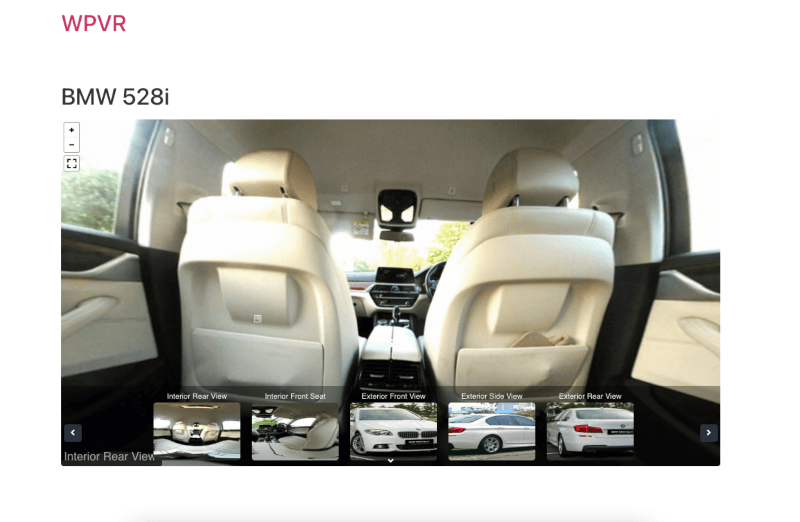
The best part of having a virtual tour in a car showroom is that you can add interior and exterior 360 views of cars in a single tour.
With the Scene Gallery Feature of WP VR, you can take the interior and exterior panorama images of a car and add them to a single virtual tour.
You can also make the tour more engaging by giving titles to each scene.
- Edit your car tour; go to Advanced Controls under the General tab.
- Turn on Scene Gallery.
- Publish and embed the tour; click the arrow at the bottom to open the gallery.
- Add scene titles for each car view to guide your buyers.
- Backend preview helps organize car scenes, but only the enabled gallery shows on the frontend.
~ Learn more – How to Set Up a Scene Gallery on Virtual Tours
v. Display Brand Company Logo & Information
- Boost Brand Recognition: Add your logo in the carshow360 tour so buyers instantly know it’s your brand. This helps your dealership stay memorable when they’re ready to buy.
- Build Trust & Credibility: Show your company details using 360-degree cameras to make buyers feel confident and connected. It builds trust before they even visit your showroom.
- Enhance Marketing Impact: Use WPVR in your dealer showroom to create an interactive, branded tour. It makes exploring your cars more engaging and professional.
~ Learn more – How to Add a Virtual Tour Icon or Your Company Logo in 360 Degree Tours
vi. Optimize The 360 Car View for Smartphones
- Mobile-Friendly Experience: With gyroscope support, your 360 car view will move naturally as you tilt your phone. It gives you a smooth and realistic way to explore every angle.
- Easy Access Anywhere: You can check out the car tour anytime, anywhere, right from your smartphone. It’s perfect when you’re on the go or away from the showroom.
- Better Engagement: The interactive view makes you feel more connected to the car. It helps you explore comfortably and make a quicker decision.
~ Learn more – How to Enable Gyroscope Sensor on 360 Virtual Tours
Tips to Capture Great 360 Images of a Car Interior
The first step for creating a perfect 360 view of a car is to take a good panoramic picture of the car’s interior.
To take one, you will need a 360-degree camera. You will find several such cameras at affordable prices out there.
- Check Out Awesome Virtual Tour Cameras for Your VR Car Showroom Photography.
Once you have the most suitable camera for you, here are some tips to help you take the 360 images properly.
i. Make Sure You Have Proper Light Sources When Capturing the Photo
- Check Lighting: Make sure your car has proper light sources before taking photos. This helps you capture clear images that make your tour look professional.
- Exterior Photos: Turn off interior lights and use showroom lighting for consistent brightness. This ensures your car looks its best, so you can impress your buyers online.
- Interior Photos: Use a roof-mounted LED or studio lights for sharp interior shots. With proper lighting, you can show every detail that your customers care about.
- Maintain Consistency: Keep the light intensity steady while shooting. This avoids blurry or dull images and gives your viewers a smooth experience.
ii. Remove Unknown Objects from The Car Before Shooting
- Clear Unwanted Objects: Remove any items inside or around the car before shooting. This helps you avoid distracting reflections that can ruin your 360 tour.
- Check Reflections: Take a quick video to spot any unwanted reflections on the car’s reflective body pain or mirrors. This lets you move objects and make your car look flawless for viewers like you.
iii. Try to Cover All The Interior Features in The 360 View
- Add Interactive Tooltips: Use hotspots or tooltips to explain key interior features. If you’re unsure about your car’s value, you can also use a scrap car value calculator to guide pricing and show it to the right audience.
- Show Every Detail: Capture all interior features in your 360 view, from seats to dashboard. This lets your buyers explore the car fully and makes them more confident in their choice.
- Use Lighting Wisely: Make sure every corner is well-lit to avoid shadows. Proper lighting helps you highlight features like leather seats or infotainment systems clearly.
Conclusion
A 360 car virtual tour lets people explore a vehicle inside and out without leaving their couch. They can check the dashboard, seats, and storage before deciding if it’s worth a visit.
Instead of relying on static photos, you give buyers a more complete and realistic experience. It helps them feel more confident and interested before they ever contact you.
Creating one is simpler than it sounds. Just stitch your wide-angle shots, build the tour in WPVR, and add a few interactive elements.
In minutes, your listing goes from flat visuals to something people actually want to explore. Get WPVR and launch your first 360 car tour today.
** FAQs **
1. Why do I keep losing buyer interest before they even visit my showroom?
You lose interest because static photos don’t give buyers enough confidence to act. Add a 360 car virtual tour to your listings, and you let people explore every detail themselves before they ever call you. That extra confidence is often what pushes them from “just looking” to booking a test drive.
2. How do I show my inventory to buyers who can’t visit in person?
You can reach these buyers with a car virtual tour they can open from their phone or laptop, wherever they are. Let them spin around the car, zoom into the interior, and check the features on their own time. You’ll capture serious buyers who would’ve otherwise scrolled past a plain photo listing.
3. My listings all look the same as everyone else’s. How do I stand out?
You stand out by giving buyers something interactive instead of another flat photo gallery. A 360 car view with hotspots, videos, and your branding shows buyers you’re putting in real effort. That extra polish builds trust and makes your dealership memorable long before they walk through the door.
4. How do I answer buyer questions about the interior without repeating myself all day?
You can front-load those answers with hotspots inside your 360 car virtual tour. Tag the seats, dashboard, and storage space with quick notes or short videos so buyers get answers instantly. You’ll spend less time repeating the basics and more time closing serious buyers.
5. I’m not techy. Can I really set up something like this myself?
You absolutely can, even with zero technical background. A tool like WPVR walks you through uploading scenes, adding hotspots, and publishing your tour in just a few clicks. Within an afternoon, you’ll have a working 360 car virtual tour live on your site.