![Facebook For WooCommerce – Transfer Your Products to The Best Social Marketplace [2026]](https://rextheme.com/wp-content/uploads/2025/12/Facebook-for-WooCommerce.webp)
When a friend of mine launched his first WooCommerce store, he quickly realized that the real challenge wasn’t building the store; it was getting people to actually find it. Most new store owners I’ve worked with face this same problem.
Depending only on your WooCommerce traffic rarely works, especially when your brand is still new. You need an additional channel where buyers are already active and searching.
According to recent data, 1.228 billion users purchase something via Facebook Marketplace each month.
That alone makes it one of the most effective places to get instant visibility for your products.
I’ve seen store owners go from slow, unpredictable sales to steady daily orders just by listing their products there. It works because Marketplace puts your items in front of shoppers who are already ready to buy.
In this guide, I’ll explain why promoting your WooCommerce products on Facebook Marketplace is a smart move and show you how to upload your products in just a few clicks.
Let’s begin,
TL;DR – Facebook for WooCommerce
- Facebook for WooCommerce helps you reach millions of buyers on Facebook without manual uploads.
- Why to use it: Increases visibility, builds trust, and drives traffic directly to your store.
- Prepare your store: Make sure product fields, categories, tags, and inventory are complete and up to date.
- PFM for WooCommerce: Lets you create a Facebook Catalog feed in minutes, even for hundreds of products.
- Generate Your Feed:
- Create a Product Feed – choose products to promote.
- Configure Feed – assign brand, select Google Product Category, and map attributes.
- Upload to Facebook:
- Create a Catalog in Commerce Manager.
- Upload Feed to list products on Facebook Marketplace and Instagram Shops.
- Final verdict: Use Product Feed Manager to quickly generate and sync your catalog, even with custom products.
What is Facebook for WooCommerce & How it Works
When you connect your WooCommerce store to Facebook Marketplace using the product feed manager plugin, your products automatically appear on Facebook Shop without manual uploads.
For example, if you have hundreds of products, adding them one by one would take hours, but with Product Feed Manager, everything syncs instantly.
This keeps your product catalog and inventory up to date, helps you reach new customers, and lets your store sell more efficiently without extra effort.
- Learn more – What is an Online Marketplace – The Ultimate Guide
Why Should You Rely on Facebook for WooCommerce Product Promotion?
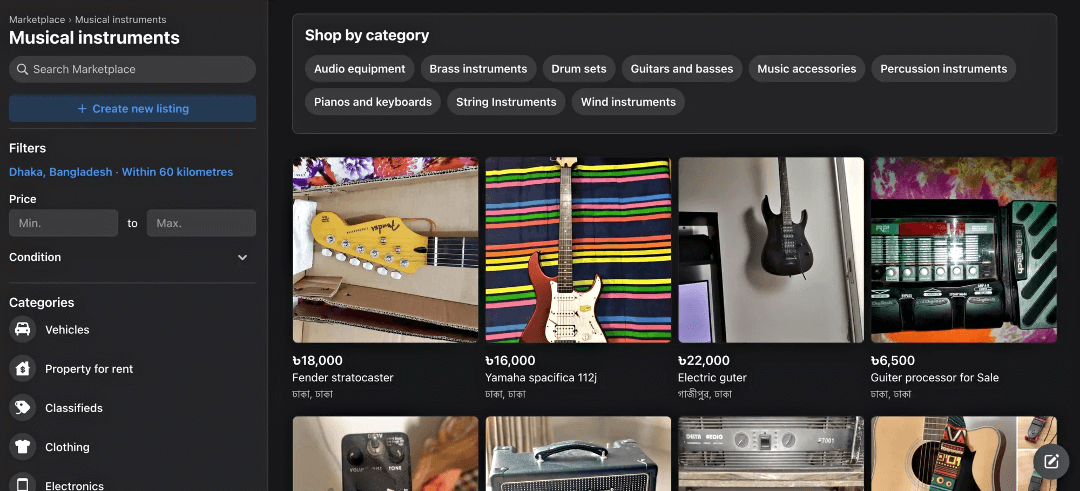
- Maximize exposure: Setting up your Facebook Product Catalog properly ensures all relevant products display correctly. This helps buyers find what they need easily and increases your store’s sales potential.
- Reach more customers: Listing your WooCommerce products on the best online marketplaces puts them in front of millions of buyers. This helps your eCommerce store get noticed and brings in new customers fast.
- Drive more traffic: Managing your page, shop, and profile with Facebook Business makes it easy to bring visitors to your store. You can also sync product inventory and manage product variations without any hassle.
- Boost product discovery: Optimizing your listings makes sure buyers searching for what you sell see your items first. It also improves exposure on Instagram Shops and meta ads, helping more people find your products.
- Convert visitors faster: Linking your products to your Facebook Shop or WooCommerce website makes buying simple for customers. Clear product details guide them to make quick decisions, increasing sales naturally.
- Build brand trust: Showing your store professionally makes buyers confident in choosing your products. Using an official plugin and meta platforms boosts credibility and encourages repeat purchases.
Necessary Things Before Creating a Facebook Catalog

Now I am going to explain the necessary things that you need to prepare before creating a perfect Facebook catalog.
1. Website:
- Ensure you have a functional and professional website where your products are listed. This is essential as your product catalog will link directly to your website.
- How to Do It: Set up a website with a user-friendly design and clear product listings. Make sure the site is secure and optimized for mobile devices.
2. Accurate Product Information:
- Gather detailed and precise information about each product, including titles, descriptions, images, prices, and stock levels.
- How to Do It: Use a spreadsheet or a product information management system to organize and maintain accurate product data. Regularly update this information to reflect any changes.
3. Facebook Commerce Manager:
- This is the tool where you will create and manage your catalog. It integrates with your Business Manager to provide a centralized location for your product data.
- How to Do It: Log into your Facebook Business Manager, navigate to Commerce Manager, and follow the steps to set up your catalog.
4. Product Feed:
- A product feed is a file that contains all the information about your products in a format that Facebook can read. This feed is uploaded to your catalog.
- How to Do It: Create a WooCommerce product feed in CSV, TSV, or XML format. Include all necessary fields such as product ID, title, description, image URL, price, and availability. Validate the feed to ensure it meets Facebook’s requirements.
5. Facebook Tracking Pixel:
- The Facebook Pixel is a piece of code that tracks actions on your website, such as views, adds to cart, and purchases. This data is crucial for dynamic ads and audience targeting.
- How to Do It: Install the Facebook Pixel on your website by copying the pixel code from Facebook and adding it to your website’s header. Verify that it’s working correctly using Facebook’s Pixel Helper tool.
~ Learn more – Connect Facebook Pixel With WooCommerce For Dynamic Ads
6. Facebook Page:
- A Facebook Page is necessary to represent your business on Facebook and connect your catalog to your audience.
- How to Do It: Create a Facebook Page if you don’t already have one. Fill out all relevant information, including business details, profile picture, cover photo, and contact information.
7. E-commerce Platform Integration:
- If you use an e-commerce platform. You can easily connect WooCommerce to the Facebook marketplace. This Facebook WooCommerce integration simplifies the catalog creation process.
- How to Do It: Follow the integration guides provided by Facebook and your e-commerce platform to sync your product data automatically.
8. Compliance with Policies:
- Ensure your products and business practices comply with Facebook’s commerce policies to avoid disapproval or restrictions.
- How to Do It: Review Facebook’s commerce policies and advertising guidelines, and make sure all your product listings meet these standards.
9. High-Quality Product Images:
- Use clear, high-resolution images to showcase your products effectively. Good images can significantly enhance the appeal of your ads.
- How to Do It: Ensure images are at least 500×500 pixels, well-lit, and showcase the product. Avoid cluttered backgrounds.
10. Accurate and Functional Product URLs:
- Make sure each product URL in your feed correctly links to the specific product page on your website.
- How to Do It: Test all URLs to ensure they lead to the right product pages. Correct any broken or incorrect links.
11. Inventory Management System:
- Keep your inventory data up-to-date to avoid advertising out-of-stock products, which can frustrate customers.
- How to Do It: Use an inventory to sync stock levels with your product feed management system. Update the feed regularly to reflect the current stock.
12. Consistent Pricing:
- Ensure all prices in your catalog match the currency and pricing strategy for your target market.
- How to Do It: Verify that prices in your product feed are accurate and consistent with those displayed on your website.
13. Permissions and Roles:
- Assign the right roles and permissions to team members to manage the catalog efficiently without compromising security.
- How to Do It: In Business Manager, assign roles such as admin, editor, or analyst to relevant team members. Control access based on their responsibilities.
14. Customer Support Readiness:
- Be prepared to handle customer inquiries and support requests that may arise from your product listings.
- How to Do It: Set up a system for managing customer messages and comments on your Facebook Page. Train your team to respond promptly and effectively.
15. Analytics Setup:
- Set up analytics tools to track the performance of your catalog and ads, helping you make data-driven decisions.
- How to Do It: Use Facebook Analytics and other tools like Google Analytics to monitor key metrics such as click-through rates, conversions, and sales.
By following these steps, you’ll be well-prepared to create a Facebook Catalog that enhances your advertising efforts and helps you connect with potential customers more effectively.
Having said all that, you still have to upload your product data to the Facebook marketplace.
Now, manually adding products from WooCommerce to your Facebook marketplace can be quite frustrating. But there is an easy way to upload all of your products to Facebook for WooCommerce in just a few clicks.
Check out these 12 Tips For Selling On Facebook Marketplace [2026]
Product Feed Manager for WooCommerce – Facebook Product Feed Generator
Product Feed Manager is designed for store owners who want to promote their products on the Facebook marketplaces easily. It lets you generate a Facebook Catalog feed quickly and easily, saving you time and effort.
For example, if you have hundreds of products, instead of manually uploading each one, PFM can create the entire feed in minutes. This makes listing on Facebook fast and hassle-free for busy store owners.
What makes PFM unique is its super-simple UI. Even with custom product data, you can configure and generate a perfect feed in just a few minutes. It also allows you to start promoting your WooCommerce store almost immediately.
Since you are running an eCommerce shop, you do not have a lot of time on your hands. The faster you can start promoting your products, the sooner you make money.
That is why this tool is designed to save you time by uploading products to Facebook for the WooCommerce store.
You do not need to learn about the Facebook Catalog feed structure or format, and you do not need to spend hours configuring the feed generation. The plugin will lead you to achieve it really quickly
How to Quickly Generate Your Facebook Product Feed with WooCommerce Products
First, make sure you have the Product Feed Manager for WooCommerce installed and activated in your WooCommerce store.
Then, follow the two steps below to generate a Facebook product feed with your WooCommerce products.
Step 1 – Create A Product Feed
Once the plugin is activated, in your dashboard menus, you will find the option Product feed.
- Hover on it and click on ‘Add New Feed’, and it will take you to the following page:
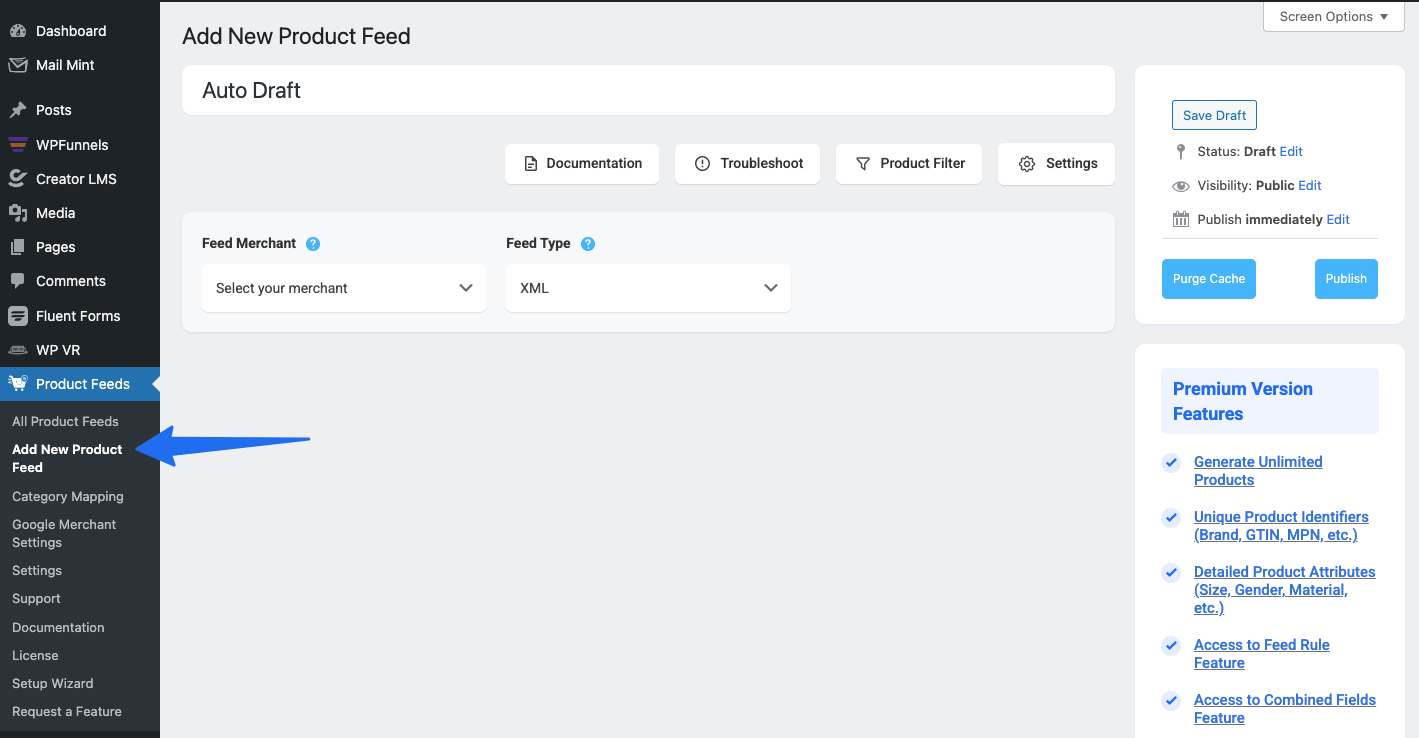
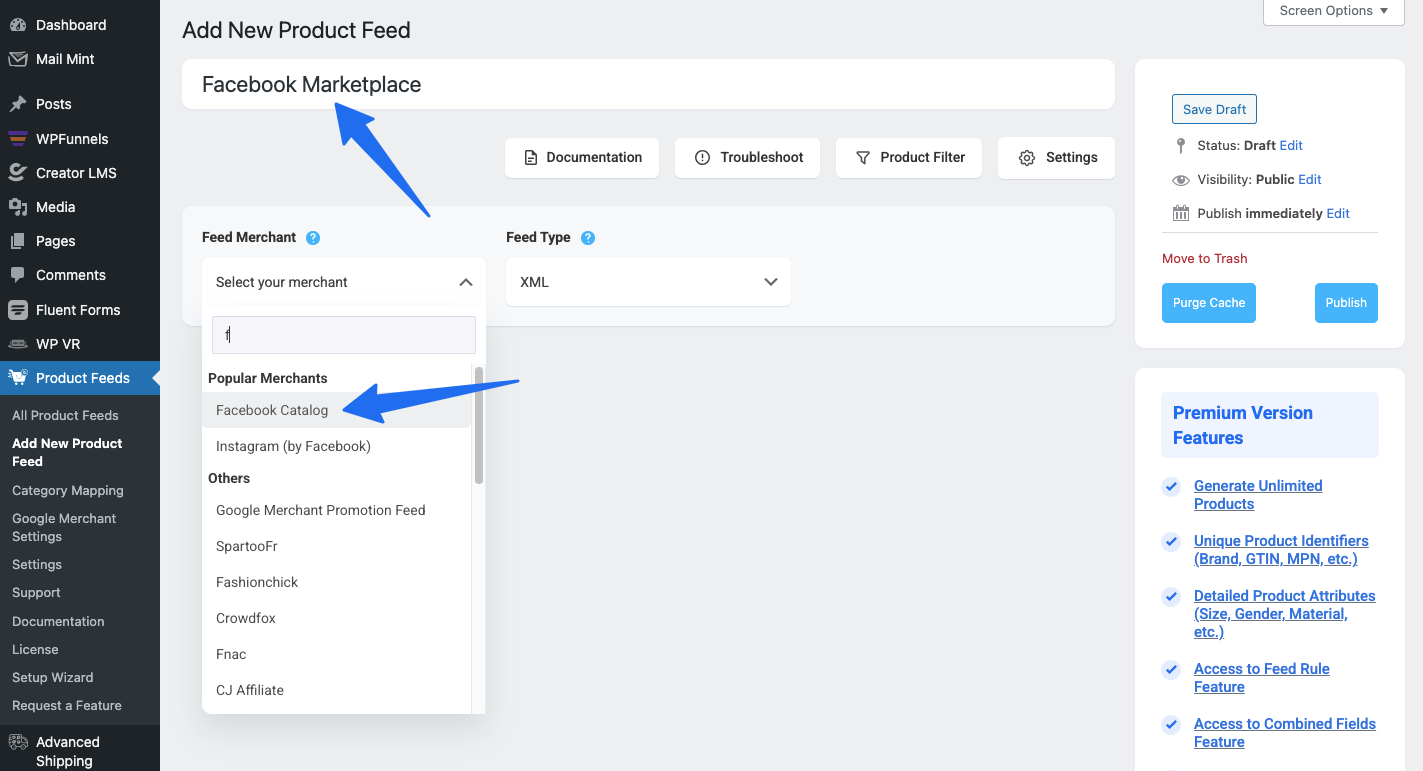
- Here, first set a feed title.
- Then choose the Feed Merchant as Facebook.
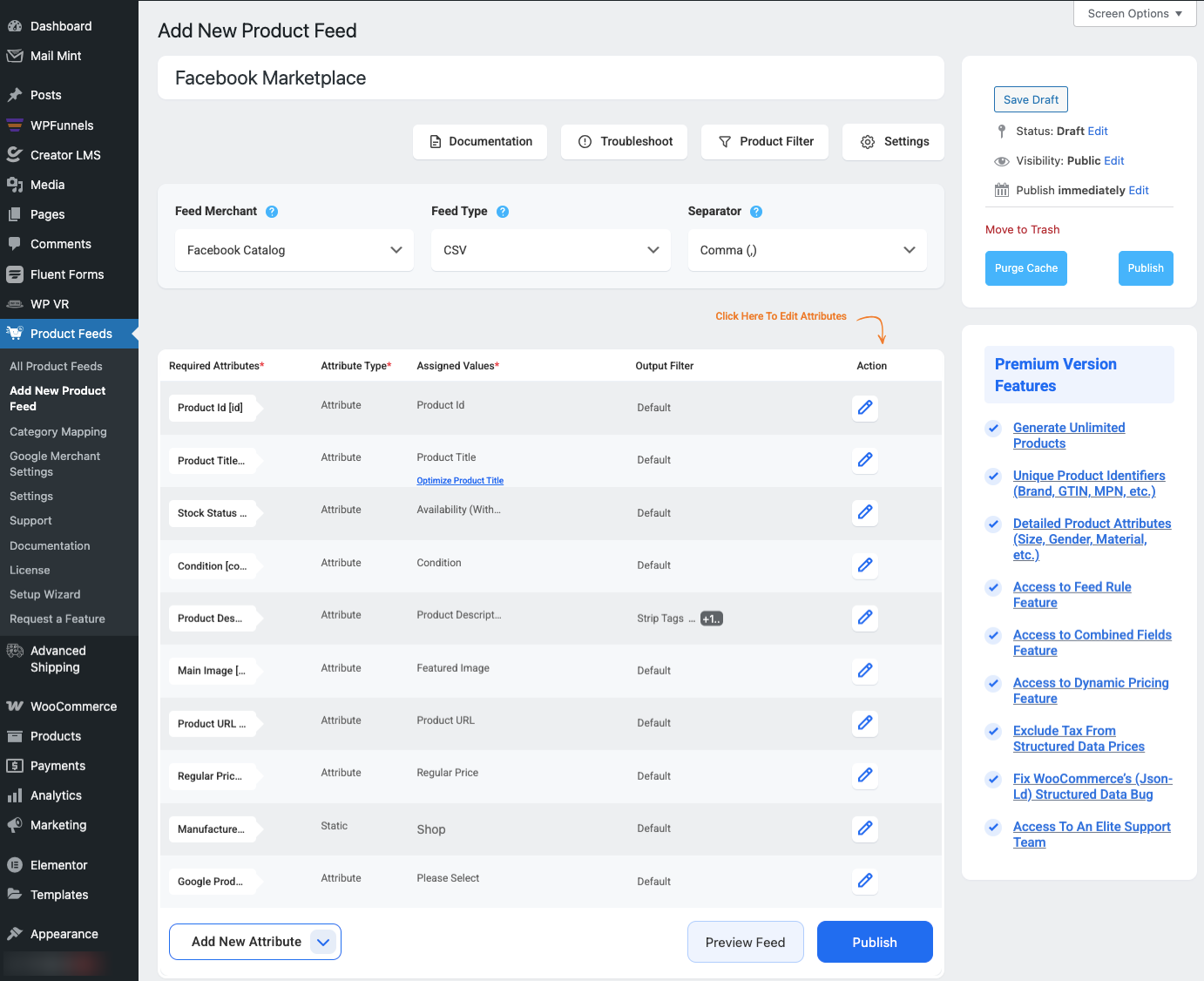
It will then load all the fields that will be included in your product feed for each of your products.
Step 2 – Configure Your Facebook Product Feed
You will notice that almost everything is already configured. All you have to do is assign the right values for the Manufacturer/Brand and the Google Product Category
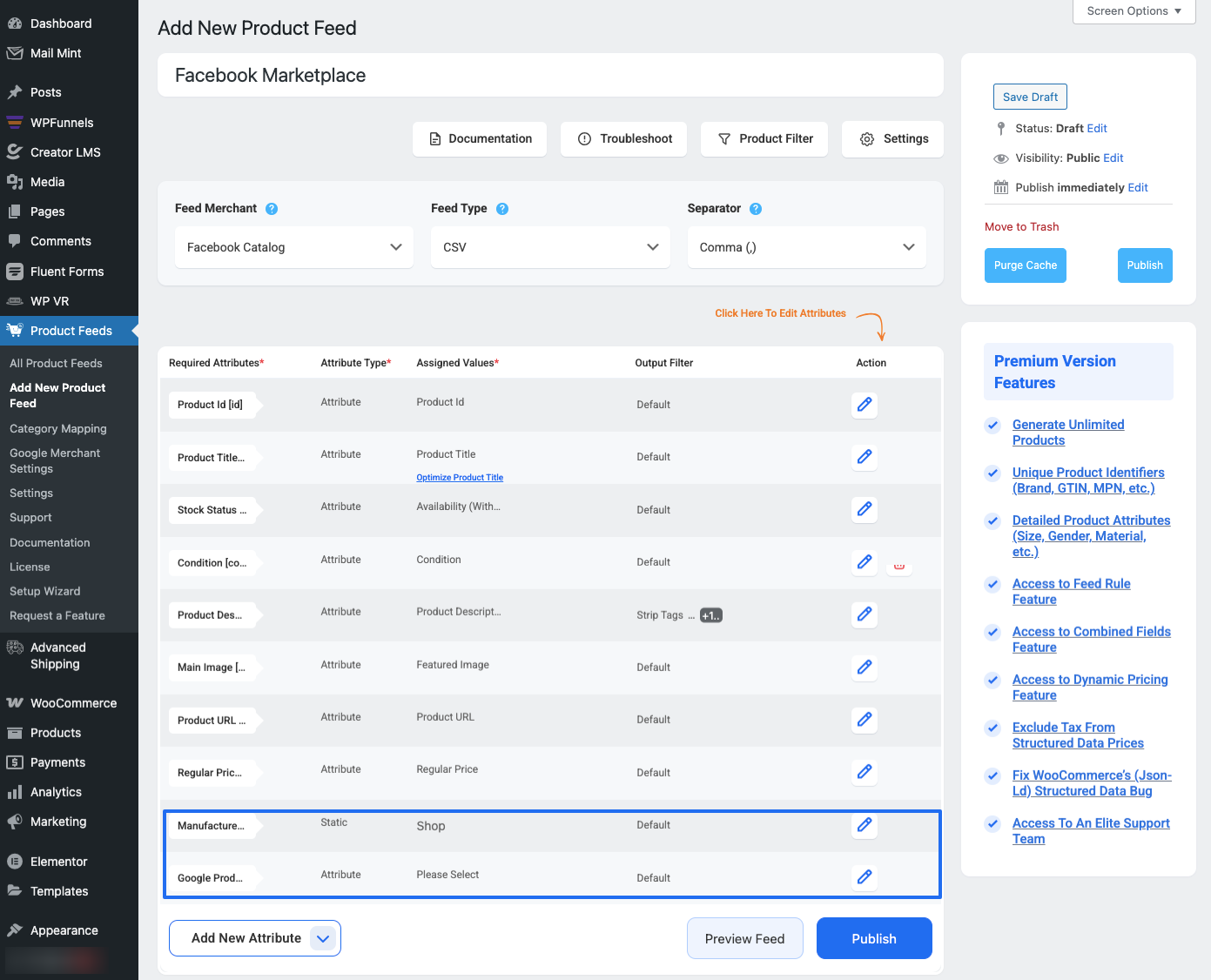
– Assigning The Manufacturer/Brand:
This should be the Brand name of the product you are selling. If you are the manufacturer, you can set the type as Static and input your company name here.
If you have different brand names for different products, you will have to save the value in a custom field or product attribute and then use that value here.
You can also use a brand plugin, which will make it easier to assign and use brand names.
– Configuring the Google Product Category:
Facebook Marketplace has its own set of categories (that match Google) that, most often, don’t match the categories in your store. But you do not have to change it in your store. You can simply use the category mapping feature to set up the mapping and use it as the value here.
You can further customize the feed if you need to use Product filters, a few basic feed settings, auto-update intervals, and feed rules. Normally, they are already configured in an optimized way for the Facebook Marketplace.
Once you have configured the feed, simply click on the Publish button on the right, and the feed will be generated in seconds.
And that’s it. You have successfully generated a product feed for the Facebook Marketplace. You will be able to collect the feed link or download the feed file from the right side.
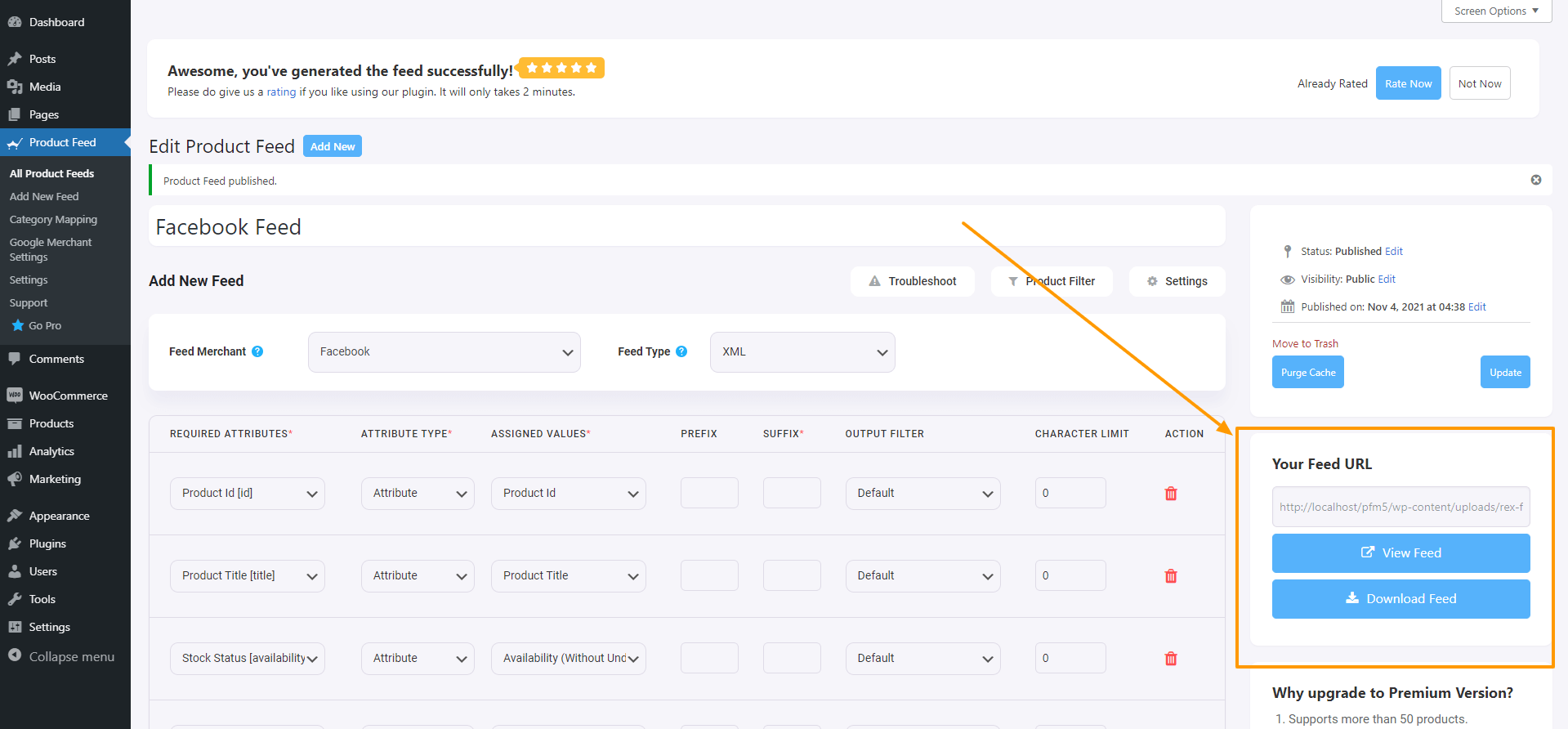
How to Upload Your Product Feed to Facebook Commerce Manager
Once you have generated the product feed, it’s time to get your WooCommerce products on the Facebook marketplace.
Before you do, it’s always best to create a Facebook business page if you want to leverage more exposure from Facebook for WooCommerce. You may read this guide to create a Facebook business page if you do not have one already.
Simply follow the steps below.
Step 1 – Create A Catalog
- Login to your Facebook account and access the Facebook Commerce Manager.
- Select your preferred way to sell your products on Facebook. Here, select the ‘Create a Catalog’ option. Then click on ‘Get Started.’
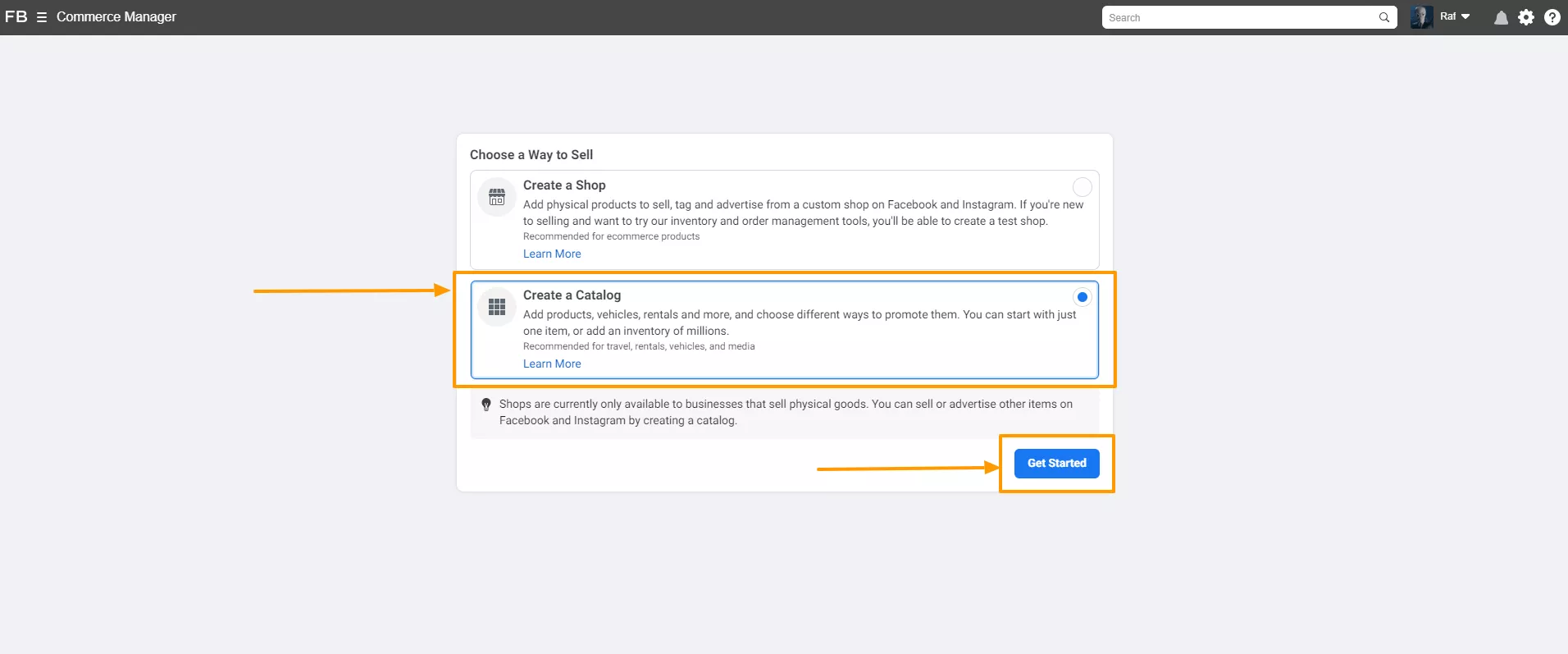
- Now, choose your catalog type.
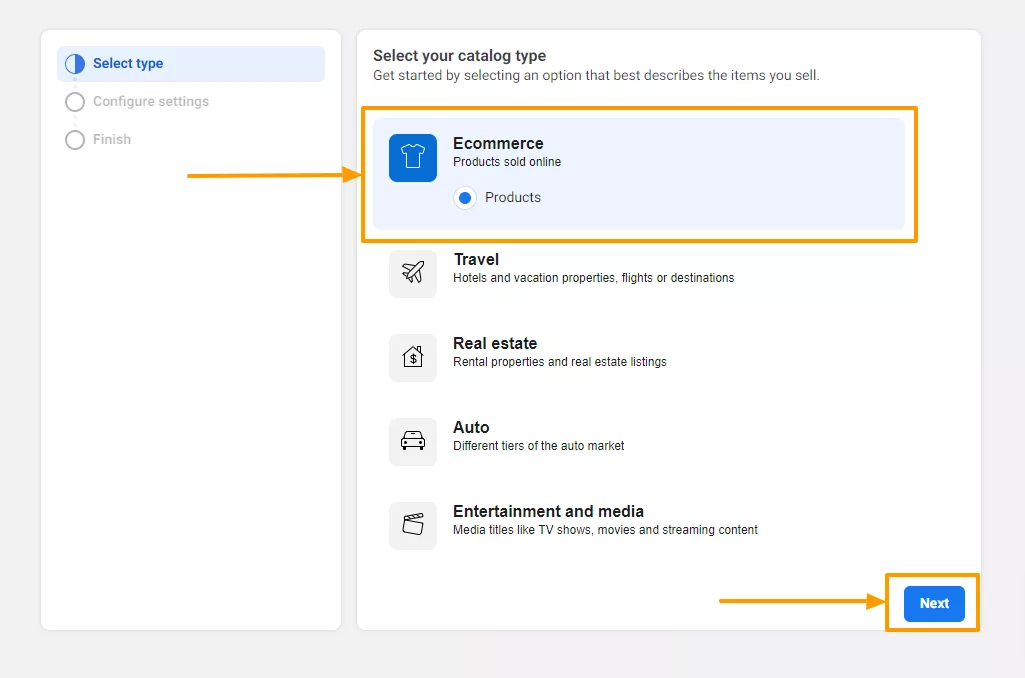
- Next, Select Upload Product Info and click on the ‘Create’ button.
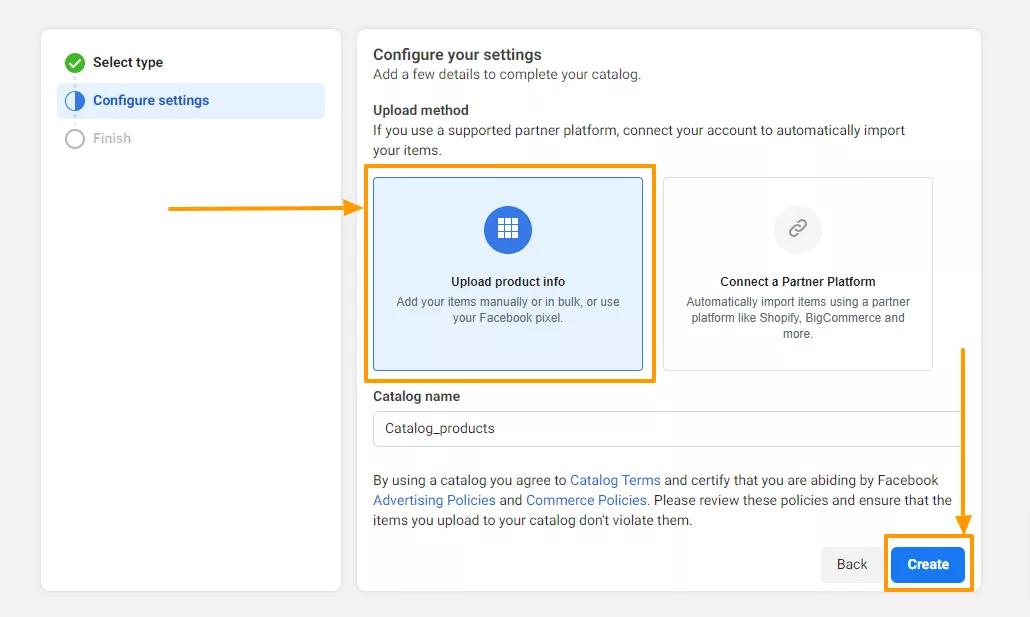
- Then click on finish, and it will redirect you to your Facebook Commerce Manager Dashboard.
Step 2 – Upload Your Product Feed to The Facebook Marketplace
Now that you have the Catalog prepared, you are ready to upload your products on the Facebook marketplace for your WooCommerce store.
- On your Commerce Manager menus, you will see a new menu called Catalog. Click on it, and then click on Data Sources.
- Then select Data Feed.
- Here, you will get three options – File Upload, Scheduled Feed, and Google Sheets. Choose Scheduled Feed.
- Then you will get the option to provide the link to the feed file. Earlier, when you generated the feed in your WooCommerce store, it gave you a feed link. Copy that link and paste it here.
- Now, choose a suitable time for the schedule fetch and click on Next.
- And finally, give a name to your catalog feed, choose the currency for your store, and click on Upload.
And that’s it. Your feed will be uploaded in a few minutes to the Facebook Marketplace, which you will be able to view in the Items menu under Catalog.
Key Benefits of Setting up Facebook Catalogs for WooCommerce
Now I will tell you some key benefits of setting up your Facebook catalog for WooCommerce so that you can be inspired more.
- Cost-Effective Ads: Focus your advertising on buyers who are most likely to purchase. This maximizes your budget and improves your return on investment. For your e-commerce operations, improve customer experiences and drive more sales through advanced targeting and easy integration.
- Easy Integration: You can automatically sync your WooCommerce products to Facebook, saving time and avoiding manual updates. This makes managing your store much simpler and stress-free.
- Better Product Visibility: Your products can appear across Facebook and Instagram, reaching millions of potential buyers. This helps more people discover your store and products.
- Dynamic Ads: Show your products to people who’ve already shown interest, boosting your chances of making a sale. Personalized ads help you target the right audience and increase conversions.
- Smooth Shopping Experience: Customers can browse and buy directly from Facebook or Instagram, making it easier for them to shop. A simple shopping experience encourages more purchases and repeat customers.
- Automated Inventory: Your stock updates in real-time, so you never advertise products that are out of stock. This prevents customer frustration and lost sales.
- Track Performance Easily: You can see which products and ads are performing best using Facebook’s analytics. This helps you make smarter decisions to improve sales.
- Sell Everywhere: Reach customers on your WooCommerce store and Facebook/Instagram at the same time. This expands your audience and diversifies your revenue streams.
- Manage Products Simply: Update listings, prices, and inventory from one place, saving effort and avoiding mistakes. This keeps your catalog organized and up to date.
- Bring Back Lost Buyers: Use Facebook Pixel data to retarget people who visited but didn’t buy. Retargeting increases your chances of converting potential customers.
Conclusion
In conclusion, Facebook Marketplace for your WooCommerce store can significantly enhance your product visibility and boost sales.
Following the steps outlined, you can easily transfer your products to Facebook. It allows you to reach a broader audience and simplify your sales process.
The integration offers numerous benefits, including dynamic ads, automated inventory management, and advanced analytics, all of which contribute to more efficiency & effectiveness.
For an effortless transfer process, use the Product Feed Manager to simply generate and upload your WooCommerce products to Facebook Marketplace with ease.
** FAQs **
How do I connect WooCommerce to Facebook Marketplace?
- You can link your WooCommerce store to Facebook Marketplace through the connection tab, syncing your product sets and ensuring all product fields are complete. This helps your listings reach more customers automatically without manual uploads.
How can I make sure my WooCommerce products display correctly on Facebook?
- Check that product categories, product tags, and product inventory are accurate in WooCommerce. Run an e2e test to ensure products show correctly in shops ads and your Instagram catalog, including any new product updates.
Why isn’t my WooCommerce integration with Facebook working properly?
- Problems often occur if your meta business manager account isn’t set up correctly or if required product fields are missing. Enabling two-factor authentication and using debug mode can help identify and fix syncing issues for all products.
How often should I update my WooCommerce listings on Facebook Marketplace?
- Regularly updating your product inventory, prices, and product details keeps listings accurate. Refresh your Instagram catalog and product sets frequently to stay visible to buyers and attract US merchants.
How can I track and improve the performance of my WooCommerce Marketplace listings?
- Use Meta Pixel and Facebook Insights to monitor clicks, sales, and conversions. Optimize your shop’s ads, product categories, and product sets while keeping your current version metrics updated to gain full control and reach more customers.

![Show Your WooCommerce Products on ChatGPT & OpenAI Ads with Product Feed [2026] 2](https://rextheme.com/wp-content/uploads/2026/08/Show-Your-WooCommerce-Products-on-ChatGPT-with-OpenAI-Product-Feed-1-407x213.webp)

i need sell