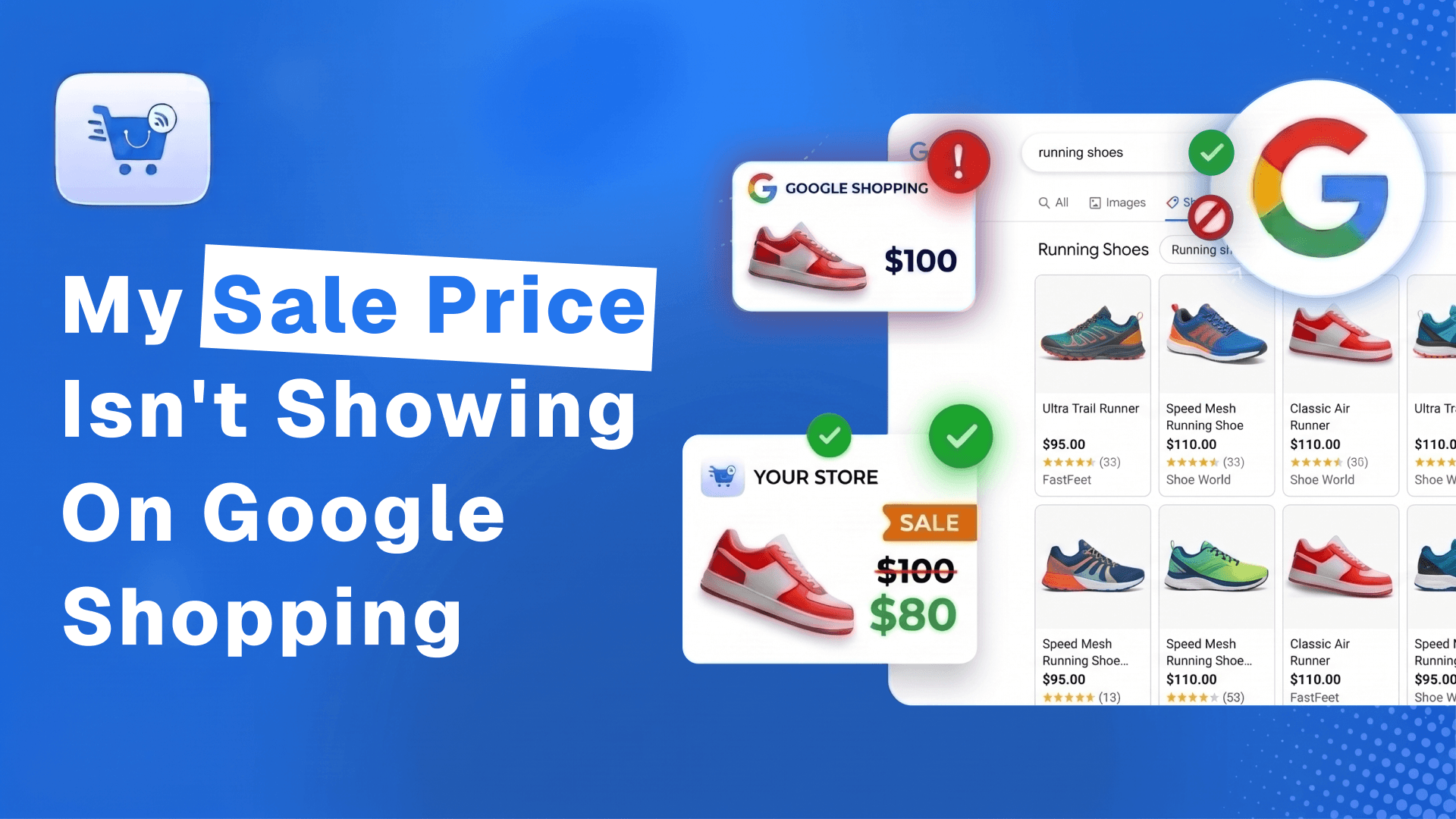
When you are running a sale or discount campaign, you want to reach as many shoppers as possible. And so, it’s important that your “sale” is visible on Google Shopping as well.
However, we came across something unusual recently.
A store owner reported that he had the sale live on the website, but Google Shopping was showing the full price of the product.
When we visited some of the product pages, it was there. The discount was applied, and the checkout page also showed the discounted price.
So what was the issue?
You see, Google doesn’t rely on your sale banner to know a product is discounted.
It checks the price you send to Google against the price it can find on your product page. If the prices don’t match, your sale price may not appear correctly in Google Shopping. WooCommerce stores can end up with different numbers in those places for ordinary reasons: a discount plugin altering price at the checkout page, a tax setting, a missed attribute for a variable product, or a sale that was scheduled to start at the wrong hour.
If you are facing a similar issue, then read along to learn how to troubleshoot this case.
Quick Answer
The sale price can be missing or rejected by Google Shopping if the [sale_price] attribute was omitted from your feed, if there is a price mismatch between your feed, your landing page, or your schema/structured data, or if the discount fails Google’s integrity checks (such as using an inflated base price at which the product was never actually sold). To fix this, ensure you have submitted the [sale_price] attribute correctly with a valid currency code, verify that the price matches exactly across your website’s visual display and code, and resolve any JavaScript or discount plugin conflicts that might alter the price when Google’s crawler visits your page.
First, Identify The Root Cause Of Your Sale Price Problem
The issue of sale price not showing on Google Shopping is tricky. You won’t see a warning unless the cause is a direct mismatch, and if it’s affecting a few products, it’s difficult to track down.
But most cases come down to five situations: the sale price never reached Google, it was sent as the main price, a variable product’s markup lacks variation prices, checkout adds costs Google doesn’t know about, or a plugin applies the discount at checkout. Here’s what each case means.
(This doesn’t include issues due to tax, time zone, or currency. That’s discussed in a later section.)
| # | What is happening | What Google sees (examples) + Consequences | What To Fix First |
|---|---|---|---|
| 1 | Sale price is set in WooCommerce but was not sent to Google (the feed is older than the sale, or the sale price is not mapped) | Price in Feed: $100. (No Sale Price attribute in feed.) Price on Page: $80 Result: Price mismatch. Consequence: The product can be disapproved. | Include the “sale_price” attribute in the product feed. Then update and resubmit. |
| 2 | Sale price was sent as the main price in the product feed, with no sale price attribute | Price in Feed: $80. (No Sale Price attribute in feed.) Price on Page: $80 Result: No sale banner. Consequence: No error detected. Google Shopping will directly show the lower price as the actual product price, with no sale badge or a “strikethrough” higher price beside it. | In your product feed, map the regular price to the “price” attribute and include the “sale_price” attribute, mapping it to the discounted price. |
| 3 | For variable products, structured data doesn’t include each variation’s sale price | Price in Feed: $60/$70/$80 Price on Page: $60/$70/$80 (Unique sale price per variant.) Price in schema markup: $60-$80 (A range, so Google’s crawlers cannot match it with price.) Result: Price mismatch Consequence: The product can be disapproved. | Fix the JSON-LD structured data format for variable products. |
| 4 | Checkout adds costs that Merchant Center doesn’t know about | Price in feed and on page: $40 Price at checkout: $46 Result: Inaccurate prices. Consequence: The product can be disapproved. | Keep pricing consistent on page, cart, and checkout. And set up shipping & tax rates on Google Merchant Center, the same as in your store. |
| 5 | A discount plugin applies the discount at the cart or checkout | Price in feed: $50 Price on page: $50 Price at checkout: $40 Result: No mismatch, so no error. Consequence: No sale price or badge. **However, if the plugin shows $40 on the page while the feed still sends $50, it becomes a price mismatch, and the product can be disapproved | Switch to a discount plugin that sets the discounted price as the sale price in WooCommerce. |
How Does Google Compare My Feed Price With My Product Page Price?
Google checks whether the price you submit to Google Merchant Center (via the product feed) matches the price it finds on your product page, both front-end and in schema markup.
When you submit the feed, during the review process, Google crawls your product pages to check for accuracy. It judges in two ways:
- If the price is readable by Google itself via structured data (i.e., schema markup).
- If the price is readable by a human when visiting the page (i.e., the front-end).
If they differ, it may trigger a price mismatch error, your product may be disapproved, or it may show the wrong price in Google Shopping results.
Why is this so important?
Google needs the price in your schema markup to match the price shoppers see on your page to prevent product disapprovals and account suspensions under Google’s Misrepresentation policy.
Many stores put a lot of extra elements on the pages, such as a strikethrough price, a bulk discount, or a currency switcher, which confuses crawlers. Schema markup helps isolate the important details for the bots to understand the right product data.
Plus, schema markup ensures Google Merchant Center’s Automatic Item Updates can check and sync every variant (sizes, colors) without showing buyers a wrong or outdated price.
Overall, the priority is maintaining data accuracy to ensure a trustworthy shopping experience and improving Google’s distribution capabilities.
Tip: Prices that JavaScript adds after the page loads may not be read by Google’s crawler, which can trigger a price error. Put the price and any structured data in the HTML your server returns, especially if your prices change often.
How Do I Compare My Feed Price, Page Price, and Merchant Center Price?
Pick one product that is on sale and check four places: the price and sale_price attributes in the product feed, the product page, the prices in the schema markup, and the price as listed in Merchant Center. Write them side by side. Whichever mismatches, that’s where you start fixing.
Work through it in this order:
- Choose a product you currently have a sale running.
- Open your feed file or feed preview and find the product. Note its price, its sale price (and its sale price effective date if applicable).
- Visit the product page in a browser and note down the price and sale price visible there.
- Run the product page through the Rich Results Test and note the price (which will be the sale price) and the price under UnitPriceSpecification (which is the regular price). Or, if you are using the strikethrough format, then note down the two prices, where the one with the strikethrough schema reference is the regular price (usually the higher price).
The following are two examples in the two possible formats to look at.
Example – Version 1:
{
  "@context": "https://schema.org/",
  "@type": "Product",
  "name": "Nice trinket",
  "offers": {
    "@type": "Offer",
    "url": "https://www.example.com/trinket_offer",
    "price": 10.00,
    "priceCurrency": "GBP",
    "priceSpecification": {
      "@type": "UnitPriceSpecification",
      "priceType": "https://schema.org/StrikethroughPrice",
      "price": 15.00,
      "priceCurrency": "GBP"
    }
  }
}
Here, “price”: 10.00 is actually the sale price, while “price”: 15.00, which is cascaded under “priceSpecification” and marked as “@type”: “UnitPriceSpecification”, is the regular price.
Example – Version 2:
{
  "@context": "https://schema.org/",
  "@type": "Product",
  "name": "Nice trinket",
  "offers": {
    "@type": "Offer",
    "priceSpecification": [
      {
        "@type": "UnitPriceSpecification",
        "price": 10.00,
        "priceCurrency": "GBP"
      },
      {
        "@type": "UnitPriceSpecification",
        "priceType": "https://schema.org/StrikethroughPrice",
        "price": 15.00,
        "priceCurrency": "GBP"
      }
    ]
  }
}
Here, both prices are within “priceSpecification” and marked as type “UnitPriceSpecification”. However, only the second one, “price”: 15.00, has a “priceType” assigned for the strikethrough schema, indicating it is the regular price, while “price”: 10.00 is the sale price.
- In Merchant Center, go to Products and open the same product. Note the price and sale price Google holds.
- Compare the numbers and then check back at the table earlier.
- If the feed shows the full price while the page shows the sale price, that is situation 1.
- If the feed’s main price is already the sale price and there is no separate sale price, that is situation 2.
- If only the structured data differs, look at situation 3.
- If the numbers match everywhere but the price changes at checkout, that is situation 4 or 5.
- If only Merchant Center differs, it is a timing or review problem.
If your issue falls under situations 1, 3, and 4, then it will most likely be detected by Google, and you will be able to find the list of affected products in the Products > Needs Attention tab in Google Merchant Center by filtering for pricing issues. However, situation 2 and checkout-only discounts won’t show any warning, but you will miss out on using the sale badge or using the discount as a conversion tactic.
Why Does Google Shopping Show My Full Price While My Sale Is Running?
Google Shopping may still show your full price if your discounted price hasn’t reached Merchant Center or doesn’t match the price on your product page. Start by checking the Sale price field in WooCommerce, rebuilding your product feed, and comparing the price shown in Merchant Center.
The issue usually happens by accident. For example, your store has a sale price set up, but you haven’t updated the product feed with it, so Google Shopping will still show the full price, as the discounted price hasn’t reached Merchant Center yet. The sale price can also be missing because it was never mapped in the feed.
Once the page price matches your product data, Google re-crawls disapproved products over the next few hours or days and approves them again.
A similar issue came up in a July 2026 Reddit discussion. An eCommerce store owner had submitted sale prices for all products through a supplemental feed, but Google was displaying discounted prices for some products and regular prices for others.
The discussion didn’t confirm a final fix, but it highlights why checking individual products in Merchant Center matters. Even when your feed setup appears correct, you should check whether Google has received and applied the sale price for the affected product.
Why Does Google Show My Sale Price But No Sale Badge?
The most common reasons include not meeting Google’s sale price annotation requirements or if the sale price was sent as the main price in the product feed, with no sale_price attribute being included. Fixing these can make the product eligible for a sale badge and a strikethrough price, though Google doesn’t guarantee them.
First of all, Google has a fixed set of sale price annotation rules for a sale badge to appear.
- The discount for the sale price must be greater than 5% and less than 90% of the regular price.
- The regular price and the sale price must both be displayed on the landing page (usually with the regular price in a strikethrough format, and the sale price being the most prominent.
Other than that, there is a time threshold where you are required to have charged the regular price for a set period before you can get the sale badge.
- For Shopping ads, Google requires the following:
- 5 days within the past 30 days (non-consecutive) or 15 days within the past 200 days (in the United States)
- 30 days within the past 200 days (in most other countries, such as Australia, Canada, the UK, Germany, and France)
- For free listings, it’s a bit different:
- No such requirements for the United States, Canada, Australia, and Japan.
- For Brazil, France, Germany, India, Italy, Korea, the Netherlands, Spain, and the UK, 30 days within the past 200 days.
To see which products qualify, go to Products in Merchant Center, open All products, use the filter, select Has sale badge, and choose Yes. If a product has the correct sale price and no badge, check these rules before you change any data.
Now, if you are confident you’ve met these requirements, then the most common reason this happens is that the sale price was sent as the main price in the product feed, and no sale_price attribute was included.
Here, Google sees one price that matches your page, shows it, and has no original price to compare, so no sale badge appears.
The issues are either in your product feed or in the structured data (schema markup).
Let me explain with an example.
Suppose you are selling a jacket for $100, but now you want to offer a discounted price of $80.
- In WooCommerce, you set the regular price to $100 and the sale price to $80.
When you do this, in schema markup, the value of price becomes $80, while a cascade is created under UnitPriceSpecification, where the regular price is set as the value of price, which is $100 in this case.
- In the feed, you included the “price” attribute and mapped its value to the sale price, i.e., $80.
- Google reviewed the product and found that the prices match on the product page and in the feed, so it ignores the larger price in the schema markup.
- Google reviewed the product and found that the prices match on the product page and in the feed, and the feed has no sale_price attribute. So it ignores the larger price in the schema markup under UnitPriceSpecification.
Hence, Google doesn’t consider it a sale, and in Google Shopping results, the Jacket appears as a regular listing, as if $80 is the regular price (no sale badge or strike-through price)
This is not an error, and the product will not be disapproved. Google just shows an ordinary price, not a sale.
- In WooCommerce, the original price maps to the Regular price field and the sale price to the Sale price field.
- But the schema markup usually takes the sale price and puts it in place of the price attribute in the schema. The regular price is usually stored separately under UnitPriceSpecification.
- If you do not include a sale_price attribute in the product feed, the feed’s price matches the active price on the page. Meaning, Google has no original price to compare with. Hence, Google ignores the regular price and just counts the first price set up in schema markup.
As you can tell, a missing badge does not mean Google ignored your sale. When a sale price is active, Google shows it as the current price, even if no badge appears.
The fix is straightforward. You need to map the regular price to the price attribute and the discounted price to a sale_price attribute in the feed. Plus, show both prices on the product page, and make sure your schema markup includes the active sale price and the regular price in the right format. If Google understands, it may include the sale badge.
Why Do Variable Products Show the Wrong Price To Google?
A variable product often shows a price range on the page (when you have different pricing per variant), which then changes into a single price once you choose a variant.
Now, Google recommends submitting each variant as a separate listing with an item_group_id attribute to indicate that they are variations of the same product.
But WooCommerce’s default structured data doesn’t have separate formats per variant. Instead, it shows a price range no matter the variant in question, meaning Google’s crawlers cannot find a match with the feed. As a result, it triggers a price mismatch error, even when your sale prices per variant are correct.
We describe the same pattern in our guide to Google feed errors: the structured data shows a range while the feed shows one price.
As you can already tell, the main culprit here is the JSON-LD structured data (schema markup) (provided you actually have the sale prices set up per variant and sent the sale_price attribute to the product feed).
Let me explain.
Google cannot tell apart a pricing range. In your WooCommerce store, the schema markup of any variable product just shows a price range no matter the variant you’ve selected.
Now, when Google comes to crawl and check a specific product variant, and its price is different from what it shows in the schema and in the product feed, it triggers a price mismatch error.
(I am calling it price because, by default, the sale price becomes the main price in the schema markup and in the front-end view of the product, and this issue is the same whether you are discussing the regular price or the sale price.)
For example:
Let’s say you are selling custom Halloween masks in White, Orange, and Black colors. And you’ve set different prices for each color due to popularity and demand.
So, your store has the sale prices set for each:
- $20 for the Black mask
- $15 for the White mask
- $13 for the Orange mask
In this scenario, the main product is called “Custom Halloween Mask,” and the structured data will show the price range of $13-$20, which Google won’t be able to summarize.
Before you attempt to fix this, since we are talking about a sale price, make sure you’ve included the sale_price attribute (and not facing issues as discussed in the previous section).
Then, go for the fix in one of the following three ways:
- Consult a developer to help you update the product schema markup for your WooCommerce products matching Google’s requirements. (It’s safe to follow theirs, as every other merchant follows the same.)
- Use a tool that does it for you. For example, RexFeed is a product feed manager for WooCommerce that lets you generate a feed for Google Shopping. It comes with a feature that fixes the JSON-LD structure issue for variable products in WooCommerce (see how). Or you can use RankMath Pro for this. Then there is SchemaEngine AI that you can use to create custom schema markup as needed.
- Create a plugin for it yourself using AI. (Not highly recommended)
I know many of you may think you can fix it yourselves using AI. But keep in mind, this involves editing your website’s code. And anything wrong could break the website. If you aren’t too technically familiar with such changes, then it’s best to consult a dev. But if you do insist on using AI to fix it yourself, do not fix it in the core website files. Rather, have AI create a plugin for it, and test that it doesn’t have any negative impact on your website via a staging site.
The fixes suggested here are common solutions, but not guaranteed, as there could be several other issues.
When Is A Price Change At Checkout Taken Negatively By Google?
Google flags checkout prices that are higher than the price on your product page.
If shipping, handling, or other fees appear only at checkout and Merchant Center doesn’t know about them, the price the shopper pays no longer matches the price of your product feed data. Make sure the page, the feed, and the checkout page are aligned with the price.
- Look for added costs that push the checkout price above the landing page price.
- Set up shipping and tax in Merchant Center instead of adding them as surprises in the cart.
Not fixing these can trigger a price mismatch error.
Why Does My Discount Plugin’s Sale Never Reach My Google Shopping Feed?
Some discount plugins take the discount off in the cart or at checkout and never change the product’s sale price. A feed reads product data, so it only finds the full price. The customer pays less, but the data Google receives is based on the static price you’ve set in WooCommerce. (This depends on the plugin you use. Some plugins make sure this anomaly doesn’t happen.)
You can check in two minutes. Open the product in WooCommerce and look at the Sale price field. If it is empty while your page shows a lower price, the discount is probably applied by a plugin or custom code rather than stored in the product.
There are three scenarios for this issue.
I. Price Not Mapped To WooCommerce Sale Price
The discount plugin could just display the discounted price on the landing page and not the sale price within WooCommerce.
In such a case, it could mean your product feed plugin won’t get the sale price value and will send over product data without the discounted price to Google Shopping. So, the landing page will have one price, but the feed will include a different price.
As such, this will lead to a price mismatch error, and the product may be disapproved.
The solution is to use a discount plugin that maps the discounted price as the value for the product’s sale price in WooCommerce. Then the product feed plugin will be able to collect the data with no issues.
Alternatively, you would need a plugin that is compatible with your product feed plugin and updates the structured data of the page to set the price at the discounted price (while also displaying the lower price on the product page). That way, the feed will include this discounted price, and Google’s crawlers will find the same price in all three places, leading to no issues.
II. Discount Is Only Applied On The Cart/Checkout Page
In this scenario, your landing page will display the regular price, and your feed will include the regular price as well. And this type of plugin usually doesn’t add this lower price as the “sale price” in WooCommerce, as the discount is meant to be a surprise on the cart page or the checkout page.
Now, this won’t trigger any errors. Google will see that you have the same price on the feed and on the landing page. And Google usually doesn’t flag a product if the price drops on the checkout journey. (If the price increases, then it would be a problem. We’ll discuss that in a bit.)
However, what you will miss out on is the opportunity to get that sale badge on Google Shopping.
And frankly speaking, it’s a missed opportunity. A discount can trigger buyers to click on the Google Shopping Ad, i.e., more conversions. Why skip that when you are giving the discount on the cart page later anyway?
We always recommend that, if you are using a discount plugin, choose one that will keep the sale price consistent in all 3 areas — the product feed, landing page, and the structured data.
If you want to display discounts on the cart page or checkout, make that conditional on additional purchases, not as is.
III. Delayed Discount Loaded On The Product Page
Some discount plugins change the displayed price with a JS script after the page loads. But this means the structured data was not updated with the discounted price. Google’s crawlers will now see two different prices on the landing page and in the structured data.
So even if you send the right price in the product feed, Google can still see two different prices on the page, leading to a price mismatch error and possibly disapproval.
An August 2026 Reddit discussion shows how confusing this can get. A merchant offered two products for €59.90, making the effective price €29.95 each. Google approved their promotional offers but continued showing the regular €59.90 product price. Submitting €29.95 as the sale price caused a price mismatch, because customers had to purchase two items to receive that price.
The takeaway is that a multi-item promotion doesn’t automatically work like a regular sale price. Before changing your feed, check whether the discount applies to one product or requires shoppers to meet additional conditions.
Exception: Google’s Merchant Promotions Feed
One option lets you offer a checkout discount and still get a special offer annotation, and that is Google Merchant Promotions.
In this case, your landing page doesn’t need to display a lower price, and you do not have to include it in the sale price attribute of your Google Shopping feed.
Rather, you create a separate feed file (commonly in TSV format) for Google Merchant Promotions. This will allow you to include a catchy badge for “Special offer” or “20% discount during checkout”.
So it’s not a direct solution to your missing sale price. But this could be another Google service you could explore if your store’s conversions are already good and you do not want to take the risk of switching your discount plugin.
Here’s how you can create this feed in WooCommerce using RexFeed: Quick Guide for GMP Feed.
Any Discount Plugin Suggestions For WooCommerce?
In terms of suggesting a discount plugin, we have not tested every plugin, so we cannot suggest many. Here, we would like to mention one that we have tested, Discount Rules for WooCommerce. It is compatible with RexFeed. You can map its discounted price and its expiry date in the Google Shopping feed as the sale price and the sale price effective date. And when we tested, Google did show the badge, so we believe it will show for your products as well (but we do not guarantee it). (Here’s how it works.)
What Other Causes Can Make The Feed Price Different From The Price On The Product Page?
Three other causes can create a price mismatch even when your sale price is set up correctly: a sale scheduled in the wrong time zone, a tax rule that differs between your page and your feed, and a currency that differs between your data and your page.
I. Can A Scheduled Sale or the Wrong Time Zone Show the Wrong Price?
Yes. WooCommerce schedules sales by the day using your site’s time zone, while Google reads the sale window from the sale price effective date attribute, which carries its own time zone. If the dates or time zones are different in your store in GMC, Google can show the sale too early, too late, or not at all.
WooCommerce’s built-in sale scheduling involves picking from dates for whole-day periods. (You cannot set the sale for partial hours.)
And the time is by default aligned with your WordPress site’s time zone. So if your store sits in one time zone and your feed or Merchant Center account has a different time zone set up, a sale that ends on your last day can end at a different hour in Google’s view.
The sale price effective date tells Google when your sale starts and ends. It is optional, but useful for scheduled discounts. Without it, Google can apply your submitted sale price right away. If you set a sale period, include the dates, times, and a time zone. If you leave the time zone out, Google defaults to the UTC time zone.
Here’s what you do to ensure you do not have this case.
- Match Account Zones: Verify that the time zone in WordPress Settings > General matches the time zone in your Google Merchant Center Settings.
- Verify Product Attributes And The Time Zone Offset: Check the raw feed to ensure the sale_price_effective_date attribute includes the correct dates and times. Compare the time zone in WordPress Settings > General with the mathematical offset in your feed data (for example, it should show -0500 or -05:00 if your WordPress site is set to New York in the winter).
- Account for Feed Caching: Remember that Google fetches your feed on a schedule (e.g., once a day). If a sale starts at midnight but your feed doesn’t update until 8:00 AM, Google will still show the old price until the fetch happens. So if you update the data at such odd hours, update your product feed, and then go to Google Merchant Center > Settings > Data Sources and click on Update or Fetch Now. This will speed up the review process for the change. However, we recommend submitting the feed with the sale_price_effective_date 12-24 hours before the sale begins.
Tip:
- Feed Plugin Settings: As a WooCommerce store owner, you most likely use a plugin like RexFeed or CTX Feed. Make sure your feed plugin uses the WordPress website’s time zone and not the server time zone. If not, it could cause confusion for you when trying to match time zones with GMC.
- The Formatting Requirement: Google requires a very specific ISO 8601 format for the
sale_price_effective_dateattribute (e.g., 2026-11-25T00:00-0500/2026-11-30T23:59-0500). If your feed plugin doesn’t format this correctly, Google will reject the attribute. So ensure your feed plugin can handle this correctly (RexFeed does).
II. Can Tax Make My Feed Price Different From The Price On The Product Page?
Google wants a price with VAT or GST for most countries and a price with no tax at all for the United States and Canada. WooCommerce can show tax-inclusive prices in structured data depending on your settings. If your page data and feed follow different tax rules, then the pricing values will be different, and Google will flag the products for a price mismatch.
The rule depends on your target country.
- For the United States and Canada, leave taxes out of the price attribute and show them at checkout.
- For the long list of countries that includes the United Kingdom, Germany, France, and Australia, include VAT or GST in the price and make sure the landing page price matches.
In most cases, the mismatch appears when your WooCommerce tax display settings put a tax-inclusive price into the page’s structured data while your feed includes a tax-exclusive price. Make the feed price, the visible page price, and the structured data price follow the same tax rule for your target country.
III. Do Currency and Country Settings Cause A Price Mismatch?
Yes. Google compares prices for the country and currency you target, so your feed price and currency must match what the page shows prominently. If your page shows prices in more than one currency, the price and currency in your data must match the one shown prominently. A difference in either place can lead to a price mismatch.
To handle this, it’s best to use a translation plugin and a currency switcher that work together to automatically convert prices beforehand, depending on the language the visitor is viewing. As such, we recommend having a modifier in the URL per language and submitting each language feed separately to Google.
For example, most users of RexFeed use WPML for translation per country and a currency switcher such as Aelia Currency Switcher or Fox Currency Switcher. Then they generate a separate feed per language with their associated currency and submit each feed file separately in GMC, where they set up country, taxes, time zone, and currency accordingly. It’s fine if you do not use RexFeed. But you need a similar setup if you are facing these currency and language mismatches.
Which RexFeed Settings Help With Sale Price Problems?
RexFeed can help with several of these situations. It helps to map the regular price and sale price attributes, rebuilds feeds on a schedule, connects directly to Merchant Center, fixes variable product structured data, and controls tax on structured data prices. It also works with a discount plugin (Discount Rules for WooCommerce) and can create a Google Merchant Promotions feed.
| Situations | What to do in RexFeed | Where to find it |
|---|---|---|
| Sale price not sent, or sent as the main price | Map the regular price to price and the discounted price to sale_price | Feed attribute mapping |
| Feed older than the sale | Rebuild the feed hourly, daily, weekly, or on a custom schedule, or sync directly with Merchant Center | Feed settings (setup steps) |
| Variable product markup | Turn on the option that fixes the JSON-LD structured data for variable products | Product Feed, Settings, Controls |
| Discount plugin | Map the discounted price and expiry date from Discount Rules for WooCommerce | Attribute mapping |
| Coupon or checkout offers | Create a Google Merchant Promotions feed | Feed creation |
| Tax | Exclude tax from structured data prices, only where your target country needs prices without tax (how it works) | Product Feed, Settings, Controls |
Not every situation needs a feed setting. Checkout costs are set up in Merchant Center, and a discount plugin that updates a real sale price needs no extra setting.
How Do I Re-Run the Check After I Fix It?
Rebuild your feed, send it to Merchant Center, and repeat the price comparison on the same product (feed, page, schema markup, and Merchant Center). Then check the Needs attention tab. If Google disapproved the product, request a website check after fixing it. The FAQ below explains how long Google takes.
If one product still will not match, write to RexTheme support with three things: the feed row, the product page URL, and the price Merchant Center shows. That gives us the same three numbers you are looking at.
Frequently Asked Questions
1. How Long Does It Take for My Sale Price to Show in Google Shopping After I Fix It?
Google re-crawls products over the next few hours or days, so there is no fixed time. After you fix the price and refresh your feed, request a website check in Merchant Center. Google’s price mismatch help, linked earlier on this page, says reviewing your site can take up to 12 hours, and you cannot send another request during that time.
2. Do I Need a Plugin to Show My Sale Price in Google Shopping?
Not to store it. WooCommerce holds a sale price in the product’s Sale price field. But Google only learns about the sale if your feed carries a sale_price attribute, so you need a feed file or a feed plugin that sends it. Merchant Center’s automatic updates can correct small gaps, but they do not replace a correct feed.
3. Should I Send My Sale Price as the Main Price Instead?
You can, but you lose the sale display. Google allows the current price in the price attribute when you send no sale_price, so no error appears. What you lose is the original price, so Google has no price to compare and shows no strikethrough or sale badge. To keep it, send the regular one as price and the sale price as sale_price.
4. Can Automatic Item Updates Fix My Sale Price Mismatch on Their Own?
Only for sporadic gaps. Automatic updates are on by default, under Products, then Automations in Merchant Center (Google’s automatic updates help), but they may not work for prices that change more than once a day and don’t replace regular feed updates. They also read your page’s structured data, so that markup has to be right first.
5. Does Google Allow a Small Difference Between My Feed Price and My Page Price?
No tolerance is stated. Google’s price mismatch help, linked earlier on this page, says the price in your page HTML must match the price you uploaded exactly. Some third-party guides mention a percentage tolerance, but we could not find that rule in Google’s help. Treat any gap as a mismatch and compare the feed, page, schema markup, and Merchant Center prices for one product.
6. Will Google Disapprove My Product If a Discount Plugin Only Applies the Discount at Checkout?
No. If a discount applies only in the cart or at checkout, your feed and product page show the same price, so Google finds no mismatch and won’t disapprove the product. The cost is visibility: Google never learns about the ongoing sale, so no sale price or badge appears. A plugin that changes only the page price can cause a mismatch.
7. How Can I See the Price Google Reads From My Product Page?
Run the product page through Google’s Rich Results Test and read the price in the structured data. Then compare it with the visible price on the page and the price in your feed. Google crawls the HTML your server returns, so the test shows what its crawler reads, including any price your theme or plugin adds to the markup.
Final Thoughts
When your sale price isn’t showing in Google Shopping, start by finding which situation you are in. Compare the price in your feed, on your page, in your schema markup, and in Merchant Center for one product. That shows whether the price your customer sees is the price Google receives. Many of the fixes are small.
If you are looking for a product feed tool to list WooCommerce products on Google Shopping, try using RexFeed. You can get started for free.
And if you have any questions, feel free to ask in the comments below.

![Show Your WooCommerce Products on ChatGPT & OpenAI Ads with Product Feed [2026] 2](https://rextheme.com/wp-content/uploads/2026/08/Show-Your-WooCommerce-Products-on-ChatGPT-with-OpenAI-Product-Feed-1-407x213.webp)