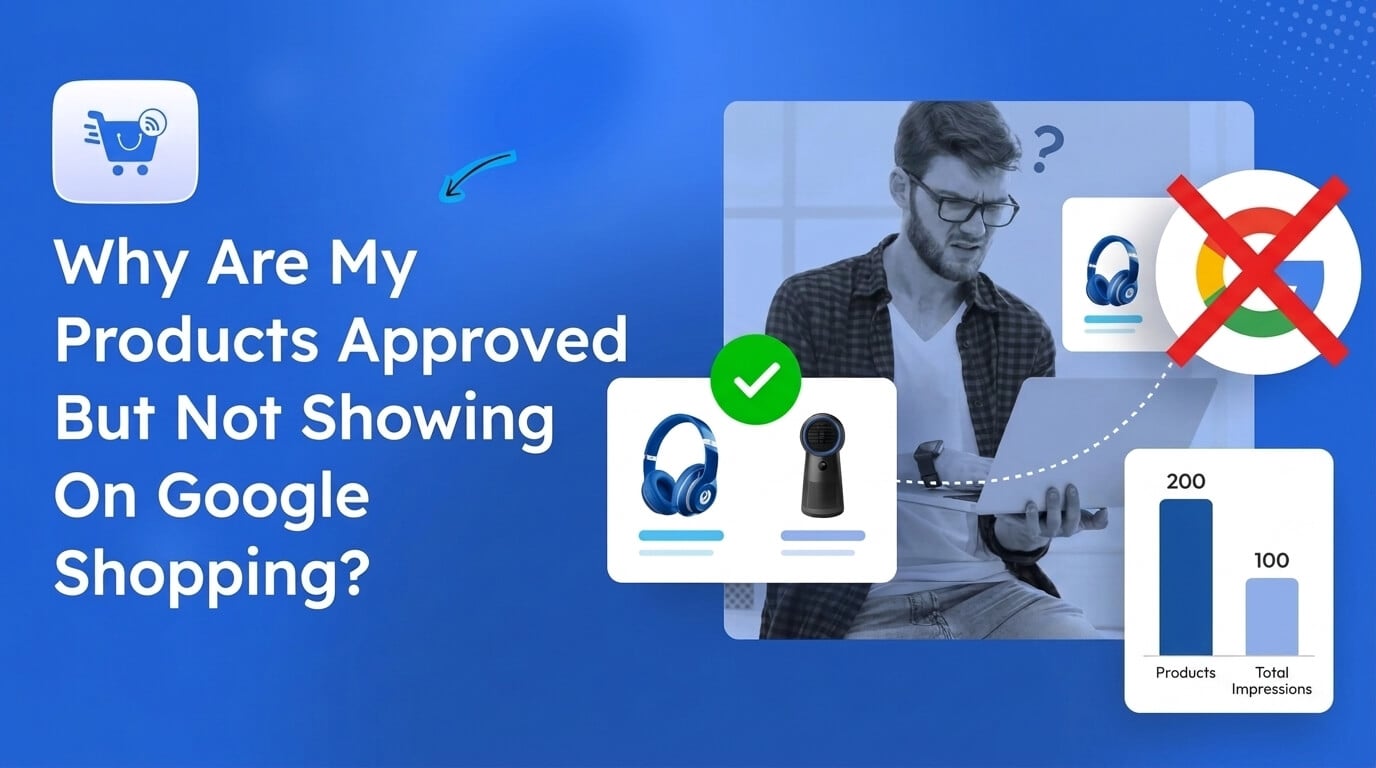
When listing products on Google Shopping, very often I hear this common scenario where the Google Merchant Center shows a green Approved status for most products, but as you check the reports, you see that you are getting little or no impressions.
If it were low sales, that’s understandable. But no impressions means Google isn’t putting your products in front of potential buyers.
This is frustrating. When Google said your products were approved, you’d think the hard part is over. But it doesn’t work like that all the time.
Approved means eligible to show. It doesn’t guarantee a shopper will see the product.
This means you cannot stop worrying when Google says “Approved”.
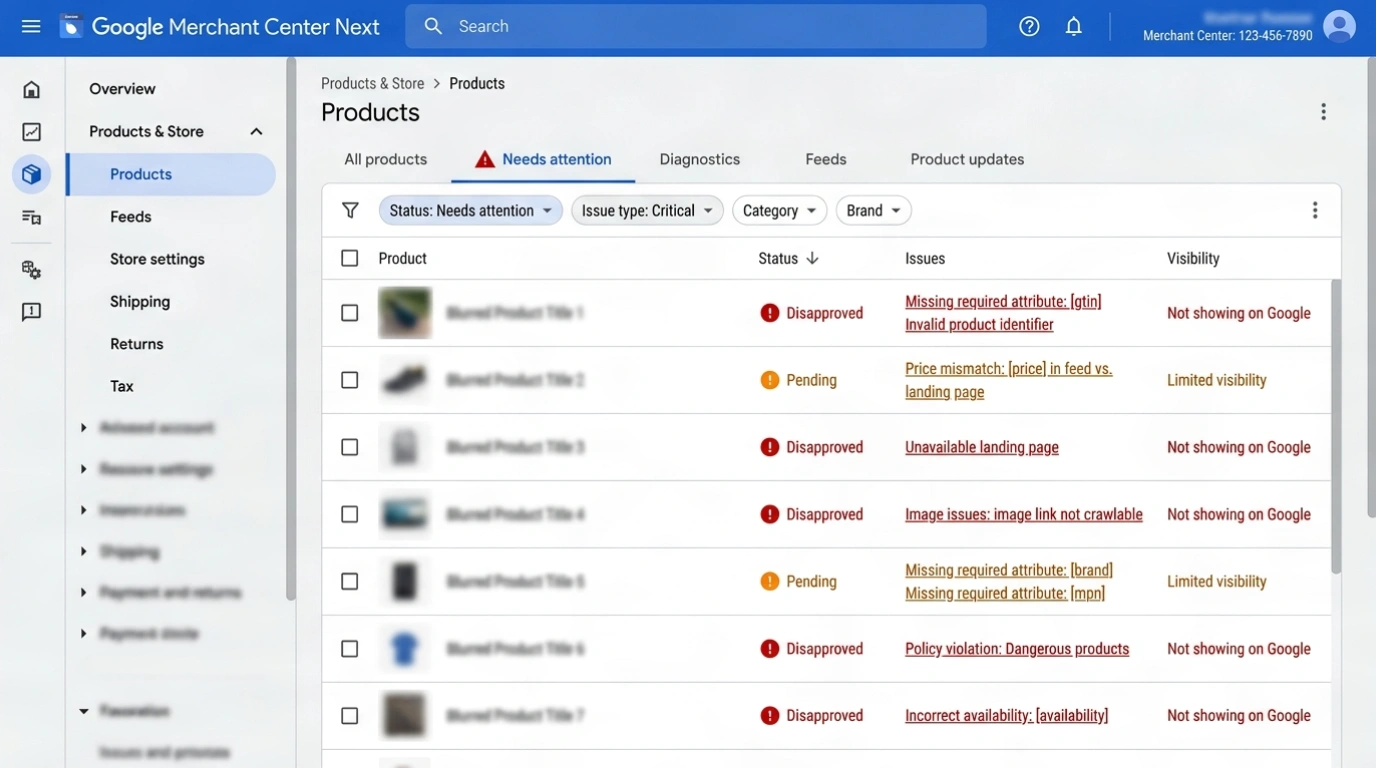
What you should do immediately next is start tracking “Impressions” and look at the “Needs Attention” tab (previously called Diagnostics).
And then what?
Well, in this guide, we will share what we learned after careful research and attempting to solve this for some of our own clients.
Quick Answer: Check Three Things In This Order
First, the Visibility column in Merchant Center: a hidden product won’t show, whatever its status.
Second, the Needs attention tab: fix the issues under Prioritized fixes first, and if that list is empty, turn it off and read the full list. Warnings don’t block approval, but they can limit reach.
Third, where you’re measuring: free listings need the program enabled, and Shopping ads also need a linked, active, funded campaign. If all three are clear, check feed freshness, identifiers, then titles.
Disclosure: The issues discussed here, we’ve helped solve for a few of our users. Everything explained here is according to Google’s guidelines plus our own experience. We will only mention our product, RexFeed, where it can save a step, but with no promotional intentions.
TL;DR – Quick Glance At The Whole Scenario
- Approved is a review result. Google’s Status column says a product passed review. It does not report how many shoppers saw the product.
- Open Products, then go to the “Needs Attention” tab (formerly Diagnostics), and read what Google says before you change anything.
- Check in this order: visibility and Needs Attention warnings, where you’re measuring (free listings vs ads), feed freshness and stock, identifiers and category, price and availability match, titles, descriptions and images, then campaign settings.
- The initial review can take up to 3 to 5 business days for Shopping ads, edits show as Processing for up to 15 minutes, and large bid or budget changes can start a learning period of 5 to 14 days.
- Every check works in Google Merchant Center and Google Ads without a plugin.
First, Work Out What Situation You Are In
Before you change anything, find the row that describes you. It tells you where to start.
| Your situation | Likely cause | Check first |
|---|---|---|
| Never had impressions since approval | New account or campaign, still in review or learning, free listings not enabled, no linked Google Ads campaign | Under review status, Manage programs, Google Ads link |
| Had impressions, then they fell | Feed stopped updating, products expired, price or availability mismatch, learning period ended after a bid or budget change | Last data source update, Needs update column, mismatch issues |
| Every product has no visibility | Account-level issue, campaign setting, expired data, or an identifier field mapped empty across the store | Setup and policy issues, campaign status, feed mapping |
| Only some products have visibility issues | Product-level data, Limited status, stock, or variant attributes | Compare quiet products with ones that get impressions: category, title, identifiers, stock |
| Impressions in one place but not another | Free listings and Shopping ads are separate surfaces | Check each separately |
Start with scope. If impressions are low across your whole catalog, suspect something that applies to every product: an account issue, a campaign setting, expired data, or a product feed issue (wrong category, no identifiers, etc.). If only some products are under-performing, compare them with products that get impressions and look for what to improve.
Where to measure: Use the Performance report in Merchant Center for free listings and ads, and the Shopping products report in Google Ads for ad impressions. Give a freshly fixed product a few days before judging it. As per Google, zero impressions may just need a few days, and very low counts can go unreported.
What Does “Approved” In Google Merchant Center Actually Tell You?
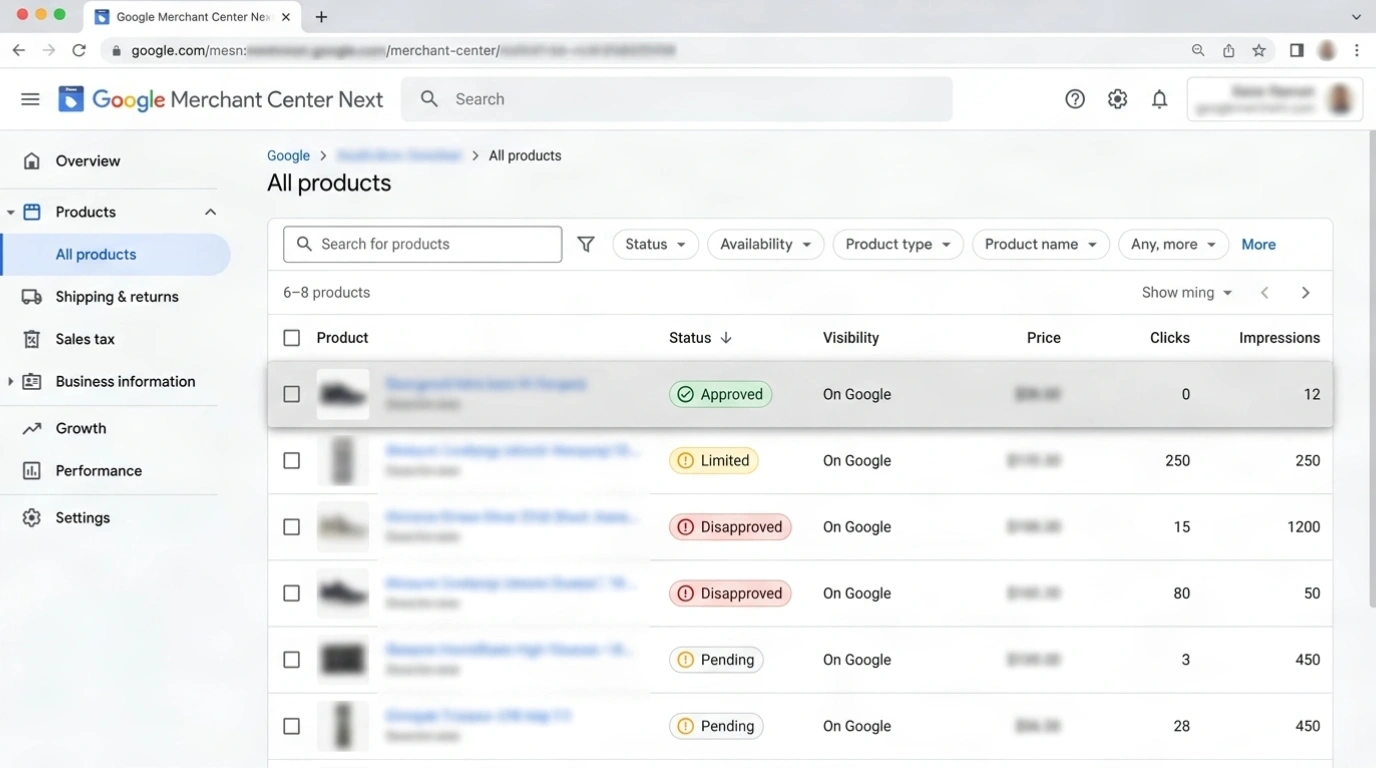
Approved means Google finished reviewing the product and allows it to show. It is a review result, not an indication of performance. What you actually need to track is impressions.
Impressions mean how many times your product was shown to people when they searched in Google Shopping with any relevant queries.
And it depends on many factors, such as whether the product is set to visible, whether open issues limit it, and, for Shopping ads, whether the campaign is active and winning auctions.
Initially, Google Merchant Center gives every product two signals: Status and Visibility.
- The Status column tells you whether Google has approved the product to show. Google controls it.
- The Visibility column tells you whether the product is currently being shown or is hidden. You can control it.
If you mark a product as hidden, it means it will not be displayed to buyers. But do keep in mind that Google archives hidden products automatically after 14 days.
The 5 Product Statuses In Google Merchant Center
Now, there are 5 different types of status that Google can give you.
| Status | What Google says it means | What it does not tell you |
|---|---|---|
| Under review | It means Google is checking the product. Reviews can take up to 3 to 5 business days for Shopping ads and a few weeks for other features such as free listings. | It doesn’t tell you whether anything is wrong. It simply means you have to wait until they are done reviewing, not a fault. |
| Processing | Google is applying an edit, which can take up to 15 minutes. | This doesn’t say anything about performance. |
| Approved | Google completed its review, and the product is allowed to show. | It’s only an approval status. It doesn’t mean people have seen the product yet or if it is performing well. |
| Limited | The product shows only in some cases, or some of its data may not appear when people find it. It’s applicable in some countries but not others, or for some marketing methods but not others. | Here, you won’t know which country or method is missing. If you see this status, you have to refer to the Needs Attention tab. |
| Not approved | The product data has some errors and is not allowed to be shown. | Again, this won’t tell you which error was detected. You have to visit the Needs Attention tab to get the answer. |
Reference: Google’s own explanation on product visibility and status.
If you want, you can watch this quick video we prepared to explain today’s topic.
The status only gives you an indication of where the product stands after Google’s review.
Where do I look in Merchant Center when approved products are not showing?
You have to make sure you haven’t marked any product as hidden by mistake (on the All Products tab). Next, you have to fix issues with products, which you will find in the Needs Attention tab.
Google’s own help page for issues describes the same path:
- On the All Products tab, filter by Visibility and Status.
- Look for Hidden products and for Limited (which means the product shows only in some countries or for some marketing methods).
- If any product is marked Hidden, try to remember if you have any valid reason to do it. If not, unhide it. **Check the Needs update column too. ** Products enter it 30 days after their last update, and neglected data can lose visibility.
- Under Products & Store, select Products, then the Needs Attention tab.
- Open the list called “All products that need attention.” Every product with an issue appears here.
- Use the filter icon to narrow the list by issue impact, labels, status, title, or what needs attention.
- Select the download icon to export the affected products as a CSV, so you can check them against your store data.
- Open an issue to reach its Issue Details Page, which shows the issue’s business impact, example products, and the steps to fix it.
- Above the summary cards, select View setup and policy issues to see account-level issues, which affect every product.
Now, there are two details on the pages you should focus on.
I. Prioritized Fixes
Here you will see a toggle called “Prioritized fixes.”
Enabling it will filter the list of issues Google expects to have a medium or high impact on performance and potential clicks if not fixed. It will hide other issues that have a low impact on performance.
Start here and fix these first.
Later, you can turn it off to see other minor issues, which sometimes can also lead to low impressions.
II. Warnings & Disapprovals
Warnings and disapprovals mean two different things in Google.
- When an item has a warning (such as a missing product identifier like a GTIN or an apparel attribute like size), Google will still let the product show to shoppers, but the targeting by Google’s algorithm will not be as effective due to the missing data. This can severely cut potential impressions and traffic.
- If you ignore product warnings for an item for too long, Google can eventually disapprove it. Account-level warnings come with a warning period of 7 or 28 days. If the issues are still there when it ends, Google can suspend your account, which pulls all your products from shoppers’ view.
If you run Shopping ads, the Shopping products report in Google Ads is the quickest way to compare impressions across products (as documented by Google). It’s not the same as not getting distribution, as it depends on your Ads settings and quality.
For the errors you’re most likely to see, read 7 common Google feed errors and how to avoid them.
Are you measuring the right surface? Free listings vs Shopping ads
Approved products can show in free listings and in Shopping ads, and each has its own requirements.
- Free listings: confirm the program is enabled in Merchant Center under Growth > Manage programs, and that your domain is verified and claimed.
- Shopping ads: confirm Google Ads is linked to Merchant Center and the campaign is active and funded (see check 6).
- Country and language: the countries and languages in your product data should match the countries in your campaign. A product approved for one country won’t serve in a campaign targeting another.
- Shipping: Merchant Center needs shipping set up for the country you target.
If impressions appear on one surface and not the other, look at that surface’s setup before you rewrite product data.
What should I check first when approved products get almost no impressions?
Now, let’s say your products are approved and are being shown, but to very few people. And when you are getting few to no impressions, naturally you don’t get enough clicks or conversions.
In this case, it’s probably an issue with certain attributes such as product identifiers, Google product categories, price mismatch, etc.
You should check in the following order:
- Feed freshness and stock. The product data needs to be updated and synced. For example, if products are out of stock in store but available here, Google will flag it for mismatched data.
- Identifiers. Google uses brand, GTIN, and MPN to understand exactly what you sell, and incorrect GTIN values are among the common data problems Google lists.
- Google product category. A wrong value can mislead Google or keep a product from appearing.
- Price match. Google compares your feed price with your product page, and a mismatch can disapprove the product.
- Titles, product details, and images. Thin data is not a policy error, so it can hide behind a clean Needs attention tab.
- Campaign settings. These matter for Shopping ads, and they are last because a bid or budget change can move impressions for a while and hide a data problem that returns later.
Now let’s learn them in detail.
1. Product Data Freshness And Stock Update
Google can only show what it last received. Products enter a “Needs update” status 30 days after their last update.
Within that time, if your products are out of stock in your store but not updated on Google, then after the next crawl, Google will flag the product for mismatched data and not distribute it to shoppers.
Action Items For You
Is The Product Feed Fresh, In Stock, And Syncing?
- Open your data source in Merchant Center and check when it was last updated.
- Compare stock and price in WooCommerce with what’s in the feed.
- Confirm products you added in the last two weeks appear in Merchant Center.
How to fix it in WooCommerce
In the product feed plugin you use, set the feed to update automatically (daily, or more often if prices and stock change). And in Google, set more frequent fetching of the product data.
Both of these are important. For example, if you changed the price in your store but did not update the product feed, then Google will keep on getting the old price. Soon, Google will find a mismatch when crawling the product page and flag it for a pricing mismatch.
If you haven’t set this up yet, here’s how to auto-sync WooCommerce products to Google Merchant Center when using RexFeed.
Quick Answer
How do I know if a stale feed is why my approved products get no impressions?
Check your data source’s last update date in Google Merchant Center. If it’s more than a few days old, or recent products are missing, the feed isn’t syncing. Google can only show what it last received, so fix the schedule first, then resubmit.
2. Unique Identifiers
Google requires unique product identifiers (UPIs) based on your country, product category, and product type to understand exactly what you sell.
For this, you have to include the GTIN, MPN, and brand name of the product.
Incorrect or missing GTIN values are one of the most common issues people face when submitting product data to Google.In a 2023 DataFeedWatch report covered by Search Engine Land, invalid GTIN errors affected 48.43% of merchants and over 4% of submitted products.
Now, there could be various scenarios, such as you missed adding a GTIN, or maybe the product doesn’t have a GTIN at all.
Here’s how you handle it in each scenario.
- The product has a GTIN, but you forgot to add it. Google cross-references your items against a massive global catalog. If Google’s system recognizes that other merchants are selling the exact same item with a GTIN (or if Google detects from the brand/title that a barcode exists), your product will either be flagged as “Limited performance due to missing identifiers” or flat-out Disapproved. If not disapproved, then in this scenario, you will probably see a status of “Limited” for products that have this issue in the All Products Tab, and these products will get lower visibility overall.
- You submitted the product with an MPN and Brand name but no GTIN. Google asks for a GTIN when your product is widely manufactured and has one. If there’s no GTIN, provide the MPN. Brand is expected whenever the product has a clearly associated brand or manufacturer. So, submitting just the MPN and Brand name is completely valid (and common) for items like specialized machinery parts, hardware components, or auto parts where manufacturers don’t often assign standard retail barcodes. In short, Google accepts the combination of brand and MPN with no issues.
Google states that products submitted without any unique product identifiers are difficult to classify and may not be eligible for all Shopping programs or features.
- The product has absolutely no identifiers.
- You did not submit the brand name. It is not mandatory to submit a brand name for every single product. But if the product has a recognized brand, you must include it. When you submit a GTIN, Google will identify the product. If it is a standard, branded retail item (like a Sony TV or a Nike shoe), then you must include the brand name or else the product may get limited visibility. An MPN (Manufacturer Part Number) is not globally unique on its own. Two different companies could easily use the exact same alphanumeric part number for completely different items. Therefore, Google requires the brand to be paired with the MPN, so it knows which manufacturer the part number belongs to. Submitting an MPN alone will trigger a missing identifier error. Some products may not have an associated brand (most commonly books, movies, music, generic hardware parts, etc.). For them, submitting just the GTIN (or ISBN) without a brand is acceptable. But if your product has a manufacturer, we recommend you include it.
Action Items For You:
Are my product identifiers (GTIN, brand, MPN) missing or wrong?
Missing unique identifiers can lead to disapproval or limited performance. To confirm your case, follow the steps below:
- Open Google Merchant Center. Here, under Products & Store, select Products, then go to the Needs Attention tab.
- Next, filter for the issue called “Missing or incorrect GTIN.” It will list all the products affected by this issue.
- Download the CSV file if you need it.
- Use these to identify what the actual issue is for each product.
Remember, product variants need their own values, so a product sold in several colors or sizes needs a different identifier for each one.
How to fix it in WooCommerce:
- In WooCommerce, the GTIN field is present in the Inventory tab when you edit a Product. For products with missing GTIN, make sure you actually have the values saved here.
- For Brand and MPN, you either add them with a custom field or use a dedicated plugin.
- Once fixed, update the product feed and resubmit it on Google Shopping.
If you use some other platform, find out where the fields are and ensure you have the correct values stored there.
RexFeed (WooCommerce plugin) offers a feature to add these fields to the product in one place, where you can add the values.
You may read our guide on how to add GTIN and MPN to your WooCommerce product details.
Quick Answer
What if my product identifiers (GTIN, brand, MPN) are missing from the product feed?
Depending on your country and product category, Google may require GTIN or MPN, and in most cases, a Brand Name (optional for some product types). If they are missing or invalid, the product shows an issue in the Needs Attention tab on your Google Merchant Center but is usually not disapproved right away. Products without unique identifiers are harder for Google to classify and may not be eligible for all Shopping programs or features.
To avoid issues, if a GTIN exists, submit the real one. If not, submit the MPN and the Brand Name. Never invent any of these or submit any fake data for these. However, if the product genuinely doesn’t have a UPI, then include the attribute “identifier_exists” with the value “No”. Submitting wrong data, not submitting when it exists, or falsely claiming that no identifiers exist will result in low visibility.
3. Google Product Category Mapping Issue
If you do not map or include the Google Product Category attribute in your feed, it won’t disapprove your products.
This is treated as an optional attribute. If you do not include it or map it correctly, Google will guess and assign a category for you. But it leaves the following risks.
- Low Impressions and Wasted Spend
You are letting Google decide what category to put your product under. If Google’s algorithm guesses wrong, your ad’s quality score drops, and it will be shown to the wrong audience or restricted from relevant search auctions entirely, causing your visibility to drop severely. - Risk of Disapproval
I know I said the product won’t get disapproved, and that is still true. However, after Google automatically categorizes it, it can get disapproved due to missing additional requirements for the category itself. For example, if Google auto-categorizes your item into a strict group (like Apparel) that requires extra attributes (such as size, color, or gender), there could be a chance you did not include these extra attributes in the feed. So right after categorization, the products may be flagged.
In short, leaving it blank forces Google to guess. If it guesses incorrectly, your products lose visibility, lose target traffic, or face data errors.
Action Items For You:
Is my Google product category right?
If you leave out the Google Product Category, Google assigns one itself.
However, if you do send one, it must be a valid category ID or the full category path, and it should match the product. Invalid values are rejected and can keep a product from getting impressions.
To identify your case, follow the steps below:
- Open Google Merchant Center. Here, under Products & Store, select Products, then go to the Needs Attention tab.
- Next, filter for the issue called “Invalid value: Google product category.” It will list all the products affected by this issue.
- Download the CSV file if you need it.
- Here, you will be able to find out which products had the wrong Google Product Category assigned.
Most people have a few common faults, such as using the last segment only (like assigning Tuxedos instead of the full category part of the category ID), simply sending out your store’s category under the attribute, or assigning a category that contradicts your website’s product category.
Your website’s categories don’t have to match the same category names or paths, but their meanings or references should be similar.
How to fix it in WooCommerce:
You need to identify the closest full category path or ID for each affected category from Google’s product taxonomy file and configure your product feed plugin’s category mapping accordingly.
In this case, you may get help from AI.
- Share data with AI: The CSV file of affected products, a copy of Google’s product taxonomy file, and the category list of your own store. (If you have fewer products, then you can share the feed file as well.)
- Ask AI to identify the categories in question and suggest proper category mapping.
- In your product feed plugin, update the category mapping accordingly.
- Once fixed, update the product feed and resubmit it on Google Shopping.
You can easily handle Google Category Mapping in RexFeed since it gives auto-suggestions as you type a few letters. You may read this guide for reference.
Quick Answer
What if I don’t have the right Google Category Mapping?
Mapping the category or submitting this attribute is optional. So if you omit it, it won’t cause Google Shopping to disapprove of the products. Google will assign them on its own.
But sometimes Google may assign the wrong category, hampering distribution.
And if you do include it, there is a risk of sending a wrong or badly formatted value, which can be rejected and keep a product from getting visibility.
- First, it’s best to include it for proper distribution.
- Second, if you do include it, make sure you either add the full path (not just the last segment) or the category ID. And make sure it resonates with the product and your store’s actual category.
- If some products are affected. The fix is simple. Find the affected products in Google Merchant Center and update your category mapping in your product feed plugin accordingly. Then resubmit the feed.
4. Price mismatch
A price mismatch happens when the price in your Google feed does not match the live price on your website.
This can happen unintentionally or negligently due to various reasons:
- Delayed Updates: You change a price or end a sale on your website, but your product feed hasn’t synced yet.
- Variant Options: A product has different prices for different sizes or colors, but your feed link defaults to the wrong variant.
- Currency Conversion: Your website automatically shifts currencies based on a user’s location, confusing Google’s crawlers.
- Dynamic JavaScript: Your site uses background apps to dynamically adjust prices after the page loads, which Google cannot read.
Google regularly crawls your store to verify prices. Any discrepancies will lead to penalties.
But it will not just compare the front-end data. It will also compare the Rich Snippets (or schema) on the page. If there is a price mismatch on any of these, then it can lead to penalties.
The possible penalties you can get if it is not fixed include:
- Item Disapproval: Google immediately rejects the specific product, freezing its ads and free listings.
- Account Warning: If a majority of items have price mismatches, you may get an account-level warning with up to 28 days to fix it.
- Account Suspension: If not fixed within 28 days of the warning, your account may be suspended. (You can retrieve it by fixing the issues and appealing again, which can take up to 7 business days to review.)
In November 2025, a customer approached us saying most of his products were constantly being disapproved due to Price Mismatch, and he got an Account Warning. So he needed urgent help.
Initially, when we checked, his feed and the product page had the same pricing. So we were confused about what was happening.
But when checking the Rich Snippets, we saw it was showing a different value there.
The main reason was that the user had a different tool to configure the schema markups for the product pages. But the schema was not optimized for product variants. In this case, the schema was defaulting to a single price for all variants. As a result, except for one variant, all other variants were being disapproved by Google.
He simply stopped using that tool and enabled the correct JSON-LD structured data formatting from RexFeed, and it was resolved.
If you get penalized, naturally, the performance will drop almost immediately:
- Immediate Drop in Impressions & Clicks: When Google detects a mismatch, it can apply item-level disapproval. A disapproved product stops showing on Google, cutting off its traffic until it is fixed and rechecked.
- Wasted Ad Spend: If a mismatched product manages to bypass the automated check and serves an ad, shoppers will click through, notice the higher price at checkout, and immediately abandon their carts. This leaves you paying for costly, non-converting clicks.
- Loss of Campaign Momentum: For Performance Max and Shopping campaigns, data consistency is key. When top-performing products get disapproved due to price errors, those products stop serving, which can hurt your overall campaign optimization.
This doesn’t happen too often, but it is a serious issue. If you notice this in the Needs Attention tab, you should immediately fix it.
Action Items For You:
Does my feed price match the price on my product page?
Googlebot crawls your product pages and compares the price in your feed with the price on the page or in your structured data. To check, follow the steps below.
- Open Google Merchant Center. Here, under Products & Store, select Products, then go to the Needs Attention tab.
- Here, filter out products with the following statuses:
- Mismatched product price
- Mismatched value (page crawl): price
- Inaccurate price (checkout)
- Mismatched value (page crawl): loyalty program or member price
- Automatic updates: mismatched price
All of these are the possible statuses you get due to price mismatches.
- Download the CSVs if needed.
How to fix it in WooCommerce:
- Start your check based on the issue:
- Mismatched product price (general disapproval)
Open the product page in a private window and compare the price, currency, and sale price with your product feed. You probably have to update the product price in WooCommerce or remove the caching plugin that is causing this discrepancy. - Mismatched value (page crawl): price
This means your feed disagrees with the page HTML or schema. Test the page in Google’s Rich Results Test, since the schema can differ even when the visible price matches. Update the schema and make sure your website supports the JSON-LD structured data that Google recognizes and can distinguish between product variants. - Inaccurate price (checkout)
This means the price changes between the product page and checkout. Check shipping, tax, and any discount plugin that applies to the cart. Fix it so that it doesn’t feel like a hidden cost. - Mismatched value (page crawl): loyalty program or member price
Make sure the member price is publicly visible on the page, because Google can’t verify what it can’t see. - Automatic updates: mismatched price
This is a warning, not disapproval. It means Google has already overridden your price and that your feed is out of sync. Fix the feed or its sync schedule before it becomes disapproval.
- Mismatched product price (general disapproval)
- Fix where needed in your WooCommerce store.
- Regenerate the feed and submit your data again.
Always make sure you use a product feed plugin that can keep the feed data auto-synced or auto-updated.
Quick Answer
What if my products are flagged for price mismatch?
When your products are flagged for a price mismatch (most commonly in Google Merchant Center Help), it means the price submitted in your product data feed does not match the price shown on your website’s landing page or in your structured data markup. When this happens, your products can get disapproved, and you will find the issues mentioned in the Needs Attention tab.
Common reasons this can happen include delayed updates, wrong schema markup or structured data that doesn’t support product variations, caching issues, JavaScript used to load the pricing, etc.
Not fixing it can lead to disapproved products, account warnings, or even suspension if not fixed.
5. Titles, product details, and images.
This may seem unexpected, but Google also judges your product based on how your titles and product details are written.
Google Shopping does not use traditional keyword targeting like standard text ads.
Instead, Google acts as an SEO search engine, scanning your product titles and descriptions to figure out exactly what you are selling and when to display your ad.
Poorly written titles and details can easily hamper impressions.
We’ve seen four common scenarios.
- Zero keyword match
Some people use internal factory names, SKU codes, or creative brand names in the product title rather than what humans would actually type into a search bar.
For example, let’s take a skincare product. Suppose you have a Face Serum with the brand name HydraDew, and the model is Elixir No. 3.
Here’s the comparative bad title vs. good title:
Bad Title: “HydraDew Elixir No. 3”
Why it does not work: To an algorithm, “HydraDew Elixir” could be anything from a face serum to a flavored water additive. Without search intent keywords, your item gets skipped in shopping auctions.
Good Title: “HydraDew Hyaluronic Acid Hydrating Face Serum with Vitamin C for Dry Skin”
Why does it work: It immediately connects your product to high-volume searches for “hyaluronic acid serum,” “vitamin c face serum,” and “hydrating serum for dry skin.”
Some products are only chosen by shoppers if they see the brand name, gender, color, or size. In fact, shoppers are very specific with searches, and if you do not match any identifiable keywords, your product won’t get visibility.
For example: A shopper would search using “Size 10 Leather Boots” or “Black Leather Boots for Women” and so on. But if your product title is just “Black Boots”, it doesn’t indicate if it will meet what the shopper is looking for. Google will recommend other products that have those mentioned in the title. Here, Google is simply prioritizing its audience over your business. And you should do it too.
- Caught In The Truncation Problem
Google accepts titles up to 150 characters, but shoppers usually see only the first 70. If you dump all your descriptive keywords at the very end of a long title, the most relevant terms can get cut off where shoppers actually look.
- Thin or Missing Descriptions
Google recommends product descriptions of around 500 to 1,000 characters, with the most important details in the first 160 to 500.
If your description is blank or only says “Great quality shirt!”, you are failing to help Google’s crawler match it with long-tail search terms.
A lack of rich vocabulary prevents your product from appearing in specific, highly intent-driven niche searches.
- Poor Image Or Lack Of Additional Images
Images play a big role in Google Shopping performance. First of all, it is mandatory. Second, quality matters. If images have watermarks or overly visible promotional text, the product can be disapproved. Plus, Google also often prioritizes products with multiple images, as it gives shoppers a clearer idea about the product.
Google’s best practice formula for the title is brand, then product type, then other important attributes. It also recommends adding the size type where it matters, such as petite or plus size, giving the most detailed product type you can, and including additional images. They also recommend that descriptions should describe the product only.
Action Items For You:
Are my titles and product details too thin?
When you see low performance in your feed, review your best sellers first, then work through the rest. For each product, check the following:
- Does the title use words a shopper would type? Look for internal factory names, SKU codes, or creative brand names. A title like “HydraDew Elixir No. 3” tells Google nothing about what the product is. A title like “HydraDew Hyaluronic Acid Hydrating Face Serum with Vitamin C for Dry Skin” matches real searches.
- Does it include the attributes shoppers search by? Check for brand, gender, color, and size. “Black Boots” loses to products titled “Black Leather Boots for Women” or “Size 10 Leather Boots”.
- Are the important words in the first 70 characters? Shoppers usually see only the first 70 characters. If your key terms sit at the end of a long title, move them forward.
- Does the title follow Google’s formula? Use brand, then product type, then other important attributes. Add the size type where it matters (such as petite or plus size), and use the most detailed product type you can.
- Is the description more than a one-liner? If it is blank or says something like “Great quality shirt!”, add the technical specs, materials, and details shoppers search for. You have up to 5,000 characters. Describe the product only.
- Is the main image clean? Google can disapprove products with watermarks or promotional text on the image, and a product can sit in review while its image is crawled. A ‘Pending image crawl’ review needs no action from you.
- Do the products have additional images? Google recommends adding them.
If a title or description fails any of these checks, rewrite it, then update your feed so the new text is what gets sent to Google.
For a fuller walkthrough of title, image, and attribute improvements, see our Google Shopping feed optimization tips.
Instead of doing it manually, you can simply give your products to an AI platform like ChatGPT and ask it to optimize, sharing the issue of Low Impressions.
Quick Answer
How do I know if my product titles and descriptions are causing low performance in Google Shopping?
Low impressions are the main sign. Google Shopping has no keyword targeting, so it reads your titles and descriptions to decide when to show a product. If your products get few impressions, the text is a likely cause.
To confirm it, pick 2-3 products that you are most concerned about.
Then collect their product data, share it with an AI platform, and ask it to check for these four problems:
- No search words in the title: it uses SKU codes, internal names, or a creative brand name instead of what shoppers type (for example, “HydraDew Elixir No. 3”).
- Missing attributes: the title lacks brand, gender, color, or size, so it can’t match specific searches like “Black Leather Boots for Women”.
- Key terms too far back: the important keywords come after the first 70 characters, which is what shoppers usually see.
- Thin descriptions: the description is blank or a one-liner like “Great quality shirt!”, when you have up to 5,000 characters to work with.
If your low-impression products show any of these, ask AI to rewrite the titles and descriptions for you. Then you can update your product feed and observe if it helps improve the impressions.
6. Campaign Settings Or Wrong Data To Look Into
This is relevant if you are running ads with your Google Shopping products. Problems in your feed can have a serious impact on your ad campaigns.
Suppose you are sure your product data is accurate. Only then may you consider looking at your campaign settings or bid strategy.
But remember, no matter how well you optimize your ads, it will always depend on your product data when you submit the feed.
For example, you could make high bids for certain products. But if your product title and details are poorly written, Google’s distribution will be flawed and reach the wrong audience from time to time. It may get you increased impressions, but with expensive click-throughs and a low chance of conversions.
So before you meddle with campaigns, always ensure your data is accurate.
Let me share a scenario we helped a customer with.
A local automotive vendor from Philadelphia, PA, reached us. He was using a product feed tool to list his products on Google Shopping.
He shared that his Shopping Ads were doing really well for a while, but suddenly dropped in impressions entirely for the last 2 weeks. He expressed his frustration because he didn’t know why it happened, tried increasing the budgets, and ended up losing more money without being able to identify why it was happening.
Now, while we were not offering services to run ads, he reached out to us because he wasn’t sure if it was an issue with his product feed or his actual ads campaign, and the support team of the product feed tool suggested it was a campaign-level issue. He clearly wasn’t getting any solution, but wanted to try every option before going to an agency for help.
He said he even hired a freelancer for a couple of days. But the result was the same. Increasing the bid increased some impressions but not many clicks and almost zero conversions.
Upon inspection, we noticed that his site had a serious issue.
- First, some of his new products had poorly written descriptions.
- Second, his tool has stopped auto-updating the product feed for the past two weeks.
All we did was, we recommended updating the product description and suggested he could try RexFeed to ensure keeping feed updated.
Eventually, just updating the descriptions and re-submitting the updated product feed put his ads performance back to normal. He later moved to RexFeed completely because his existing feed wasn’t able to help when he reached out to their support.
What we learned from this is that product data is the most important part of this whole ordeal. You can easily get approved, but the quality of the data will determine how well your products will perform on Google’s Channels.
This final reason is our judgment, not a Google rule. If you run no ads at all, skip this step, because approved products can appear organically across Google without a campaign.
Besides, no single check proves a single cause. Stores often have more than one problem at once, so work down the list rather than stopping at the first fix.
Action Items For You
Are my campaign settings keeping approved products out of auctions?
Approved products can appear on free listings without a campaign. Showing them in Shopping ads also needs a Google Ads campaign that is linked to Merchant Center, active, funded, and bidding high enough to win auctions.
Google’s own troubleshooting page, for Shopping campaigns that are not running or getting low traffic, recommended the following checks:
| What to check | What to look for |
|---|---|
| Merchant Center link | Google Ads must be linked to your Merchant Center account, or products are not eligible to serve in your Shopping campaigns. |
| Campaign status | The campaign, ad group and product group are enabled, the start and end dates are right, and no product group excludes your products. |
| Budget and bids | Very low bids may enter few auctions and get no impressions. A target ROAS that is too high can limit serving. |
| Targeting | Narrow targeting, or overlapping campaigns, can shrink reach. If Standard Shopping and Performance Max target the same products, Ad Rank decides which campaign serves. |
| Conversion tracking | Automated bidding that optimizes for conversions needs accurate conversion data. |
| Shipping and order value | Merchant Center needs shipping set up for the country you target, and products below a minimum order value will not show. |
| Country and language | The countries and languages in your product data should match the countries chosen in your campaign. |
| Stock and freshness | Out-of-stock products are not eligible, and products expire 30 days after their last refresh. |
Google’s onboarding guide for Shopping ads explains the Performance Max overlap. If you changed a budget or bid recently, give the campaign time before you judge it, as the timing section below explains.
Quick Answer
How do I know if low Google Shopping ad impressions come from my product data or my campaign settings?
Check your product data first. Campaign changes can’t fix a feed that is stale or poorly written, because Google’s distribution depends on the data you submit. Look for outdated feeds (products expire 30 days after their last refresh) and thin or poorly written titles and descriptions. If your data is accurate and current, move on to your campaign: confirm Google Ads is linked to Merchant Center, the campaign is active and funded, and your bids are high enough to win auctions. Stores often have more than one problem at once, so keep working down the list after your first fix.
How do I know which cause is hurting my store most?
Google separates account-level issues, which affect all your products, from product-level issues, which affect only individual products. That split is a useful way to read your results. Once you have a list, fix the issue that touches most products first, and use the Prioritized fixes view to see which issues Google expects to matter most for clicks. The table below puts the whole checklist in one place.
| Cause | Confirm it in Merchant Center | Confirm it in your own feed | Typical fix |
|---|---|---|---|
| Hidden or limited product | Visibility and Status columns | Whether the product is meant to be in the feed | Set it to visible, then read the issue on Needs attention |
| Identifiers | Needs attention, Missing or incorrect GTIN | GTIN, brand and MPN values on the product | Add accurate values, or set identifier exists to false where true |
| Product category | Needs attention, Invalid value: Google product category | The category value your feed sends | Use a valid ID or full path that fits the product |
| Price mismatch | Needs attention, mismatched price issue | Feed price, sale price and dates against the page | Match the page, refresh the feed |
| Thin product details | Often nothing flagged | Titles, variant attributes, images | Add brand, type and key attributes to titles and fields |
| Campaign settings | Google Ads recommendations and product diagnostics | Not a feed issue | Link, enable, fund, widen targeting |
How long does it take for products to show up after I fix something?
Google has openly shared the timeline:
- New or edited products take 24 to 48 hours to be reviewed, and for price mismatches, Google recrawls the product over the next few hours or days.
- Edits show as “Processing” for up to 15 minutes.
- Significant budget or bid changes can start a learning period of 5 to 14 days.
- For a brand new shopping campaign, as per Google’s onboarding guide, allow up to 2 weeks for learning.
In practice, that means you should change one group of things at a time. If you fix identifiers on Monday and change bids on Tuesday, you will not know which one worked.
Nobody can promise impressions by a given date, because auctions and shopper demand also play a part. What you can control is whether Google sees clean, matching data when it looks.
What if everything checks out and impressions are still low?
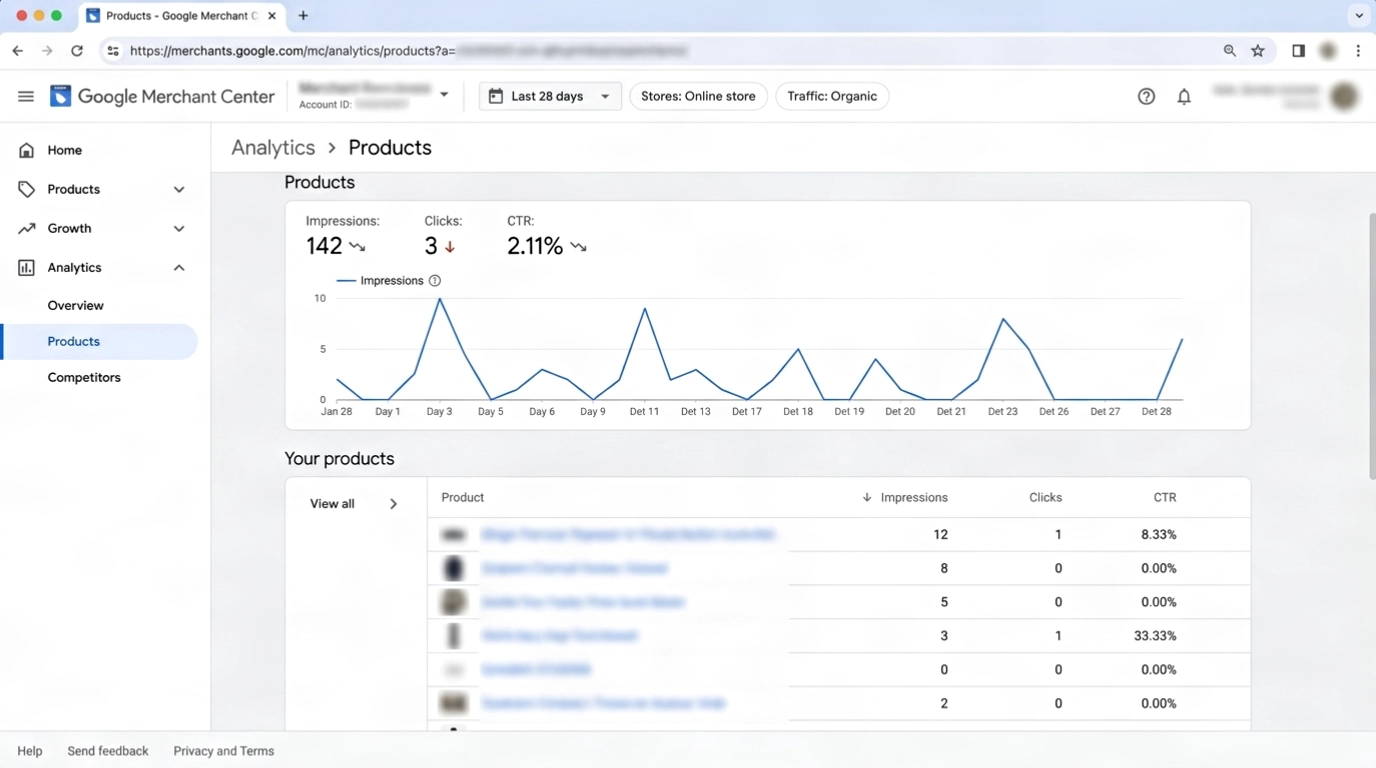
A clean setup doesn’t guarantee impressions. There could be 3 other reasons to consider:
- New account or campaign. If there’s no history yet, then, as per Google, a new Shopping campaign can take up to 2 weeks to learn.
- Demand and competition. Few people may be searching for the product, or competitors may have stronger listings. Compare your low-performing products with similar ones that do get impressions. In this case, you can search your product name or common search terms on Google Shopping, find out which products are showing up instead of yours, and collect the details. Then share with AI (we recommend ChatGPT or Claude) along with your product feed data for that product and ask for suggestions on what to improve.
- Price position. A price well above the market can lose auctions. Check any price benchmark or competitiveness reports available in your Merchant Center account and find out if this is the case.
If you’ve fixed the data and waited out the timelines above, post example product IDs in the Merchant Center community or contact Google support. For repeated disapprovals or an account you can’t diagnose, a Google Merchant Center specialist is the next step.
How can I see these problems before I submit my feed to Google?
Use a feed tool that validates before submitting the product feed to Google Shopping.
In RexFeed, the Feed Validator for Google Shopping checks your Google Shopping feed for missing required attributes, empty or invalid values, and optional improvements, and shows them as errors, warnings, and suggestions in the feed editor. It checks feed data, not your Google Ads settings.
RexFeed is a Product Feed Manager for WooCommerce with which you can generate WooCommerce product feeds for Google Shopping, Facebook, TikTok, ChatGPT & 200+ sales channels.
Feed validator and product feed auto-update are two of its prominent features to ensure you can identify errors that can lead to product disapprovals, account warnings, or even account suspensions before your feed reaches Google.
Most importantly, you get to spot and fix errors that can lead to low impressions from Google Shopping.
And besides detecting errors, RexFeed also comes with features such as Google Category Mapping (with search auto-suggestions), Combined Fields to merge multiple product data into one (mostly useful to update the title as per Google needs without changing it in the store), and Feed Rules to exclude/include products based on conditions (so you can exclude products that need too much fixing for the time being and still have other products up on Google Shopping).
**You may wonder if you use combined files, won’t that cause mismatched data? Actually no. Google is able to understand that titles need to be different within the Google feed vs. in the actual store for various reasons. As long as you have the attributes you combined included on the product page, it will be accepted.
You can try using RexFeed for free.
But it’s okay if you already have a product feed plugin that does the validation upfront and keeps product data updated.
The important thing is that you get to identify the issues early because finding out later and fixing them is difficult.
FAQs
1. Can a Google Shopping product be approved and still get zero impressions?
Yes. Approved means Google reviewed the product and allows it to show. It does not guarantee impressions. A product can be hidden, carry warnings that limit it, have weak identifiers or titles, or sit in a campaign that is paused, underfunded, or outbid. Check Visibility and Needs Attention first, then the data, then the campaign to tackle Google Shopping not showing products.
2. What if Needs Attention shows no issues but impressions are still low?
A clean Needs Attention tab, with Prioritized fixes turned off, means Google found no flagged issues. It does not mean your products compete well. Check Visibility, then unflagged data quality such as titles and identifiers, then campaign settings. New accounts and campaigns also need time, and Google says a new campaign may take up to 2 weeks to learn.
3. Do I need a GTIN for every product?
No. Google requires a GTIN when a product is widely manufactured and has one. Where there is no GTIN, you may need a brand and an MPN instead. Products with no identifiers, such as custom-made, one-of-a-kind or vintage items, can set identifier_exists to No. Do not invent values, because invalid identifiers cause their own issue.
4. What does the Limited status mean in Merchant Center?
Limited means the product shows on Google, but only in some instances, or not all of its data may appear. It may be eligible in some countries but not others, or for some marketing methods but not others. Open the Needs attention tab to see what is limiting that product and fix that issue.
5. Why do my products stop showing after about a month?
Products expire from Merchant Center 30 days after their last refresh, unless you added them directly in Merchant Center. Products also show as Needs Update 30 days after their last update. Refresh your data source on a schedule. Google may refresh some products itself if it can validate them, for example, from structured data.
6. Do I need Google Ads for my approved products to show?
No. Approved products can appear organically across Google through free listings without a campaign. Google Ads is needed only if you want Shopping ads. If you do run ads, link Google Ads to Merchant Center, and check campaign status, budget, and bids, because those control whether your ads enter auctions.
7. Why did my impressions drop when my products are still approved?
A product can keep its Approved status while impressions fall. The usual causes are a feed that stopped updating, products past the 30-day refresh mark, a price or availability mismatch, or the end of a campaign’s learning period. Check the last update date first, then the Needs attention tab.
8. How long should I wait before assuming something is wrong?
Wait out Google’s published timelines: edits process in up to 15 minutes, and new products can be under review for up to 3 to 5 business days for Shopping ads. A new Shopping campaign can need up to 2 weeks to learn. After that, a product with no impressions needs a closer look.
Final thoughts
Remember, getting products approved is not the difficult part, and it doesn’t indicate that your products will be distributed properly by Google.
What matters is that you have submitted a product feed that is optimized for Google Shopping.
Nevertheless, if you notice issues, you have already learned how you can take action so that your products don’t get zero impressions.
Hopefully, if you have a product feed manager that validates and detects errors early (like RexFeed), it will save you from getting poor performance later and scratching your head.
*Remember, even if you get a tool that can catch errors upfront, it is not guaranteed to have high performance. You still have to monitor results and optimize accordingly.
Keep one habit from this guide: look at impressions, not the status column, when you want to know how your products are doing. If you do that regularly, you are more likely to catch a problem before a busy sale season.
If you have more questions, don’t hesitate to drop a comment.

![Show Your WooCommerce Products on ChatGPT & OpenAI Ads with Product Feed [2026] 2](https://rextheme.com/wp-content/uploads/2026/08/Show-Your-WooCommerce-Products-on-ChatGPT-with-OpenAI-Product-Feed-1-407x213.webp)