Let’s say you set up your WooCommerce store, connect it to Google Merchant Center, upload your products, and expect them to show up on Google Shopping.
And that’s fair because Google Shopping is huge and it drives around 65% of all Google Ads clicks and up to 85% of retail ad clicks, so it’s usually one of the main traffic sources.
But, at the end, you see there’s barely any impressions, and Google isn’t telling you why. It’s really frustrating because you’ve literally done everything right, or at least it looks that way.
Ironically, it’s usually not about some big, obvious error. It’s a few small mistakes buried in your product feed or account settings that Google quietly penalizes you for.
So in this guide, I’ll explain exactly why Google Shopping is not showing products on your store, then get into the fixes you can actually apply today.
TL;DR: Why Google Shopping Not Showing Your Products (and How to Fix It)
If your Google Shopping not showing products issue is blocking traffic, it usually comes down to one thing: breakdowns in your Google Merchant Center setup or product feed.
What’s really going wrong
Most visibility issues happen because:
- Your Google Shopping feed errors are breaking product data (missing GTIN, wrong price, bad category, or formatting issues)
- Your products are getting Google Merchant Center disapproved due to policy or image issues
- Your account is suspended or restricted
- Free listings are not enabled in Merchant Center
- Your WooCommerce sync plugin (like Google Listings & Ads or feed tools) is not updating data correctly
- SafeSearch or category restrictions are limiting visibility
Even if everything looks fine in WooCommerce, Google only shows products that pass its feed and policy checks.
How to fix it step-by-step
To fix Google Shopping not showing products, you need to:
- Run diagnostics inside Google Merchant Center
- Fix all Google Shopping feed errors first
- Clean up product attributes (GTIN, price, category, formatting)
- Resolve disapprovals and account issues
- Enable free listings and verify your website
- Optimize titles, images, and pricing for visibility
Open your Google Merchant Center Diagnostics now and start fixing issues step by step to resolve the problem of Google Shopping not showing products.
How Google Shopping Actually Decides Which Products to Show
Before you start fixing anything, it helps to understand how the system actually works behind the scenes so you don’t end up guessing or fixing the wrong thing.
A lot of people assume Google pulls product information directly from their WooCommerce store. It actually doesn’t.
Google only looks at what’s inside your Merchant Center account, specifically your product feed. That feed is basically a file that contains all your product details: titles, prices, images, availability, and more. Google reads that file, checks it against its policies and quality standards, and then decides which products are eligible to show.
But eligibility doesn’t mean it will always appear. Even approved products can stay invisible if there are issues with feed quality, competition, or campaign setup.
The Journey of a WooCommerce Product to Google Shopping
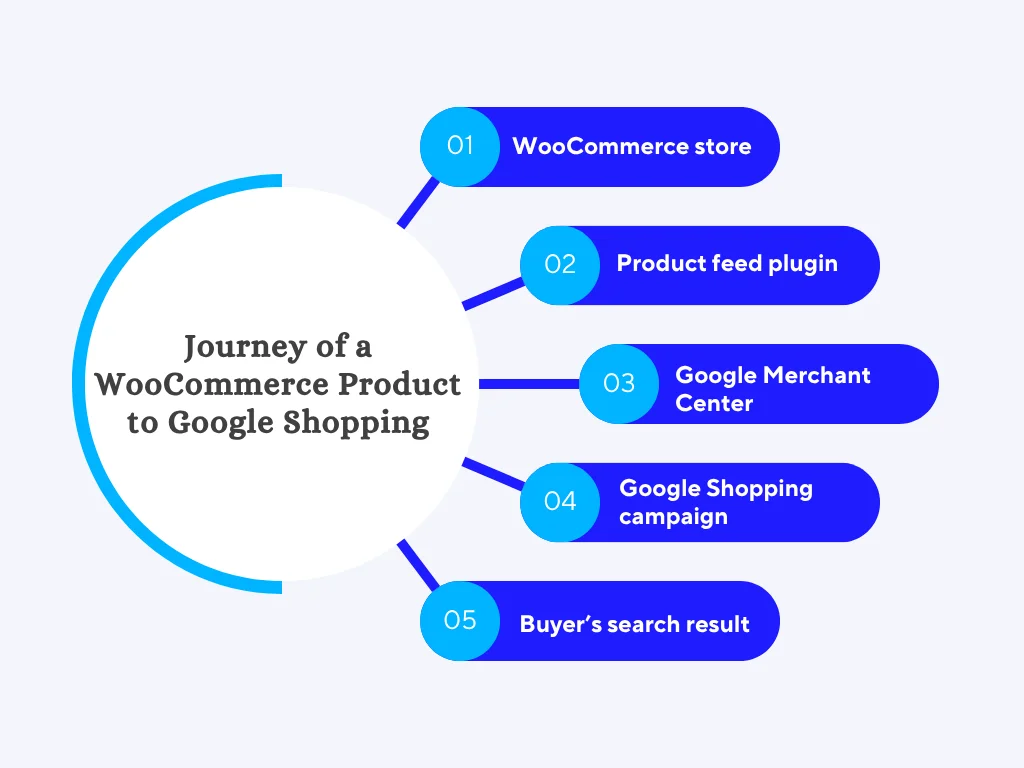
Before we get into what’s going wrong, it helps to understand how a product actually gets from your WooCommerce store to a buyer’s search results.
There are five steps in between:
- WooCommerce store- You add and manage your products here. If your product data is incomplete or inconsistent, those issues carry forward into every next step.
- Product feed plugin (like Rexfeed for WooCommerce or Google Listings & Ads)- This tool pulls your product data and sends it to Google. If the mapping is wrong or fields are missing, Google receives incomplete information.
- Google Merchant Center- This is where Google checks your product data. If there are policy issues, missing attributes, or mismatches, your products can get disapproved or limited here.
- Google Shopping campaign- If you run ads, this is where bidding and targeting decide visibility. Even approved products may not show if bids, budget, or setup is weak.
- Buyer’s search result- Finally, your product competes in real-time auctions. Stronger listings with better data, pricing, and relevance usually win the placement.
Reasons Why Google Shopping Is Not Showing Your Products
Now that you’ve seen how Google Shopping works behind the scenes, the next step is to break down what usually goes wrong.
You don’t fix this problem by guessing. You fix it by identifying where things break in the system.
So let’s go through the main reasons, starting from the most common one.
1. Your Product Feed Has Critical Errors
You know how the process works; let’s get into where it actually breaks down. There are a few specific reasons this happens, and most of them are fixable once you know what to look for.
i. Missing Required Attributes
Google needs specific product details before it can even consider showing your listing.
You’re expected to provide fields like id, title, description, link, image_link, price, availability, and condition
For WooCommerce users, the ones that get missed most often are GTIN (your product’s barcode), MPN (manufacturer part number), and brand.
But for Google, missing them can mark your product as incomplete.
If you’re selling branded products like Nike shoes or Samsung chargers, skipping GTIN is a big issue. In many cases, just that one missing field is enough for Google to suppress the product from showing.
In this case, you can use Rexfeed – Product Feed Manager for WooCommerce, which has built-in field mapping that lets you map attributes like GTIN, MPN, and brand directly to your WooCommerce product data without needing any custom coding.
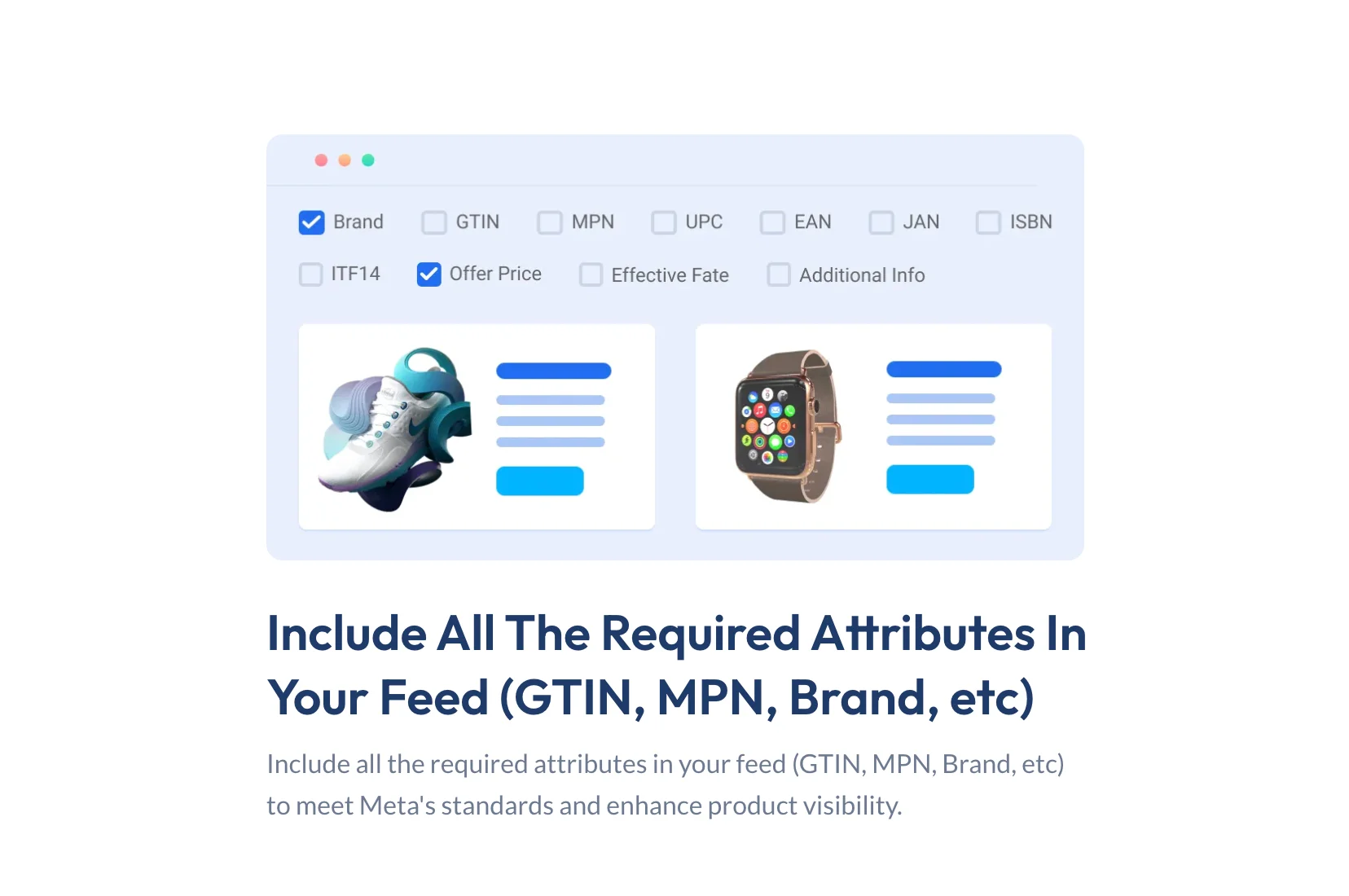
So instead of manually figuring out how to pass these fields to Google, you just map them once inside the plugin, and it handles the rest.
Read this guide: What Is GTIN & MPN? How To Add Them Easily To Your WooCommerce Product Details? [2025]
ii. Price or Availability Mismatch Between Your Feed and Website
Next, you need to make sure your product data matches your actual WooCommerce store.
Google regularly checks your product page and compares it with your feed.
So if your feed says $49 but your WooCommerce product page shows $39 because of a sale price, Google treats that as a mismatch and can disapprove the product.
The same issue happens with the stock status. If your feed says “In Stock” but your product page shows “Out of Stock,” that’s one of the most common reasons WooCommerce products stop appearing.
To avoid this, you need to keep your feed updated regularly. To avoid this, it’s better to set your feed sync frequency to at least every 24 hours — especially if your inventory or pricing changes regularly.
iii. Incorrect or Missing Product Category (google_product_category)
Now let’s talk about categories, because this is another common gap.
Google has its own product taxonomy, and it’s completely separate from your WooCommerce categories. You can’t just map your WooCommerce category names and call it done.
For example, if you’re selling a phone case and you map it under something like “Accessories > Bags,” Google doesn’t classify it properly. But if you map it correctly as “Electronics > Communications > Telephony > Mobile Phone Accessories,” your visibility improves significantly because Google understands exactly what you’re selling.
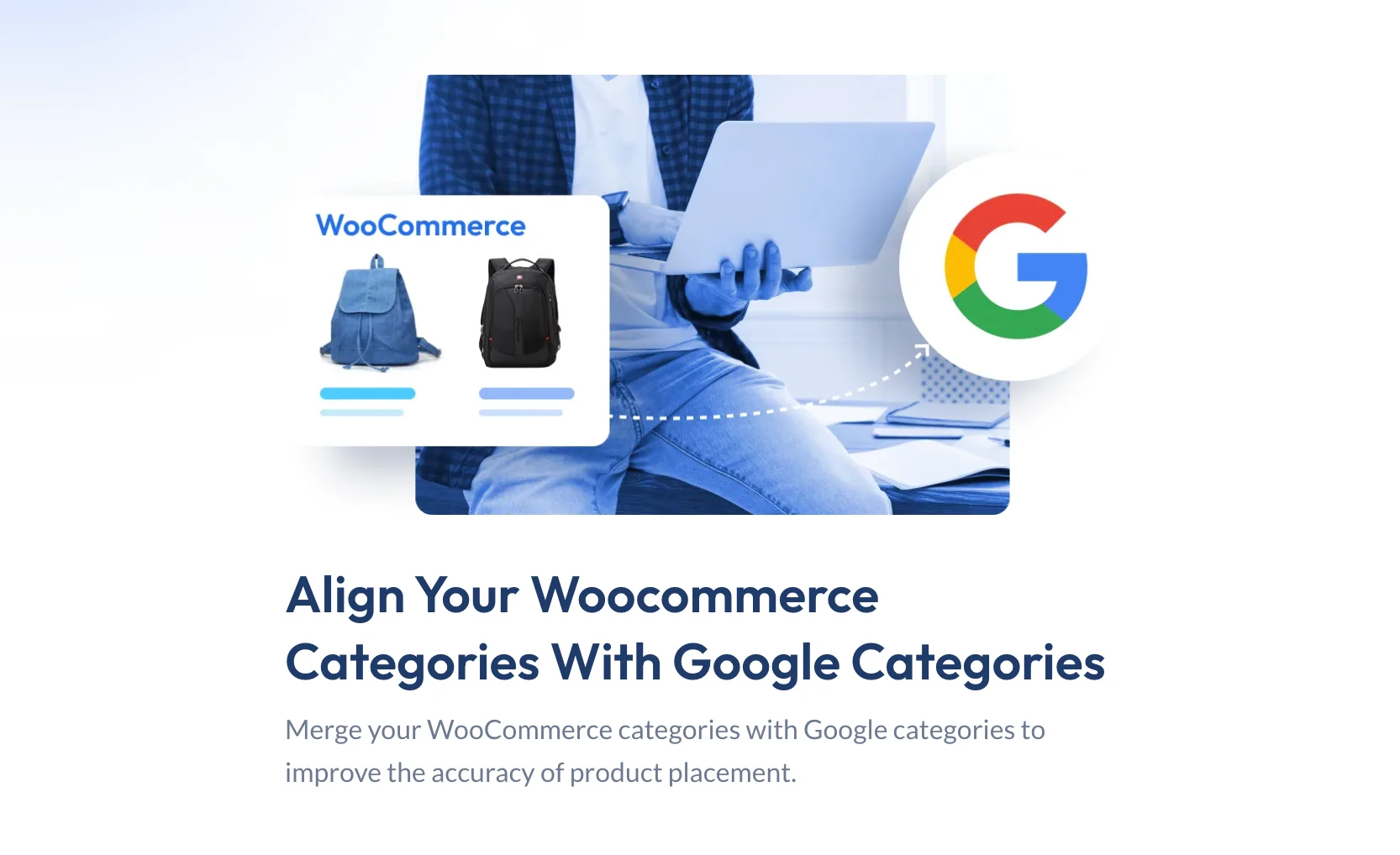
Rexfeed for WooCommerce makes it straightforward and easier for you. The plugin has Google’s product taxonomy built in, so you can map each of your WooCommerce categories to the correct Google category ID directly inside the plugin without having to download the taxonomy file separately or cross-reference it manually every time you add a new category.
Read this guide- Google Product Category: A Comprehensive Guide of Optimization [2026]
iv. Feed Formatting and Parsing Errors
Even if your product data is correct, your feed can still break if the formatting is off.
This usually happens when your feed is delivered in XML or CSV format and contains issues like broken characters (& instead of &), extra spaces in required fields, or inconsistent column headers.
When this happens, Google’s system may skip those products or throw feed-level errors without showing them in search results.
If you’re using a WooCommerce feed plugin, it’s a good habit to open your feed URL directly in a browser and quickly scan it. If you see broken formatting or messy output, that’s something you need to fix in your plugin settings before anything else will work properly.
Product Feed Manager (Rexfeed) for WooCommerce gets your back here as it generates feeds in the correct format by default. The encoding, structure, and column formatting are handled automatically, so you don’t need to worry about proper formatting.
2. Google Merchant Center Has Disapproved Your Products
After feed issues, the next place you should check is Google Merchant Center itself.
Disapprovals are one of the most common reasons your products don’t show, and also one of the most misunderstood. In many cases, your products exist in the system, but Google simply refuses to show them because they don’t meet its rules.
You also need to understand the difference here. An item-level disapproval means a specific product gets rejected. An account-level suspension means everything stops showing at once, no matter how good your feed is.
- Promotions in product titles or descriptions If you add things like “Best Seller! Buy Now – 20% OFF” in your product title, Google flags it immediately. Your title should only contain the product name and key details like brand, size, or color.
- Images with watermarks or promotional text If your product images have overlays like “Sale,” discount badges, or logos placed on top, Google treats them as non-compliant. You need clean product images without any extra text.
- Landing page mismatch If your feed links to a category page instead of the exact product page, Google will reject it. The product link in your feed needs to take users directly to the product you’re advertising.
- Missing return or refund policy Google checks your website for clear return and refund information. If it’s not visible in your WooCommerce store footer or checkout flow, your products can get disapproved.
- No secure checkout (missing HTTPS) If your store doesn’t have an active SSL certificate and checkout is not secure, Google will not approve your products for Shopping.
3. Your Google Merchant Center Account Is Suspended
If everything in your feed looks fine and your products are still not showing, the next thing you need to check is whether your account itself has an issue inside Google Merchant Center.
This is different from a product disapproval. A disapproval affects a few items. A suspension stops everything at once, so none of your products appear in Google Shopping.
There are two types of suspensions you’ll usually see.
- A manual suspension happens when a reviewer flags your account.
- An automatic suspension happens when Google’s system detects a policy issue and shuts things down without manual review.
In most WooCommerce setups, this usually comes from a few common mistakes you might not notice at first.
- Selling restricted products without proper declarations — If you’re selling supplements, alcohol, or adult products, Google requires you to declare this in your Merchant Center settings. Skipping that step and just listing the products is enough to trigger a suspension.
- Business name mismatch — If the name in your Merchant Center account says “ABC Store LLC” but your WooCommerce website says “ABC Store,” Google can flag that as inconsistent and suspend the account.
- No working Contact page or physical address — Google expects your store to have a functioning Contact Us page with a physical address listed. If that’s missing from your WooCommerce site, it’s a suspension trigger.
If you log into Merchant Center and see a red banner at the top, that means your account is suspended. At that point, you don’t fix products one by one — you follow the review process, which we’ll cover later in this guide.
4. Free Listings Are Not Enabled in Merchant Center
Once your account status is clear, the next thing you should check is whether your products are even eligible to appear in free listings.
Since 2020, Google allows products to show on Google Shopping without paid ads, but this only works if you’ve enabled it inside Google Merchant Center under Growth > Manage Programs.
A lot of WooCommerce store owners assume this is active by default, but it’s not. If it’s turned off, your products will only appear when you run a paid Shopping campaign.
So before you assume something is broken in your feed or products, make sure this setting is actually enabled in your account.
5. The Google Listings & Ads Plugin Is Not Syncing Correctly
Once your account settings are fine, the next thing you need to check is whether your WooCommerce products are actually syncing properly with Google Merchant Center.
If you’re using the official Google Listings & Ads plugin or tools like Rexfeed (Product Feed Manager for Woocommerce), AdTribes, or Simprosys, sync issues can happen more often than you think. This usually shows up after a WooCommerce update or when another plugin conflicts with the feed system.
So even if your products look fine in your store, Google may not be receiving the updated version.
You can usually spot this problem through a few clear signs:
- The “Last sync” timestamp in Merchant Center hasn’t updated in more than 48 hours
- Products are stuck in “Pending” for 3–5 business days without moving forward
- New products you added in WooCommerce are not showing up inside Merchant Center at all
If you notice any of these, your issue is not with the products themselves — it’s with the connection between your store and Google.
6. SafeSearch and Age Restrictions Are Blocking Your Products
After sync issues, there’s one more area you should check that most people miss completely — visibility restrictions.
Google applies SafeSearch filters that can limit or hide certain types of products, even if they are not strictly prohibited.
This usually affects WooCommerce stores selling products like lingerie, CBD oil, supplements, alcohol-related items, or gambling accessories.
In these cases, your products may be approved in Google Merchant Center but still not show up in search results because of visibility restrictions.
To avoid this, you need to clearly declare the product type in your Merchant Center settings. In some cases, you may also need age verification set up on your WooCommerce store so Google knows the content is intended for appropriate audiences.
Quick Recap: Why Google Shopping May Not Be Showing Your Products
Before we get into the fixes, here’s a quick summary of everything covered so far:
- Your product feed is missing required attributes like GTIN, MPN, or brand
- There’s a price or availability mismatch between your feed and your WooCommerce product pages
- Your products are mapped to the wrong Google product category
- Google has disapproved specific products due to policy violations — promotional titles, bad images, missing return policy, or no SSL
- Your entire Merchant Center account is suspended, which takes down all your products at once
- Free Listings isn’t enabled, your sync plugin has stopped working, or SafeSearch filters are quietly hiding your products
If you’ve been assuming your feed plugin is just doing its job in the background: exporting your product data and sending it to Google, you need to reconsider it.
How your feed is structured, how complete your product data is, and how well it maps to Google’s requirements is what actually determine whether your products get impressions and clicks. Two stores selling the exact same product can get completely different results just based on how their feed is set up.
That’s exactly what the next section is about: going through each issue and fixing it properly.
How to Fix Google Shopping Not Showing Your Products (Step-by-Step)
Now that you know exactly why your products aren’t showing up, let’s fix it. We’ll start from the most foundational checks and work down from there.
Step 1: Run a Full Diagnostic in Google Merchant Center
The first place to look is Products > Diagnostics inside your Merchant Center account. This is where Google tells you exactly what’s wrong — you just need to know how to read it.
There are three tabs here, and each one shows a different level of problem:
- Account Issues tab — Policy violations that affect your entire account
- Feed Issues tab — Problems with your product feed file as a whole
- Item Issues tab — Errors on specific individual products, with the exact attribute names flagged
Start with Account Issues first, then move to Feed Issues, then Item Issues — in that order. The reason is simple: a higher-level problem often causes a chain of lower-level errors. Fix the account issue first, and you’ll likely see several item-level errors disappear on their own.
Step 2: Fix Your WooCommerce Product Feed
Once you know what’s broken, here’s exactly how to fix the most common feed issues:
- Set GTIN for every branded product — In WooCommerce, either install a plugin like “GTIN, UPC, EAN, ISBN Generator” or enter the barcode manually inside the product’s Inventory tab. If you manufacture the product yourself and don’t have a GTIN, use your MPN instead.
- Force a price sync after every sale or discount — Whenever you run a WooCommerce sale, manually trigger a feed refresh inside your plugin settings. If you run promotions regularly, set your sync interval to every 6 hours so your feed stays accurate.
- Map WooCommerce categories to Google’s taxonomy — Download the Google Product Taxonomy file directly from Google, then go into your feed plugin and map each WooCommerce category to the correct Google category ID. Don’t just type in a category name — use the exact ID from the taxonomy file.
- Check your feed URL for broken characters — Open your feed URL in a browser, press Ctrl+F, and search for &. If you see it appearing inside product titles or descriptions, your feed has encoding issues. Fix this inside your feed plugin’s settings under encoding or character format options.
- Set a product condition field — Every product in your feed needs a condition value: “new,” “used,” or “refurbished.” If your WooCommerce products don’t have this set explicitly in the feed, Google will flag them for missing required attributes.
Before moving to the next step, validate your feed.
Once you’ve made the fixes above, don’t just re-submit and hope for the best. Rexfeed for WooCommerce has a built-in feed validator that checks your feed for errors before it ever reaches Google. It flags missing attributes, formatting issues, and incorrect values so you can catch and fix them on your end first — rather than waiting for Google to disapprove your products and then working backwards to figure out why.
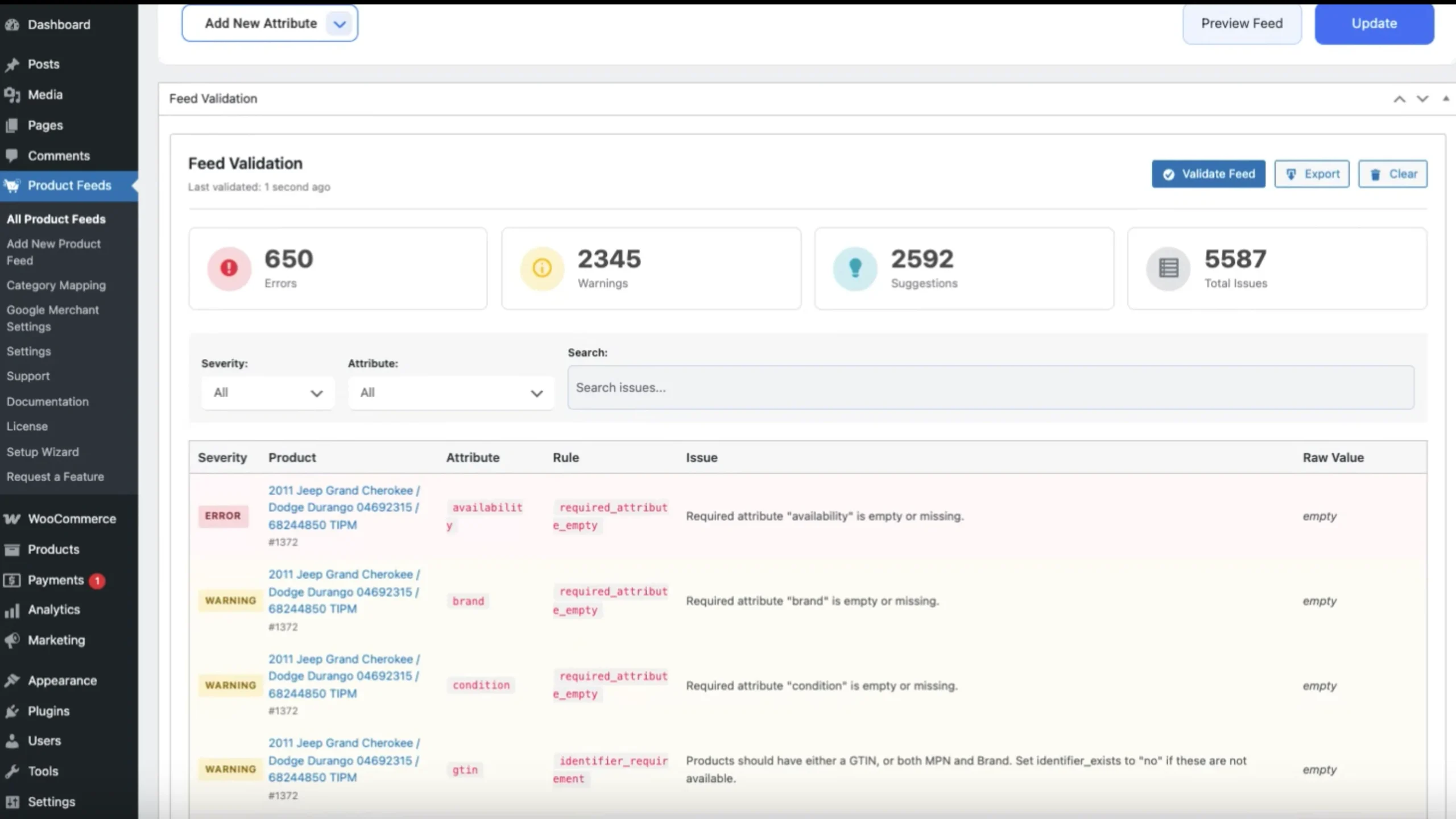
It takes a few minutes and saves you a lot of back and forth with Merchant Center.
- To learn more, read this guide.
Step 3: Fix Disapproved Products One Category at a Time
Once your feed is clean, the next step is dealing with disapproved products.
You don’t fix everything at once here. That usually leads to more confusion. Instead, go to Diagnostics and group your products based on the disapproval reason. Then fix one group at a time.
Here’s how to fix the most common ones:
- “Promotional overlay in image” — Go into your WooCommerce media library, find the product image, and remove the sale badge or any text directly from the image file itself. Upload the clean version, swap it out on the product page, and re-sync your feed.
- “Mismatched price” — Go into WooCommerce and check if there’s a Scheduled Sale still running on that product. If there is, end it, make sure the price on the product page matches what’s in your feed, then manually trigger a feed re-fetch.
- “Landing page not accessible” — Open your feed and copy the product URL. Paste it into a browser and see where it goes. If it’s landing on a category page or throwing a 404, go into WooCommerce and fix the product permalink. Also check that the URL in your feed starts with https:// and not http:// — that mismatch alone will trigger this error.
- “Missing return policy” — Create a dedicated return and refund policy page on your WooCommerce store, add a link to it in your site footer, and then go into Merchant Center under Business Information > Shipping & Returns and add the URL there as well.
Step 4: Request a Review for Suspended Accounts
If your account is suspended, fixing the issues is only part of the process. You still need to request a review to get your products back.
Go back to Google Merchant Center and follow these steps:
- Open Diagnostics and go to the Account Issues tab
- Click on the suspension notice
- Click Request Review
- Write a short explanation of what you fixed — keep it clear and factual
- Submit and wait for a response
The review usually takes around 3–5 business days.
Make sure you submit the request only once. If you send multiple requests, Google resets the review process and may delay your approval further.
Step 5: Enable Free Listings and Verify Your Website
Once your account and products are cleared, the next step is making sure your products are actually allowed to appear on Google Shopping.
Start inside Google Merchant Center:
- Go to Growth > Manage Programs and enable Free Product Listings
- Then go to Business Information > Website and confirm your domain is verified and claimed
If you’re using WooCommerce with the Google Listings & Ads plugin, this part is usually handled inside the plugin. You just need to check that the connection status shows Connected and the Merchant Center ID matches your account.
If this setup is incomplete, your products may stay hidden even if everything else is correct.
Step 6: Optimize Products That Are Approved But Not Showing
At this point, your products are approved. But approval doesn’t guarantee visibility.
If your products still don’t show, the issue is usually competition. Google decides which products to display based on how strong your listing is compared to others.
Here’s what you need to improve:
- Rewrite your product titles using this format:
[Brand] + [Product Name] + [Key Attribute] + [Size/Color/Material]. So instead of “Running Shoe,” it should be “Nike Air Max 270 Men’s Running Shoe – Black – Size 10.” Google uses your title heavily to match your product to search queries, so a thin title means fewer matches. - Use high-quality images:
Your main image should be clear, at least 800×800 pixels, with a clean or neutral background and no extra text or overlays. - Check your pricing against competitors:
Google factors price competitiveness into the Shopping auction. If your price is more than 20% above the average for the same product on Google Shopping, your product will consistently rank lower. Search for your own product on Google Shopping and see where your price sits relative to others. - Fill in all optional attributes:
Add details like color, size, material, age_group, and gender. These fields help your product show in filtered searches where buyers already know what they want.
Read- 10 Best Google Shopping Feed Optimization Tips to Drive More Sales [2026]
Quick Recap: Steps to Fix Google Shopping Not Showing Products
Now, you can see the pattern clearly. This is not just about sending product data from WooCommerce to Google Merchant Center.
What actually makes the difference is how clean, complete, and well-structured that data is. That’s what decides whether your products get impressions or stay hidden.
Here’s the full process, simplified:
- Run a full diagnostic in Merchant Center and fix account-level issues first
- Clean up your product feed and fix missing or incorrect attributes
- Group disapproved products by issue and fix them one category at a time
- Request a review if your account is suspended after fixing all issues
- Enable free listings and verify your website connection
- Optimize approved products to improve visibility and competitiveness
When Should You Get Professional Help?
Most Google Shopping visibility issues can be fixed by going through the steps above. But there are situations where it makes sense to bring in someone who does this every day.
If you’ve worked through everything in this guide and still have products getting disapproved, your account suspension keeps getting rejected after multiple review cycles, or you’re spending 3–4 hours a week just managing feed errors with nothing to show for it — that’s a sign the problem goes deeper than a standard fix.
A certified Google Merchant Center specialist or a WooCommerce Google Shopping agency can often spot account-level issues that simply don’t show up in the Diagnostics panel.
Things like policy flags tied to your domain history, feed conflicts specific to your WooCommerce setup, or patterns in your disapprovals that point to a broader structural issue. These aren’t things you’d necessarily find on your own, and the longer they go unfixed, the more visibility you lose.
Einpacken
Google Shopping visibility is not random. It depends on how clean your product data is, how well your setup follows Google’s rules, and how consistently your feed stays in sync inside Google Merchant Center.
Most issues you face are not permanent problems. They usually come from small gaps in product data, category mapping, or sync timing. Once you fix them step by step, your products start showing again in a predictable way.
If you want to reduce these kinds of issues from the start, it also helps to use a structured feed setup instead of handling everything manually inside WooCommerce. Rexfeed keeps your product data organized, synced, and mapped properly so you spend less time fixing errors and more time focusing on sales.
FAQs
How long does it take for products to show on Google Shopping?
Most products appear within 24–72 hours after they are added or fixed in Google Merchant Center. If there are Google Shopping feed errors, it can take longer because Google reprocesses the data first. In cases of Google Merchant Center disapproved products, nothing shows until the issues are resolved and approved.
Why has Google Shopping changed?
Google has become stricter with product data quality, policy checks, and feed structure in Google Merchant Center. This means even small Google Shopping feed errors can now stop visibility. If your Google Shopping not showing products issue continues, it usually comes down to stricter eligibility rules, not technical bugs.
What is the difference between Google Search and Google Shopping?
Google Search shows websites based on keywords, while Google Shopping shows product listings pulled directly from Google Merchant Center. To how to show up on Google Shopping, you need a properly structured feed, not just SEO content. That’s why Google Shopping not showing products is often a feed or approval issue, not a ranking issue.
How to make your product visible on Google Search?
To how to show up on Google Shopping, you need a complete and optimized product setup inside Google Merchant Center with no Google Shopping feed errors. Make sure product titles, categories, and pricing are accurate and that there are no Google Merchant Center disapproved products affecting your account. Once fixed, your visibility improves across both Shopping and Search surfaces.
Is there an alternative to Google Shopping?
Yes, you can use platforms like Meta Ads (Facebook/Instagram), Amazon listings, or TikTok Shop to reach buyers if Google Shopping not showing products persists. However, most of these still rely on structured product feeds similar to Google Merchant Center. So learning how to show up on Google Shopping remains valuable even if you diversify channels.
What tools automate Google Shopping feed optimization?
For WooCommerce, Product Feed Manager (Rexfeed) automates most of it: it applies optimization rules, refines titles and attributes, maps categories, and auto-syncs the optimized feed to Google on a schedule.

![Show Your WooCommerce Products on ChatGPT & OpenAI Ads with Product Feed [2026] 2](https://rextheme.com/wp-content/uploads/2026/08/Show-Your-WooCommerce-Products-on-ChatGPT-with-OpenAI-Product-Feed-1-407x213.webp)