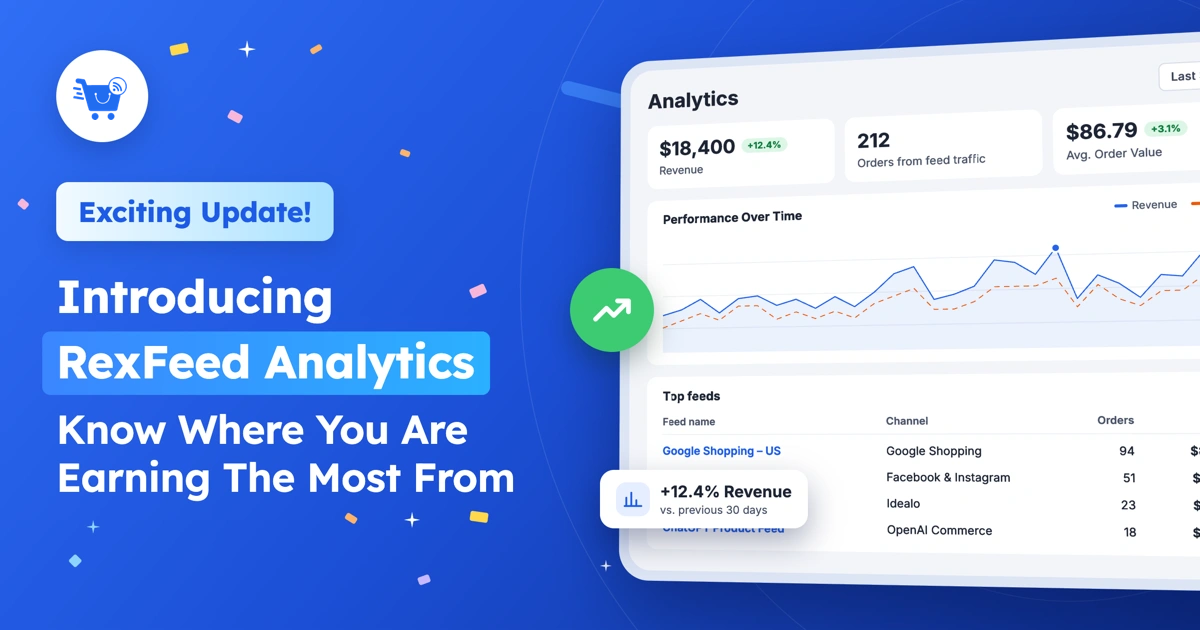
While you are busy running deals, it is important that you focus your energy on where you get the most return from.
You send your products to Google Shopping, Meta Marketplace, maybe Idealo or Bol.com, or any major online marketplaces to reach more buyers. But which channel is actually bringing in sales, and which one is not worth the effort?
Well, to help you stay on top of your results, we’ve brought a couple of useful features that you will surely love.
- The RexFeed Analytics
- MCP support
(via WordPress AI connector)
You can now see how many orders and how much revenue each feed, channel and product brought in, right inside your WordPress dashboard. And then, you can decide where to double down on.
On top of that, we know things are going to be very busy for the next couple of months. So to reduce your work, you can now command AI to execute feed generation for you!
The idea is to help you run your business in a data-driven manner while reducing your effort in execution.
Let us take a closer look at both.
I. Know Which Feeds Actually Bring In Sales – The RexFeed Analytics Dashboard
Until now, RexFeed took care of getting your products in front of buyers:
- Pick a channel,
- Build the feed from your WooCommerce data,
- Get it validated for errors before submission, and
- Keep it updated on a schedule.
But once the products were listed, one question was still not clear: Is it working?
To find out, you had to open Merchant Center for clicks, Meta for catalog stats, then WooCommerce for orders, and match them up yourself. Or maybe you had to use an external data management tool.
Of course, it’s important because you want to find the best channels to promote your products on.
Which marketplace brings the most revenue? Is the Bing product feed worth keeping? Do free Google listings sell, or only paid ads? Which products sell on which channel?
Now, with the new RexFeed analytics, you can easily find out.
You see orders, revenue, and average order value from your feed traffic, broken down by feed, channel, product, and UTM source, without leaving WordPress.
What You See On The Dashboard And How You Can Use It to Make Decisions
The following is everything you will get in the analytics dashboard.
- Overview
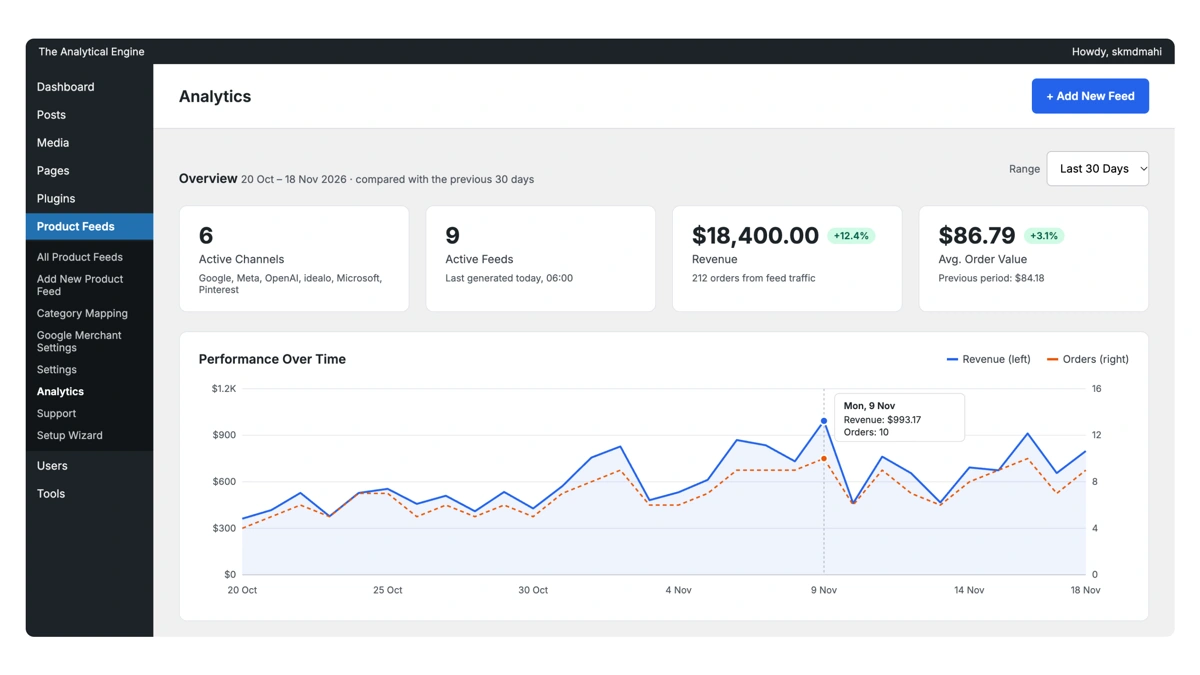
Here you can get a summary of the number of active channels, active feeds, total revenue earned, number of orders from feeds, and the average order value in a certain time period.
This is just to get a status update from the top. You can understand if you are getting enough average order value and if it dropped compared to the previous period.
- Performance Over Time
It is a chart that gives you an idea of the order distribution and revenue earned from the period of time you are viewing. This will help you understand when you had the highest amount of sales and when it may have dropped.
From this, you can recall the difference you made when sales were high and then plan to replicate them again in the future. And you may try to find out what you did during those sales drop periods that may need to be avoided/changed.
- Top feeds
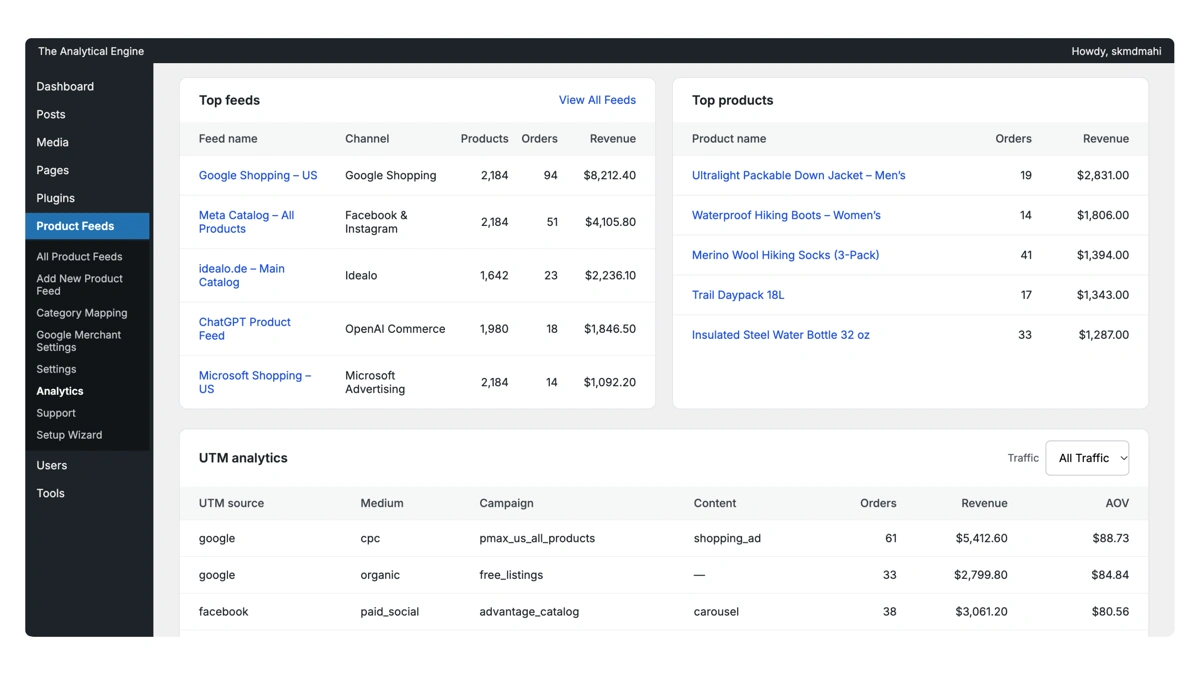
This gives you a quick glance at how each feed has performed so far, along with additional data including the number of products in it, orders, and revenue. Click the feed name to open it.
It will tell you which channel isn’t doing well for you so that you can evaluate what to improve there or if you should abandon this channel entirely.
- Top products
You can also look at which products brought the most orders and revenue from feed traffic. And then maybe double down on its stock, or promote it more aggressively, etc.
- UTM analytics
Orders, revenue, and average order value are tracked using UTM source, medium, campaign, and content. Each row shows the medium too, so paid Google Shopping ads and free listings sit side by side. Use the traffic filter to focus on one source at a time.
How To Put It Into Work Today?
Analytics follows one path: a shopper finds your product on a channel, clicks through to your store, and checks out through WooCommerce.
When you turn on tracking for a feed, RexFeed adds UTM parameters to every product link in that feed. The source, medium, and campaign are set for you, with the campaign set to the feed name, and you can change them in the feed settings.
UTM tags are tracking parameters that Merchant Center allows, and they don’t change your product URLs. If a feed already has UTM parameters, they stay as they are, and Analytics tracks with those. When a shopper arrives through one of those links and places an order on that visit, the order is counted for that feed, its channel, and the product.
A few things to know before you turn it on:
- You choose which feeds to track. Tracking is switched on per feed. A feed you leave off keeps working exactly as before. It just won’t show up in Analytics.
- It counts from the day you turn it on. Orders placed before that, or through older untagged links, are not added.
- Only orders placed on your store are counted. If a channel lets shoppers check out on its own platform, those sales stay with that platform and won’t appear here.
- It does not replace Merchant Center or Google Analytics. Those report on the whole channel, including impressions, clicks, and checkouts on the platform. Analytics answers a narrower question: is this feed bringing buyers to my store, and which products are they buying? The numbers won’t match, and they are not meant to.
Steps To Enable The Analytics Dashboard
This is a Pro feature and is included in all RexFeed Pro plans.
Once RexFeed Pro is installed and activated, there is nothing else to install or connect. Just switch tracking on for the feeds you want to measure.
- Go to Product Feeds > All Product Feeds and edit the feed you want to track.
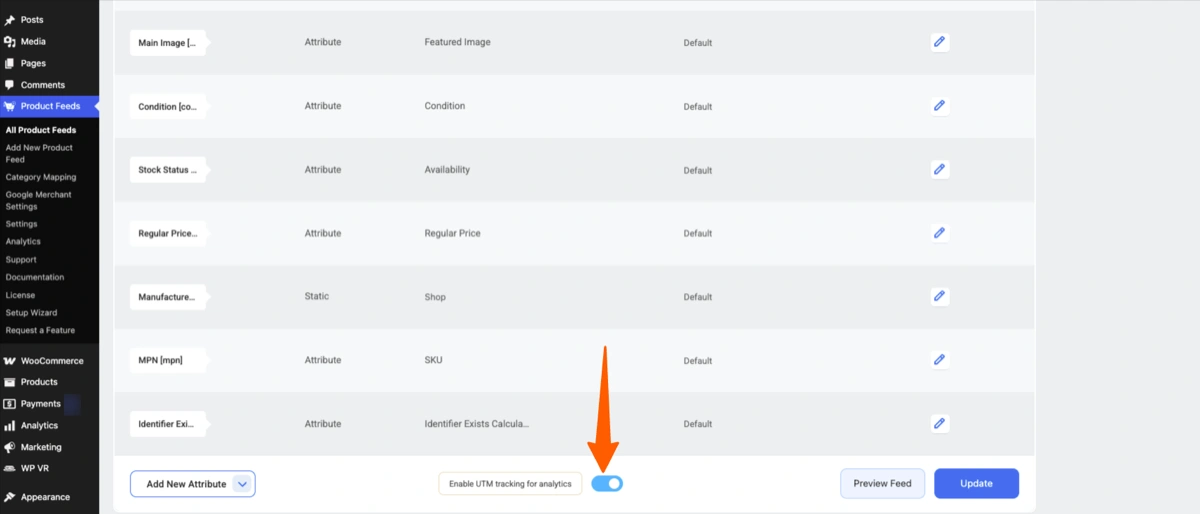
- Turn on Enable UTM tracking for analytics in that feed’s settings, then update the feed.
- Repeat for every feed you want in your reports.
- Then go to Product Feeds > Analytics. Pick a range, check the Overview cards and the chart, then scroll to Top feeds, Top products, and UTM analytics.
Give it a little time after you switch tracking on. The numbers fill in as new shoppers arrive through the tagged links.
Here is a quick guide you can follow.
II. Let an AI Agent Check and Refresh Your Feeds (MCP Support)
Maybe you already ask an AI assistant to handle routine store work. Until now, it could not see or touch your feeds.
MCP (Model Context Protocol) is a standard way for AI assistants to connect to tools.
WordPress 6.9 added the Abilities API, which lets a plugin say exactly what an assistant is allowed to do. RexFeed now registers five of these abilities. Connect your AI assistant to your WordPress site through a WordPress MCP connector, whether it’s ChatGPT, Claude or Gemini, and it can use them.
So instead of opening the plugin to check why a feed looks out of date, you can ask your assistant, and it can do the checking for you.
A quick note: this part needs some technical setup. If you do not use an AI assistant to run your store, you can skip it. Nothing changes in how RexFeed works for you.
What An AI Agent Can Do With Your Feeds
| Ability | What it does | Changes anything? |
|---|---|---|
| List feeds | Shows all your feeds with their channel, status and last run | No, read-only |
| Get feed status | Checks whether a feed is processing, completed or out of date | No, read-only |
| Validate feed | Runs the feed check and reports errors and warnings | No, read-only |
| Regenerate feed | Rebuilds a feed with your latest product data | Yes, replaces the current feed file |
| Create feed | Creates a new feed for a channel and publishes it | Yes, adds a new live feed |
How It Works in Practice
Example 1: “My Google feed looks out of date. Can you check and refresh it?”
- The agent lists your feeds and finds the Google feed.
- It checks the feed status and confirms it is out of date.
- It regenerates the feed.
- It keeps checking the status until the feed reports completed, so you do not have to sit and watch a feed that says processing.
- It validates the new feed and tells you about any errors it found.
Example 2: “Create a TikTok feed for my store.”
The agent creates the feed with the channel and options you asked for. When it is done, it gets the new feed’s ID and can regenerate it right away to build the first version.
If the channel you asked for needs RexFeed Pro and there is no active Pro license, no feed is created. The agent tells you an upgrade is needed instead.
How To Set Up MCP Support
You do not need to make any extra connection with RexFeed.
As long as you have connected your AI platform to the WordPress AI connector, you can command RexFeed from your AI platform chat.
- Here’s how to use the WordPress AI connector.
**You do not need to know how to code to use MCP.
What’s Next With RexFeed?
This is just what we launched immediately, considering the deal season ahead. You definitely want to take advantage of analytics and double down your efforts in the right marketplaces and get as much revenue earned as possible.
However, just to give you a little secret.
We are working on something big that will take “product feed generation” to another level. We are working on preparing an advanced version of the tool where your work will be minimized. AI will help do all the nitty-gritty, while you can focus on restocking, expansion, and earning more revenue.
You will hear more about it from us soon.
For now, give analytics a try.
If you haven’t already…