
Once you have added scene(s) to your virtual tour, you can then add text overlay to make the tour more engaging.
In this WPVR lesson, you will get a step-by-step guide on how you can add text overlay to a scene.
How To Add Text Overlay To A Scene In Your Virtual Tour #
1. Select a scene: Choose the scene where you want to add the Text Overlay.
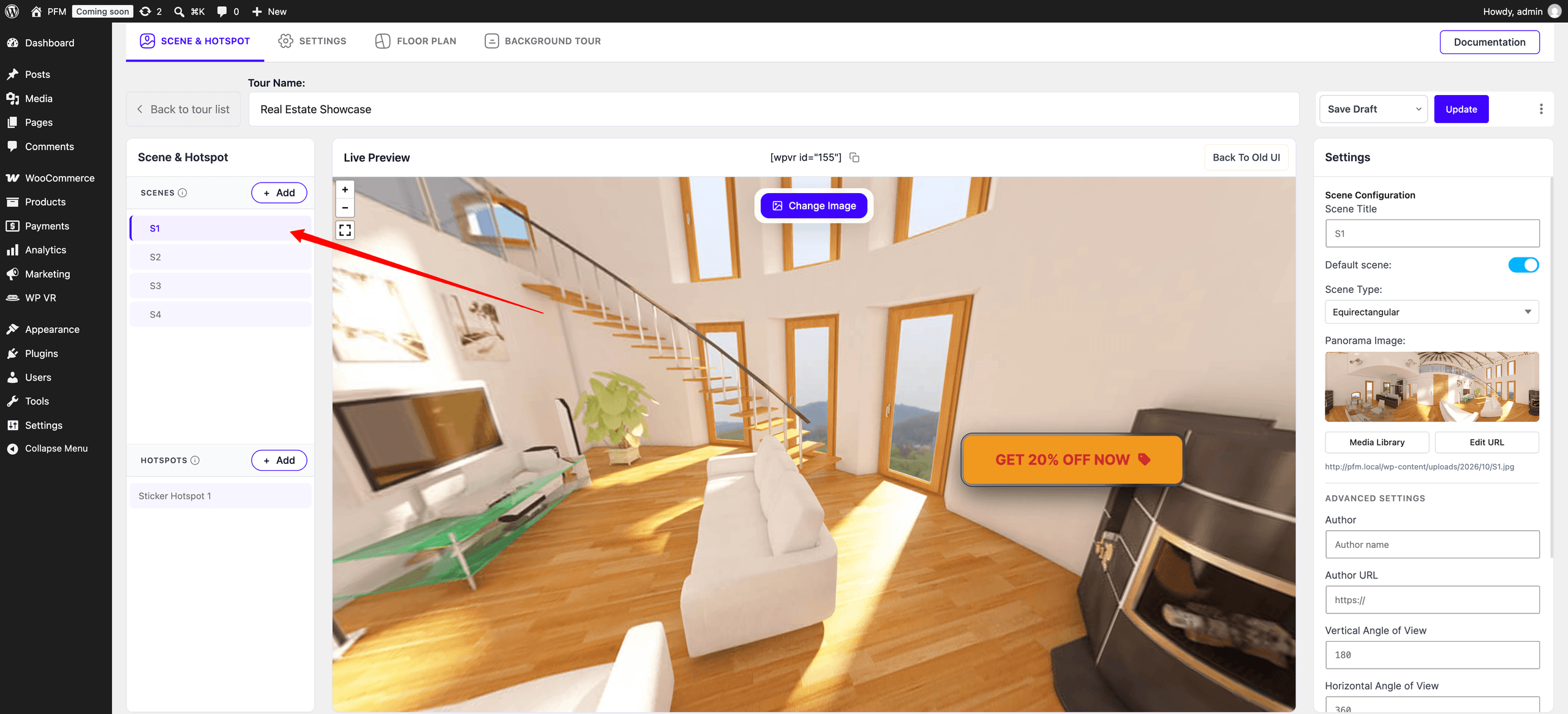
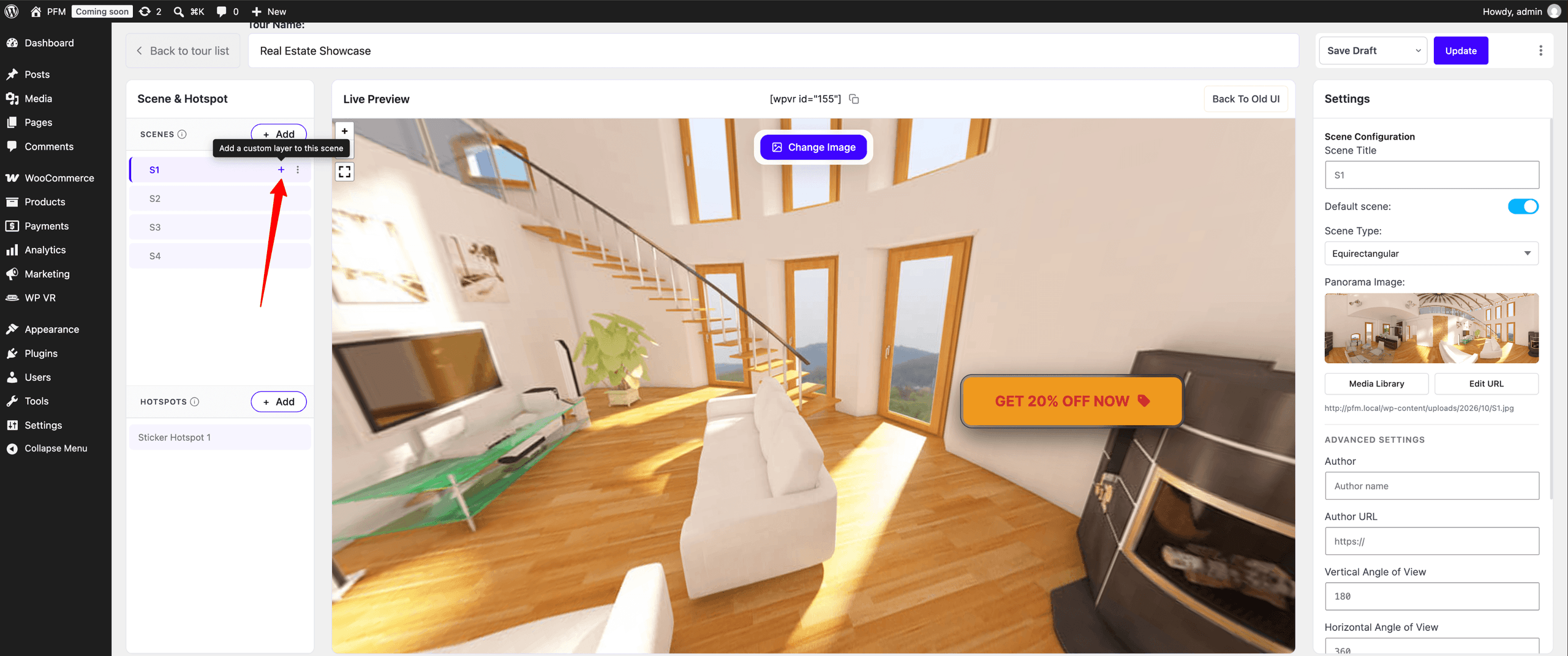
2. Click the + icon: Hover your mouse over the scene to reveal the + icon, then click it.
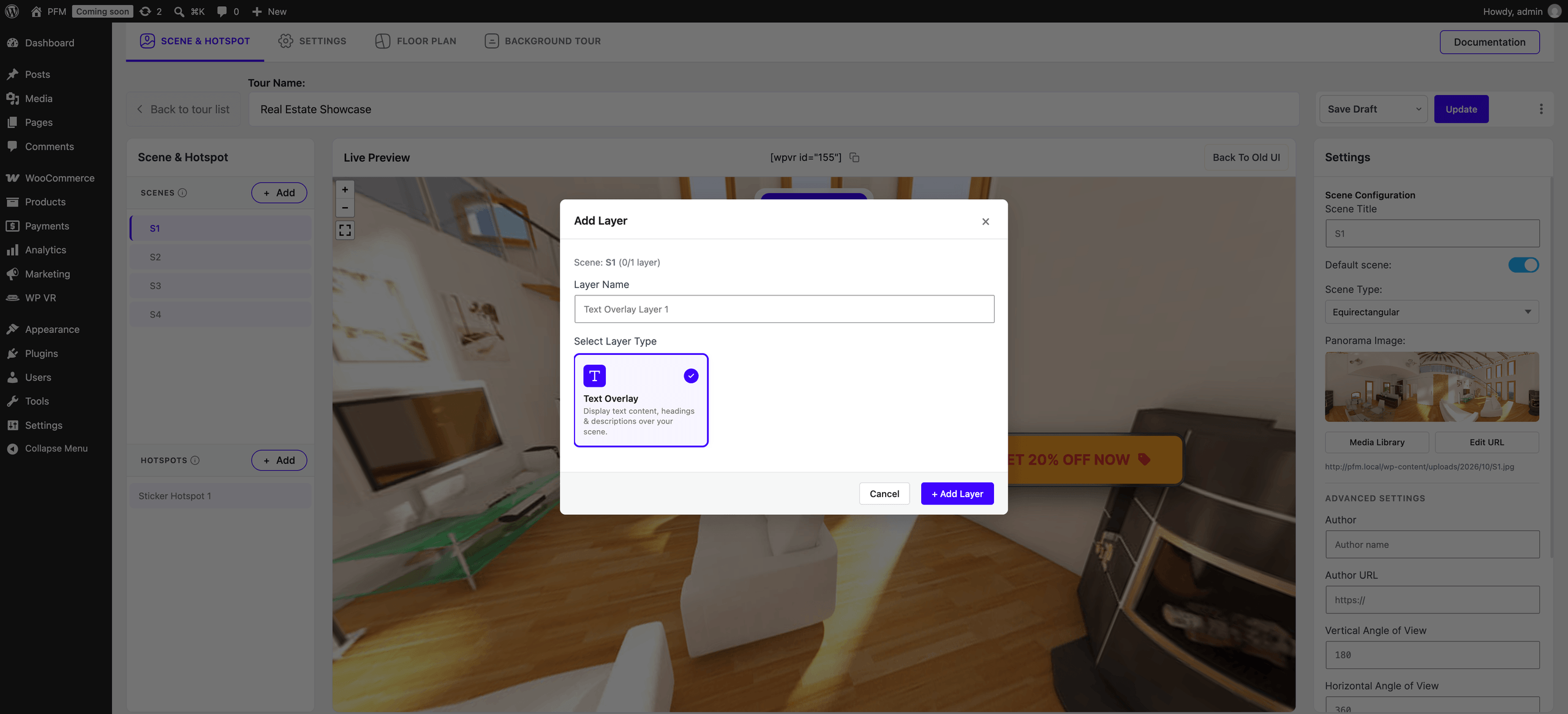
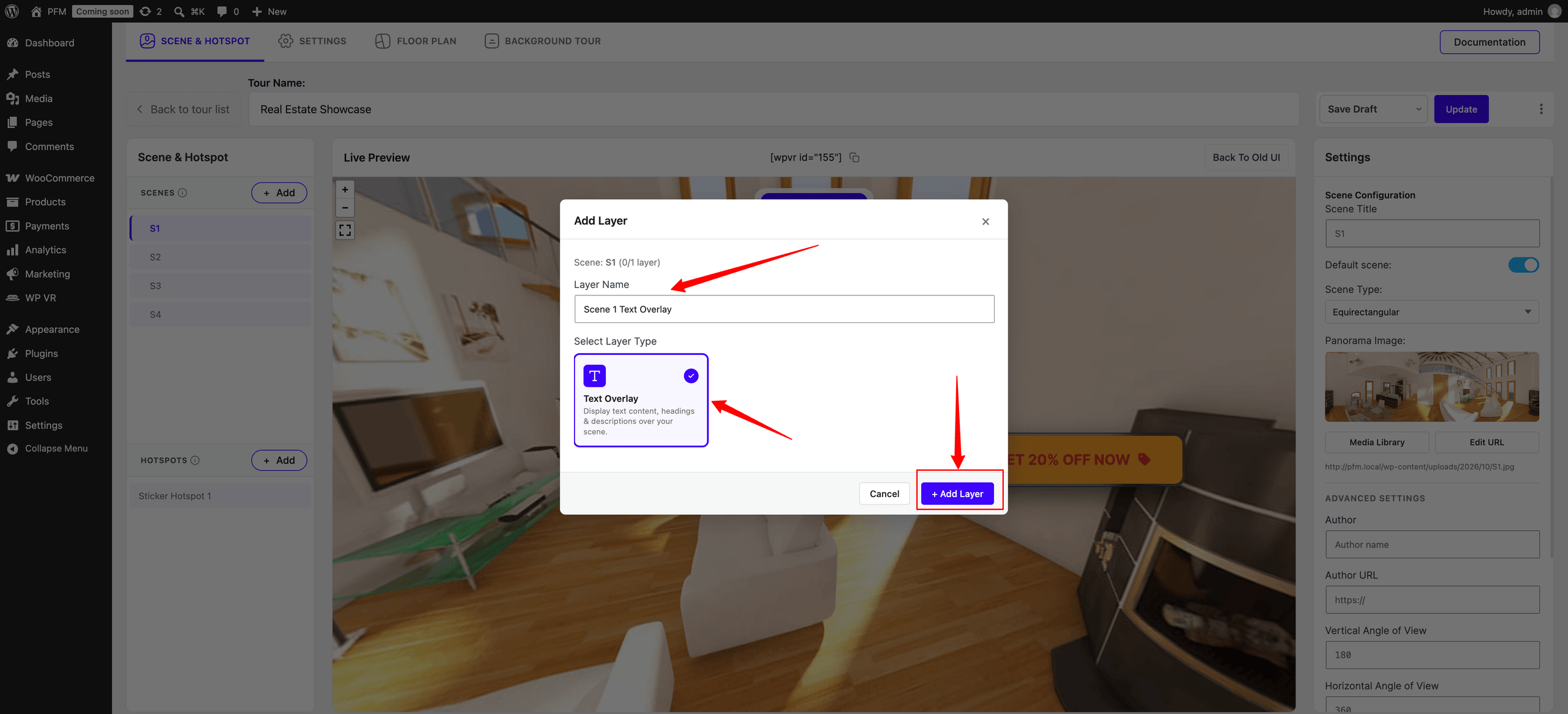
3. Configure the layer: An Add Layer popup will appear. Enter a layer name and select the layer type.
4. Add the layer: Click the + Add Layer button to create the layer.
5. View the Text Overlay: The Text Overlay will now appear on your scene.
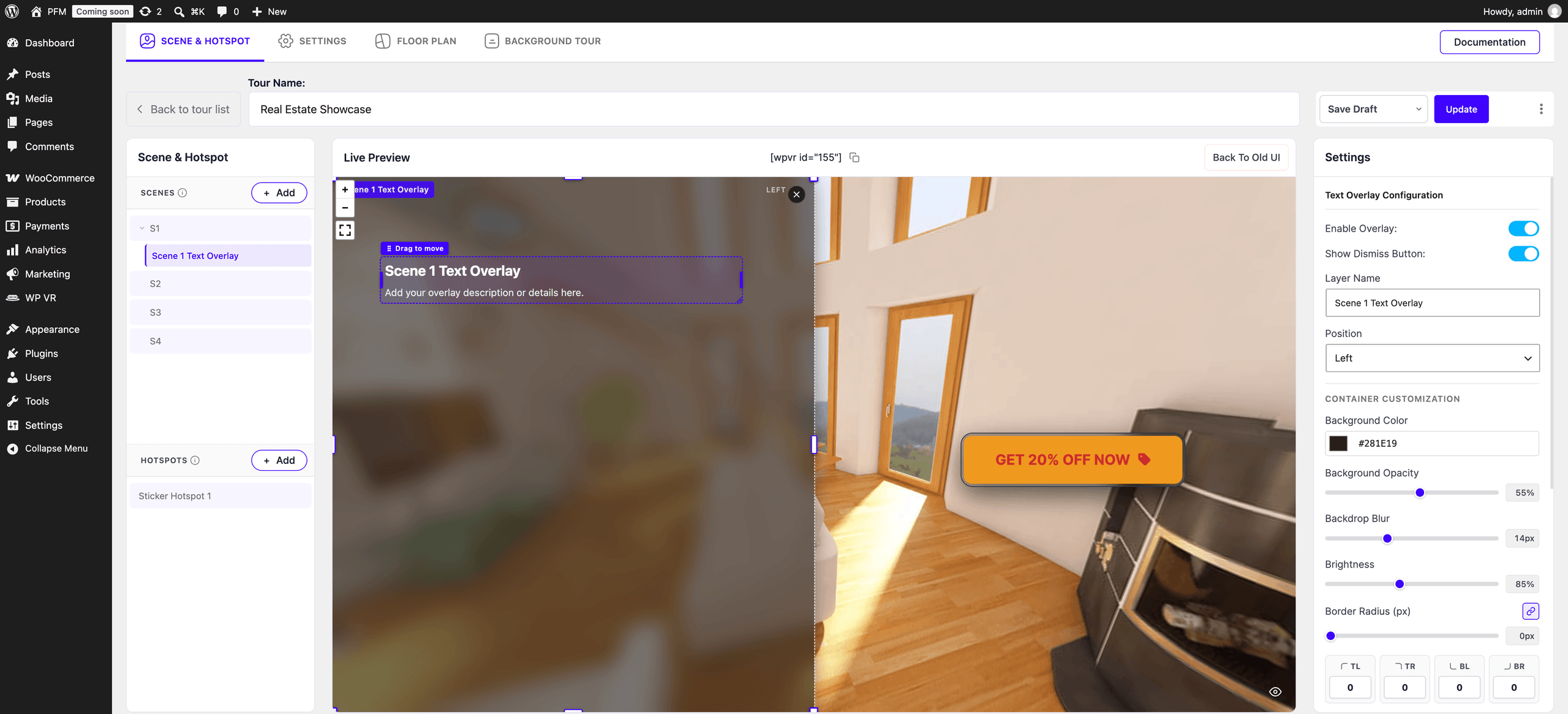
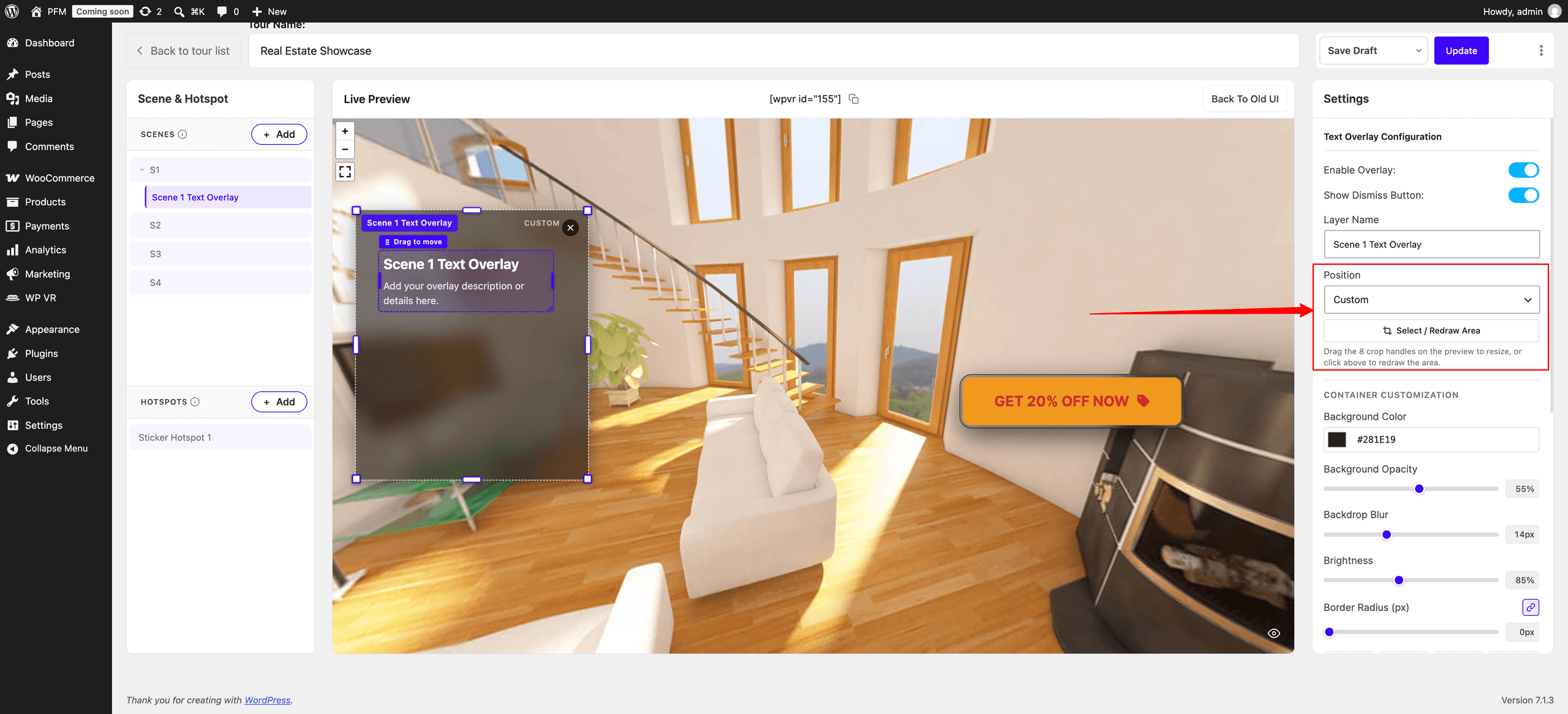
6. Set the position: Use the Text Overlay settings on the right to choose a position from the preset options. Alternatively, select the custom positioning option to place the Text Overlay anywhere on the screen.
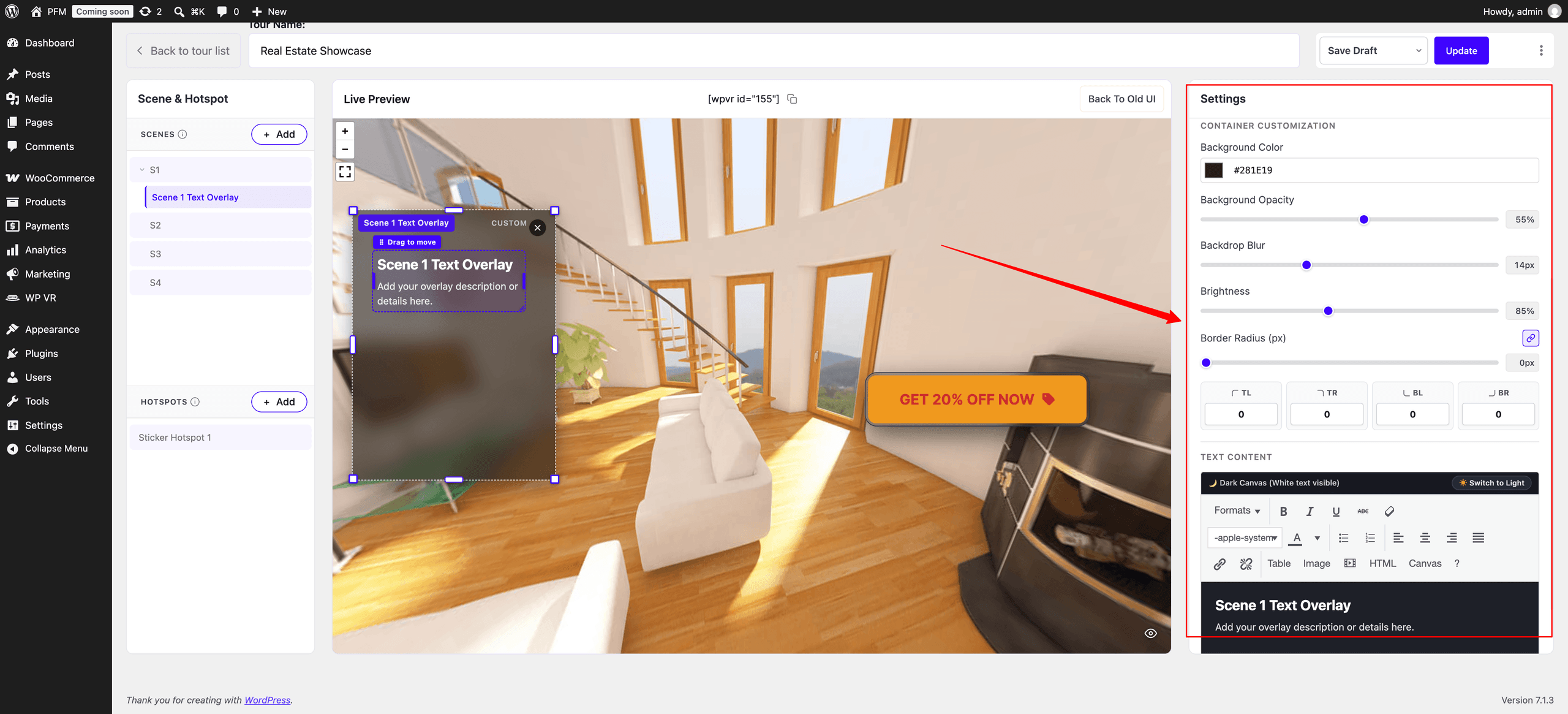
7. Customize the Text Overlay: From the settings on the right, you can customize the following options:
- Enable or disable the Text Overlay
- Show or hide the dismiss button
- Text content
- Background color
- Opacity
- Brightness
- Border radius
8. Save your changes: Once you’ve finished customizing the Text Overlay, click the Update button to save your settings.
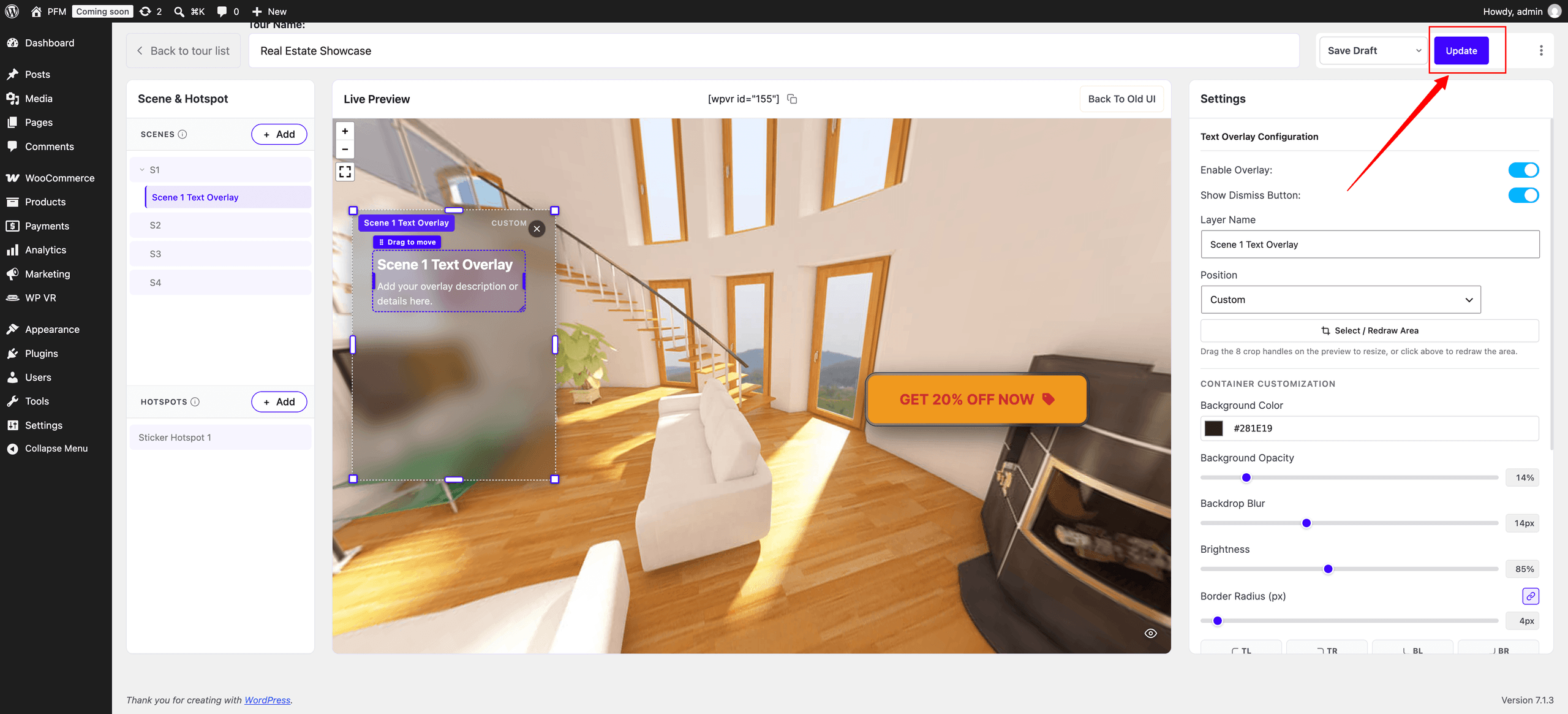
That’s it! You’ve successfully added and customized a Text Overlay in your scene
Note: You can only add only one text overlay per scene.