---
title: How To Use Hotspots To Show Information, Images Or Videos
description: "In the last lesson, you learned how you can easily add hotspots to a scene. In this [**WP VR**](https://rextheme.com/wpvr/) lesson, you will learn how you can use a hotspot to display information, images, or videos on your virtual tour. [https://www.youtube.com/embed/OpkIIzcJ3uA](https://www.youtube.com/embed/OpkIIzcJ3uA)…"
url: "https://rextheme.com/docs/wp-vr-hotspots-to-show-information-images-videos/"
updated: "2026-01-07"
category: "WP VR / Use Hotspots for Navigation & Information"
---
# How To Use Hotspots To Show Information, Images Or Videos
In the last lesson, you learned how you can easily add hotspots to a scene.
In this [**WP VR**](https://rextheme.com/wpvr/) lesson, you will learn how you can use a hotspot to display information, images, or videos on your virtual tour.
[https://www.youtube.com/embed/OpkIIzcJ3uA](https://www.youtube.com/embed/OpkIIzcJ3uA)
## **Hotspot Type**
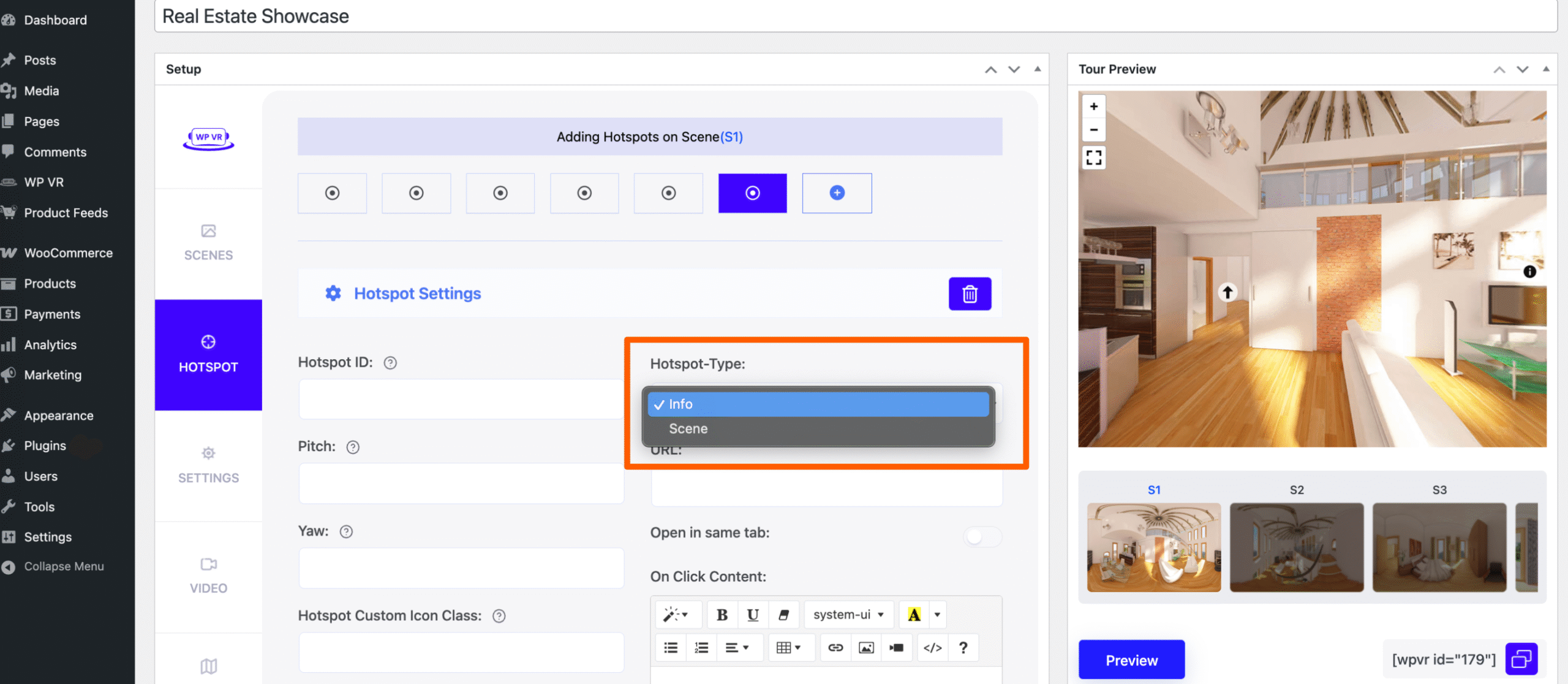
While setting up a hotspot, you will see that on the right side, you have an option to select hotspot type.
[](https://rextheme.com/wp-content/uploads/2019/02/hotspot-type-scaled.png)
Typically, there are two hotspot types:
- **Info**
- **Scene**
But you can get two more types if you use the **Addon for Fluent Forms Integration** or the **Addon for WooCommerce Integration**.
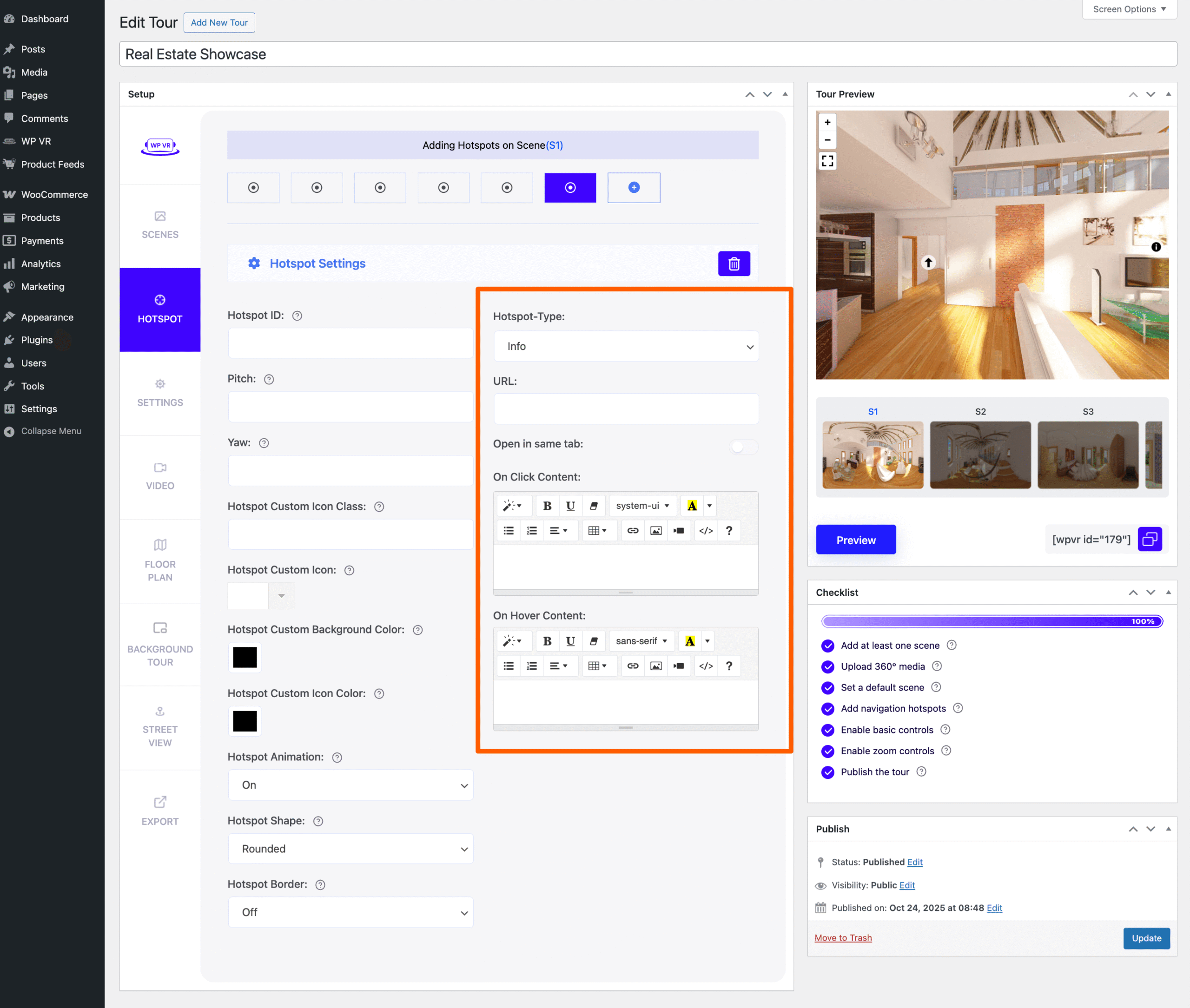
For displaying Information, Image, or Videos, you will need to choose the Info type hotspot, which is selected by default when you add a new hotspot.
[](https://rextheme.com/wp-content/uploads/2019/02/Hotspot-type-details-scaled.png)
Under the Info type hotspot, you will find three fields,
- **URL**: Here you can place a URL so that, when someone clicks on the hotspot, it will take them to that site on a new tab.
- **On Click Content**: Here, you can use HTML tags to view text, images, or videos. They will appear when the hotspot is clicked.
- **On Hover Content**: Here, you can use HTML tags to view text, images, or videos. They will appear when someone hovers the mouse on the hotspot.
***You can use both the On Hover Content and the On Click Content at the same time.*
***However, you cannot use URL and On Click Content simultaneously on a single hotspot.*
Now, let learn how to use them to
- Display Information On A Hotspot
- Display Images On A Hotspot
- Display Videos On A Hotspot
## **Display Information On A Hotspot**
If you want to display text on a hotspot when it is clicked, follow the steps below.
**1.** Use the paragraph tag,
, and input a text in the On click Content field.
For example:
```
This bed is soft and comfortable.
```
**2.** You can also use the
tags or apply CSS style to it.
For example:
```
This bed is soft and comfortable.
```

**3.** Then click on Preview, and on the Tour Preview, you will be able to view the text when you click on the hotspot.

## On Hover and On Click Content
If you want to display text on a hotspot when hovering on it, follow the steps below.
**1.** Insert a text in the On hover content field.
For example, "Master Bed 1"
*You do not need to add a paragraph tag as it is automatically set to a
tag by default.
**2.** You can use the
tags and apply CSS style to it. In this case, we advise you use the
tag.
For example:
```
Master Bed 1
```

**3.** Then click on Preview, and on the Tour Preview, you will be able to view the text when you hover your mouse on the hotspot.

## **Display Images On A Hotspot**
You might wish to display an image on a hotspot when clicked or when hovered.
Follow the steps below.
**1.** Prepare a code snippet with the HTML image source tag, img src.
Here's an example:
```
```
***Simply copy this snippet and replace the URL with the URL of the image you want to use, and set suitable width and height.*
**2.** Paste the code snippet on the On Click Content or the On Hover Content.

**3.** Then click on Preview and test it out on the Tour Preview.
Using it on On Click Content will mean the image will appear when clicked on the hotspot.

Using it on On Hover Content will mean that the image will appear when the mouse is hovered on the hotspot.
## **Display Videos On A Hotspot**
You might wish to display a Youtube video on a hotspot when clicked or when hovered.
Follow the steps below.
**1.** Go to the video you wish to display and collect it's [embed link](https://support.google.com/youtube/answer/171780?hl=en).

It will be an iframe link as shown below.
```
```
**Change the width and height as per your requirement.
**2.** Paste the link on the On Click Content or the On Hover Content.

**3.** Then click on Preview and test it out on the Tour Preview.
Using it on On Click Content will mean the video will appear when clicked on the hotspot.

Using it on **On Hover Content** will mean that the video will appear when the mouse is hovered on the hotspot.
That's it. That's how easily you can display information, images or videos on a virtual tour, using hotspots.
 ```
***Simply copy this snippet and replace the URL with the URL of the image you want to use, and set suitable width and height.*
**2.** Paste the code snippet on the On Click Content or the On Hover Content.

**3.** Then click on Preview and test it out on the Tour Preview.
Using it on On Click Content will mean the image will appear when clicked on the hotspot.

Using it on On Hover Content will mean that the image will appear when the mouse is hovered on the hotspot.
## **Display Videos On A Hotspot**
You might wish to display a Youtube video on a hotspot when clicked or when hovered.
Follow the steps below.
**1.** Go to the video you wish to display and collect it's [embed link](https://support.google.com/youtube/answer/171780?hl=en).

It will be an iframe link as shown below.
```
```
**Change the width and height as per your requirement.
**2.** Paste the link on the On Click Content or the On Hover Content.

**3.** Then click on Preview and test it out on the Tour Preview.
Using it on On Click Content will mean the video will appear when clicked on the hotspot.

Using it on **On Hover Content** will mean that the video will appear when the mouse is hovered on the hotspot.
That's it. That's how easily you can display information, images or videos on a virtual tour, using hotspots.
```
***Simply copy this snippet and replace the URL with the URL of the image you want to use, and set suitable width and height.*
**2.** Paste the code snippet on the On Click Content or the On Hover Content.

**3.** Then click on Preview and test it out on the Tour Preview.
Using it on On Click Content will mean the image will appear when clicked on the hotspot.

Using it on On Hover Content will mean that the image will appear when the mouse is hovered on the hotspot.
## **Display Videos On A Hotspot**
You might wish to display a Youtube video on a hotspot when clicked or when hovered.
Follow the steps below.
**1.** Go to the video you wish to display and collect it's [embed link](https://support.google.com/youtube/answer/171780?hl=en).

It will be an iframe link as shown below.
```
```
**Change the width and height as per your requirement.
**2.** Paste the link on the On Click Content or the On Hover Content.

**3.** Then click on Preview and test it out on the Tour Preview.
Using it on On Click Content will mean the video will appear when clicked on the hotspot.

Using it on **On Hover Content** will mean that the video will appear when the mouse is hovered on the hotspot.
That's it. That's how easily you can display information, images or videos on a virtual tour, using hotspots.