---
title: How to generate WooCommerce Product Feed for Zbozi
description: "This guide will show you how to create a product feed for Zbozi Marketplace using [Product Feed Manager](https://rextheme.com/best-woocommerce-product-feed/). ### Step 1: Understanding the Feed Requirements of Zbozi We provide a ready-made feed template for Zbozi. Where you'll find the required…"
url: "https://rextheme.com/docs/how-to-generate-woocommerce-product-feed-for-zbozi/"
updated: "2025-09-18"
category: Product Feed Manager / Feed Generation Instructions
---
# How to generate WooCommerce Product Feed for Zbozi
This guide will show you how to create a product feed for Zbozi Marketplace using [Product Feed Manager](https://rextheme.com/best-woocommerce-product-feed/).
### Step 1: Understanding the Feed Requirements of Zbozi
We provide a ready-made feed template for Zbozi. Where you'll find the required attributes already included. To know more about Zbozi's additional/recommended attributes please check out [Zbozi's official Documentation](https://napoveda.zbozi.cz/en/xml-feed-2/specification/).
### Step 2: How to create a Zbozi product feed using the Product Feed Manager
Go to your product feed dashboard.
Click on the **Add New Feed** button.
It will take you to the feed creation page.

Now, here,
**1.** On top, you will get the option to add a title to the feed. Give your feed a name.

**2.** Just under the title, you will see an option to select your preferred merchant. Simply click on the Feed Merchant dropdown button and select your preferred merchant from the dropdown or you can search in the dropdown box.

Select your preferred merchant and all the required attributes will be loaded below.
Let’s select the Zbozi feed.
[](https://rextheme.com/wp-content/uploads/2024/08/Zbozi-feed-config.png)
**3.** Here, you will see that most of the values are assigned. However, you can assign. the values as per your need that also Zbozi accepts.
That's it you can now publish your feed if you do not wish to add any additional attributes.
### Step 3: How to add Param attributes in the feed
Zbozi has additional parameters that can be used to filter products on the Zboží.cz website.
The tag has the following sub-tags:
****mandatory, parameter name e.g. length, volume, size, color, purpose
**** *mandatory, parameter name* e.g. 110, 500, XXL, black, children’s
Will show the configuration below:
**1.** From the **Add New Attribute** drop-down button select the **New Custom Attribute**
[](https://rextheme.com/wp-content/uploads/2024/08/custom-attribute-1.png)
For example, we will add a size param attribute for Zbozi Merchant
**2.** For that we'll name the **New Custom attribute** to **size** as Zbozi outlined on their [Doc](https://napoveda.zbozi.cz/en/xml-feed-2/specification/) and assign the value to map your WooCommerce product value.
[](https://rextheme.com/wp-content/uploads/2024/08/size-attribute.png)
### Step 4: How to add Delivery attributes in the feed
To configure delivery information in your Zbozi feed, please follow the steps below:
**1.** From the **Add New Attribute** drop-down button select the **New Custom Attribute**.
[](https://rextheme.com/wp-content/uploads/2024/08/custom-attribute-1.png)
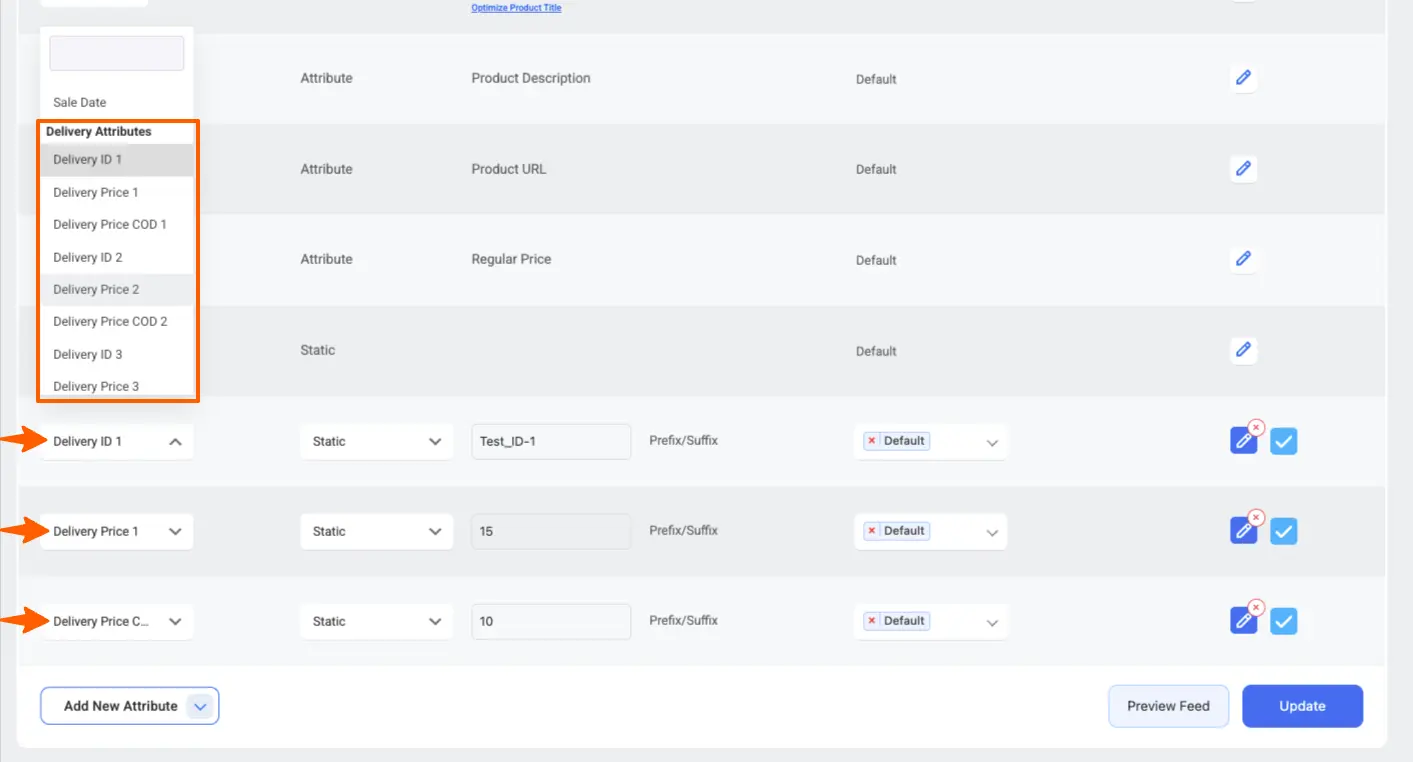
**2.**You will need to manually add three attributes to your feed:
**Delivery ID 1**
- Click to add a new attribute.
- From the Attribute selection dropdown, choose **Delivery ID 1 > Static**.
- Input your static delivery ID value (for example: `DPD_PICKUP`).
**Delivery Price 1**
- Add another attribute.
- From the Attribute selection, choose **Delivery Price 1**.
- Enter your static regular delivery cost (e.g., `4.99`).
**Delivery Price COD 1**
- Add a third attribute.
- From the Attribute selection, choose **Delivery Price COD 1**.
- Enter your static delivery cost when offering cash on delivery (e.g., `6.99`).
[](https://rextheme.com/wp-content/uploads/2024/08/Delivery-zbozi.webp)
**3.** After you have added all necessary delivery attributes, **save** and **publish** your feed.
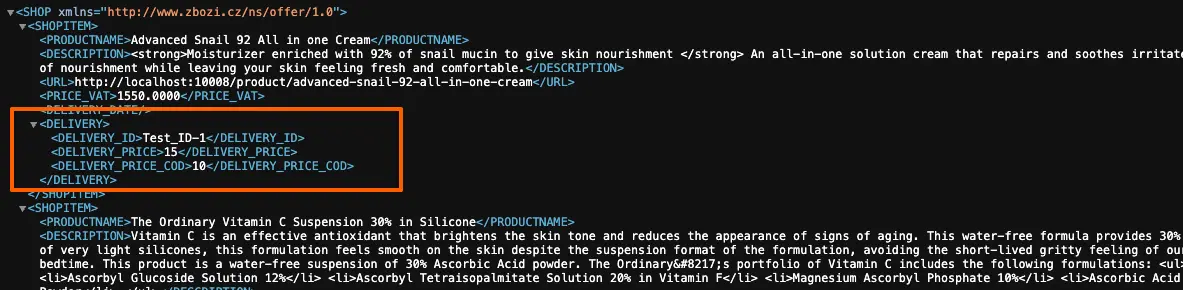
Once completed, your delivery details will appear in the feed structure similar to this:
[](https://rextheme.com/wp-content/uploads/2024/08/Delivery.webp)
**Important Notes**
- You can configure up to **4 delivery sets** per feed if you offer multiple delivery options.
- Each set must have its own Delivery ID, Delivery Price, and Delivery Price COD values.
Now click the Publish or Update button to save the configuration.
That’s it. Your WooCommerce product feed for **Zbozi** is generated and ready to publish to the Merchant center.